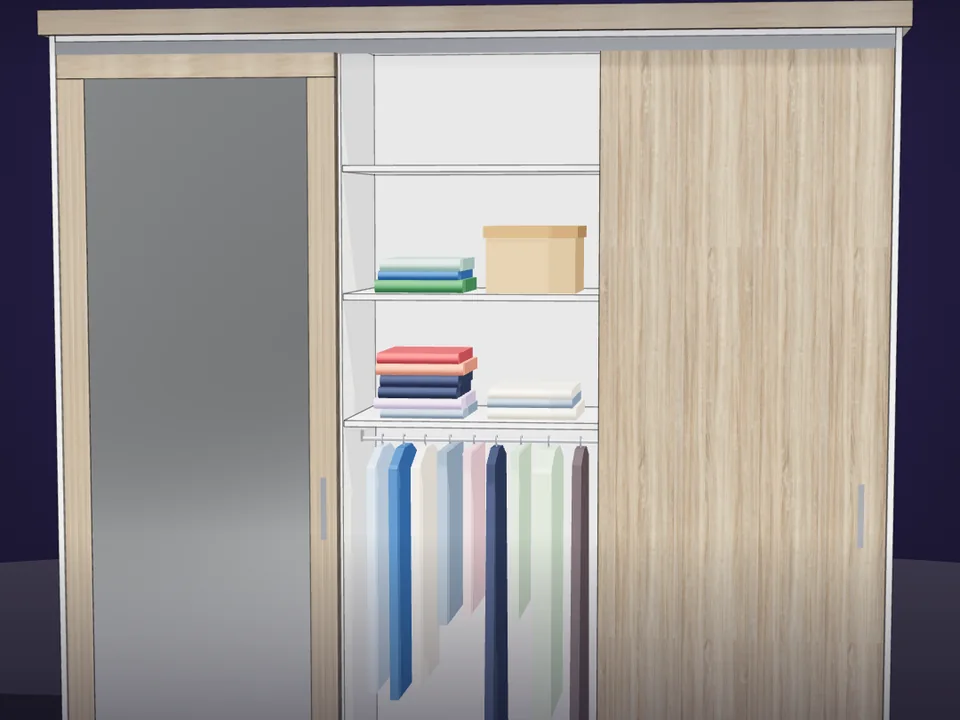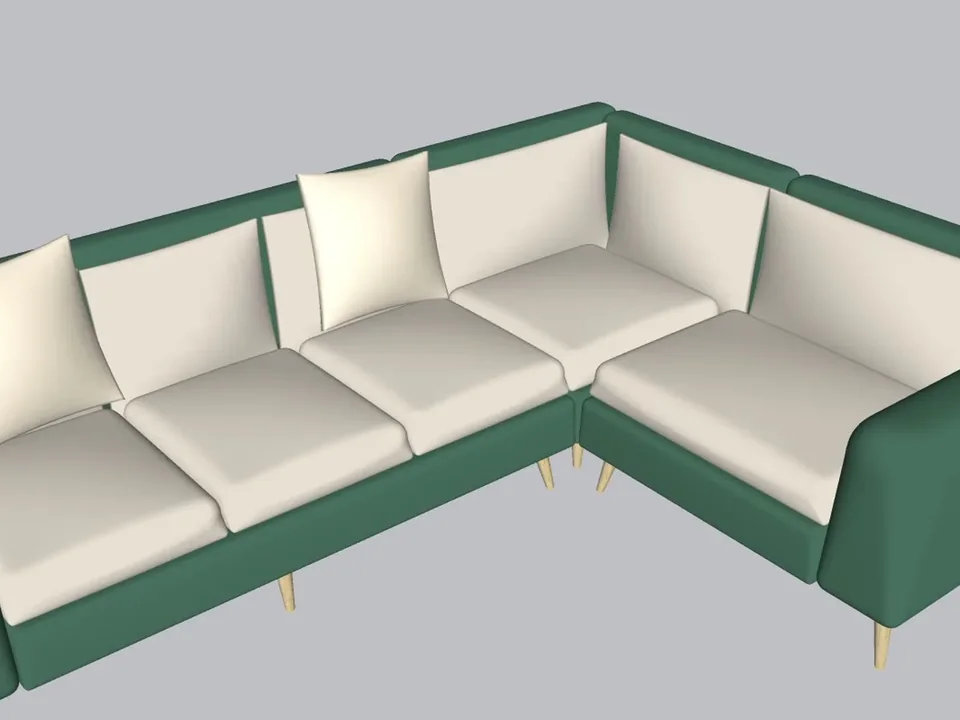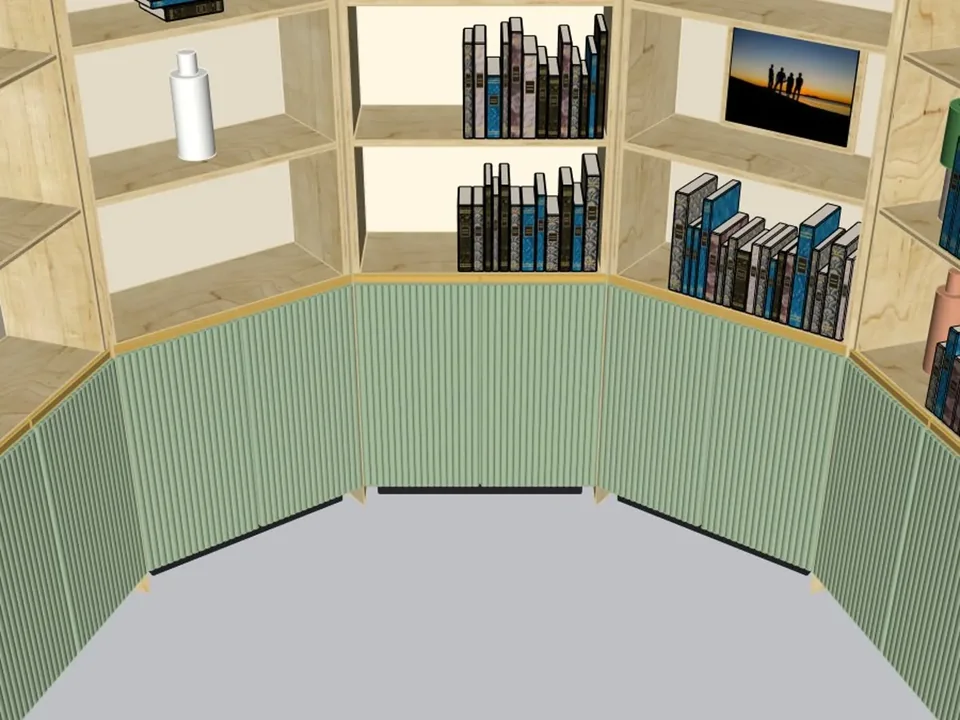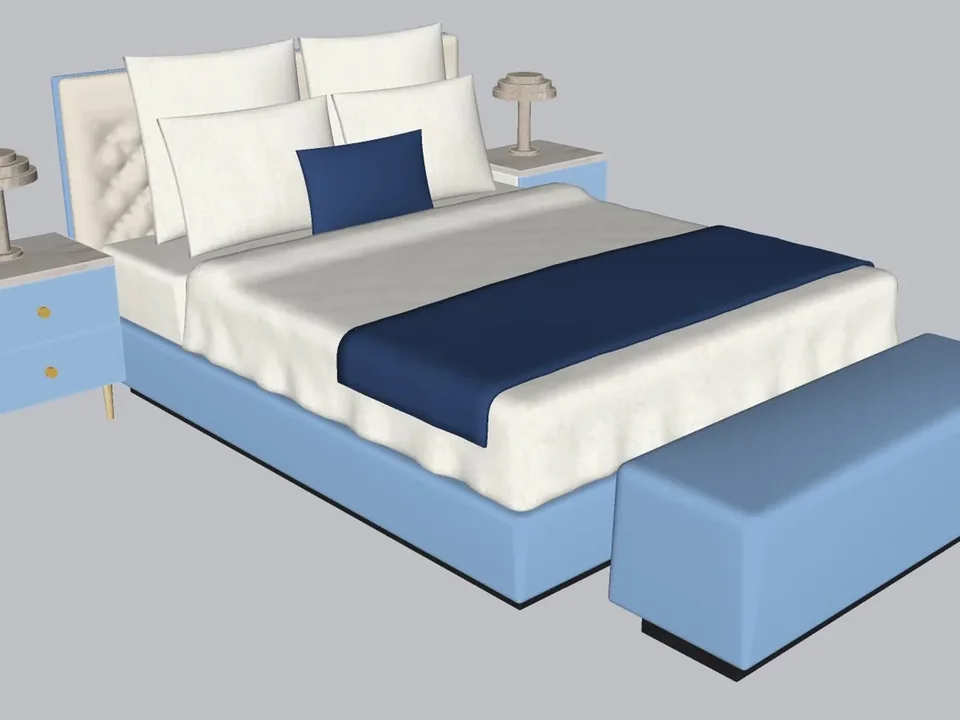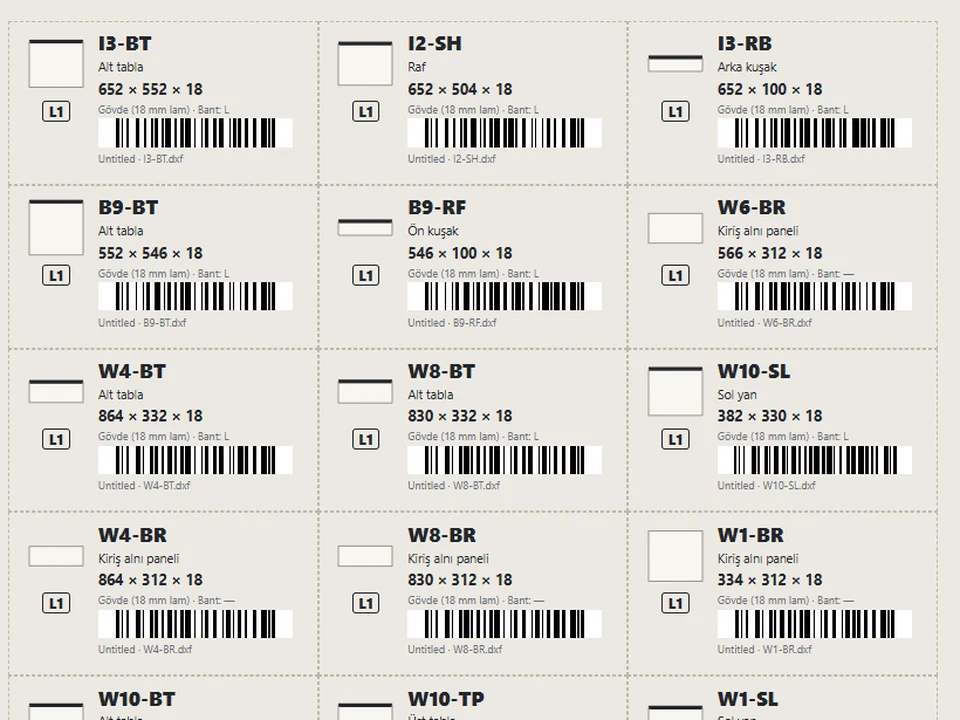
You did not get into design or joinery to spend your evenings hunting for the right-sized block. Picture the meeting instead: the client wants the wardrobe 30 cm wider, a washer tower beside it and a different door, and with a folder of fixed components every answer is “I will send it tomorrow”. A parametric library plugin for SketchUp answers on the spot, because it stores rules instead of finished models: you type the size, and every panel is rebuilt from formulas rather than stretched. The proof is in what comes out of it. In CabinetWizard, the same build that draws the unit also writes the quote, the cut list, the drilling schedule and the CNC files. The advantage is simple: the library works at the speed of the conversation, and the workshop gets numbers that match the drawing.
What is a parametric library plugin for SketchUp?
Every SketchUp user already has a library: a component folder, a set of downloads, a few favourite models from colleagues. Each item in it is a result: one sofa at one width, one wardrobe for one wall. A parametric library keeps the recipe instead. It knows that a wardrobe has a carcass, sections, tiers, doors and a plinth; that a kitchen run has base units, wall units and a worktop; that a bookcase has bays and shelves. You give it a width, a height, a depth and a few choices, and it builds the parts for that case, with thicknesses, gaps and joints worked out. That is why one parametric family can stand in for dozens of fixed models, and why its parts can carry real cut sizes.
Component folder, Dynamic Components or a parametric library plugin?
These three are often lumped together, but they solve different problems. The quickest way to choose is to look at who writes the rules and what comes out at the end.
- A folder of components. Finished, fixed models. Fast to drop in, but scaling them stretches the 18 mm sides, the handles and the legs, and the cut list no longer tells the truth.
- Dynamic Components. SketchUp's own way to make a component respond to attributes and formulas. They can resize parts cleanly, but you author the attributes and formulas yourself, component by component, and you maintain them when something changes.
- A parametric library plugin. The rules arrive already written, usually by someone who knows the trade, for a whole family of objects. You pick a type and type a size; the plugin builds the parts, keeps them editable after placement and, if it is made for production, turns them into documents the workshop can use.
Fixed models still have their place: once a client has chosen a specific manufacturer's product, that manufacturer's model is the honest choice, and our guide on picking 3D Warehouse models without slowing your file covers that side. A parametric library earns its keep earlier, while the design is still a decision.
What to look for when choosing a parametric library plugin
Whether the library holds cabinets, furniture or kitchens, the same seven questions separate a configurator that looks good in a demo from one you can run a business on.
- It rebuilds, it does not scale. Change the width and check that panel thickness, handles and legs stay as they were while the number of sections or shelves adapts.
- The trade's rules are built in. Hinge types, runner lengths, door gaps, minimum clearances: a good library applies them without being asked, the way an experienced maker would.
- It stays editable after placement. You should be able to change a unit already in the model and have it refresh in place, not pile up a second copy.
- It keeps the model light. Identical parts should arrive as instances of one component, with materials shared by name.
- One source of truth. The drawing, the quote and the cut list should read the same result, so nothing is measured twice.
- Output your workshop can read. CSV cut lists, drilling data and DXF or machine files, not just a pretty picture.
- It is honest about versions and limits. Clear SketchUp version support, clear install notes and a published list of what it does not do.
A worked example: CabinetWizard as a parametric cabinet and furniture library
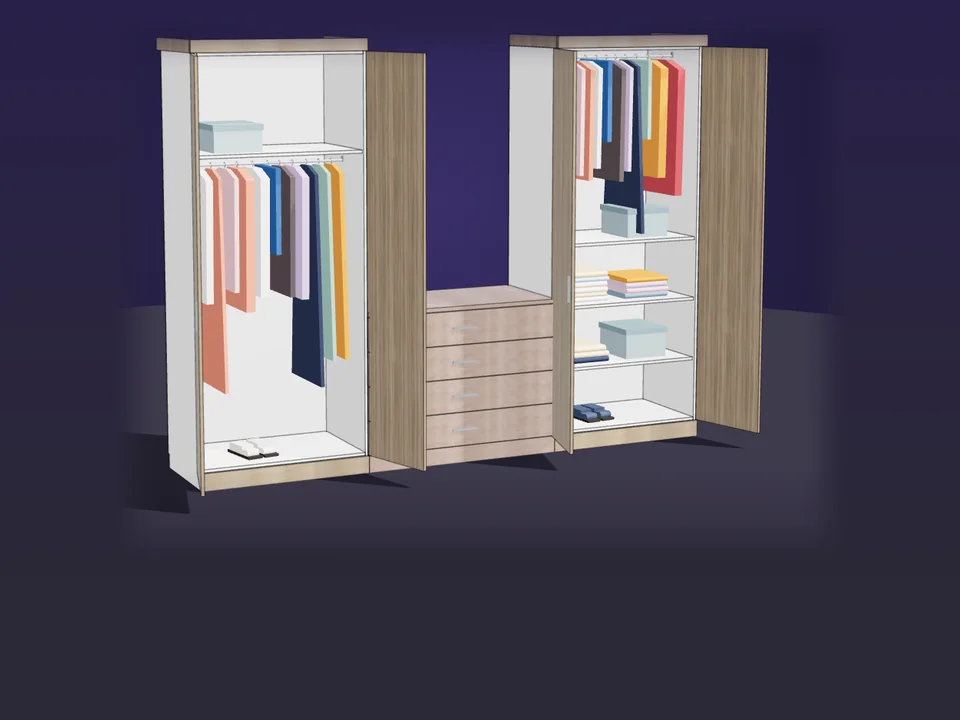
CabinetWizard is our own parametric library, and it shows each point on that list in practice. Its library is broader than wardrobes: six product families (wardrobes, bathroom cabinets, laundry cabinets, TV units, shoe cabinets and bookcases) with 25 ready models, from a 2-door wardrobe to a double-basin vanity and a TV media wall. You build module by module, side by side, each module at its own size and with its own interior, and you can turn the corner into an L or a U, with the blind panel and corner filler added for you.
Rebuilt from formulas, with the joiner's rules inside
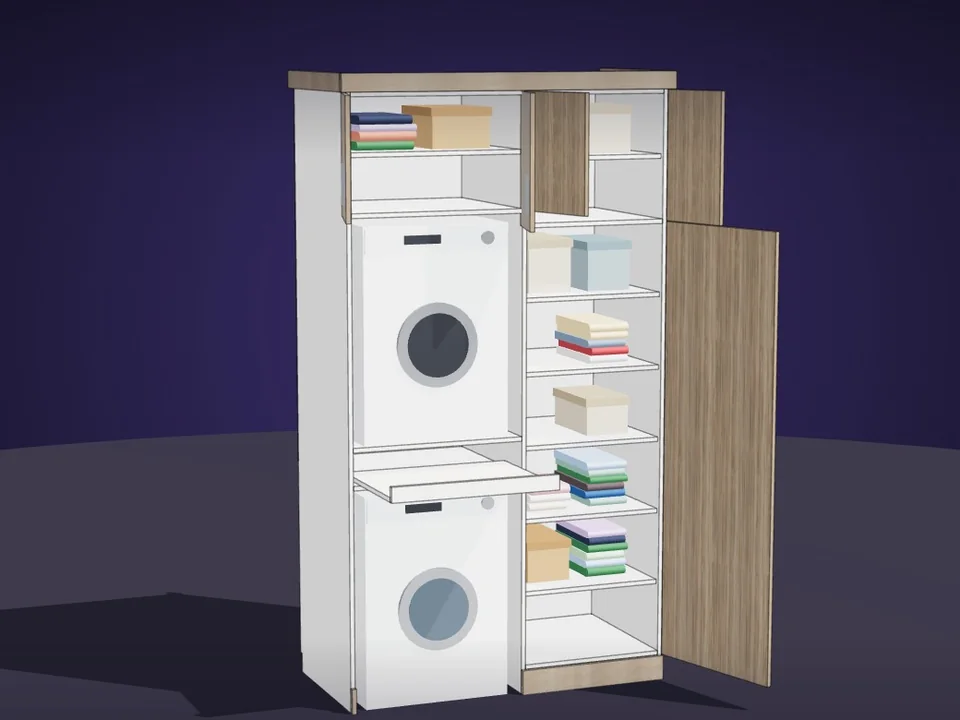
Nothing is scaled. Change a width, height, depth or section and every part is recalculated from formulas. Any section splits into tiers from bottom to top, across 7 tier types, so a single column can hold a washer, a pull-out shelf, a dryer and a top cupboard. The rules a cabinetmaker carries in their head are written in: the hinge type follows the door position, hinges on a shared upright shift 32 mm so the screws never meet, drawer runners stay at standard lengths between 250 and 600 mm, and a hinge never lands on a shelf. A permanent check builds 4,389 cabinets (77 models in 57 variations) and confirms that no part overlaps another, no hole lands on another hole and every drawn part matches its cut size.
Drag-and-drop design on a true-scale elevation
The Design Bench opens on a true-scale front elevation with a card palette beside it: modules, sections, tiers, doors and accessories. Drop a card where you want it, or double-click a spot in the drawing to add one there. Pull the line between two modules and one grows while the other shrinks, with the total kept the same. Materials are part of the library too: the carcass and doors take a board (chipboard, MDF, plywood, solid wood or compact) and a finish (melamine, paper, acrylic, laminate, membrane, lacquer or varnish), priced from the figures your workshop enters, or your own colour by RAL or hex code.
From the SketchUp model to the quote, cut list and CNC files
In SketchUp the unit arrives as real solids, grouped and tagged, with identical parts as one component. Select a panel and its name, cut size, board, finish and edge banding are stored on the part, and the holes are marked on its faces on their own tag. Update Selected refreshes a placed unit in place instead of adding a new copy. From the same build you get the quote with labour, margin and VAT from your own prices, a CSV cut list, a hardware list, a drilling schedule, DXF files (also one per part) and a CNC router program per sheet. If you want the wider picture on getting a reliable list out of any model, read three ways to get a SketchUp cut list.
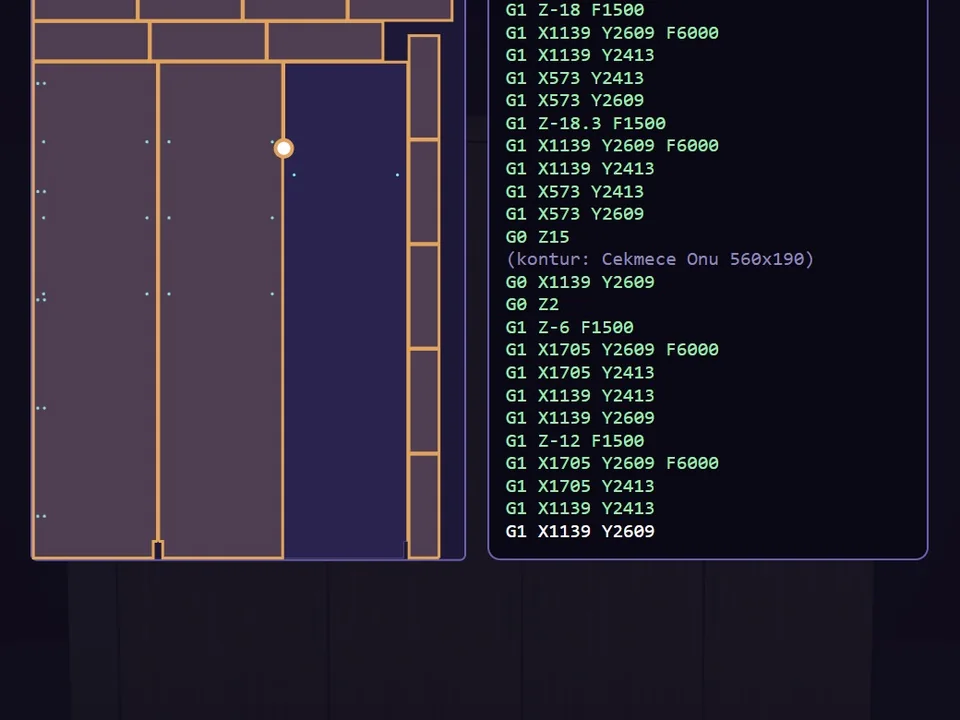
For the cabinet-only view, with door styles, handles, drawers and finishes one by one, our deep dive on the parametric cabinet library plugin for SketchUp goes further than this guide.
Furniture, kitchens and wardrobes: matching the library to the job
No single parametric library covers every object well, so the honest move is to match the library to the job. Our three interior tools split the work cleanly, and each one works on its own.
- Furniture to furnish a scene: FurniFun. 18 furniture types in one panel, drawn along a wall in two clicks, resized with the blue ball, restyled with the dice and recoloured with eight palettes. It is built for design and visualisation and makes no cut list.
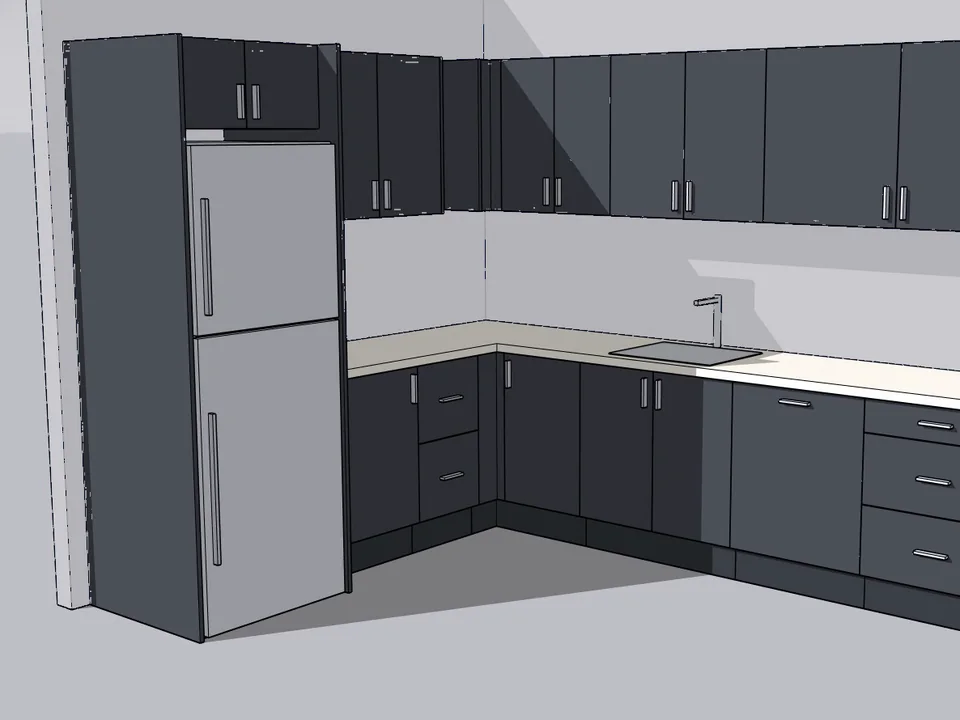
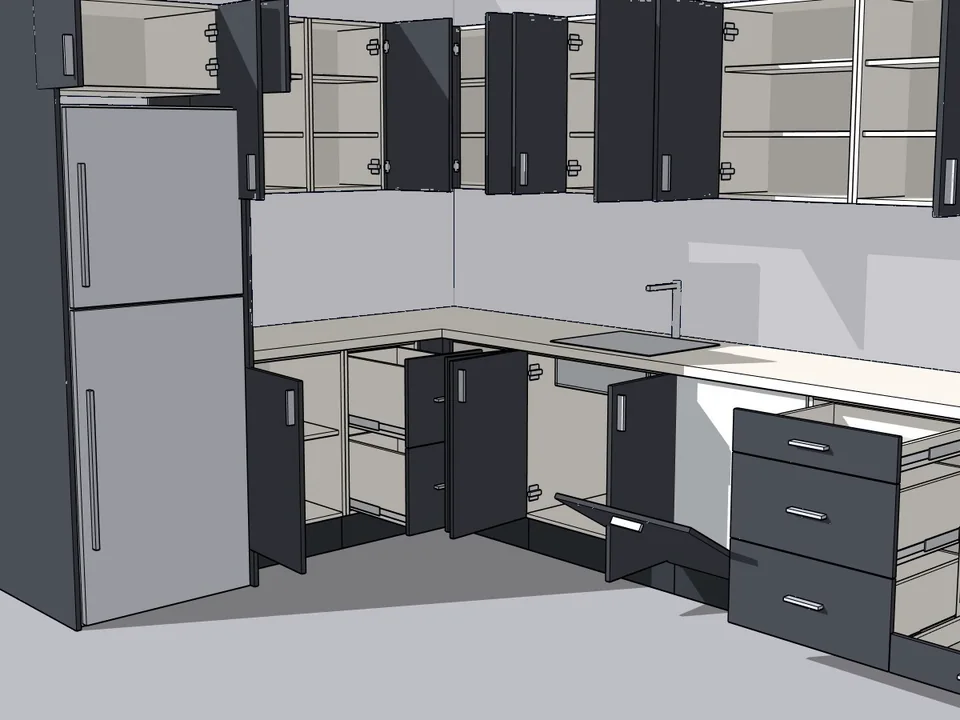
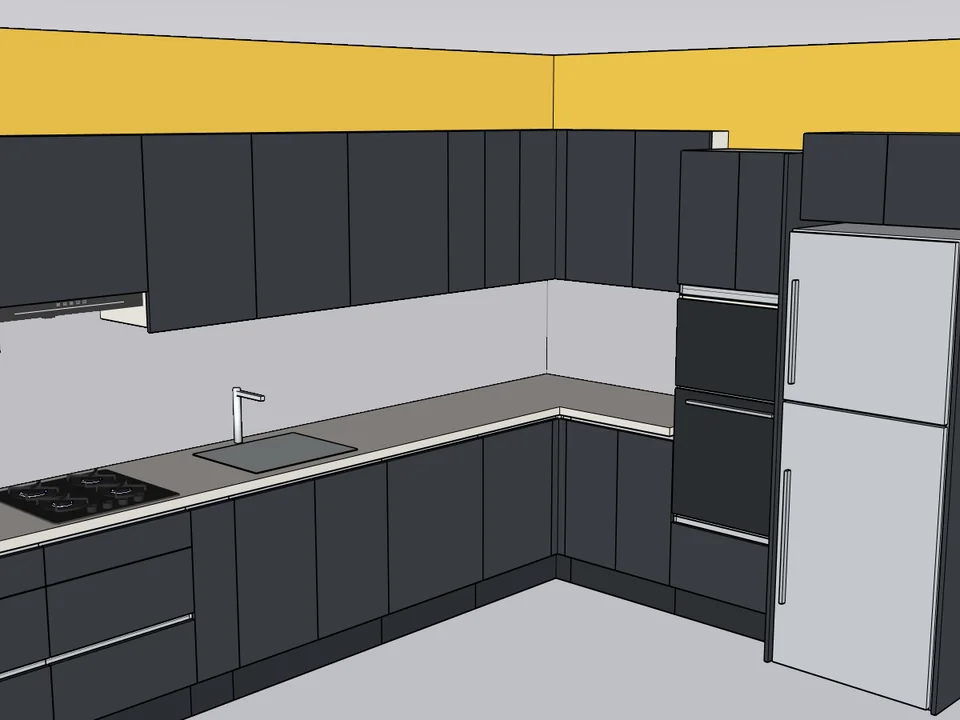
- A kitchen to be built: KitchenFun Studio. A kitchen cabinet library app for SketchUp: a straight, L or U kitchen in three steps, cabinets dragged onto the wall, beams and tall appliance units handled, and craftsman rules such as a worktop-to-wall-cabinet gap of at least 58 cm. Its production package includes a cut list, sheet nesting, barcode labels and CNC files as layered DXF, woodWOP .mpr or TpaCAD .tcn.
- Wardrobes and storage furniture to be built: CabinetWizard. The six families above, from the first module to the router program.
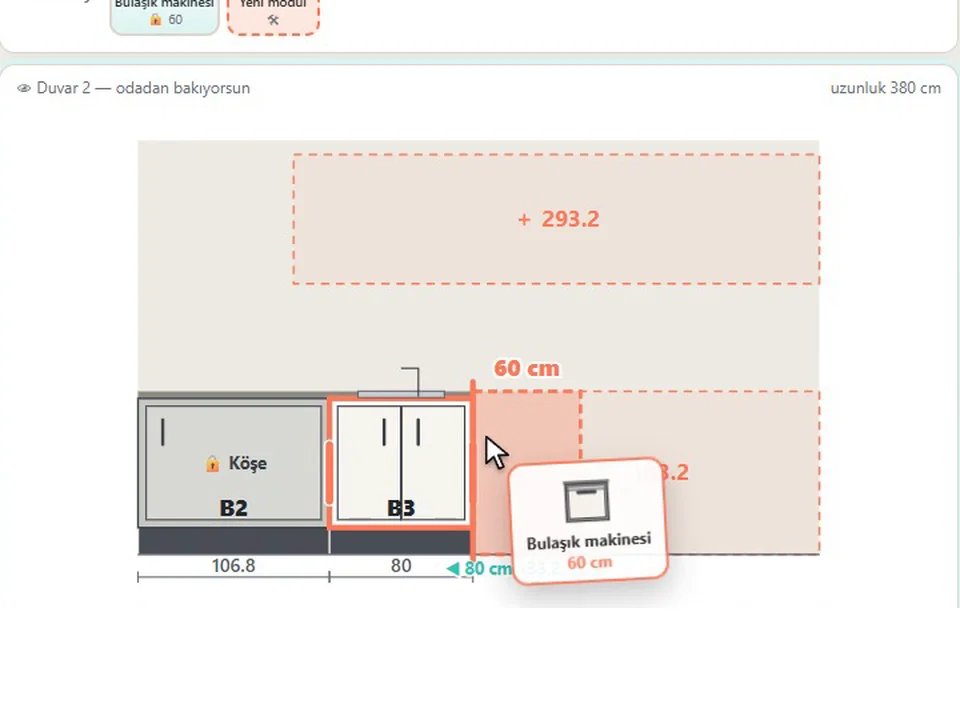
If your work is mostly presentation, the difference between a static block and a configurator is covered in our guide to the parametric furniture library and configurator for SketchUp.
What a parametric library plugin does not do, honestly
- It only knows the families it was written for. CabinetWizard's six families do not include a kitchen; for worktops, beams and handleless profiles, KitchenFun Studio is the tool.
- Loading your own SKP model (your washer, your TV) works only inside the SketchUp extension, not in CabinetWizard's browser version.
- There is no built-in photoreal renderer in CabinetWizard. You render the model with the engine you already use in SketchUp.
- CabinetWizard ships unsigned, so Extension Manager's Loading Policy has to be set to something other than “Identified Extensions Only”; a signed package is on the roadmap.
- FurniFun makes no cut list and is tested on Windows; macOS has not been tested yet.
- KitchenFun Studio runs on Windows, and before the first machine job you should cut a test piece on your own CNC.
Questions about parametric library plugins for SketchUp
What is the difference between Dynamic Components and a parametric library plugin?
Who writes the rules. With Dynamic Components you author attributes and formulas for each component yourself. A parametric library plugin arrives with the rules for a whole family already written, so you choose a type, type a size and get parts that are rebuilt, not stretched.
Is there a custom cabinet configurator for SketchUp that writes CNC files?
Yes. CabinetWizard writes DXF files, a drilling schedule and a CNC router program per sheet from the same build that draws the unit, and KitchenFun Studio writes layered DXF, woodWOP .mpr and TpaCAD .tcn files for kitchens. A shop without a CNC still gets the CSV cut list and, in KitchenFun Studio, a printable drilling sheet.
Which SketchUp versions does CabinetWizard run on?
CabinetWizard is installed and verified on SketchUp 2021 to 2026, on Windows and macOS, and its code is kept compatible back to SketchUp 2017. Automated tests cover the older and newer Ruby and Chromium inside those releases; our article on why a plugin works in one SketchUp version and not another explains why that matters.
Can a parametric library replace 3D Warehouse?
Not entirely. It replaces the hunt for the right-sized generic piece, which is most of the work while a design is still open. When a client has picked a specific branded product, that manufacturer's own model is still the right one to use.
The advantage is plain: the hours that went into searching, scaling and re-measuring go back into the design, and every “can we see it another way?” is answered before the client stands up. CabinetWizard was written by Ufuk Şen, a SketchUp instructor of 18 years with 7,269 students on Udemy, for exactly that meeting. Open the CabinetWizard page to see what its library builds, then lay out your next wardrobe with it.
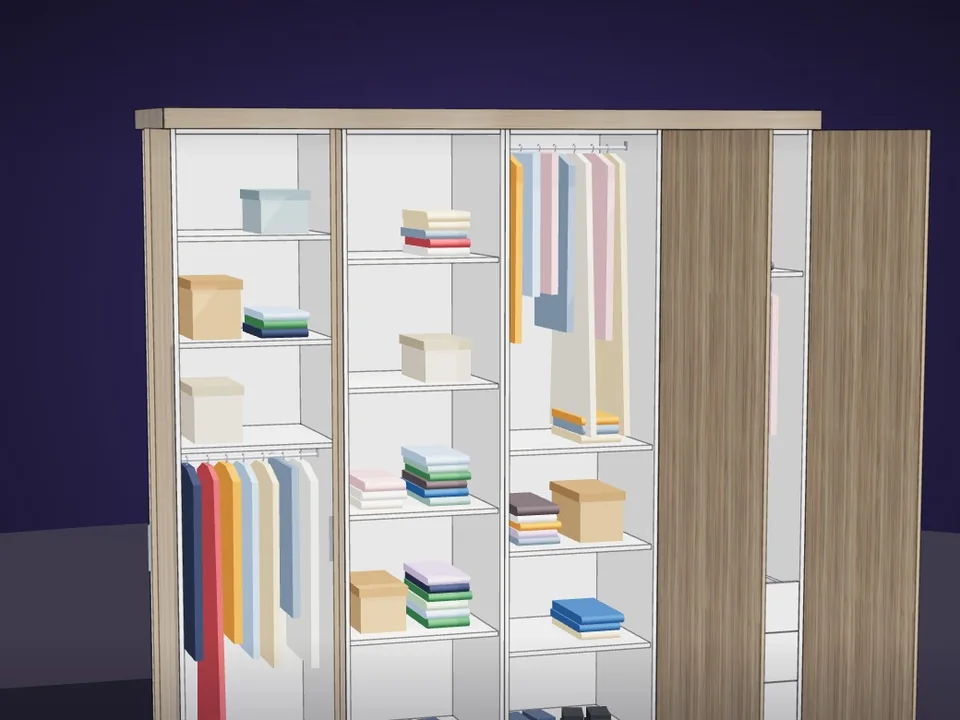
Type the size. The whole wardrobe builds itself.
Interior$65CabinetWizardCabinetWizard
No panel-by-panel drawing: type the size, get quote and CNC files.
- 131 solids from 20 components
- 12 finishes, 7 door styles
- 164 tests, SketchUp 2017+
SketchUp 2017–2026v1.19.0
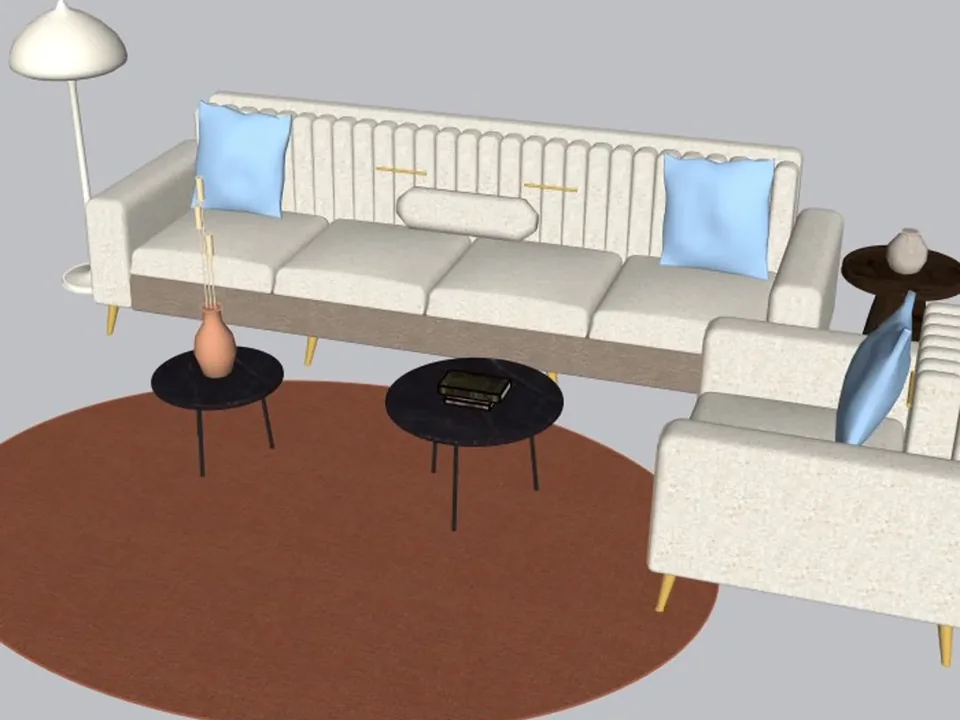
A whole living room set in one click.
Interior$49FurniFunFurniFun
No empty boxes: two clicks, real furniture; pull the ball, it grows.
- 18 furniture types
- Two clicks + blue ball
- SketchUp 2021–2026
SketchUp 2021–2026v1.14.0
Grab a cabinet, drop it on the wall. Kitchen done.
Interior$599KitchenFun StudioKitchenFun Studio
No re-drawing, no re-typing: drag the cabinets onto the wall, get the kitchen, cut list and CNC files.
- Drag & drop Kitchen Wizard
- Cut list + CNC (DXF / MPR / TCN)
- SketchUp 2021–2026
SketchUp 2021–2026v1.28.1