Your presentation is your signature. The client never sees the hours behind it; they see a room, and in a few seconds they decide whether to trust you with theirs. Picture the meeting: the client wants the sofa a little longer, the wardrobe in walnut instead of white, the bedroom somehow warmer. With static blocks the answer is “I will send it tomorrow”. With a parametric furniture library and configurator for SketchUp you pull a handle, switch a palette, bring in a new design, and the answer is on the screen before the client has left the chair. Here is the difference between a furniture library and a furniture configurator in SketchUp, and why it decides that meeting.
What is a parametric furniture library in SketchUp?
A furniture library in SketchUp is any collection you pull pieces from: 3D Warehouse, your office's component folder, a manufacturer's download. Most of it is static: each block is one sofa, at one width, in one fabric. A parametric furniture library stores rules instead of finished objects. A bookcase knows it has bays, shelves and doors; a sofa knows its seats, arms and cushions. Give it a new width and it rebuilds the parts while keeping the proportions. A furniture configurator is the layer on top: the handle you drag, the size you type, the style and palette you switch, without ever editing geometry.
Why a static 3D Warehouse block is not enough for a client presentation
- One size. The block was modelled for someone else's wall. When it is 40 cm too long for yours, the only quick fix is the Scale tool.
- Scaling distorts. Stretch a sofa and its arms, legs and cushions stretch with it; stretch a bookcase and the shelves get thicker. A detail-conscious client notices.
- Every revision is a new search. “Can we see another style?” means back to the library: download, clean up, place, check the size again.
- The room does not speak one language. Pieces from five different authors bring five ideas of wood, fabric and detail, and the scene reads as assembled rather than designed.
- Weight is a gamble. One overdetailed chair can make the file slow to orbit at exactly the moment the client is watching.
Static blocks still have their place. When the client has chosen a specific product, the manufacturer's model, with real dimensions and a real name, is the right choice, and how to pick 3D Warehouse models without slowing your file covers that side. The trouble starts while the furniture is still a decision, which is exactly the stage a presentation is for.
What does a furniture configurator in SketchUp change: size, style and material
Size: the piece rebuilds instead of stretching
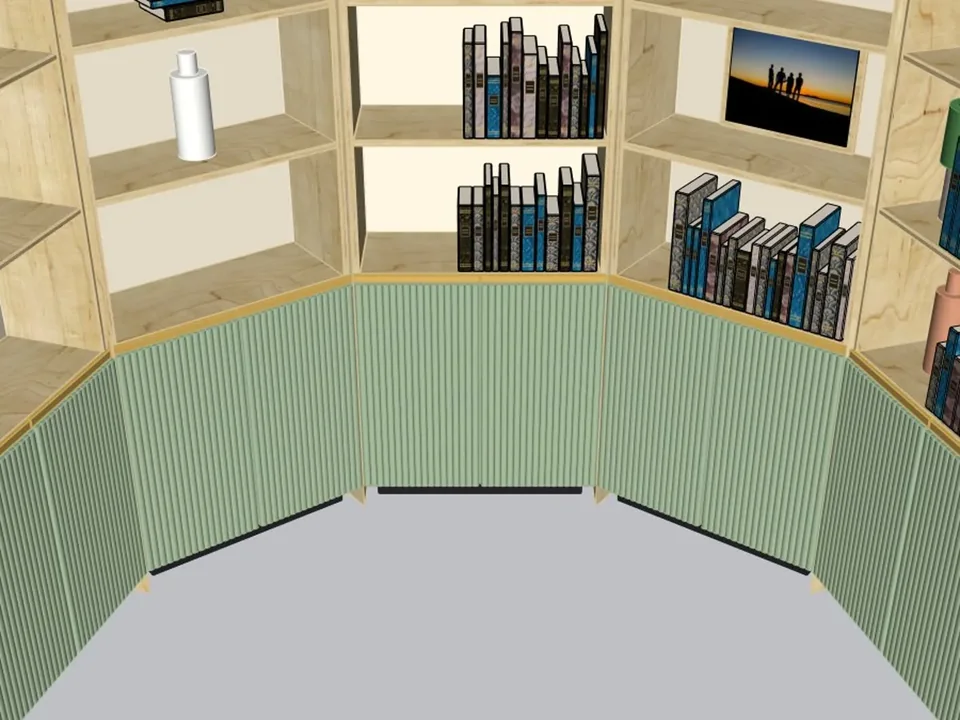
In FurniFun you pick a piece, click the start and the end along a wall, and it builds itself to that length: it backs onto the wall, sits on the floor and faces the room. Type 180 after the first click and it is exactly 180 cm. Pull the blue ball on its end, or type “+40”, and the bays, doors, sofa seats and chairs re-arrange while the design stays the same. Even SketchUp's own Scale tool turns into a clean resize, because the new size becomes a parameter rather than a stretch.
Style: a new design in the same place
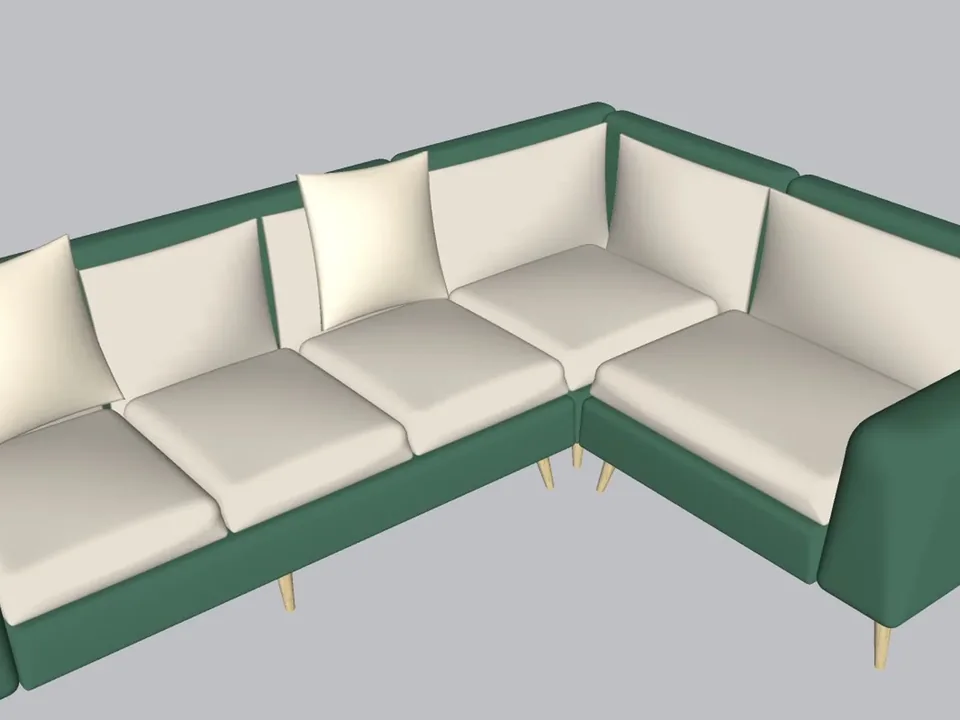
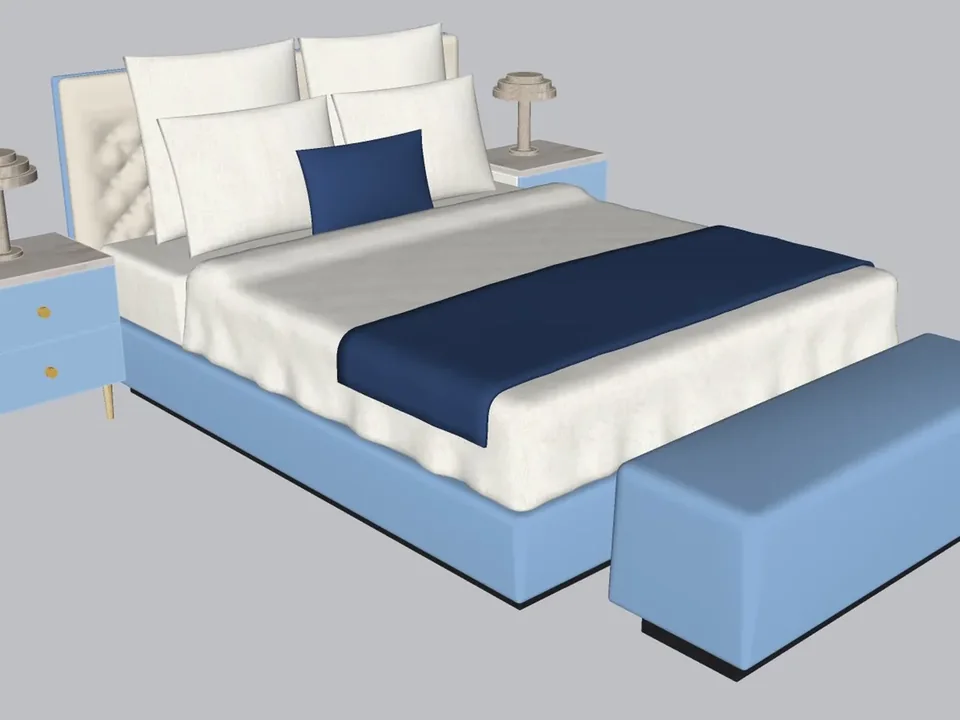
Every drawing is a new design, and the dice gives you another version in the same spot, at the same size. Within one type the range is real: sofas come in 5 soft styles (channel, retro two-tone, Lawson, shell, lounge), straight or with an L or U corner, and the bedroom offers 4 headboards. Instead of one option and a promise, you walk in with several and let the client point.
Material: the whole room changes together
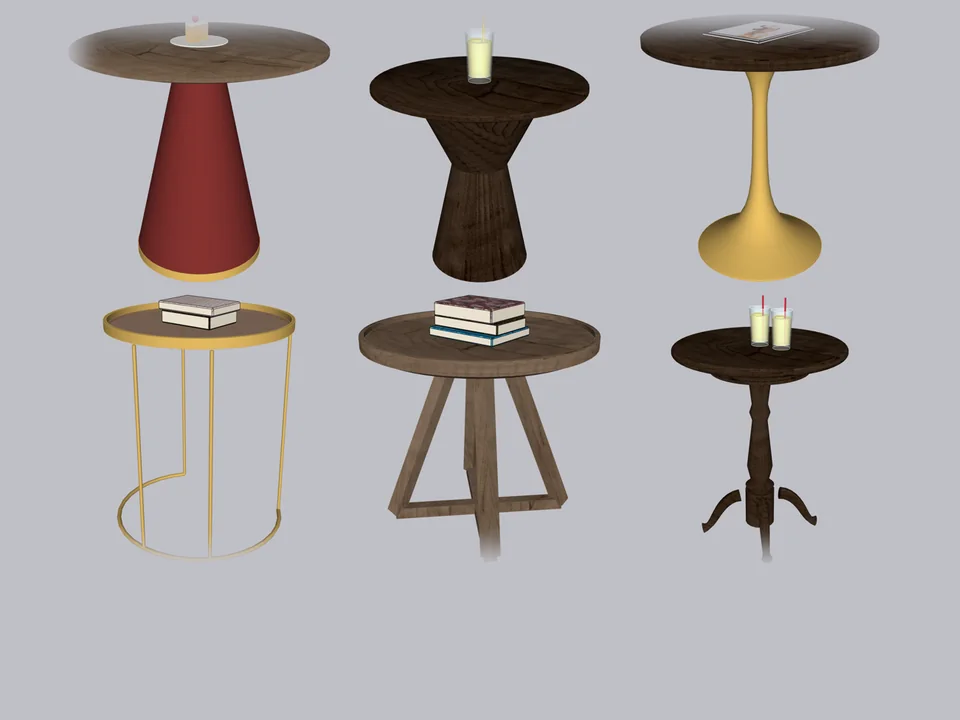
Eight colour palettes change wood, stone, fabric and metal together, so a room moves from cool to warm without retexturing piece by piece. The textures are real wood, marble, travertine, fabric and leather, with the wood grain turned along each part's long edge, and the decor (books, vases, lamps, cushions) switches on and off when the client wants a calmer room. Each change is one undo step.
How a furniture configurator serves the designer and the client
For you, the gain is rhythm. The walls, floor and windows take an afternoon; the furniture used to eat the evening. With a configurator, furnishing moves at the pace of the conversation, and revisions stop piling up into a list for later. For the client, the gain is confidence: they see their own room at their own sizes, compare real alternatives side by side and leave having decided. That is the difference between presenting a room and selling it.
How to choose a parametric furniture plugin for SketchUp: what to check
- It rebuilds, it does not scale. Change the width and check that legs, handles and shelf thickness stay as they were.
- It places itself. A piece should back onto the wall, sit on the floor and face the room without manual rotating.
- It stays editable after placement. You should be able to resize, restyle and recolour a piece already in the room, not only a new one.
- It keeps the model light. Look for repeated parts drawn once as shared components. In FurniFun a 300 cm half-circle bookcase uses only 20 component definitions for 280 parts.
- Parts never collide. A shelf through a door or a cushion through an arm ruins a close-up render. FurniFun runs an 11,880-build collision test in every release (18 types × 30 designs × 11 sizes × decor on and off).
A real workflow: furnishing a room for tomorrow's client meeting
- Start from the walls you already have. Open the FurniFun panel: 18 furniture types sit in one place, from TV unit and bookcase to bedroom and bathroom vanity.
- Living room in one click. The living room set places the group at once; fit the sofa to its wall by typing the length you want.
- Bedroom in one drag. Bed, nightstands and bench arrive together, with draped bedding, throws and pillows.
- Prepare the alternatives. Roll the dice for a second design, switch the palette for a warmer version and save each one as a scene.
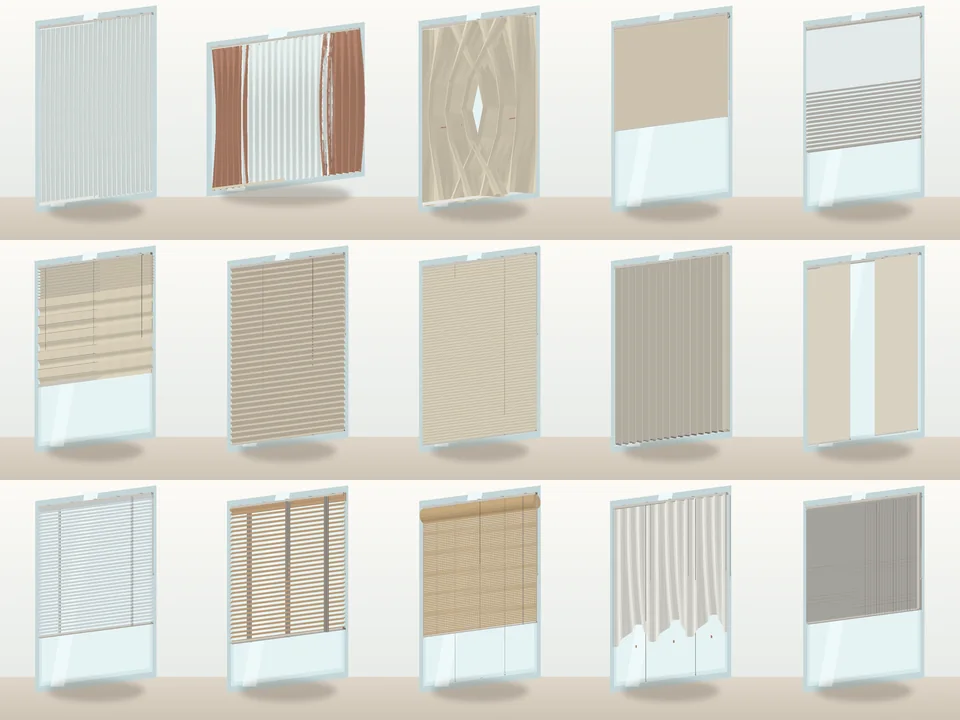
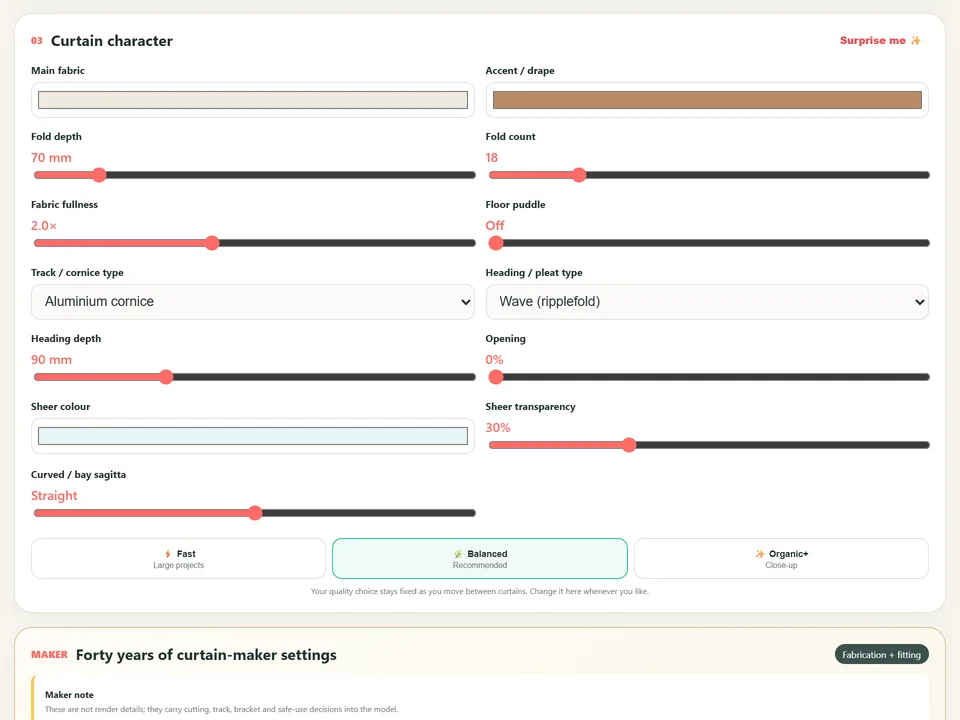
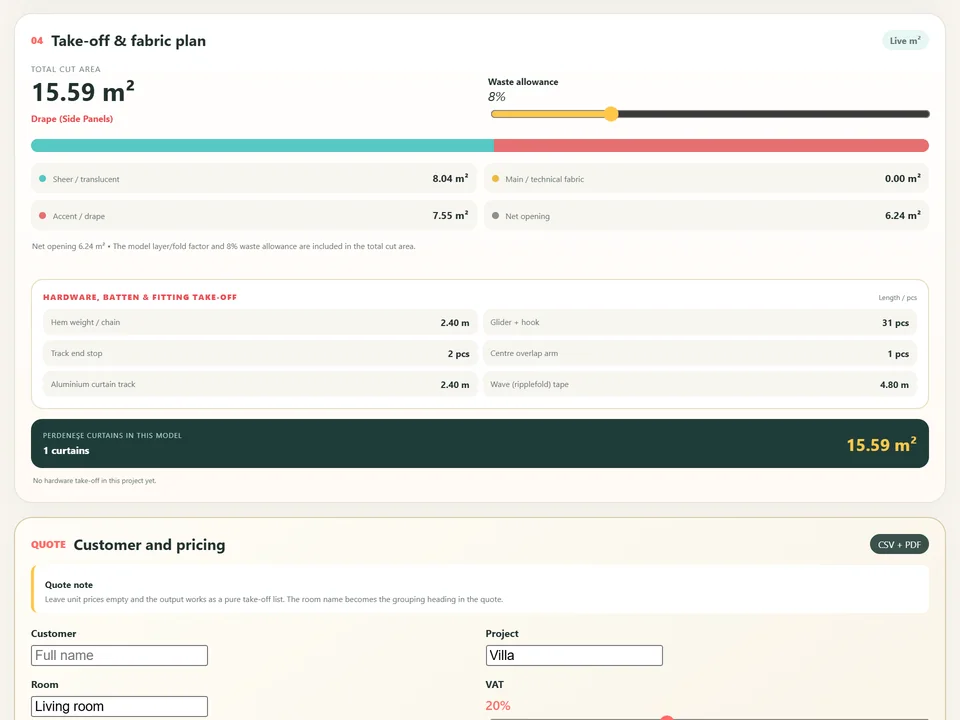
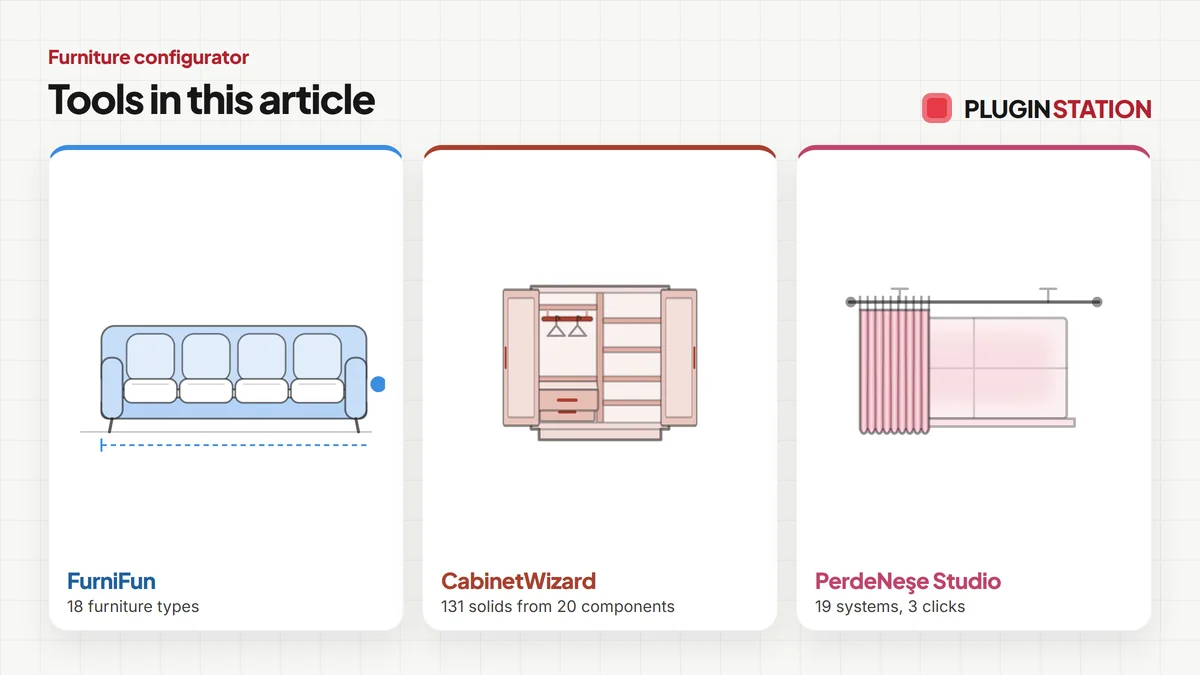
- Dress the windows. Curtain Craft builds a curtain or blind in three clicks from 19 parametric systems; right-click, edit settings, and it rebuilds in place when the client prefers another heading or rail.
- In the meeting, answer on the spot. “Longer” is the blue ball, “another style” is the dice, “warmer” is the palette.
For all 18 furniture types, the soft sofas, the arc bookcase and the catalogue-size bathroom vanity, read the deep dive: FurniFun, the parametric furniture plugin that furnishes a SketchUp room in two clicks.
Display furniture or furniture to be built: where CabinetWizard takes over
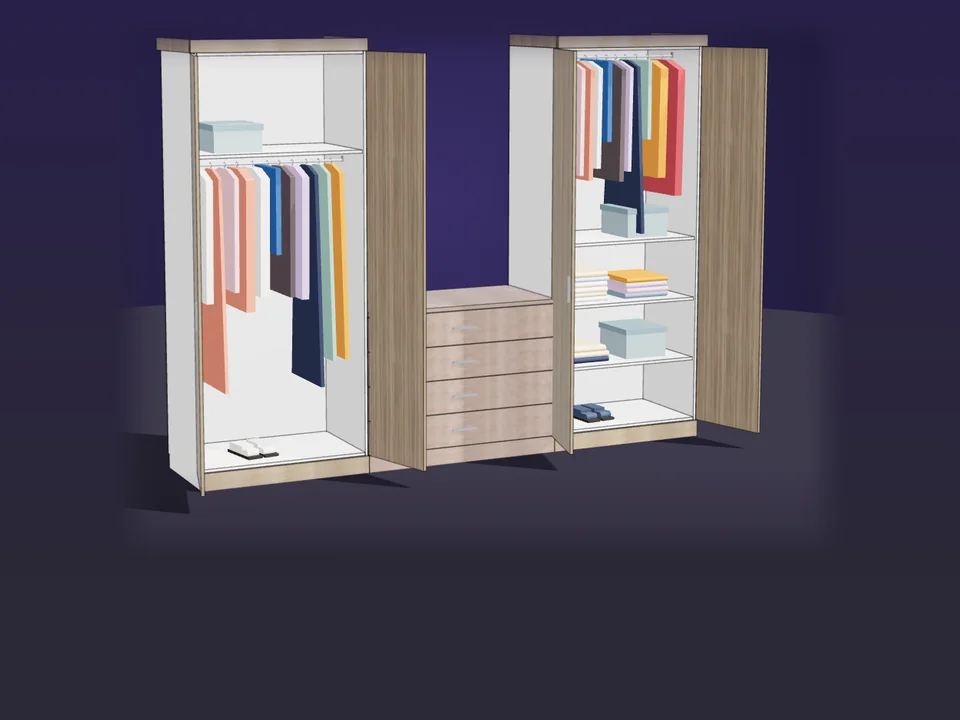
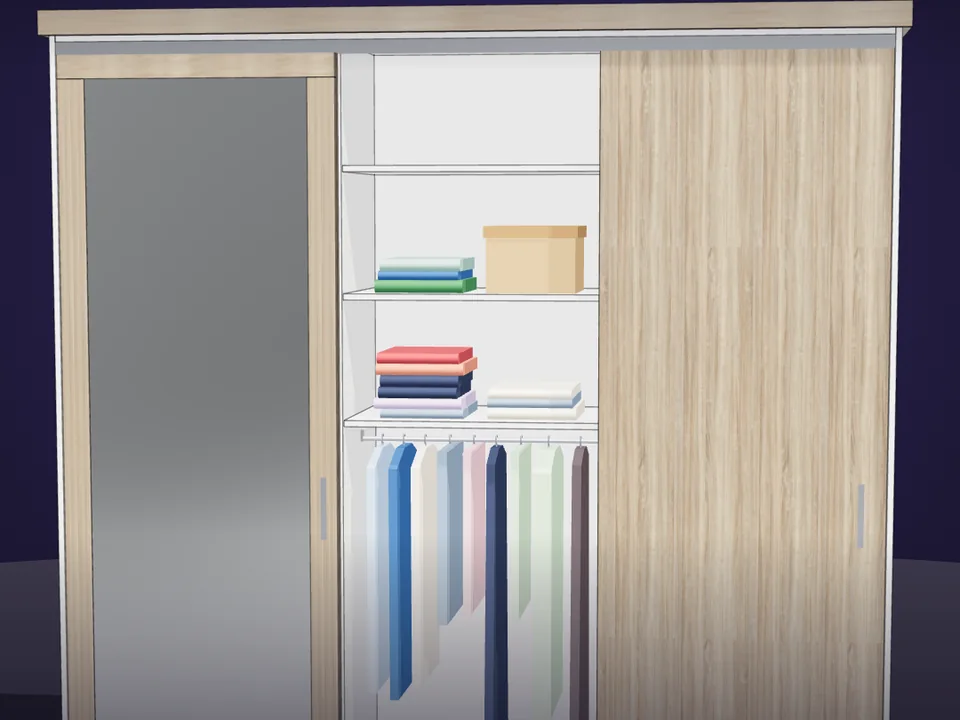
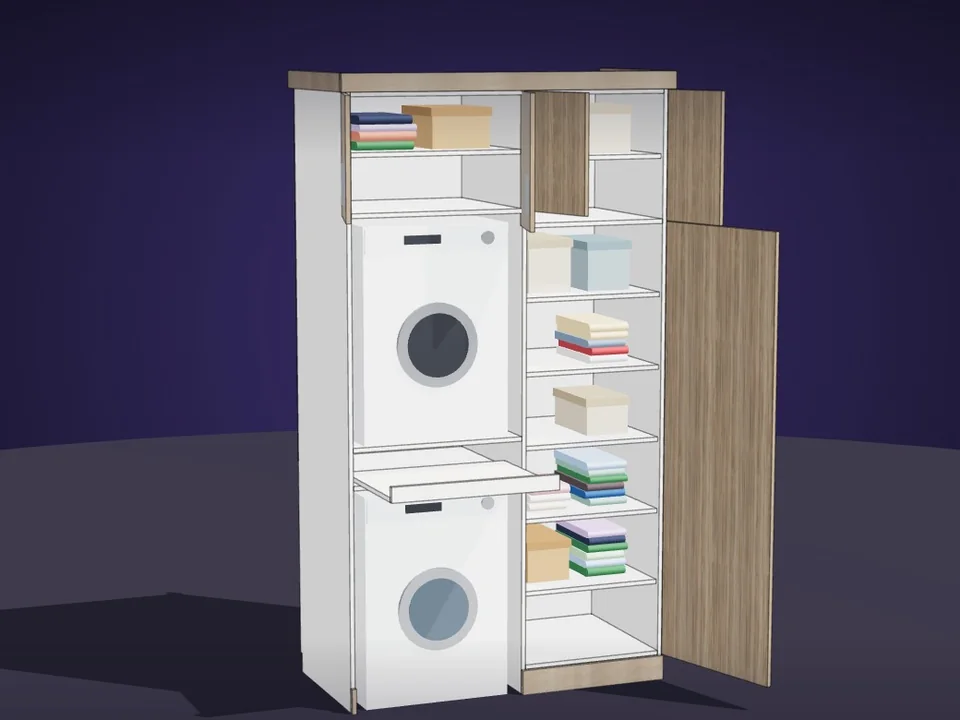
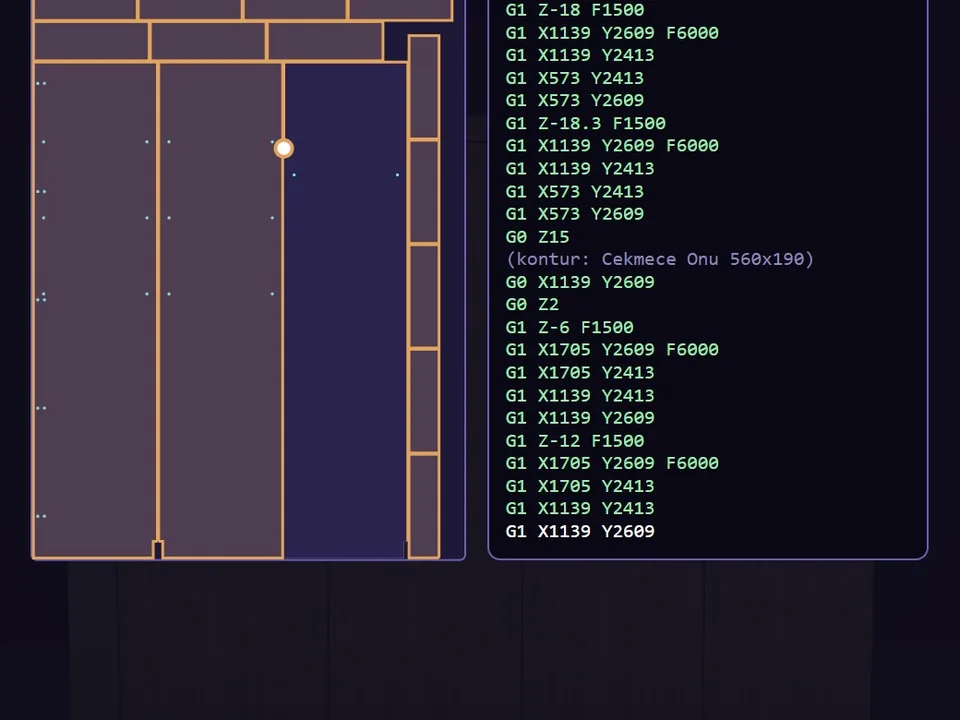
FurniFun configures furniture that looks right at the right size; it is made for design and visualisation. When the wardrobe in your scene is the one that will actually be made, you need a configurator whose output is production. CabinetWizard works that way: type the opening and it builds a fitted wardrobe in SketchUp as real solids, with 7 door styles and 12 production finishes. Nothing is scaled: change a width, height, depth or section and every panel is rebuilt from formulas, and Update Selected refits a wardrobe already in the model without moving the camera. The quote, the cutting list, the drilling schedule and the DXF come from the same numbers, which is what its promise means: draw it in front of your client and get the cut list and the quote in the same second. Why that matters in the workshop: SketchUp cabinets that can actually be built.
What a furniture configurator does not do
- It does not replace a specified product. Once the client has picked a particular manufacturer's chair, use that manufacturer's model.
- FurniFun does not write cut lists or CNC files. It furnishes scenes; for cabinets you will have built, CabinetWizard is the tool.
- FurniFun is tested on Windows. It runs on SketchUp 2021–2026; macOS has not been tested yet.
- Curtains are measured geometry, not a cloth simulation. Curtain Craft dresses windows you have already modelled; a random, hand-thrown drape is not on the menu.
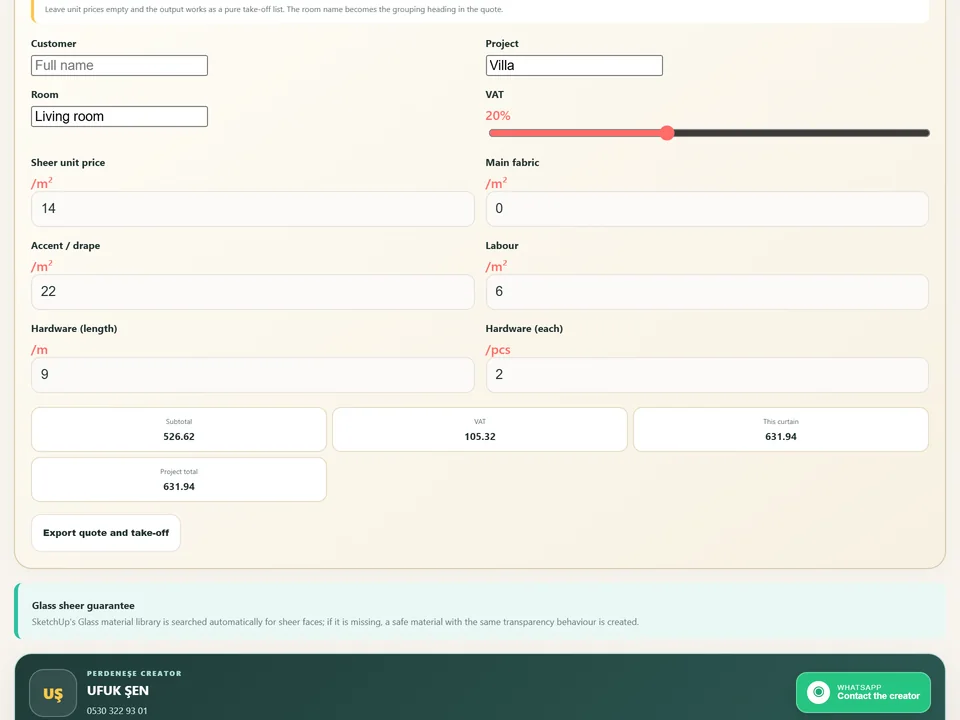
- Quotes open in the browser. CabinetWizard and Curtain Craft produce HTML quotes that you print or save as PDF from the browser.
Are SketchUp's Dynamic Components a furniture configurator?
Dynamic Components are SketchUp's own way to make a component respond to attributes and formulas, and they can resize parts. The difference is who writes the rules: with Dynamic Components you author the formulas for every piece yourself, while a configurator plugin arrives with the rules already written, so you choose a type and draw.
Which SketchUp versions do these configurators support?
FurniFun and Curtain Craft support SketchUp 2021–2026. CabinetWizard supports SketchUp 2017 and newer, on Windows and macOS. FurniFun and CabinetWizard work in Turkish and English; Curtain Craft adds Spanish.
The advantage is plain: the hour that used to go on hunting and fixing static blocks goes back into the design, and every “can we see it another way?” is answered before the client stands up. These tools were built by Ufuk Şen, a SketchUp instructor of 18 years with 7,269 students on Udemy, for exactly that meeting. FurniFun is on sale now: open the FurniFun page to see the 18 furniture types and the gallery, or let the plugin finder match the right tools to your projects.

A whole living room set in one click.
Interior$49FurniFunFurniFun
No empty boxes: two clicks, real furniture; pull the ball, it grows.
- 18 furniture types
- Two clicks + blue ball
- SketchUp 2021–2026
SketchUp 2021–2026v1.14.0
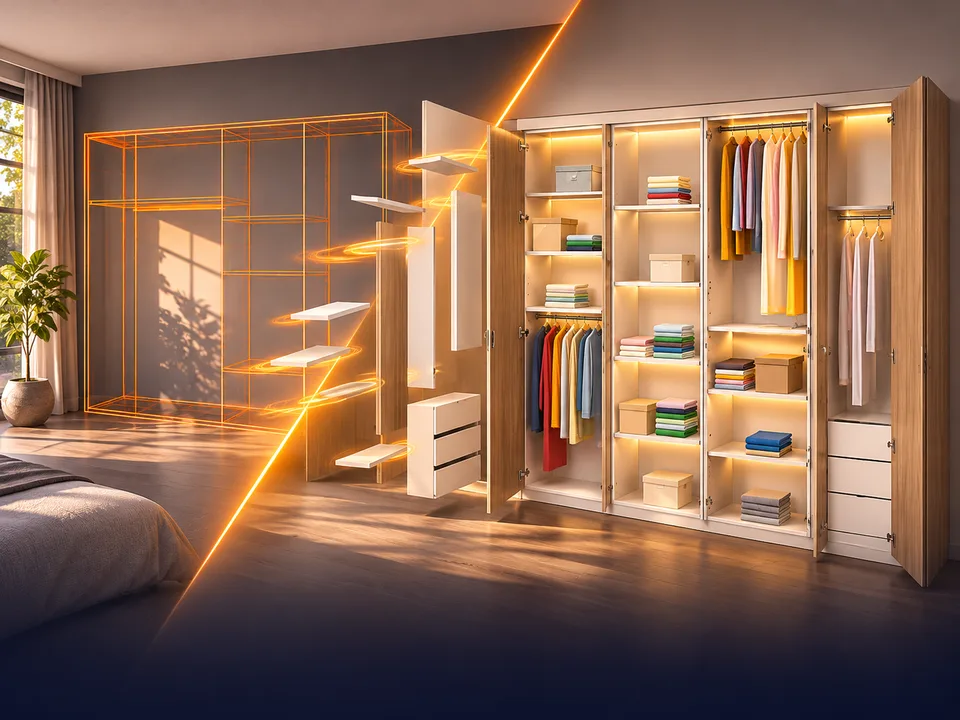
Type the size. The whole wardrobe builds itself.
InteriorCabinetWizardCabinetWizard
No panel-by-panel drawing: type the size, get quote and CNC files.
- 131 solids from 20 components
- 12 finishes, 7 door styles
- 164 tests, SketchUp 2017+
SketchUp 2017–2026v1.19.0

Three clicks and the window is dressed.
Interior$25Curtain CraftCurtain Craft
No fold-by-fold modelling: three clicks, curtain, rail and quote.
- 19 systems, 3 clicks
- 826 tests green
- TR/EN/ES · SU2021–2026
SketchUp 2021–2026v2.2.1