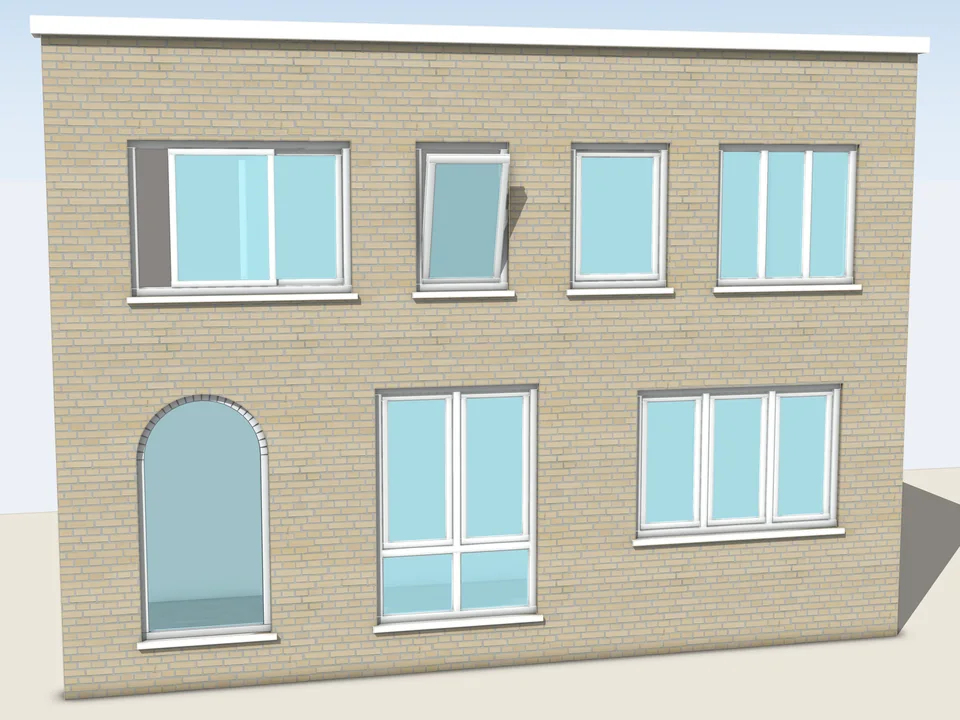
You move one wall and half the house comes with it. Or the client changes the window, and you are looking at fifty copies and a long evening. If you have felt either of these, you are not bad at SketchUp. You are just one concept away from a model that does what it is told.
Why does SketchUp geometry stick together?
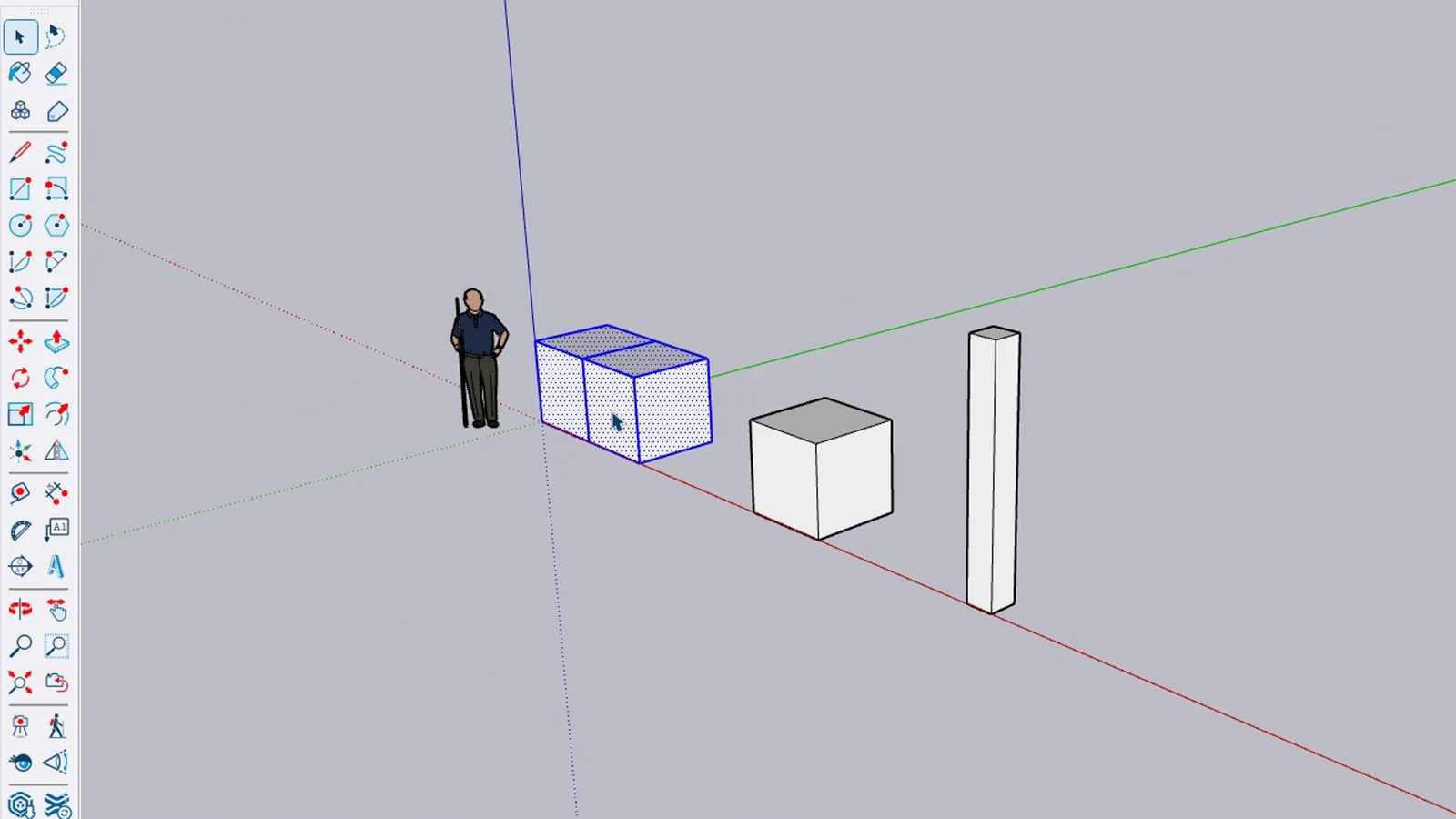
In SketchUp, edges and faces that touch become one piece of geometry. In the picture below there are two cubes side by side. Triple-click one, and both are selected, because they share a face and are no longer two things. In a small sketch this is handy. In a whole building it is the reason one move tears everything.
What is a group in SketchUp?
A group wraps geometry into one protected object. Triple-click the cube and press Ctrl+G (Edit > Make Group). One click now selects the whole cube inside a blue box, and Entity Info confirms it is a group, where you can give it a name and a tag. Lines that touch a group do not merge into it, so you can move and copy it safely.
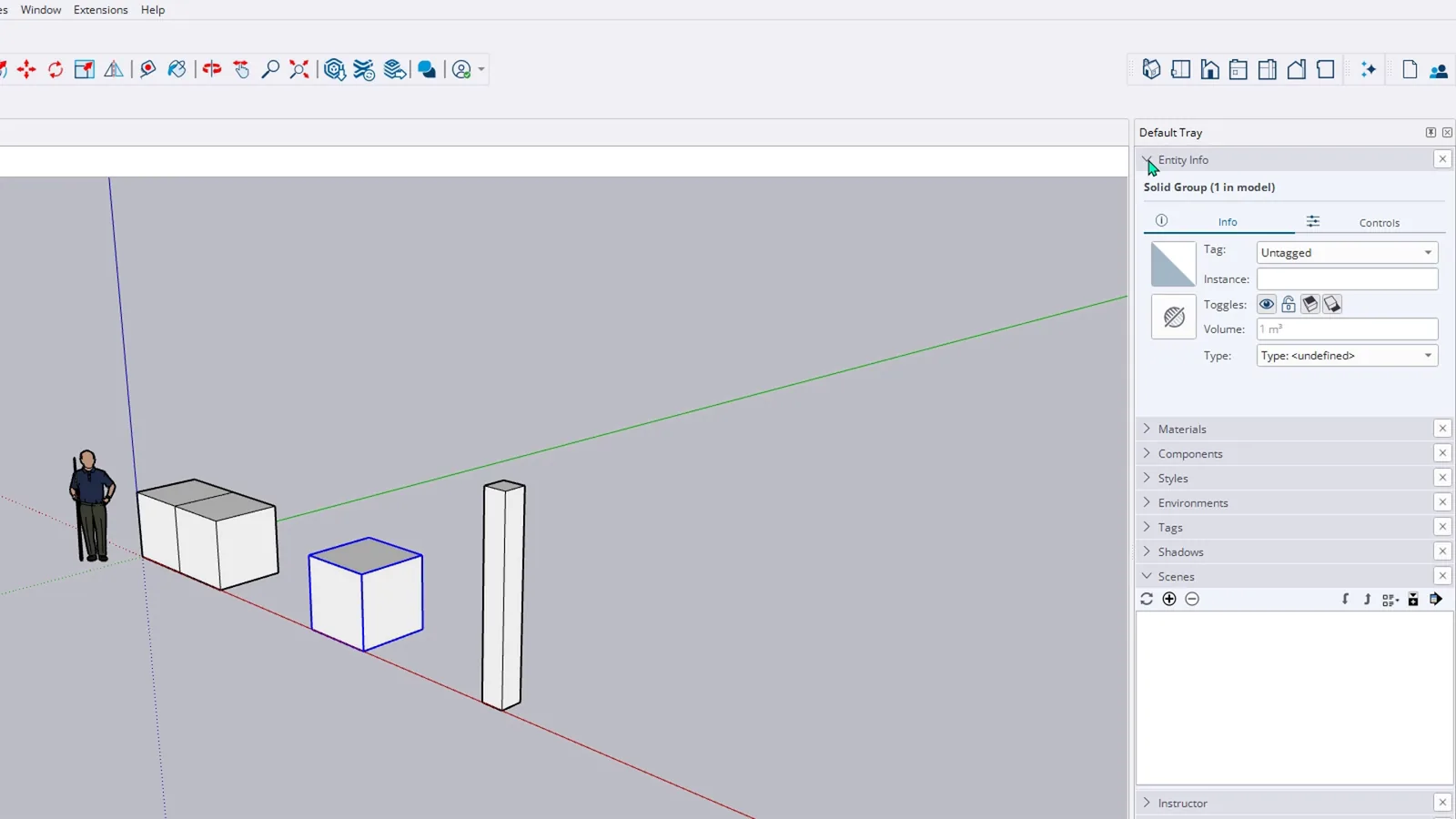
To change what is inside, double-click it. The rest of the model fades and only the group can be edited; this is called the editing context. Here the top of the cube goes up one metre with Push/Pull. To leave, click an empty spot outside with Select.
What is a component, and how is it different?
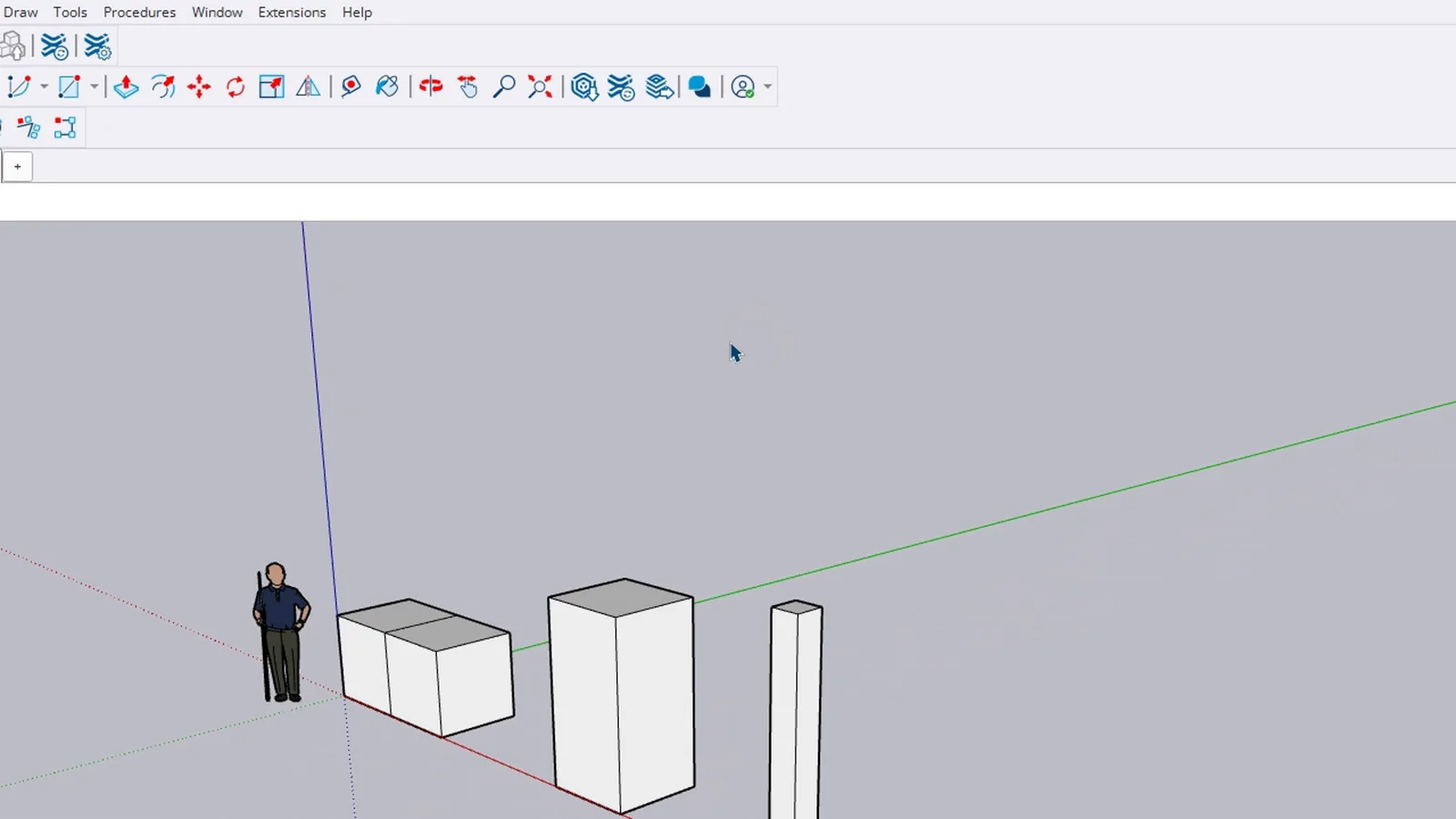
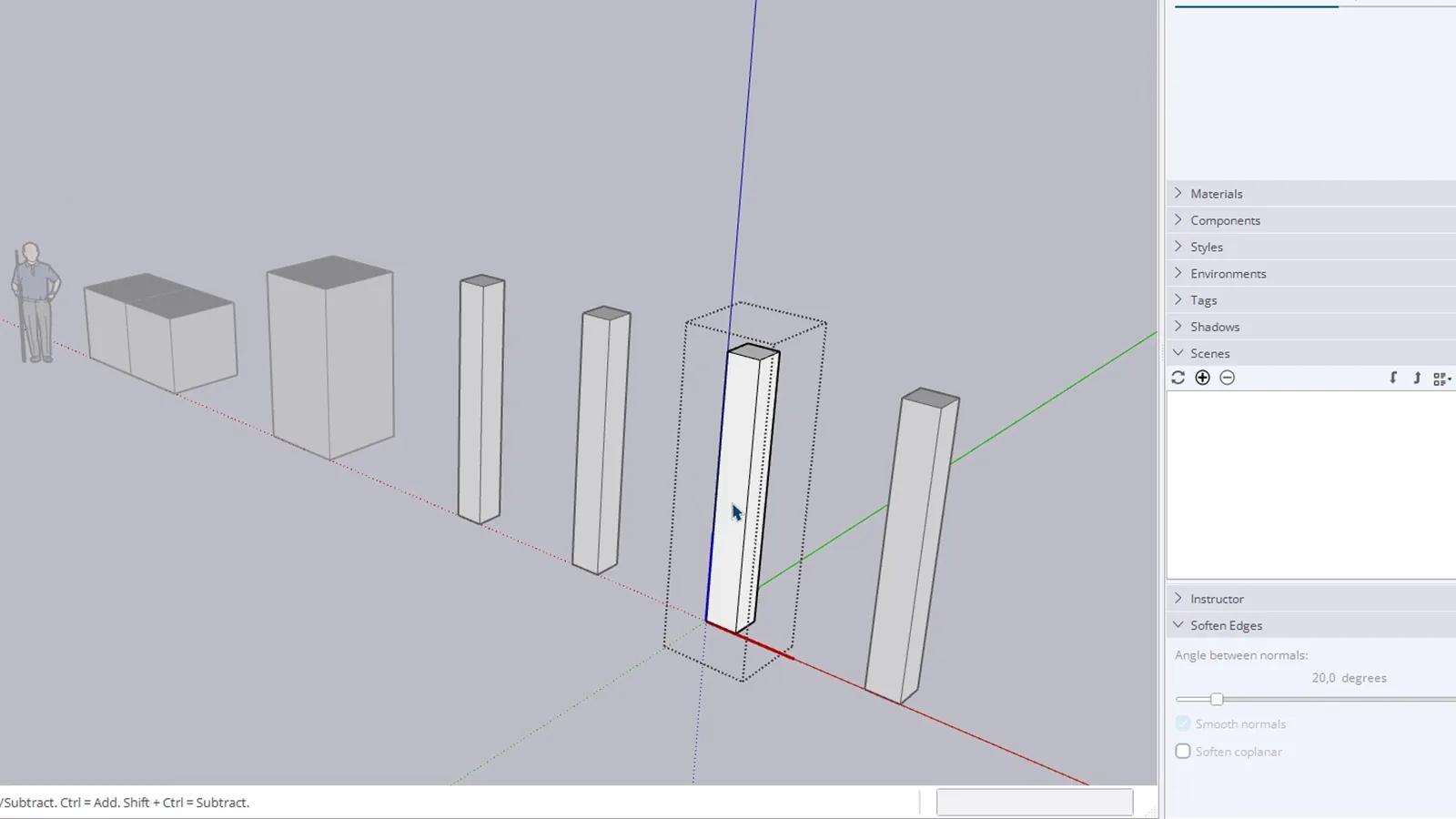
A component is a group with a memory. Select the column, press G, type a name in the Definition field of the Create Component window and press Enter. Then copy it: Move with Ctrl, 1.5 metres to the right, type x3. You now have four columns, and all of them are copies of one definition.
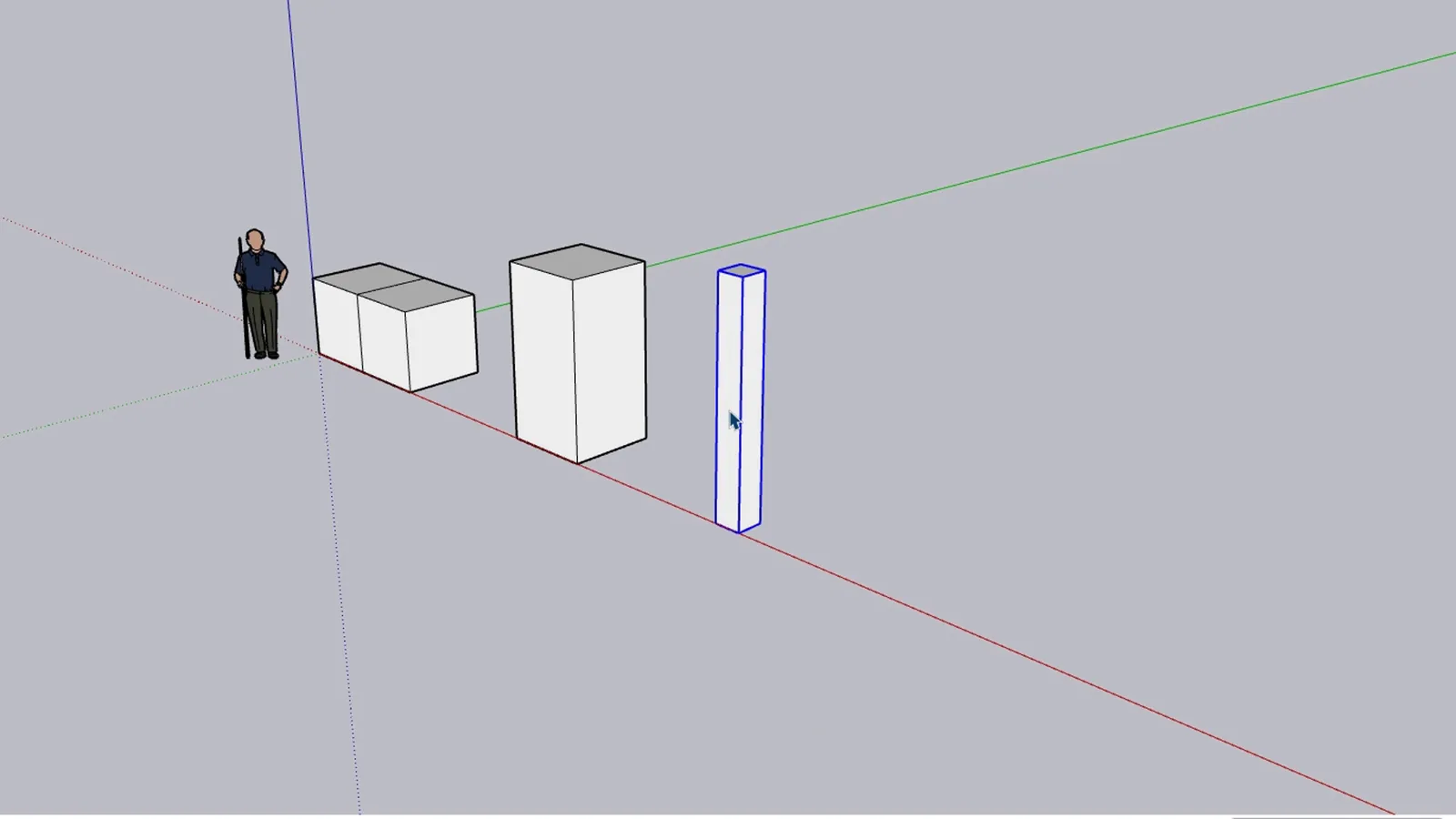
Now the part that changes how you work. Double-click any one of them and raise its top half a metre with Push/Pull. All four grow at the same moment. Editing one copy of a component means editing all of them.
When should you use a group, and when a component?
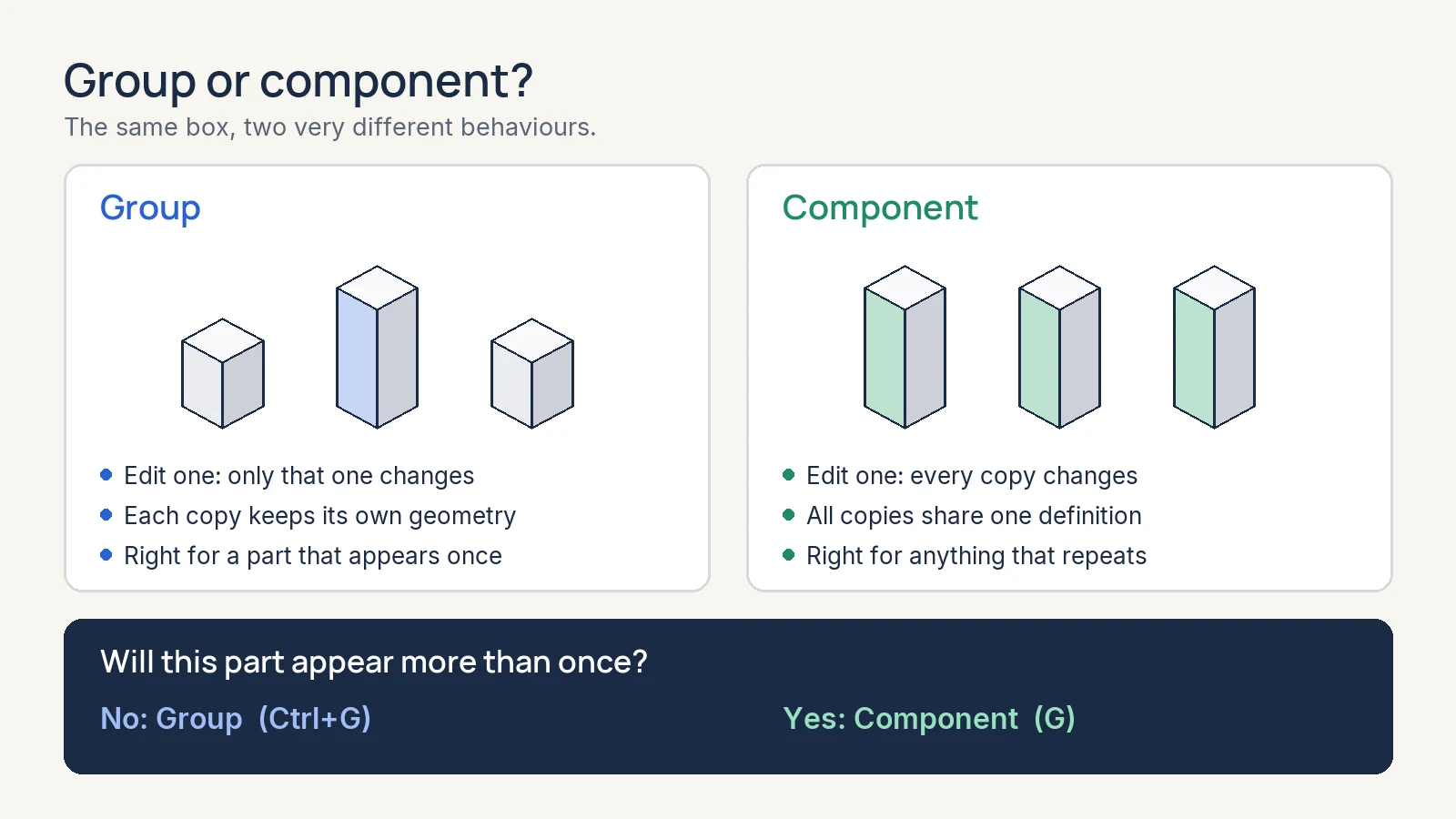
Ask one question: will this part appear more than once? If not, a group is enough. Doors, windows, columns and chairs repeat, so they are components: the file stays lighter and one edit updates them all.
Can I make one copy of a component different?
Yes. Right-click the copy and choose Make Unique; it becomes its own definition and leaves the others alone.
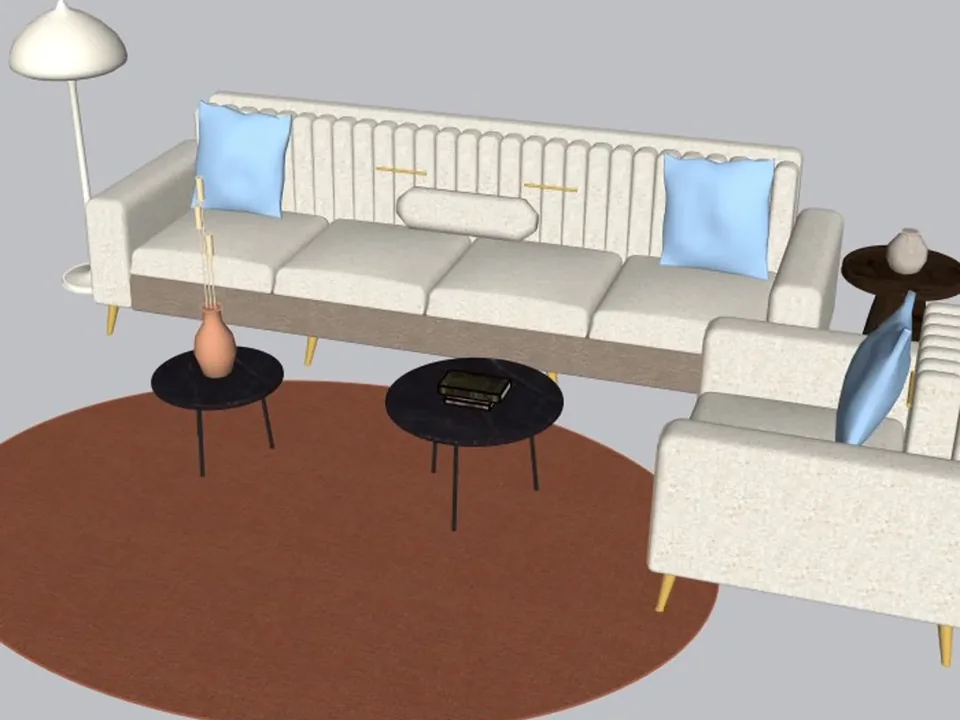
A whole living room set in one click.
Interior$49FurniFunFurniFun
No empty boxes: two clicks, real furniture; pull the ball, it grows.
- 18 furniture types
- Two clicks + blue ball
- SketchUp 2021–2026
SketchUp 2021–2026v1.14.0
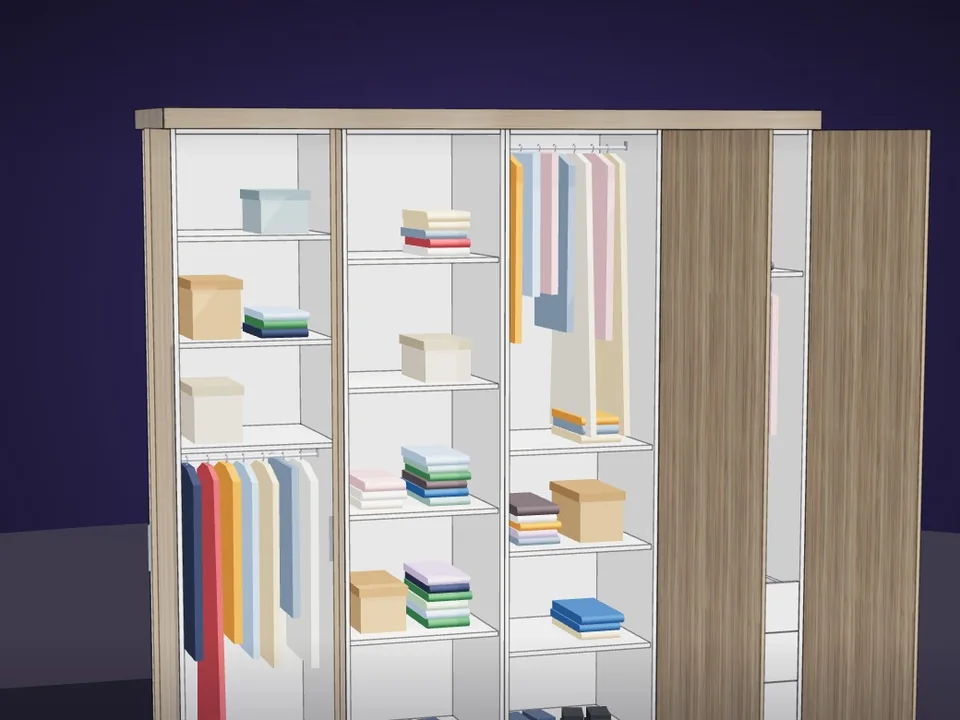
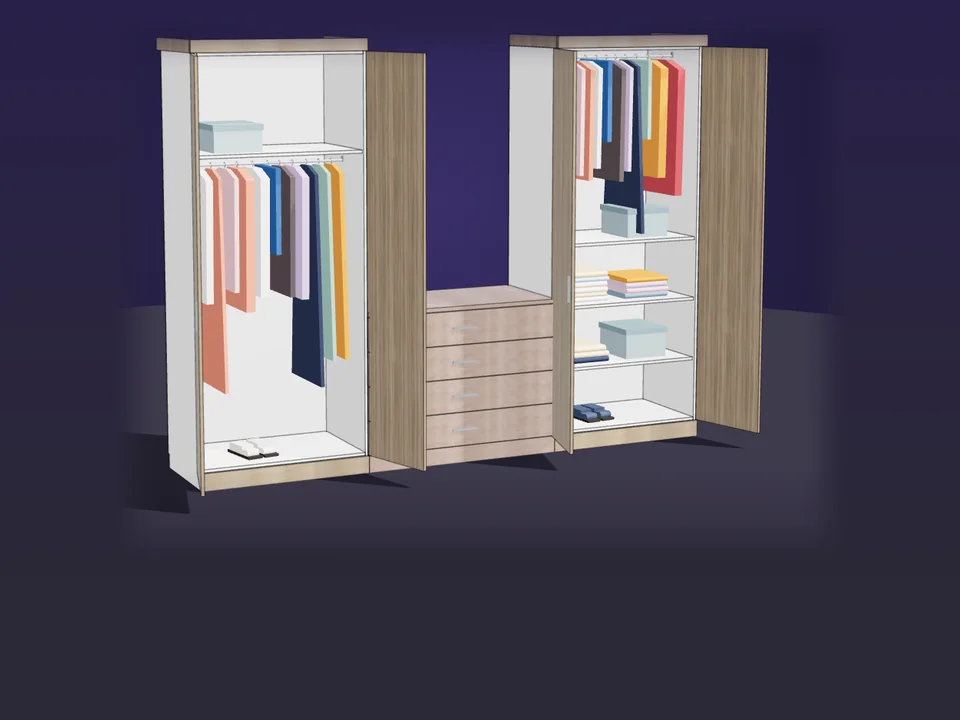
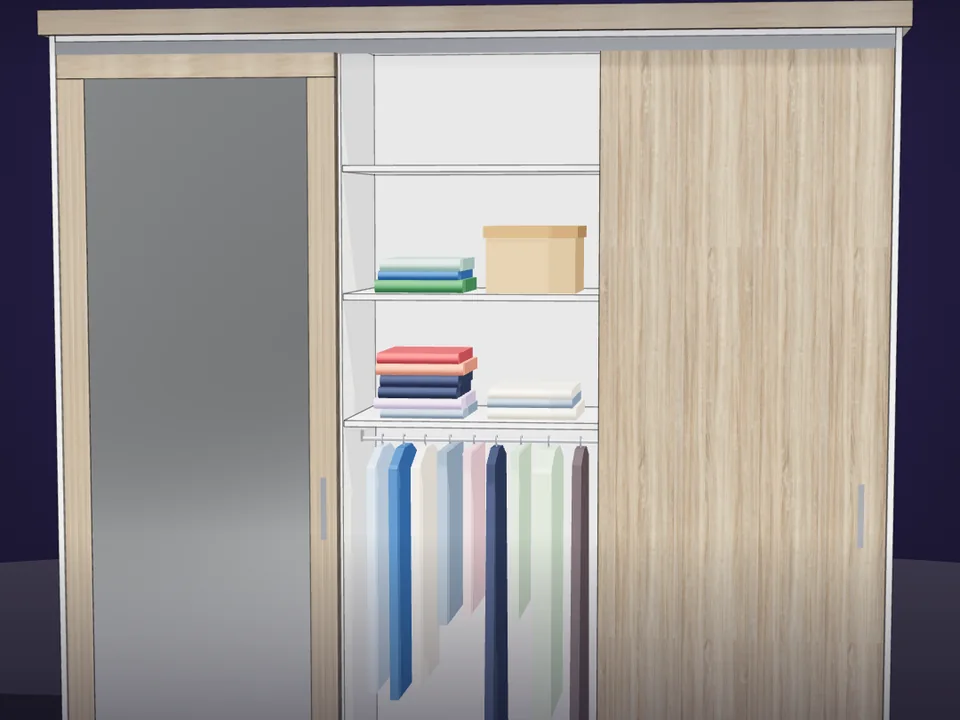
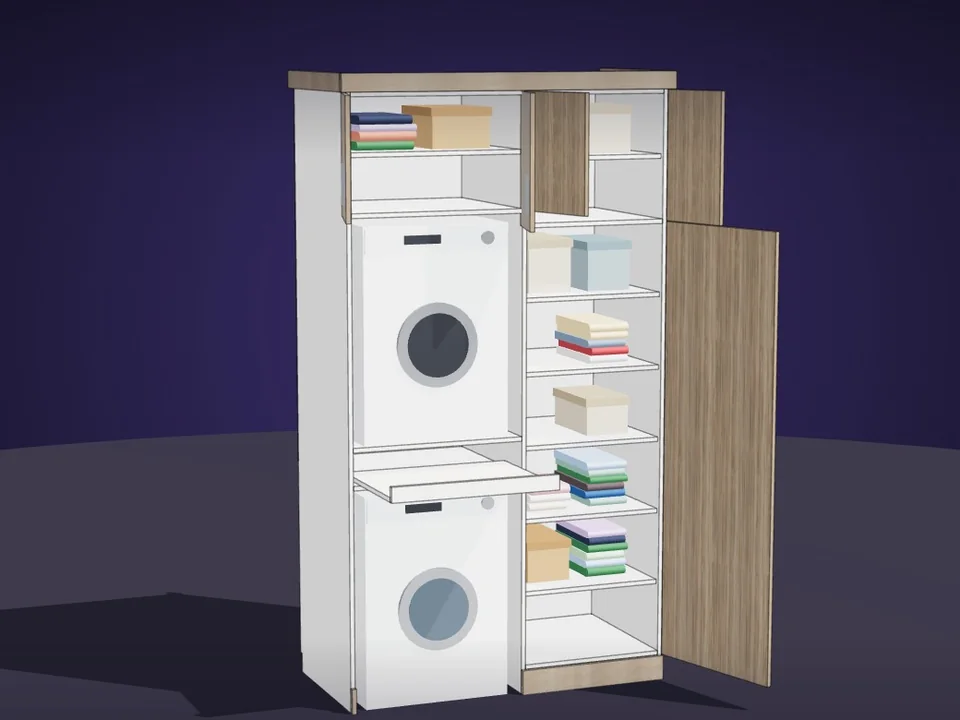
Type the size. The whole wardrobe builds itself.
IN DEVELOPMENT InteriorCabinetWizardCabinetWizard
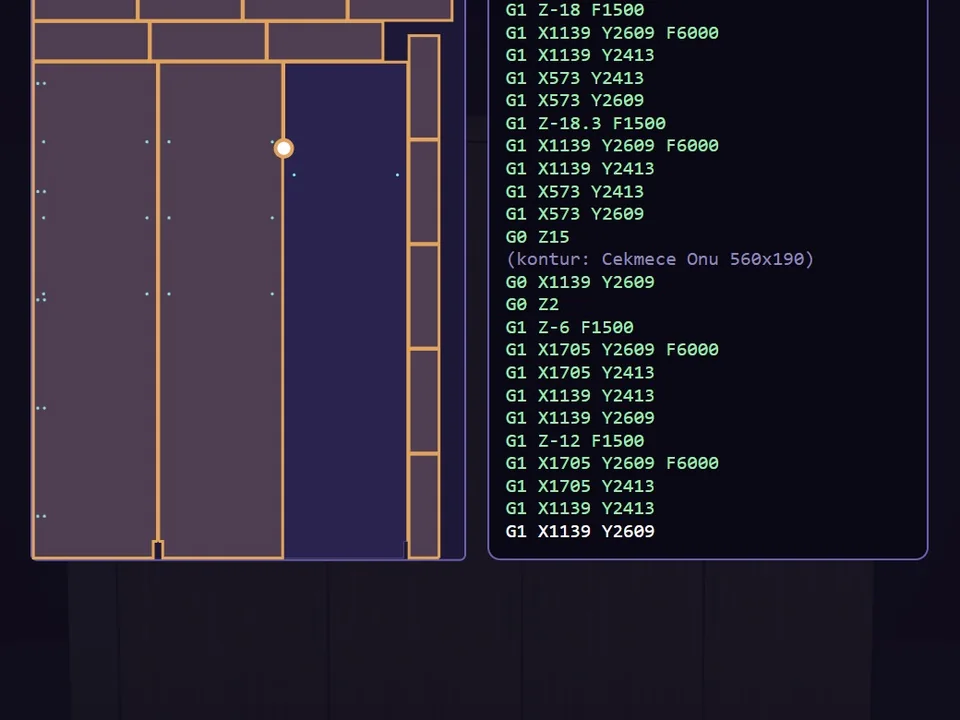
No panel-by-panel drawing: type the size, get quote and CNC files.
- 131 solids from 20 components
- 12 finishes, 7 door styles
- 164 tests, SketchUp 2017+
SketchUp 2017–2026v1.19.0
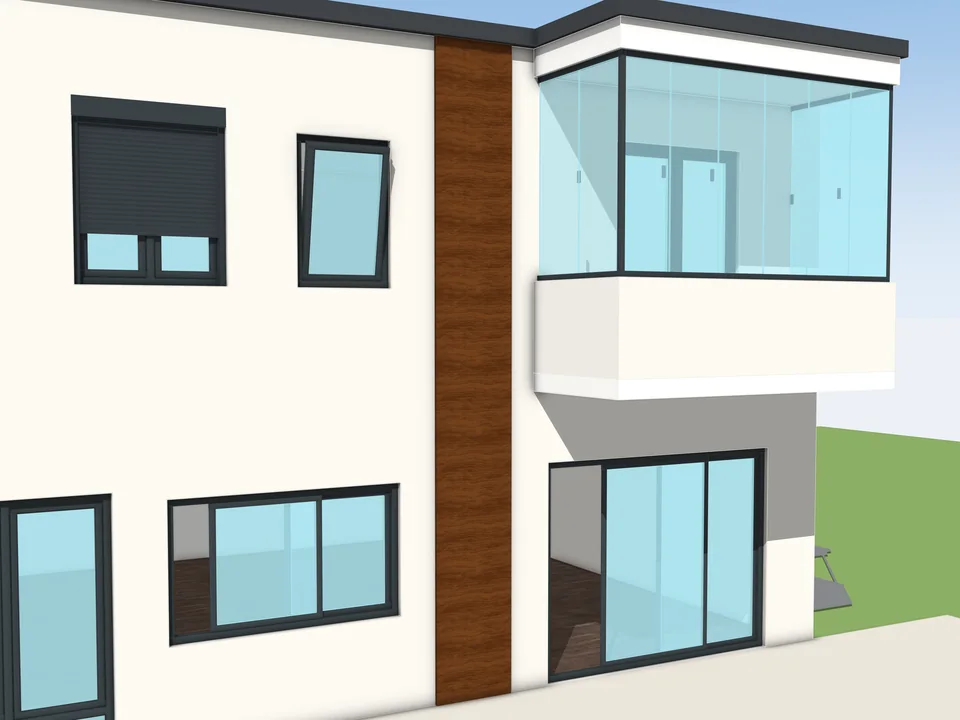
Type the size. The window builds itself.
Windows & Doors$30WindowFun StudioWindowFun Studio
Don't draw windows one by one: type the size, get window and quote.
- 55 models, 6 categories
- CSV + DXF + PDF quote
- SketchUp 2024-2026
SketchUp 2024–2026v1.1.0