You did not open SketchUp to read about buttons. You have a room, a house or a piece of furniture in your head, and you want to see it. After 18 years of teaching this program I can tell you the good news: you need about four tools and three mouse moves to get there. The rest of the screen can wait.
What is on the SketchUp screen?
Start a new model from a metre or millimetre template, so that the numbers you type mean what you think they mean. Then look at the screen as eight parts. You will use the drawing area, the tool set on the left and the two boxes along the bottom all the time; the panels on the right come later.
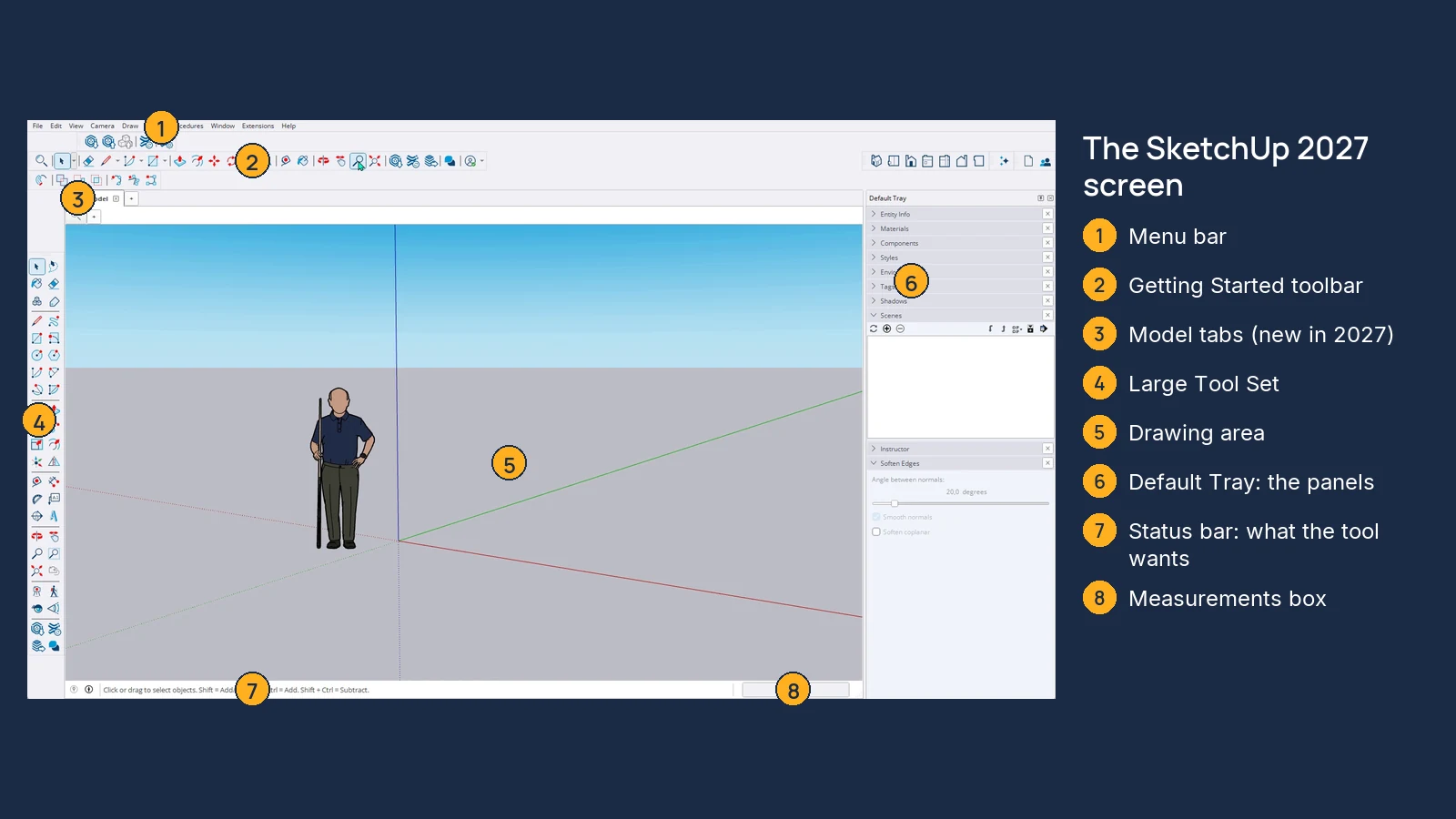
- Status bar. It tells you what the current tool wants next. If you are stuck, read it first.
- Measurements box. You never click inside it. Just type while a tool is working, then press Enter.
- Model tabs (new in 2027). The plus button opens another model in its own tab.
How do you move around in SketchUp?
Forget the toolbar buttons for this. Three moves with the mouse wheel do everything, and they work in the middle of any other tool.
- Orbit: hold the wheel and drag to circle around the model.
- Pan: hold Shift and the wheel, then drag to slide sideways.
- Zoom: roll the wheel; it zooms towards the cursor, so point at what you want first.
Your first model: a small house with exact sizes
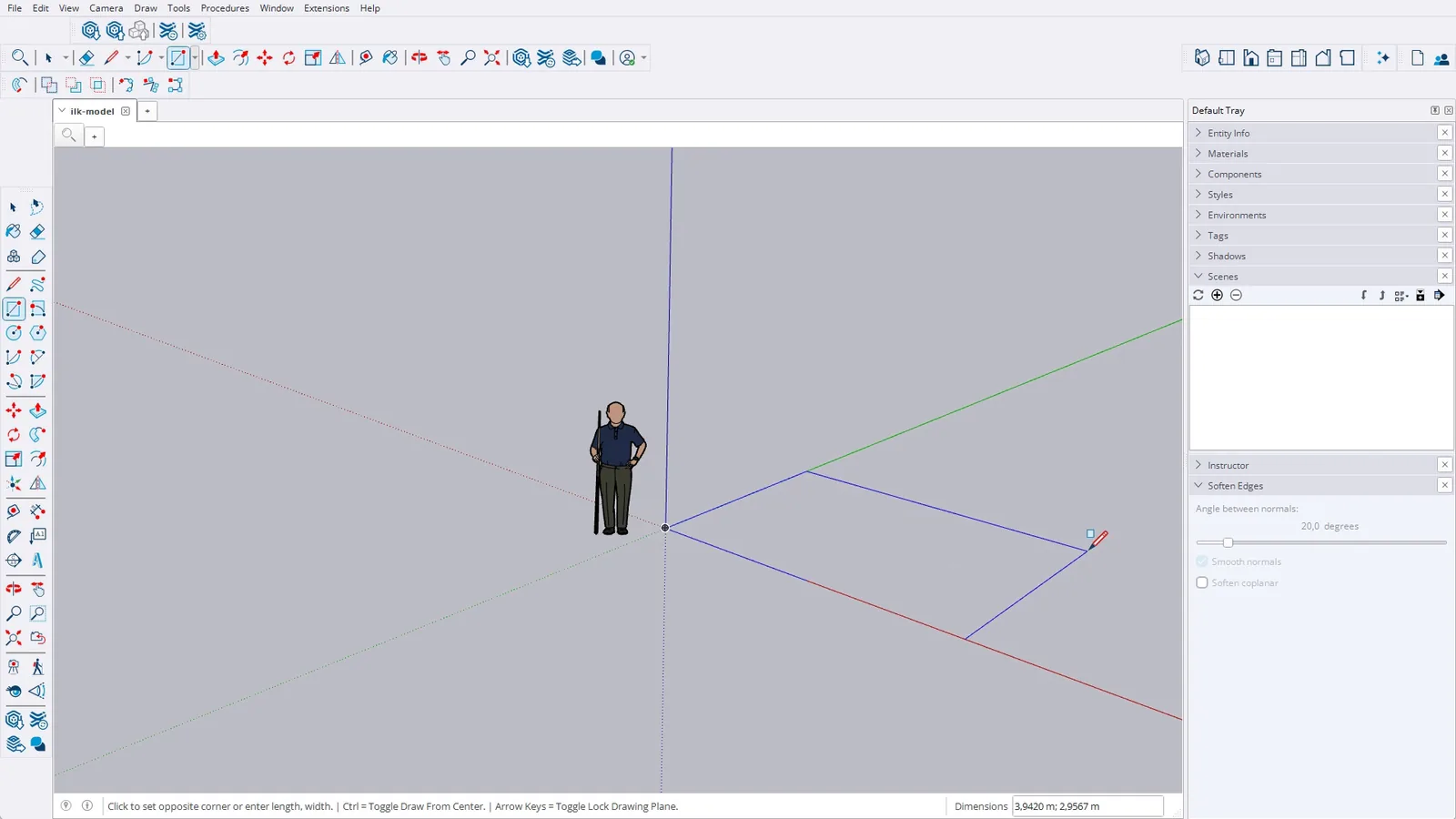
Press R for Rectangle and click on the origin, where the axes cross. Move the mouse, click, and without touching anything else type the size: 4;3 and Enter gives a 4 by 3 metre floor. Depending on your Windows settings the separator is a semicolon or a comma, and the decimal mark follows the same setting; these screens use a decimal comma.
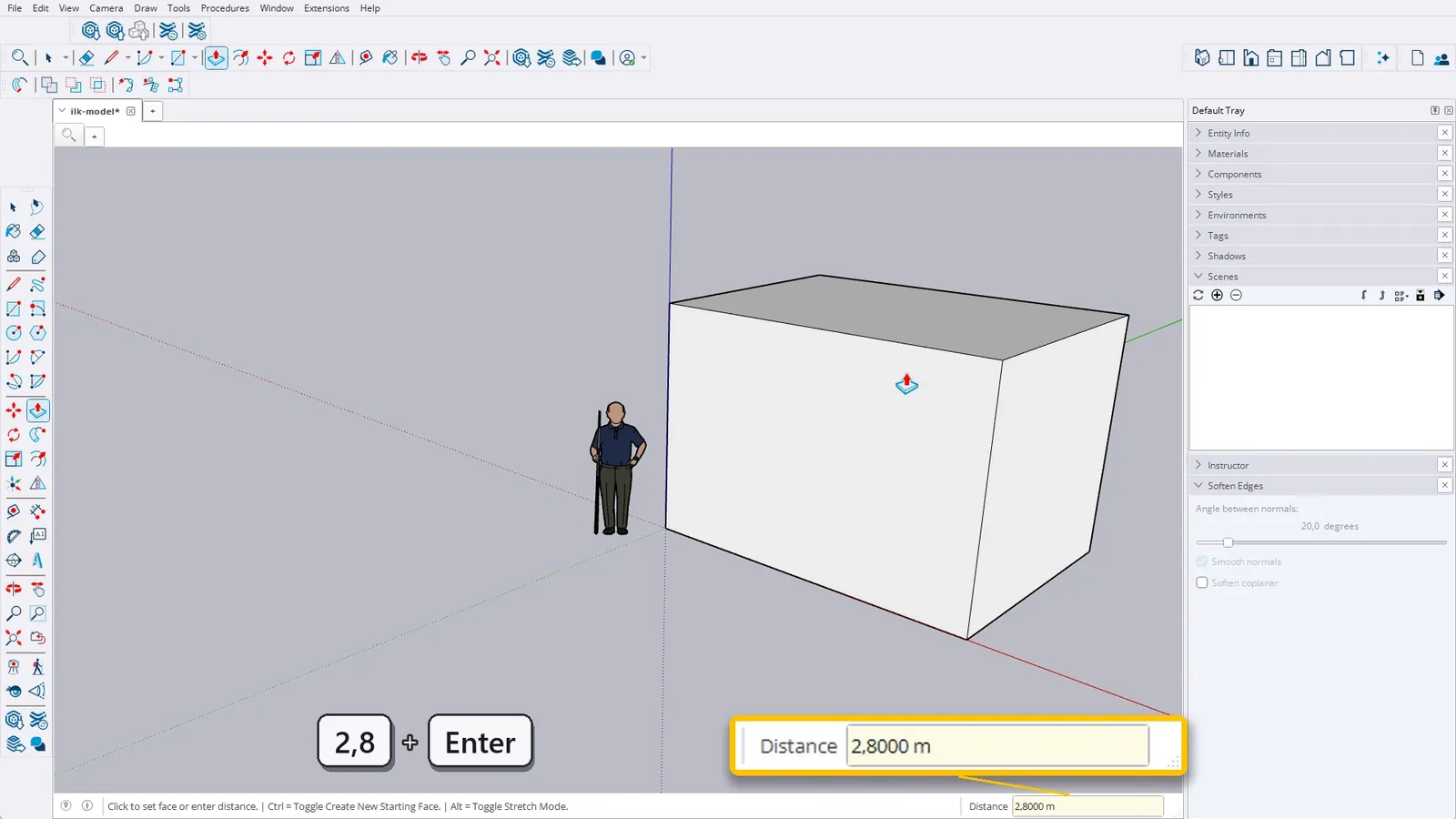
Press P for Push/Pull, click the floor, pull upwards and type 2.8 (2,8 on a comma system) then Enter. A flat rectangle is now a box with a real height. This is the moment most people fall for SketchUp.
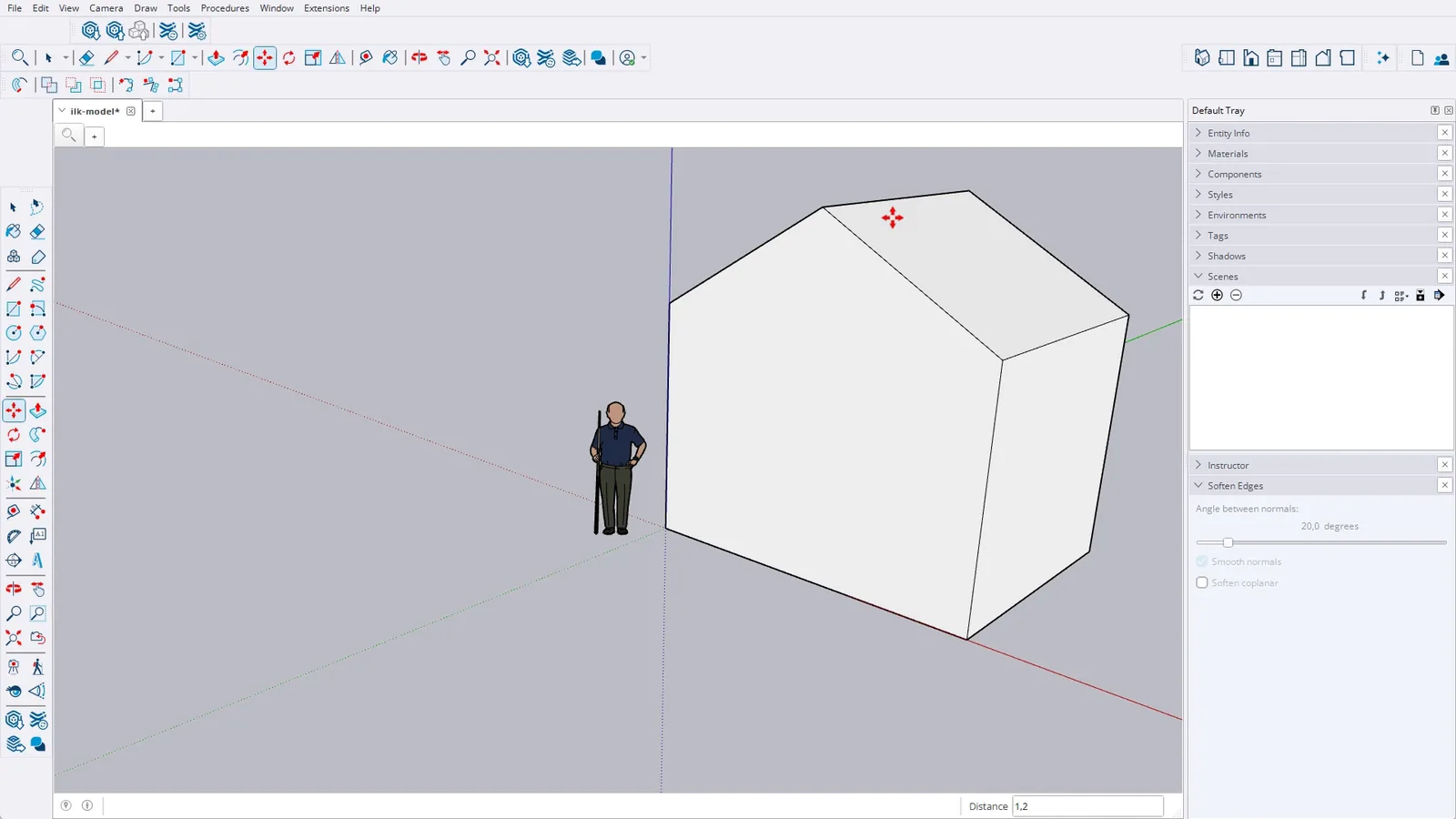
Now a roof. Press L for Line and draw across the top from the middle of one edge to the middle of the opposite one; SketchUp shows you when you are on a midpoint. Press M for Move, grab that line, tap the up arrow key to lock the blue axis and type 1.2. The flat top folds into a gable roof, because SketchUp keeps the faces attached to the line you moved.
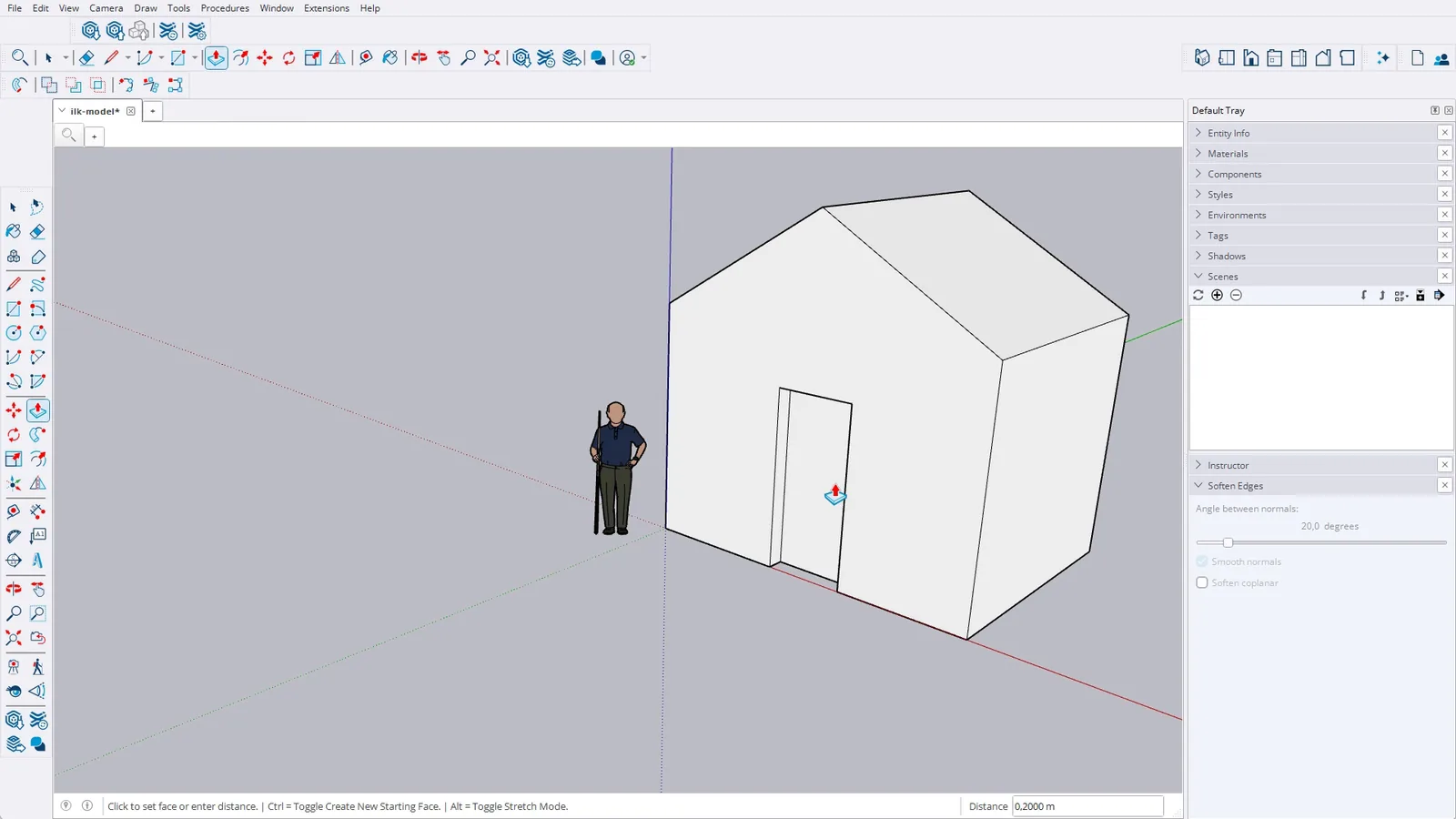
Finally a door. Draw a rectangle on the front wall starting from its bottom edge, then use Push/Pull to push it 0.2 inwards. Push/Pull moves a face along its own direction, so pushing in makes a recess. Ctrl+Z undoes a step, Ctrl+Y brings it back, and Zoom Extents fits the whole model on screen.
Which SketchUp tools should a beginner learn first?
Exactly the four you just used: Rectangle (R), Push/Pull (P), Line (L) and Move (M), plus Space for Select. Once these feel natural, the next step that saves you from most beginner disasters is groups and components.
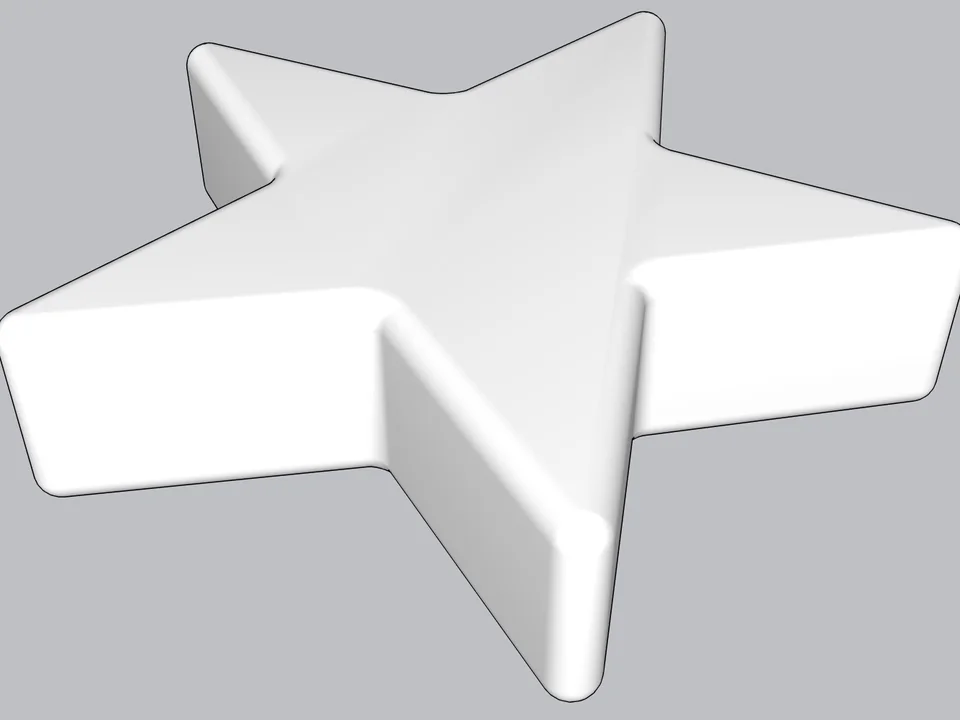
Type a radius, click: every edge goes soft.
FREE ProductivitySoft EdgeSoft Edge
Skip hand filleting: round or chamfer in one click, always editable.
- Round + chamfer
- SketchUp 2021-2026
- Free
SketchUp 2021–2026v0.8.1
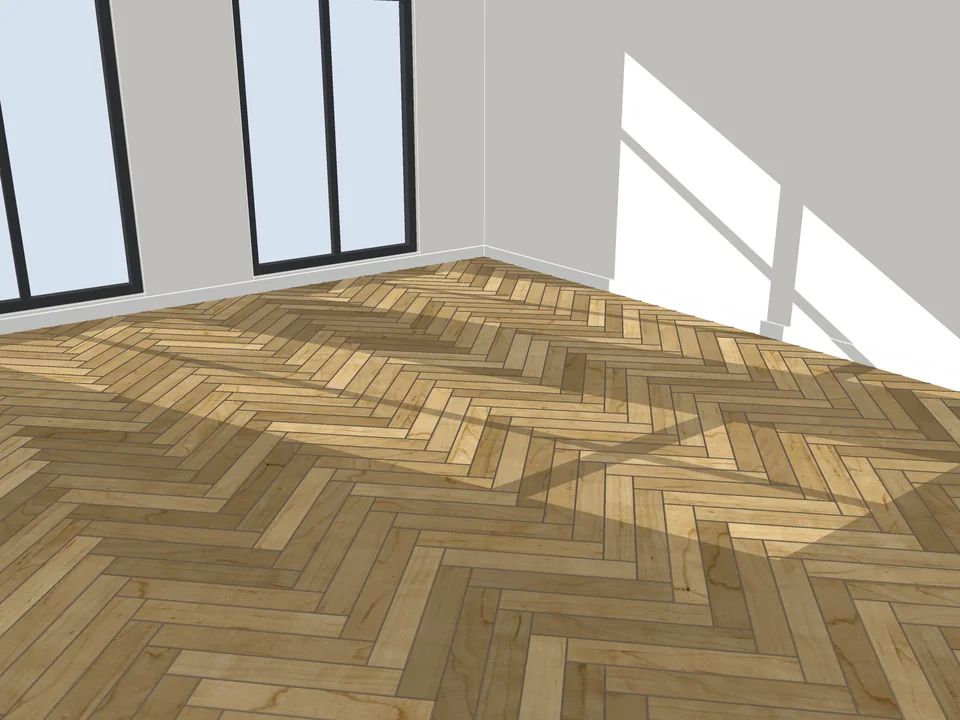
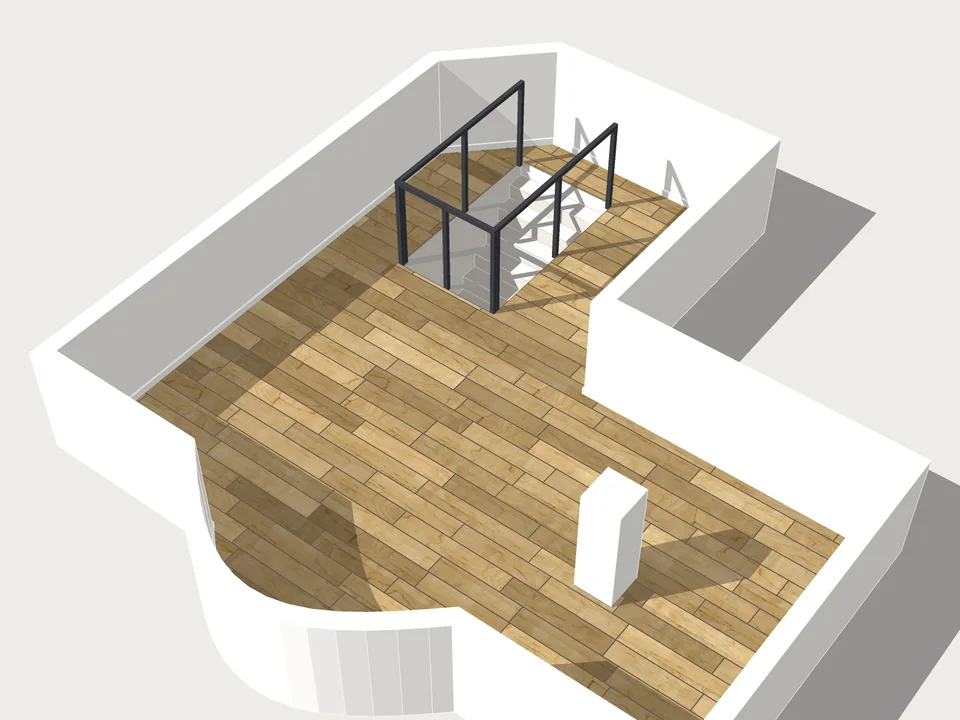
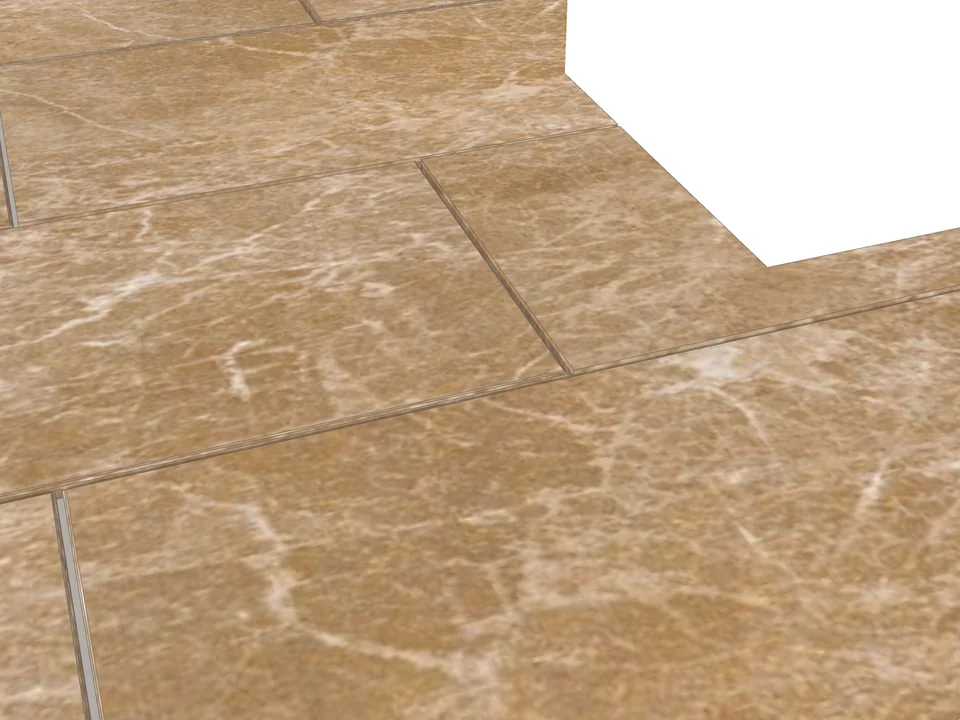
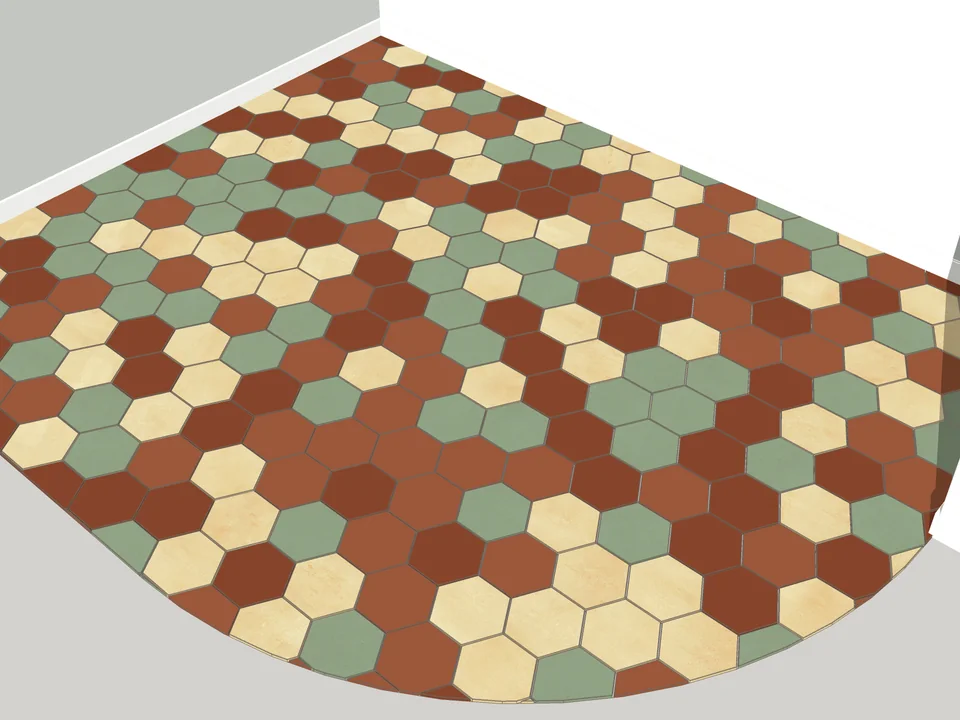
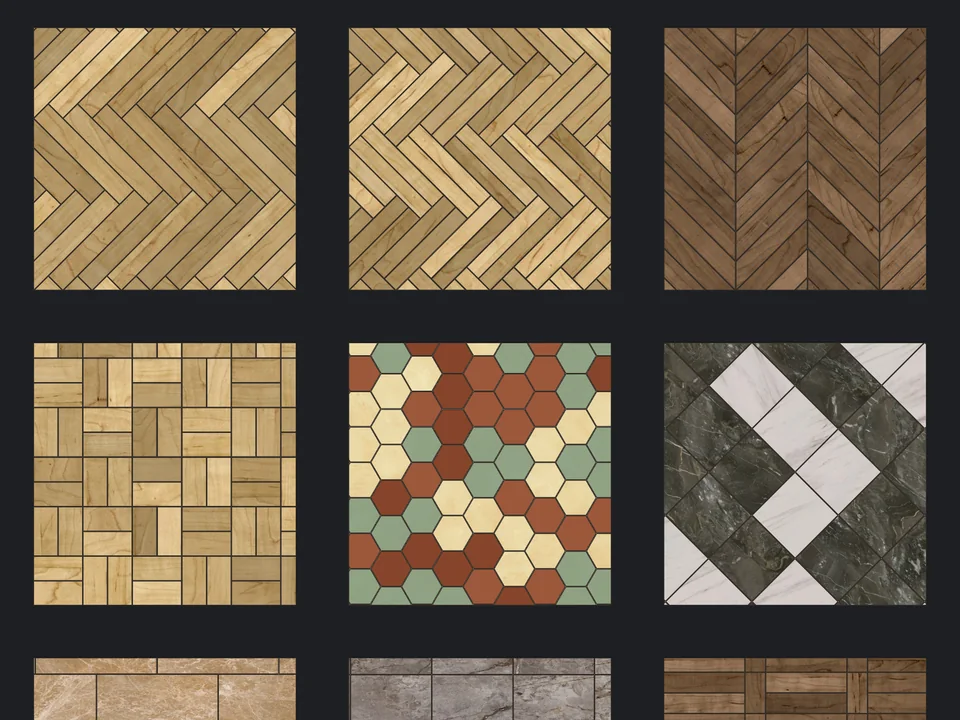
Pick a face, pick a pattern. Floor laid.
Flooring$39FloorStudioFloorStudio
Skip the tile-by-tile copying: every board cut, counted, out as CSV.
- 13 patterns
- SketchUp 2021-2026
- CSV take-off
SketchUp 2021–2026v3.4.1
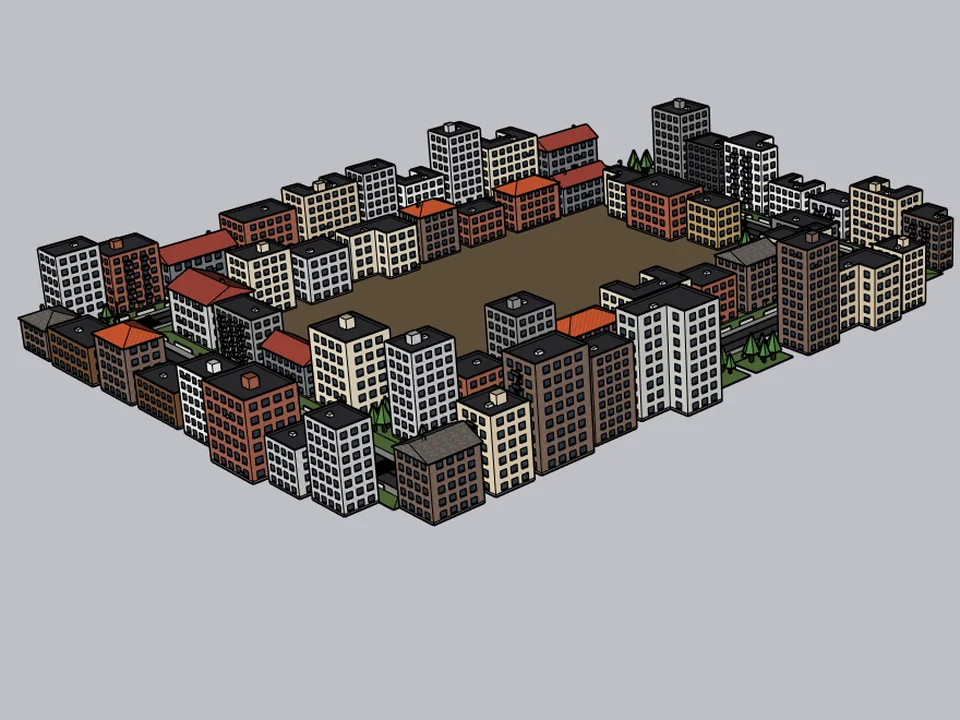
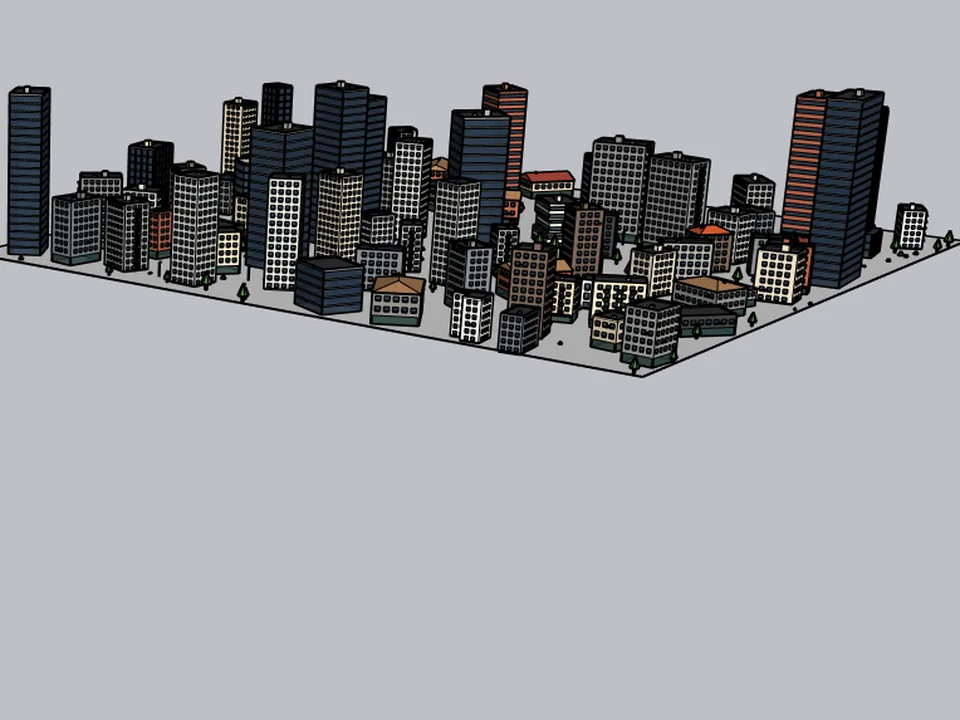
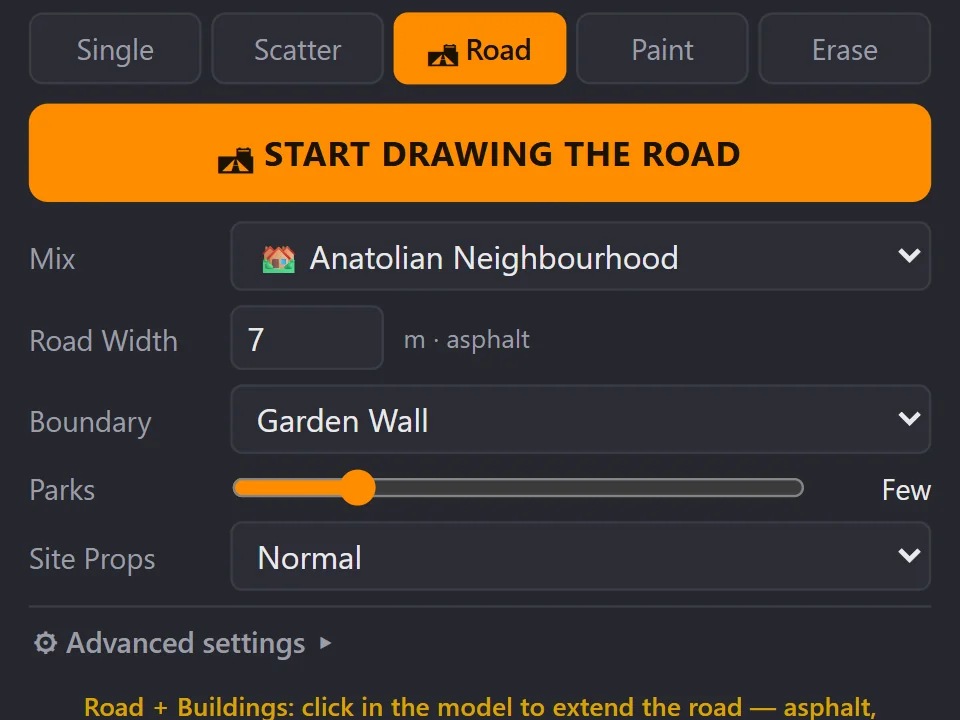
Draw the road. The street grows with it.
FREE Urban DesignCityFillCityFill
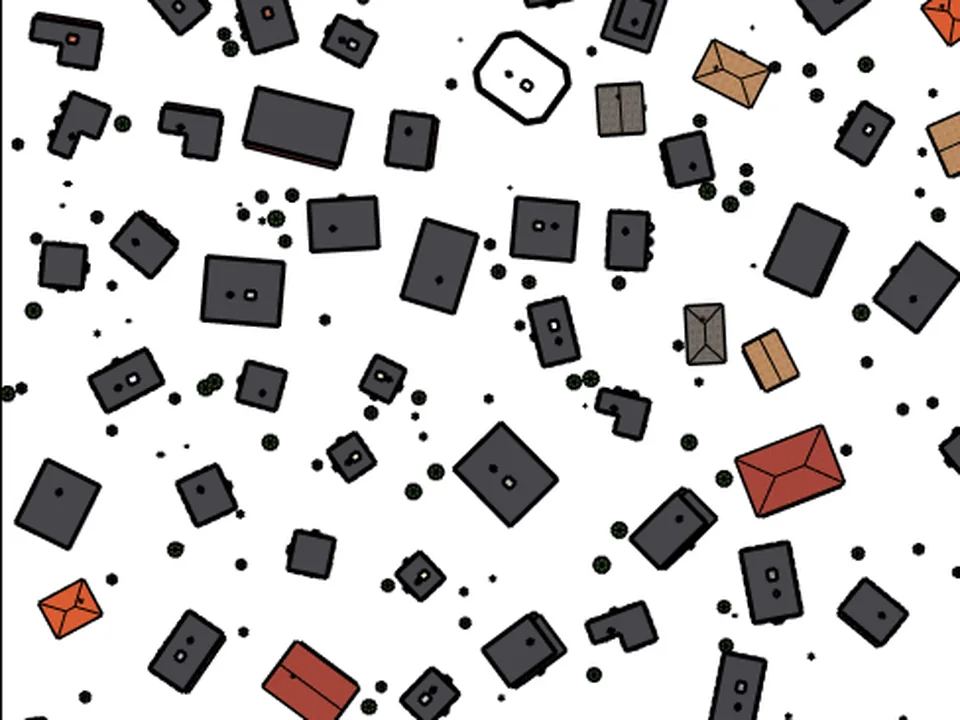
No white void around your design: fill the city in a few clicks.
- 154 presets
- 3 placement modes
- SketchUp 2021-2026
SketchUp 2021–2026v2.0.0