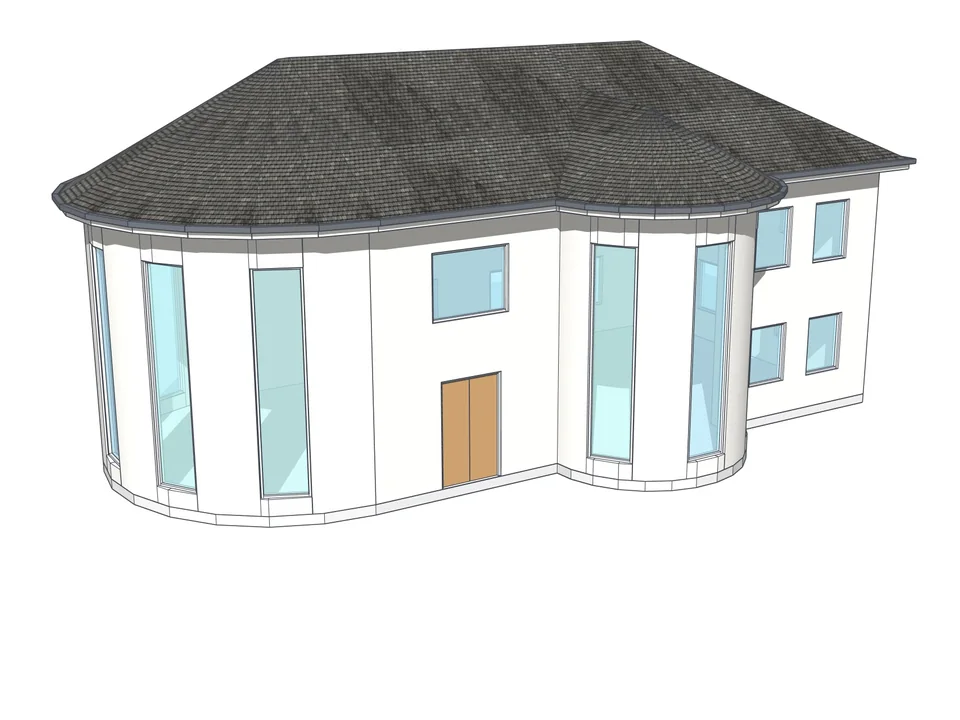
Nobody falls in love with a closed box. The moment you slice the model open, the client sees the rooms, the wall thickness and the door they will walk through. A section plane does that in a few clicks, without touching a single line of your geometry.
What is a section plane in SketchUp?
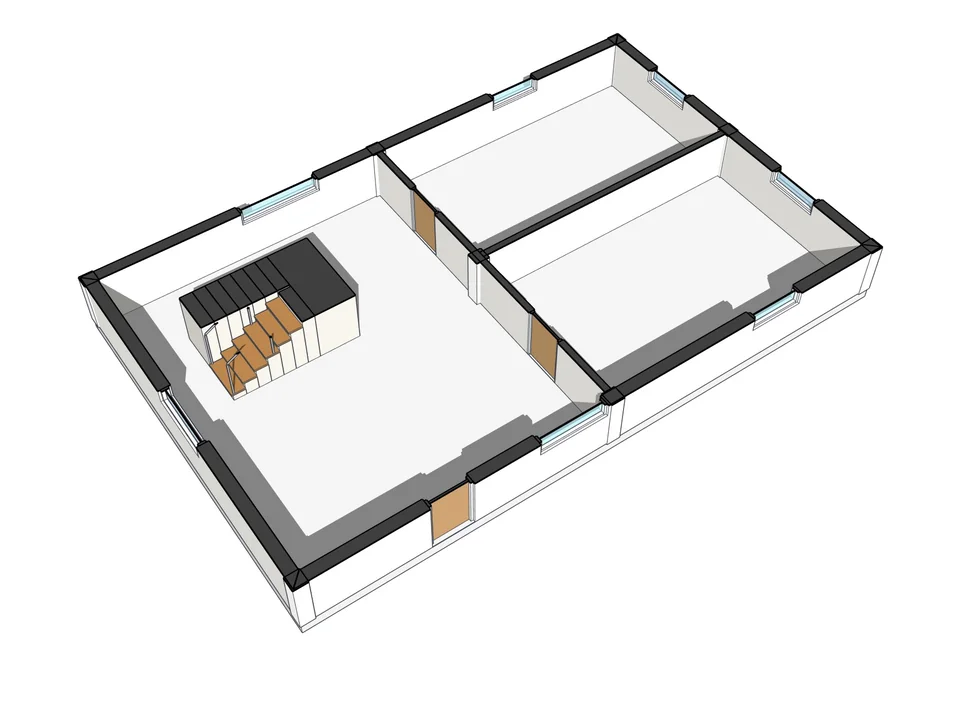
A section plane cuts the model like a knife and lets you see inside. It is the basis of plan and section drawings. It does not delete anything: the cut is a view, and you can switch it off whenever you like. Below is a room with 25 cm walls.
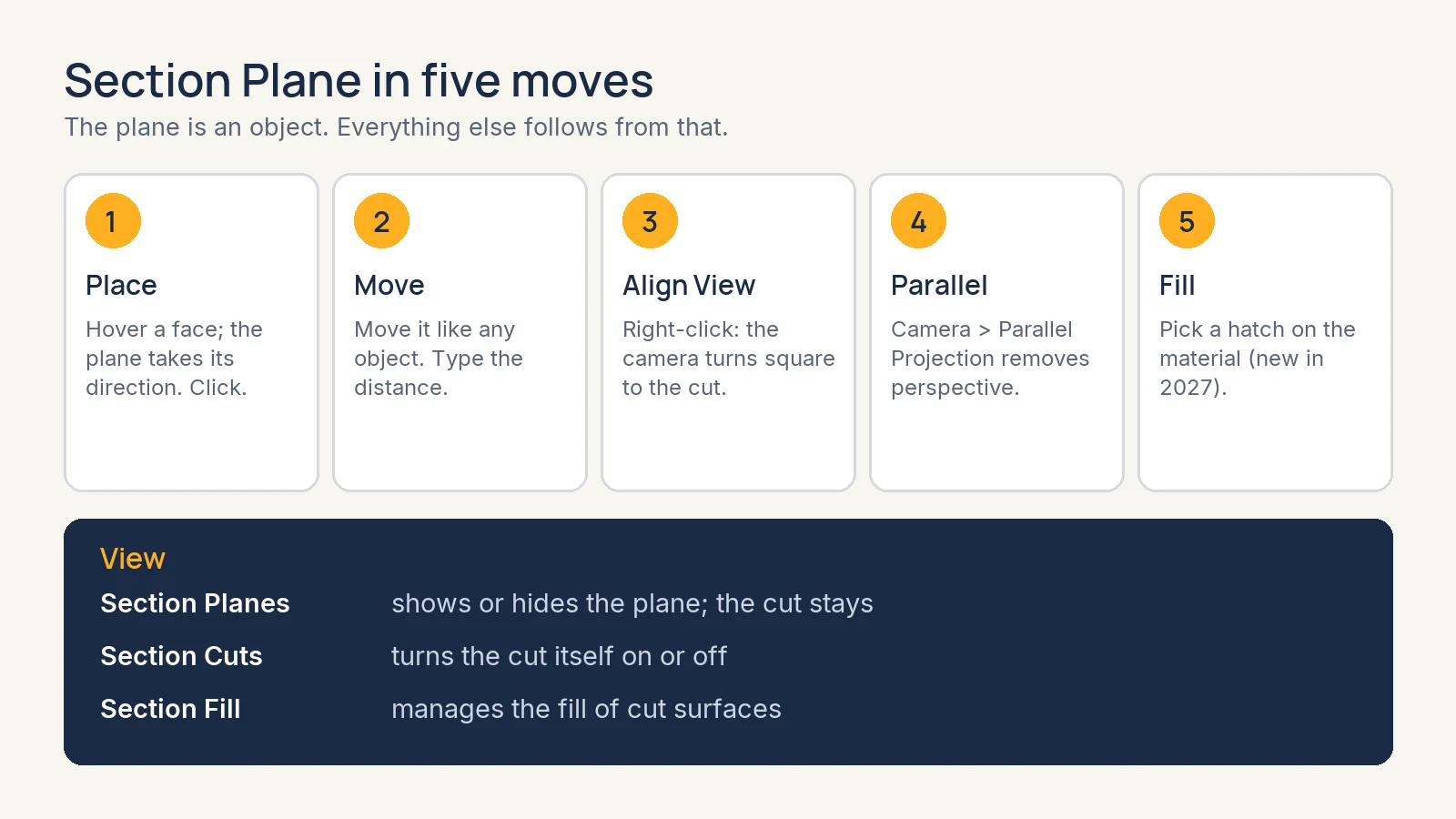
How do you add a section cut?
Pick the Section Plane tool from the toolbar on the left. Hover over a face and the plane takes that direction: upright on a side wall, flat on top of a wall. Click to place it. The Name Section Plane window lets you give it a name and a symbol for your drawings. I type Plan and press OK.
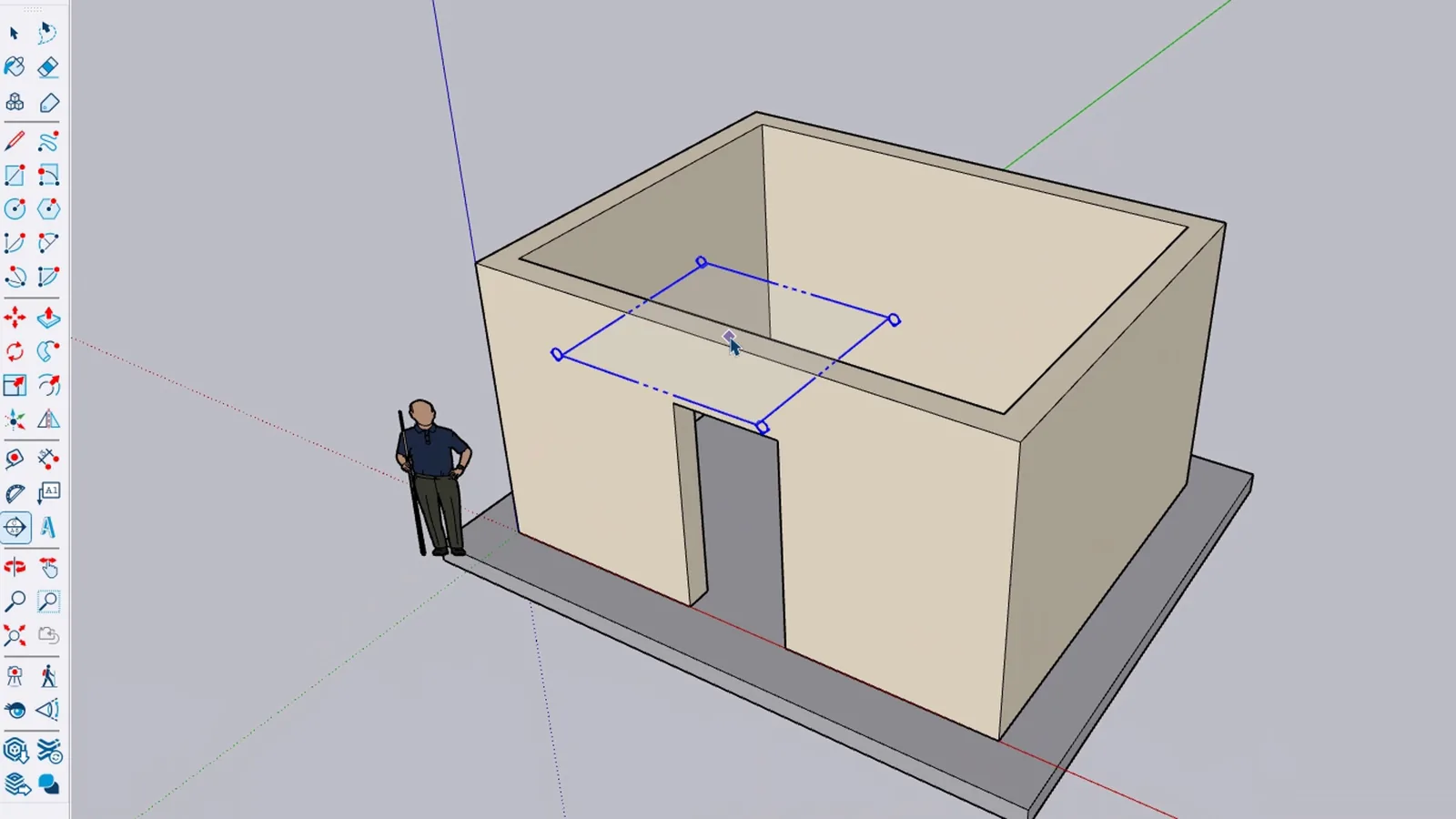
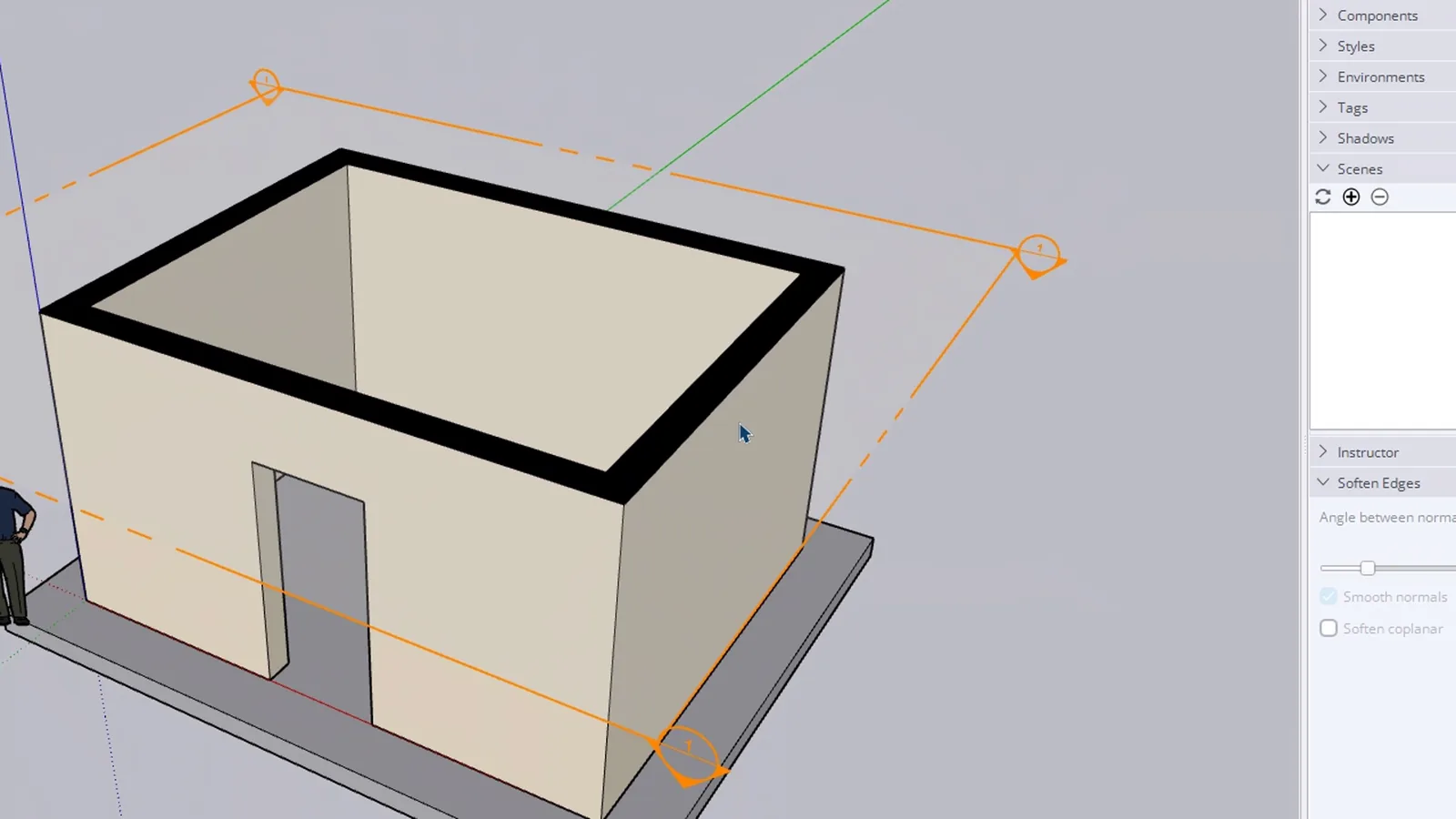
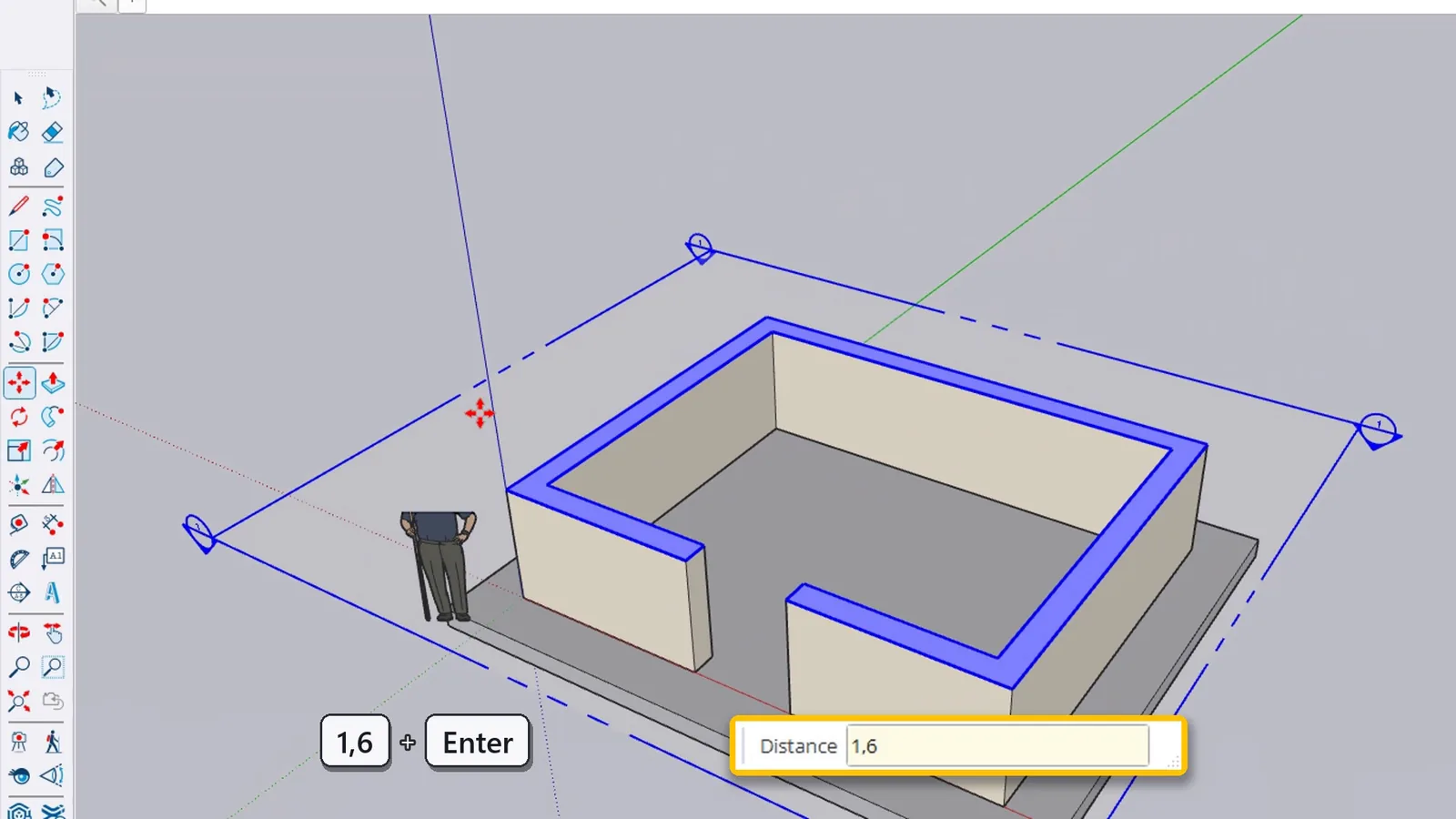
Sitting on top of the walls, the plane is not cutting anything yet. It behaves like an object, so you can move it. Click its edge with Select, grab it with Move, lock the vertical with the up arrow key and type 1.6. It drops to 1.2 metres above the floor, and the plan of the room appears with its door opening.
How do you get a flat floor plan from a section?
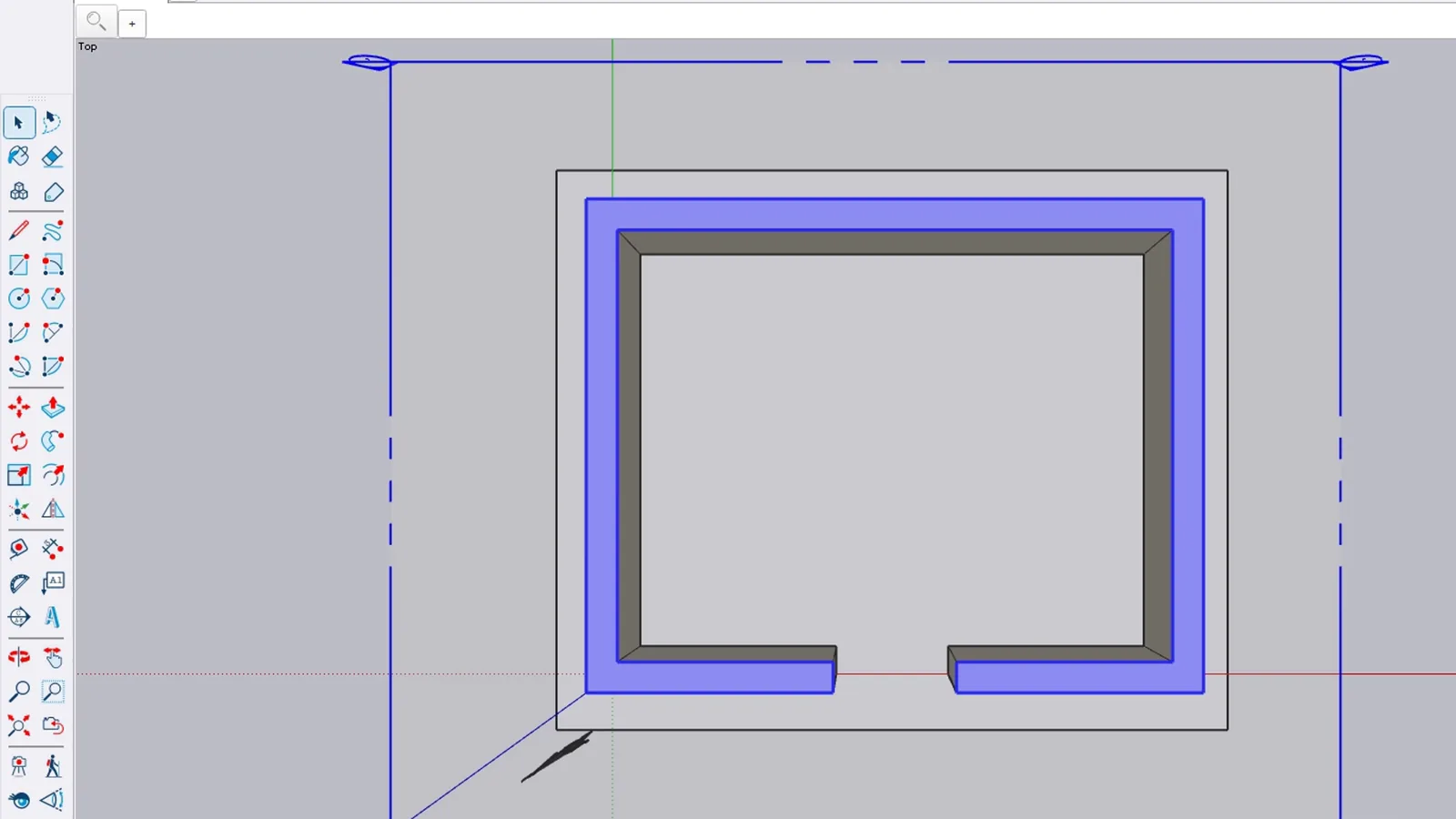
Select the plane, right-click and choose Align View: the camera turns square to the cut, so you look straight down. Then Camera > Parallel Projection removes the perspective, and you have a scaled architectural plan.
What do Section Planes, Section Cuts and Section Fill do?
- Section Planes shows or hides the plane itself. The cut stays active, the orange frame goes away.
- Section Cuts turns the cutting itself on and off.
- Section Fill manages the fill of the cut surfaces.
- Reverse (right-click) flips the cut, so the other side is hidden. Active Cut switches a cut off without deleting it.
How do section fill hatches work in SketchUp 2027?
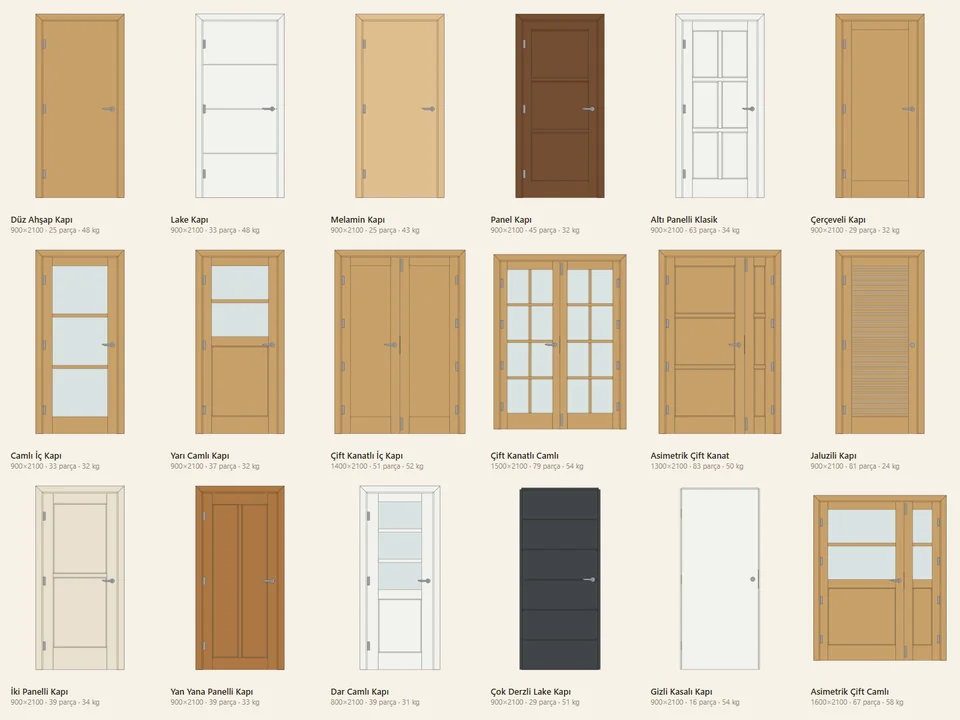
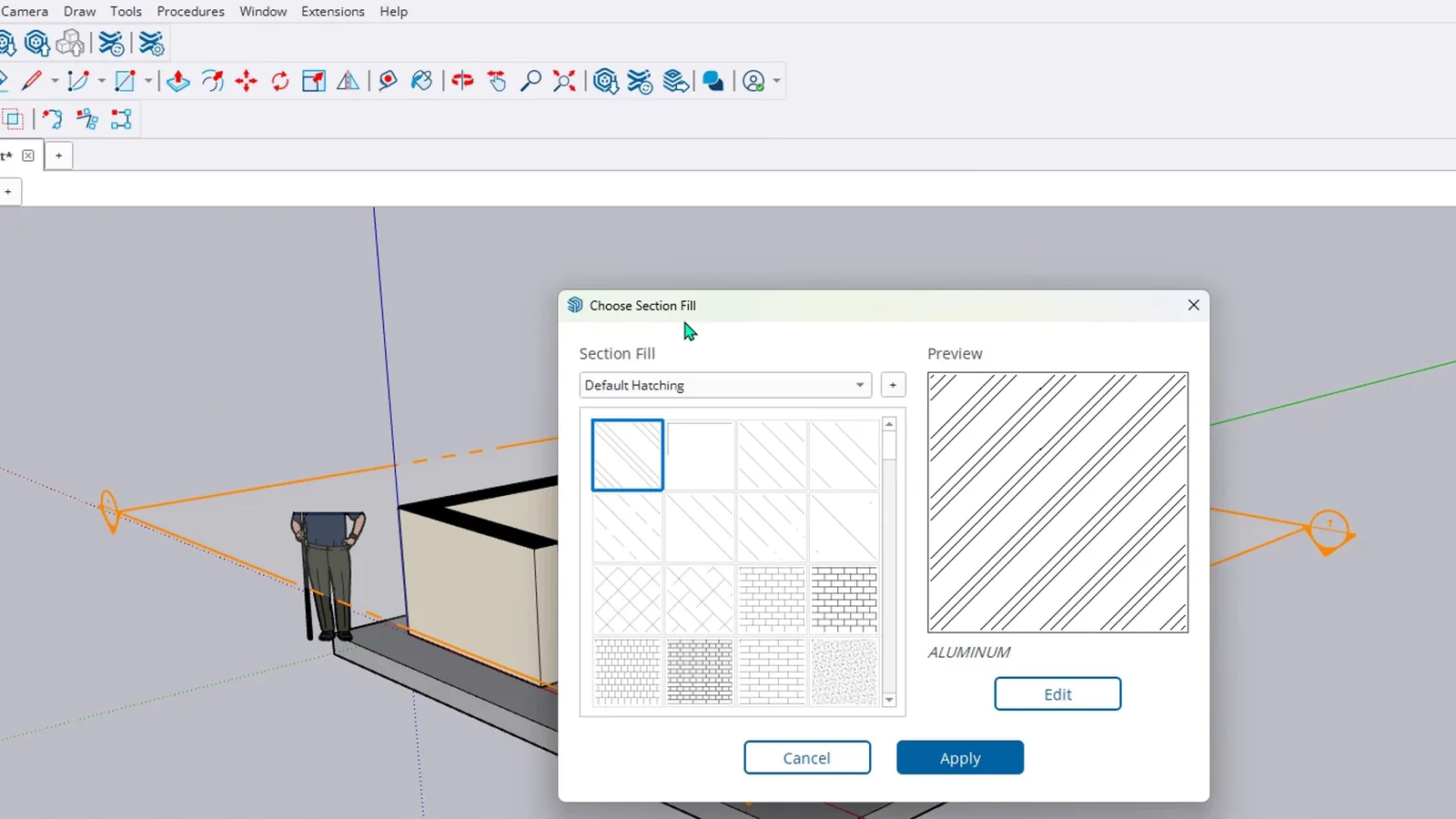
This is one of the most awaited additions in 2027. The walls here are a group with a material called Duvar. In the Materials panel, open the Edit tab, scroll down and click Section Fill. The Choose Section Fill window offers ready hatch patterns with a preview. I pick a brick pattern and press Apply.
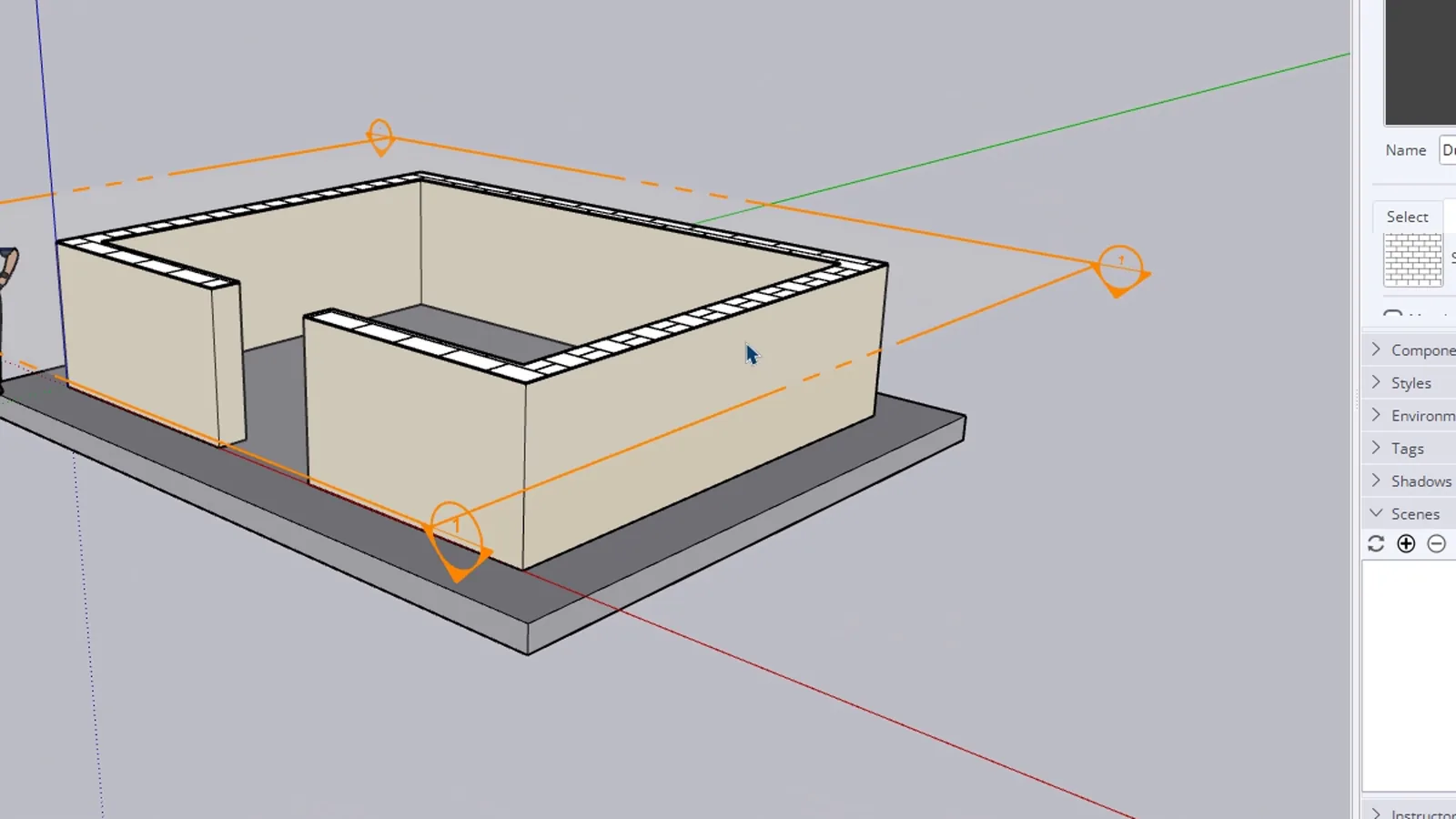
The cut walls now show a brick hatch. Because the hatch belongs to the material, every solid group using that material shows the same pattern when cut.
Why does my section fill not appear?
The fill works on closed, solid groups. If it does not show, right-click the plane and use Troubleshoot Section Fill. And if every fill has turned one colour, check Override Section Fill by Style in the style settings.
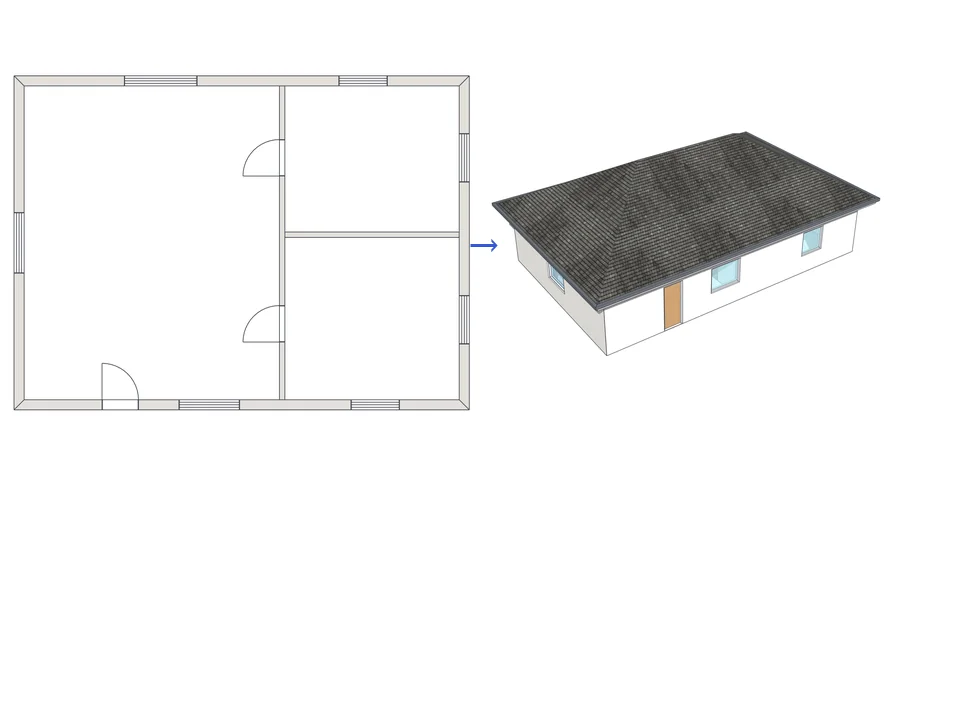
Draw the plan. One click, it's 3D.
Architecture$99ArchiFlow StudioArchiFlow Studio
Draw the plan once; move a wall and the building rebuilds itself.
- 5 studios built in
- 150 ms auto-rebuild
- SketchUp 2021-2026
SketchUp 2021–2026v1.72.0
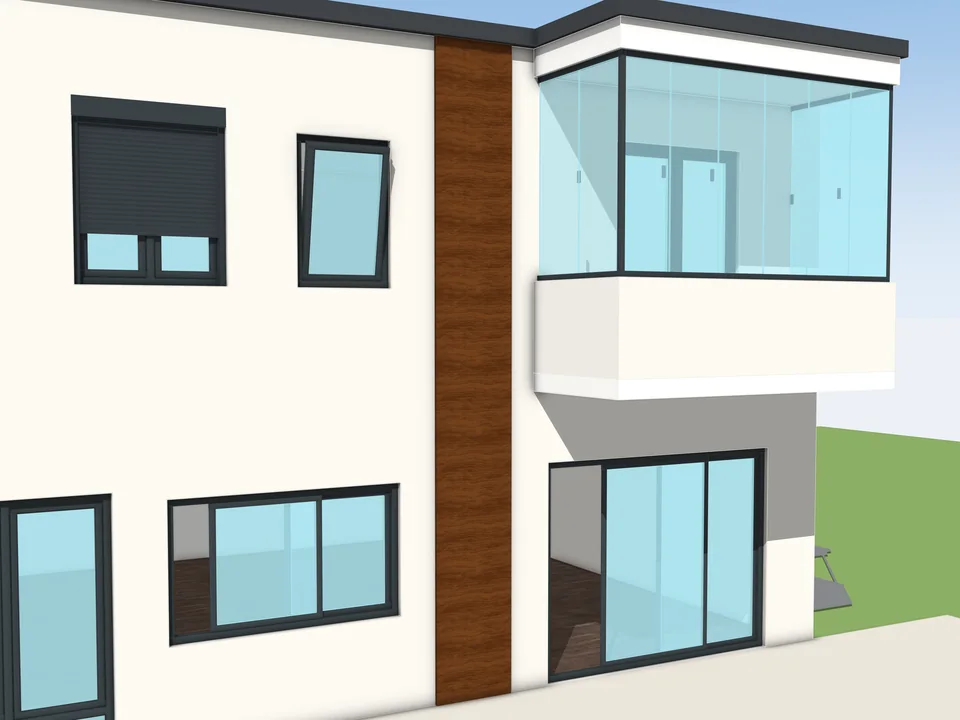
Type the size. The window builds itself.
Windows & Doors$30WindowFun StudioWindowFun Studio
Don't draw windows one by one: type the size, get window and quote.
- 55 models, 6 categories
- CSV + DXF + PDF quote
- SketchUp 2024-2026
SketchUp 2024–2026v1.1.0
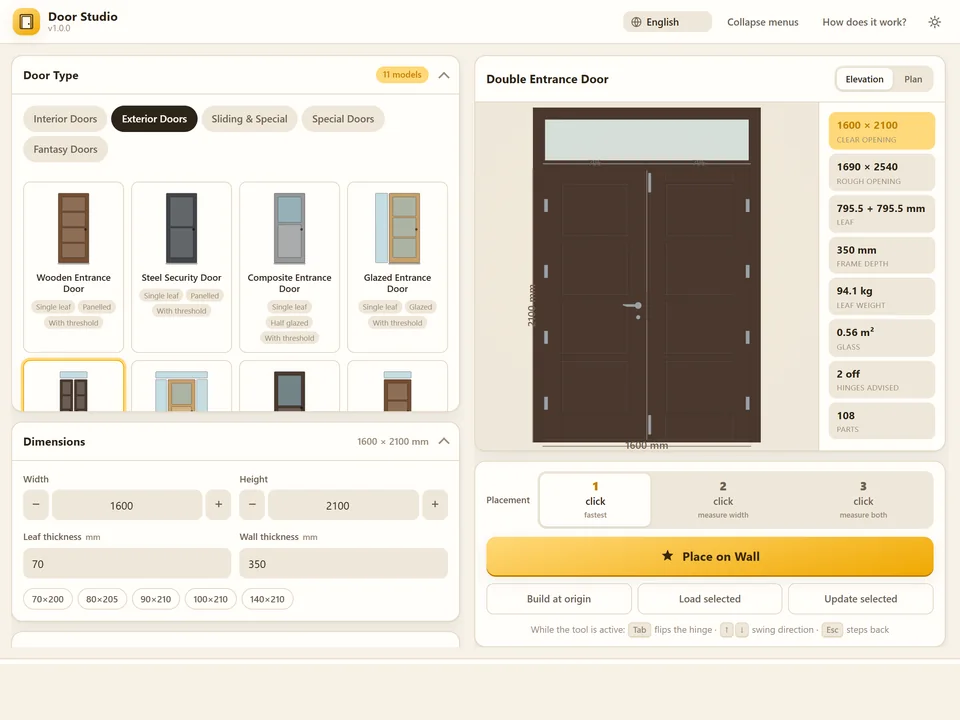
Pick a door, click the wall. It fits itself.
Windows & Doors$30Door StudioDoor Studio
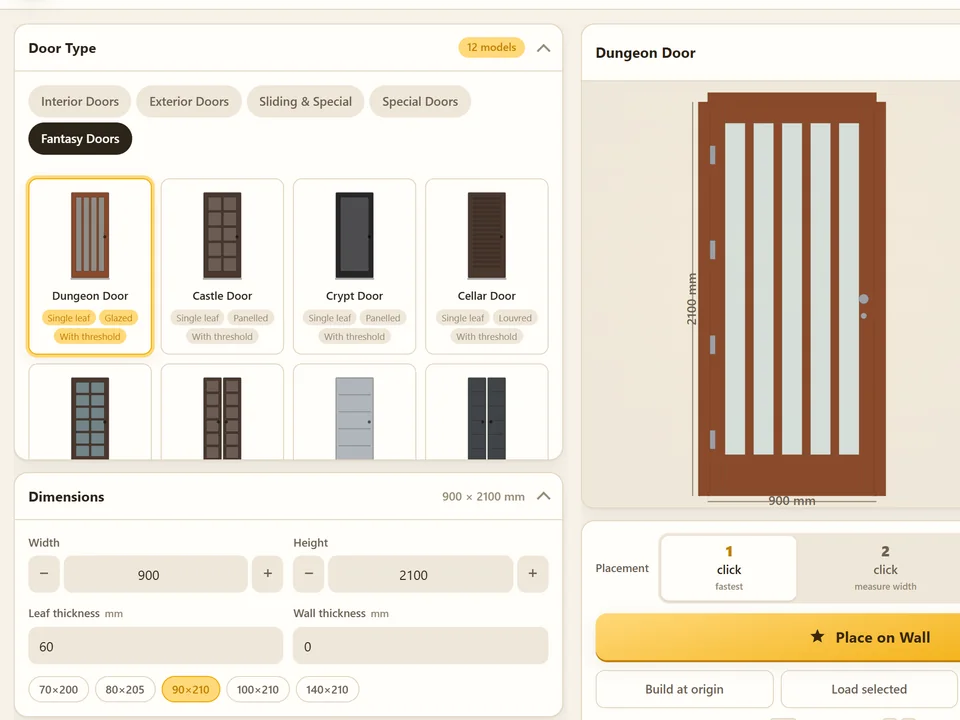
No walls cut by hand: pick a door, click the wall, it fits itself.
- 63 models, 5 categories
- 1/2/3-click wall placement
- 572 tests green
SketchUp 2021–2026v1.6.0