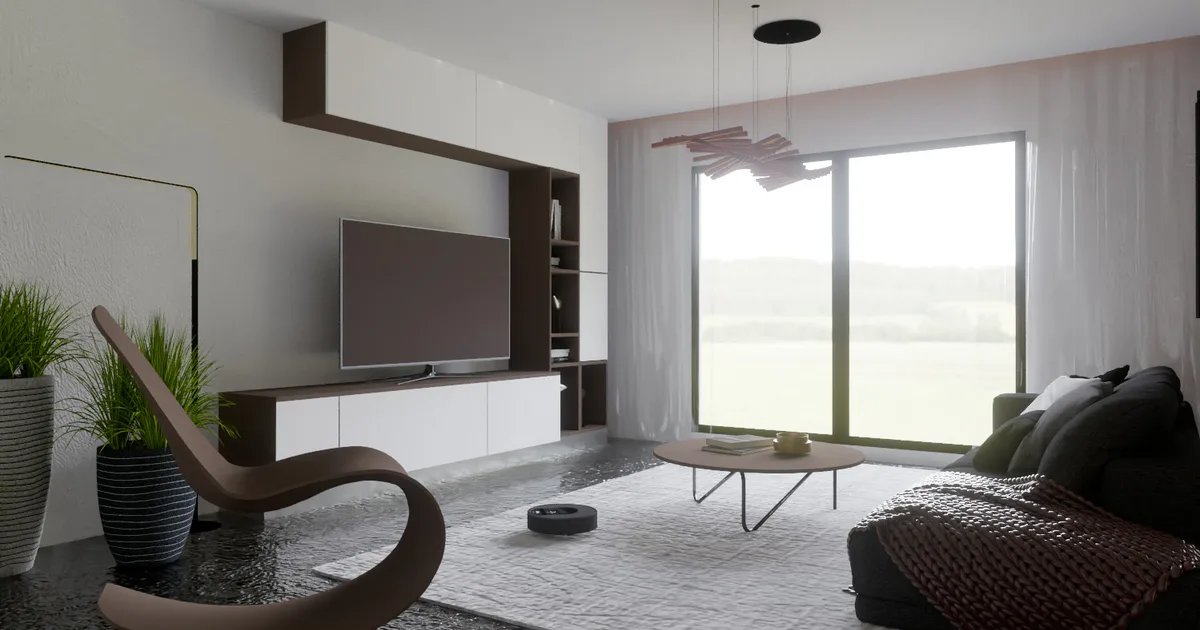
Your client never sees the model; they see the image, and a photo-real one wins them over before you say a word. Picture it: one click inside SketchUp and the room fills with real light in fast real time, with no export, no second program and no wall of settings in between. For years every render of mine started the same way: finish the model, export it, open another program, rebuild the lights, fix the materials, wait, notice a wall is wrong, go back to SketchUp and do it again. Render Fun is the render engine I wanted instead, one that lives inside SketchUp, reads the model as it is and shows real light from the first second. This article explains how it works, what each setting is for and what it needs to run, without the marketing fog.
Why render inside SketchUp instead of exporting?
Because design decisions happen while you model. When the render window sits next to the model and follows every move, you judge the light on a façade or the colour of a sofa before you commit to it, not an hour later in another program. Render Fun reads the triangles, materials and textures, camera, sun and lamps straight from SketchUp: there is no export file and no second scene to keep in sync. Move the camera and it follows at once; change a material, the sun or a tag and the image updates.
How does path tracing inside SketchUp work?
For every pixel, the graphics card follows rays of light as they bounce off walls, pass through glass and fall into shadow, and averages what they bring back. That is path tracing, the same principle the large offline renderers use. Render Fun runs it through WebGL2 in SketchUp's own window, so it uses the graphics card you already have, without a separate application.
The first image comes at once, then it sharpens
You never wait for a finished frame. The first pass is on screen immediately and noisy; every pass adds light samples and the picture cleans up while you watch. Stop when it looks good enough, or choose “Until clean” and the render stops by itself once the image is clean.

Denoising: a fast preview denoiser and an AI denoiser for the final frame
While you work, a fast denoiser keeps the preview clean even at a handful of samples, and since version 0.34 it keeps fine detail sharp as the samples add up. For the final render on Windows, an AI denoiser shipped inside the plugin runs once at the end.
Sun, sky and HDRI lighting in SketchUp
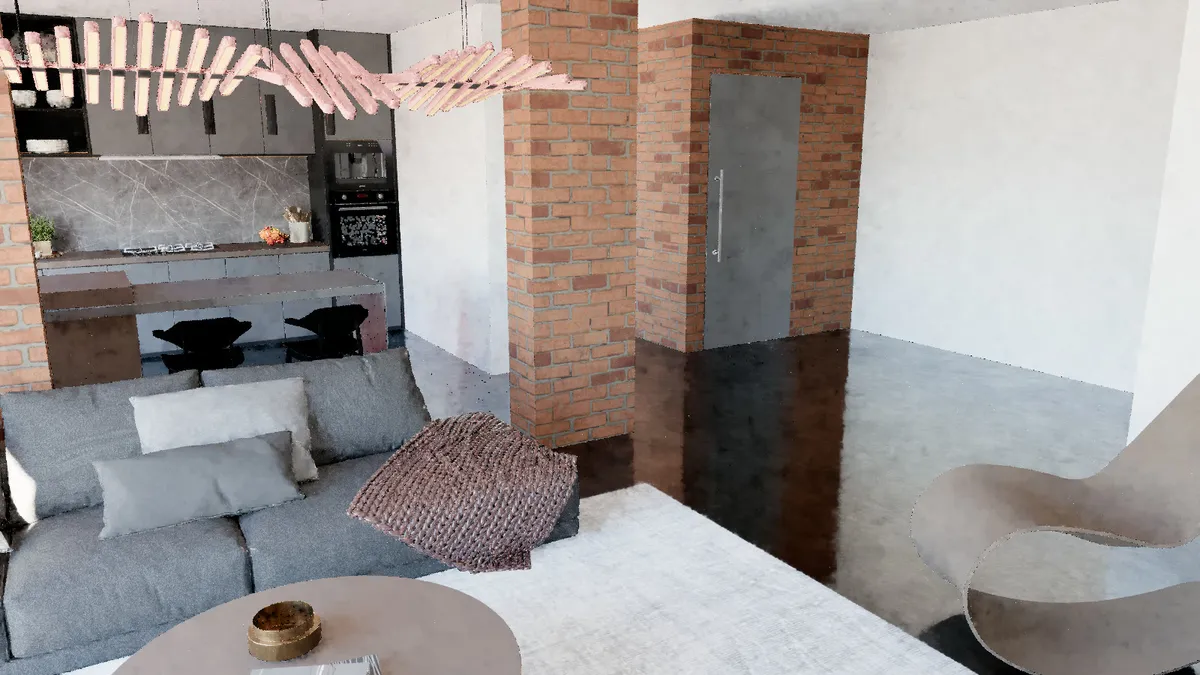
Render Fun takes SketchUp's own sun and puts a physical sky around it, so the time and date you set in SketchUp's shadow settings are the light you get. For a different mood, 10 CC0 HDRIs come built in, you can load your own .hdr or .exr file, and SketchUp 2025 and newer environments are read directly. The sun in an HDRI casts crisp shadows too. Shadow darkness balances sun and sky, and if you want the sun somewhere SketchUp's shadows would not put it, you can set the compass direction and height by hand without touching the model's shadow settings.
Lamps, IES profiles and the light mixer
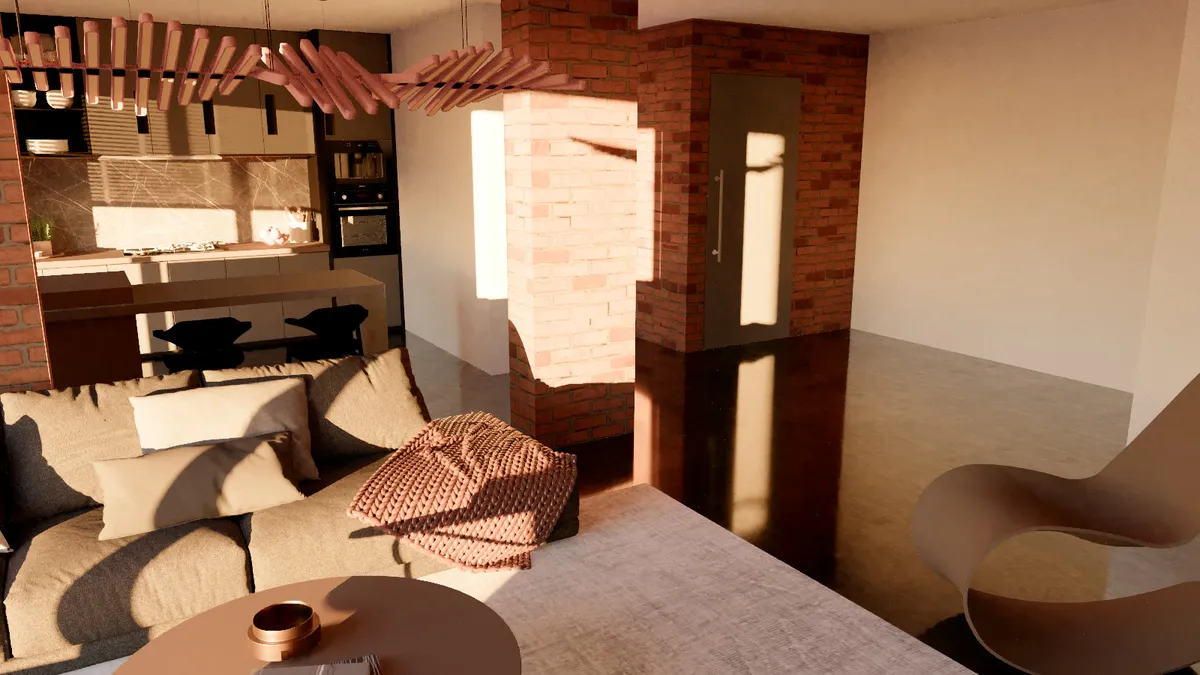
Interiors live on artificial light, so Render Fun has its own point, spot and panel lamps, IES light distributions for real fixtures, and glowing textures for screens and signage. Scenes with dozens of lamps stay workable, and bigger lamps cast softer shadows while the amount of light stays the same. After the render is done, the light mixer lets you change the power and colour of lamp groups without rendering again, the way lighting designers balance a room.
Materials: click a surface, or let the name decide
Click any surface and pick what it is: matte, glossy, metal, glass, mirror, water, fabric or car paint, with one slider for roughness. SketchUp 2025 PBR maps are read as they are. Since 0.26 a material's name can set its type too: write “glass”, “metallic”, “emissive” or “mirror” in the name and it renders that way, and “emissive 200” also sets the light power. A material library of 20 categories with 298 texture sets is built in, and the free 2K PBR texture library on this site supplies the rest.
Colour management: AgX vs ACES vs Filmic
A renderer computes light in values far brighter than a screen can show; tone mapping decides how they are squeezed in. AgX, the default, keeps colours natural even in very bright light. ACES is the cinema standard and a little more vivid. Filmic is soft, like classic film. Neutral changes colours the least, and Standard does no tone mapping at all, so bright areas clip. On top of that sits colour correction (contrast, saturation, temperature in Kelvin from 3250 to 13000 K, tint, highlights, shadows and gamma), a white-point picker for “this should be white”, and one-click looks: Natural, Vivid, Soft, Warm, Cool, Black and white. None of these restart the render; they work on a finished image instantly.
Ambient occlusion and cavity: detail, used on purpose
A path tracer already computes real contact shadows, so ambient occlusion and cavity are artistic emphasis rather than physics, and both are off by default. When you want them, ambient occlusion adds soft shadow in corners, joints and where objects touch, measured in metres so it reads the same everywhere in the scene, and cavity lightens outer edges and darkens inner corners so trims, joints and furniture edges stand out, without false lines between objects standing one behind the other. Presets go from Off and Subtle to Strong and Drawing.
Quality settings that actually matter
- Anti-aliasing: Fast, Balanced (recommended), High and Best. Balanced keeps edges sharp and reduces moiré on distant parquet, grilles and curtain fabric; High halves the moiré and keeps railings, wires and joints continuous.
- Faster interiors: rooms lit by bounced light clean up about twice as fast as before.
- Until clean: a cleanliness target instead of a sample count; the render stops by itself.
- Depth of field and bloom: a focus point you pick in the image, and a glow around bright lights.
What do you need to run Render Fun?
- SketchUp 2021 to 2026; every setting is tested with automated tests in SketchUp 2023, 2024, 2025 and 2026, and 2023 or newer gives the best result. SketchUp 2020 and older are not supported.
- Windows. macOS has not been tested yet, so we do not claim it.
- A graphics card with WebGL2. Render Fun runs a short speed test when it opens and picks its quality from it. So far it has been measured on an NVIDIA RTX 4090; integrated graphics have not been measured yet.
- No internet connection: HDRIs, the texture library and the AI denoiser are inside the plugin.
What has changed in recent versions?
In a few weeks Render Fun gained naming materials by type, smooth light changes, a full colour panel with AgX and white-point picking, four anti-aliasing levels, ambient occlusion and cavity, shadow darkness and a hand-set sun, softer shadows from bigger lamps, a new panel order with one-click looks, and smarter denoising. Versions 0.35 to 0.39 added a material eyedropper, zooming into the render, per-lamp settings and light colour from the Paint Bucket, large models that open about twice as fast, and a compatibility mode for more graphics cards. Versions 0.40 and 0.41 brought fast real time, a walk through the model with W A S D before you press RENDER, and the Render Buffer, a window that keeps your last 60 renders. Since 0.42 there are plants: our own pack of 103 species and a Plants panel, and 0.47 added render aspect ratio and resolution. The full list, version by version, is on the Render Fun update history.
Questions about Render Fun
Is Render Fun a replacement for V-Ray or Enscape?
It has a different aim: the shortest path from a SketchUp model to a believable image, simple enough to use without reading a manual, inside SketchUp, and free. It is a young engine, so try it on your own projects; the established renderers still offer features Render Fun does not have yet.
Is Render Fun free, and how do I install it?
Yes, free for personal and commercial work, with no account and no licence key. Download the .rbz from the Render Fun page, close SketchUp, open the .rbz with WinRAR or WinZip and extract all its files into C:\Users\<your user name>\AppData\Roaming\SketchUp\SketchUp <your version>\SketchUp\Plugins; then start SketchUp.
Does a render change my SketchUp model?
Only what you ask it to: render settings are saved with the model, and a material type you pick or a Render Fun lamp you place is written into it. A material choice or a lamp-size change is one step to undo.
The advantage is plain: the image that convinces your client comes straight from the model you are already working in, and Render Fun is free. Download it from the Render Fun page, open your current project and render the view you are presenting next.