You are the person in the office who knows SketchUp, and a plugin that misbehaves on a deadline night costs more than an evening: it costs that reputation. Picture the other version. You open Extensions > Extension Warehouse inside SketchUp, read a listing that tells you who made the tool, which SketchUp versions it supports and whether it is free, click Install, and keep working. That is what the Extension Warehouse is for: it is SketchUp's own catalogue of third-party extensions, reachable from the menu bar or from extensions.sketchup.com in any browser. I have taught SketchUp for 18 years and more than 7,000 students on Udemy, and most of the plugin trouble I see starts with a file from the wrong place. This guide shows you how to find, install, update and remove extensions the official way, how free and paid listings really work, and how to judge any other source safely.
What is the SketchUp Extension Warehouse?
SketchUp's help centre describes it as the place to find and download third-party extensions made for SketchUp's desktop application. The tools in it are written in Ruby on top of SketchUp's Ruby API, and the developers set the terms: some extensions are free, some carry a one-time Perpetual licence, and some a Fixed Term licence with a recurring fee. If the word extension still feels vague, our plain-language explainer on what a SketchUp plugin actually does covers the basics; "plugin" and "extension" mean the same thing here.
You can open it two ways from inside SketchUp: Extensions > Extension Warehouse on the menu bar, or the Extension Warehouse button on the Getting Started toolbar or the Large Tool Set. Outside SketchUp, extensions.sketchup.com opens the same catalogue in a browser.
Extension Warehouse vs 3D Warehouse: which one do you need?
The names are close and search engines mix them up all the time, which is why people type "3d warehouse sketchup" when they want a plugin. 3D Warehouse is the library of models: furniture, trees, products, whole buildings that you place in your file. Extension Warehouse is the library of tools: code that adds commands, toolbars and dialogs to SketchUp itself. Both are free to browse and both use your Trimble ID. If models are what you came for, read our guide to picking 3D Warehouse models that do not slow your file down.
How to find the right SketchUp extension in the Warehouse
Start from the search bar on the home page, or Search in the header of any page. The drop-down beside the search box narrows a search to one category, from 3D Printing and Animation to Architecture, Rendering and Woodworking. On the results page, the All, Windows and Mac tabs keep only the extensions available for your operating system, and Filters lets you choose your SketchUp version and an extension type: Free, Fixed Term, Perpetual or Listing Pages. You can sort by relevance, price or creation date, and Reset clears it all.
The SketchUp version filter is the one that saves the most grief. An extension built for an older release can fail quietly in a newer one, and the reason is usually the Ruby version underneath; we explain it in why a plugin works in SketchUp 2025 but not 2022. On each details page, the Description tab says what the tool does, Extension Overview gives basic facts such as the date it was created, Release Notes shows what changed, and Contact Developer opens a form that sends the author a message.
How to install an extension from the Extension Warehouse
You can browse and search without an account, but to install or manage an extension you sign in with your Trimble ID. Opened from inside SketchUp, you are usually signed in already; now and then SketchUp sends you to the browser to sign in again. Then the shortest route of all: open the extension's details page inside SketchUp and click Install. For most extensions that is the whole job.
Installing a downloaded .rbz file with the Extension Manager
In a web browser the details page offers Download instead, and the extension arrives as an .rbz file. To install it, open the Extension Manager from the Extensions menu or its toolbar icon, click Install Extension, select the .rbz and click Open. SketchUp then warns you to install extensions only from trusted sources; click Yes only if you trust where the file came from. If nothing appears afterwards, our step-by-step guide on how to install SketchUp plugins and what to do when nothing shows up walks through the usual causes.
Managing SketchUp extensions: updates, enabling, disabling and uninstalling
After the install, two places do the housekeeping: the My Extensions area of the Warehouse and the Extension Manager inside SketchUp. What the Extension Manager lets you do:
- Turn an extension off without removing it: each entry on the Home tab has its own toggle, and Enable or Disable at the top applies to all of them. Switching a tool off is the quickest test when SketchUp starts behaving strangely.
- Update: when a new version exists, SketchUp tells you as you open a new or existing model. Update from that notice, from the Manage tab one by one, or all at once with Update at the top right.
- Uninstall one extension from its entry on the Manage tab, or all of them with Uninstall at the top right.
- Check who made it: expand an entry on the Manage tab to see its digital signature details and developer information.
Is it safe? Signed extensions and the loading policy
Extensions submitted to the Warehouse are checked by SketchUp's reviewers against acceptance criteria: an extension has to be useful, must not simply duplicate SketchUp's own features, and must install and work as advertised without crashing or slowing SketchUp. Signing adds a second layer. SketchUp's developer FAQ says a signed extension verifies that it comes from the developer and has not been tampered with since it was signed.
You decide what SketchUp does with that information in the Extensions Loading Policy, under the gear icon in the Extension Manager. Identified Extensions Only loads only extensions signed by a registered SketchUp developer. Approve Unidentified Extensions shows you the installed extensions at startup and lets you choose, remembering your choice. Unrestricted loads everything and is, in SketchUp's own words, the least secure mode. After switching, restart SketchUp so the extensions that no longer match are unloaded.
Free vs paid SketchUp extensions: trials, licences and the "free" label
Many people arrive by searching for a free SketchUp plugin, and the Warehouse has plenty; our own checked list of free SketchUp extensions for 2026 was built against official listings. For paid ones, the rules SketchUp publishes are worth knowing before you buy:
- Most paid extensions offer a trial: choose Start Free Trial instead of Purchase at checkout.
- Extensions bought through the Extension Warehouse are non-refundable, and the receipt goes to your Trimble ID email.
- A paid extension can be installed on up to two SketchUp instances; past that, SketchUp shows License Limit Exceeded. Other licence messages are Expired Trial, Expired License for a lapsed subscription, and Not Licensed.
- A listing tagged Listing Page sends you to the developer's own site to buy and install. SketchUp says listing pages are meant for cases such as extensions that need their own installer.
- Read the description even on a "free" listing: SketchUp's developer guide notes that extensions not sold through its vendor program are listed as free, and their licence may be sold on a third-party site.
What the Extension Warehouse does not do for you
It is a catalogue, not a guarantee that a tool suits your work. Review checks that an extension installs and works as advertised; it does not tell you whether it fits your workflow, your SketchUp year or your hardware. A listing page hands the purchase and the install to the developer's site. And not every good tool is listed there: many developers sell from their own sites or independent stores, so "best SketchUp extensions" is never answered by one catalogue alone. Our own list of the best SketchUp plugins sorted by the job they finish mixes Warehouse tools with independent ones for exactly that reason.
Extensions outside the Warehouse: how to judge a source safely
This is where we stand ourselves, so judge what follows with that in mind. Our plugins are not on the Extension Warehouse; we make them and sell or give them away here on bestsketchupplugins.com, with payment and delivery handled by Gumroad. Whichever independent source you use, ours included, the same checks apply:
- Download only from the developer's own site or an established store, never a loose .rbz re-uploaded to a forum or file-sharing page.
- Look for a named person or company, supported SketchUp versions, a changelog and a way to reach the developer.
- Keep your loading policy on Approve Unidentified Extensions if you install unsigned tools, so you see and approve each one at startup.
- Try a new tool on a copy of a project first, and keep the Extension Manager's toggle in mind if something goes wrong.

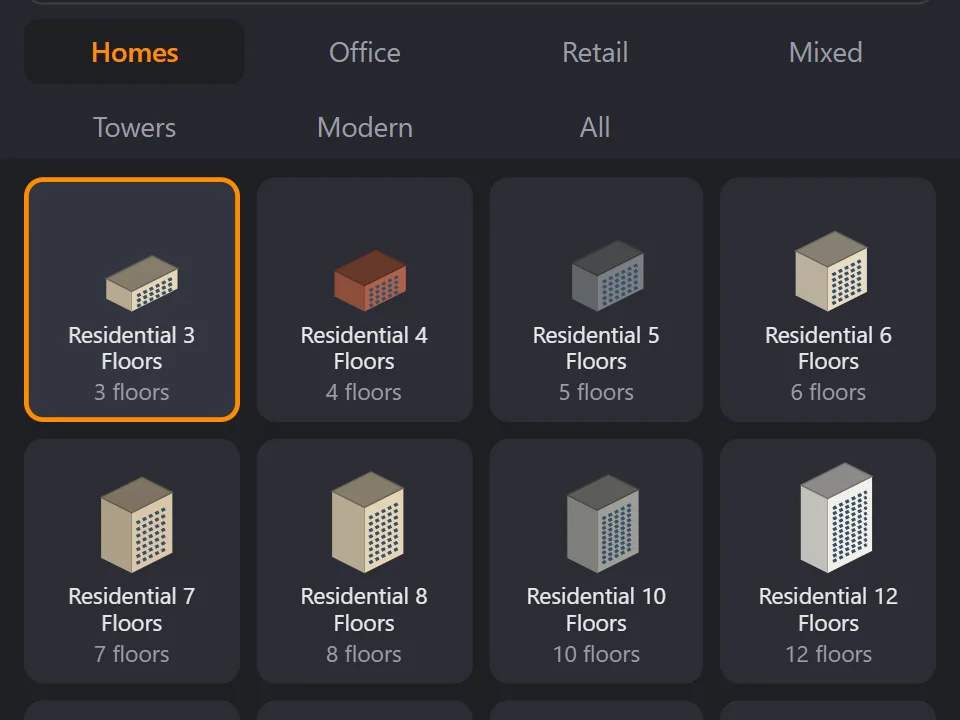
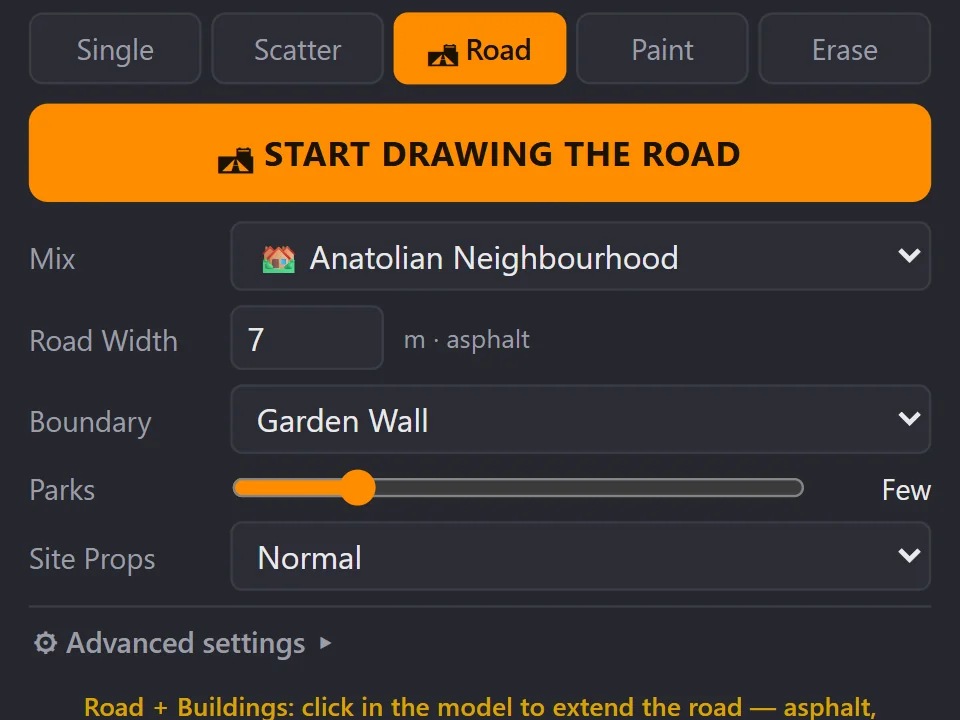
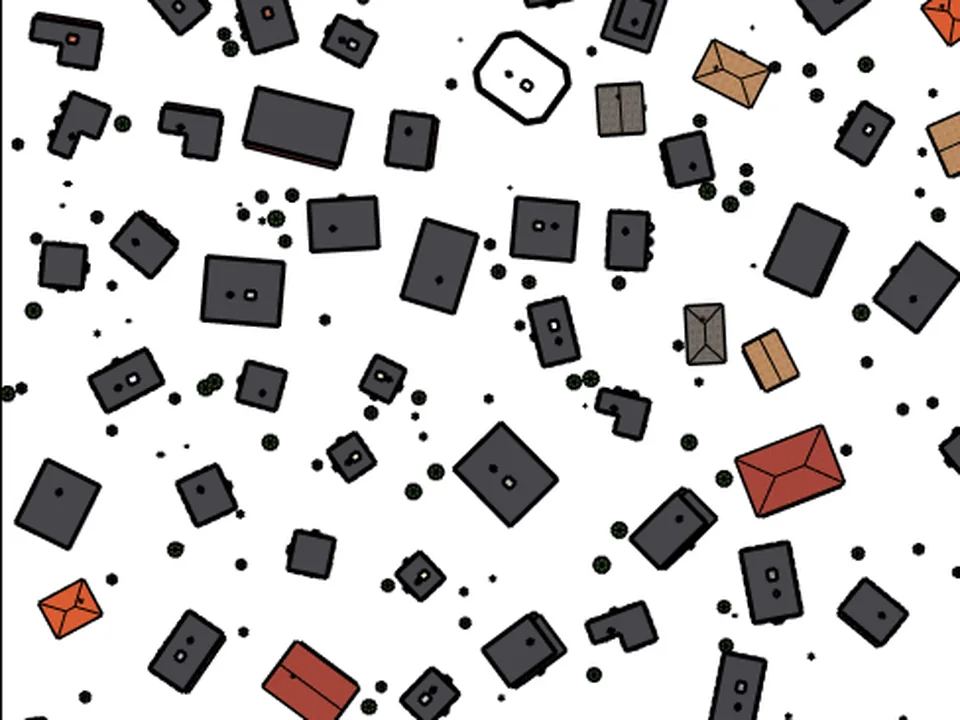
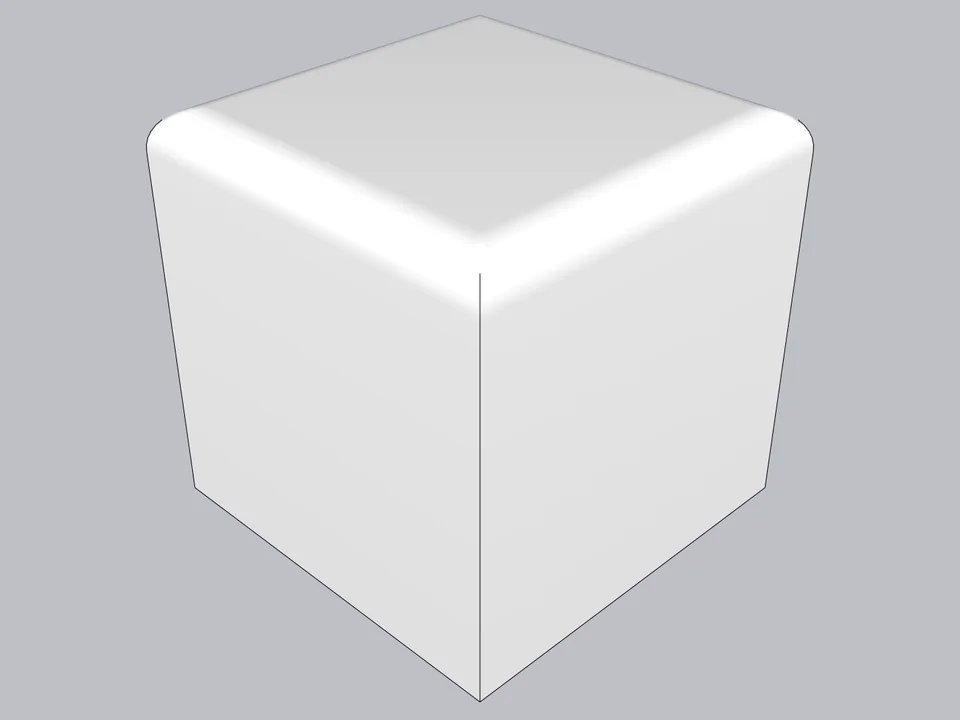
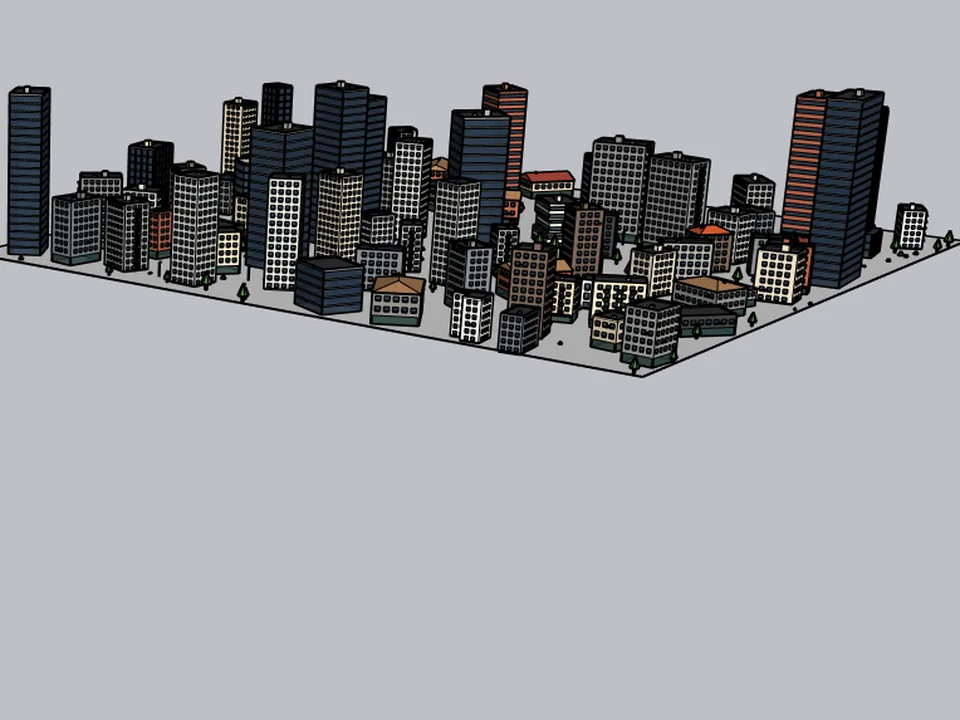
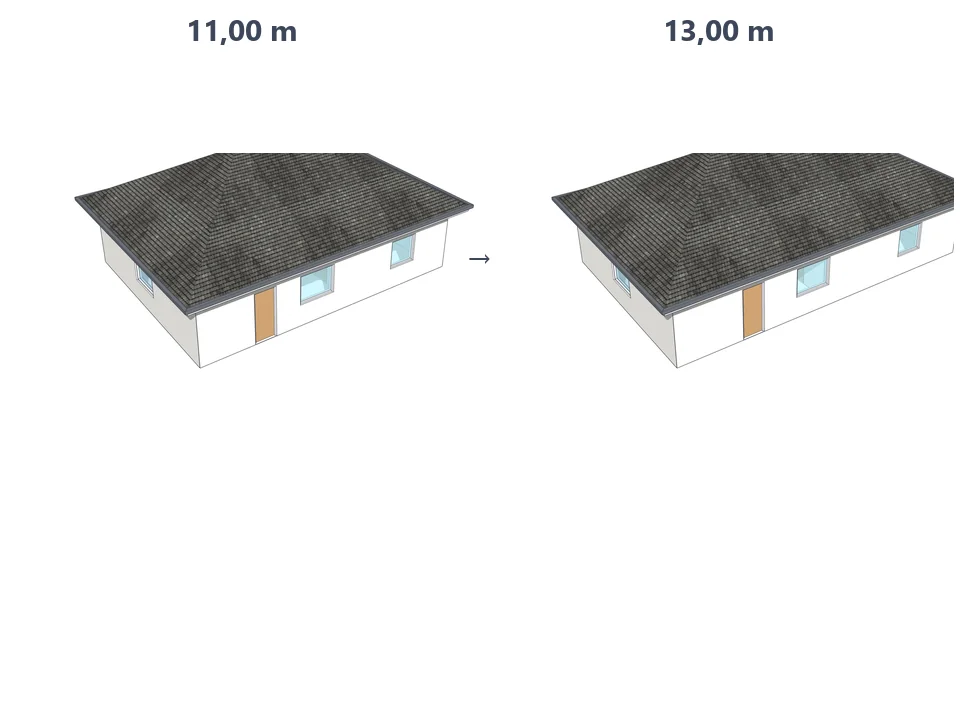
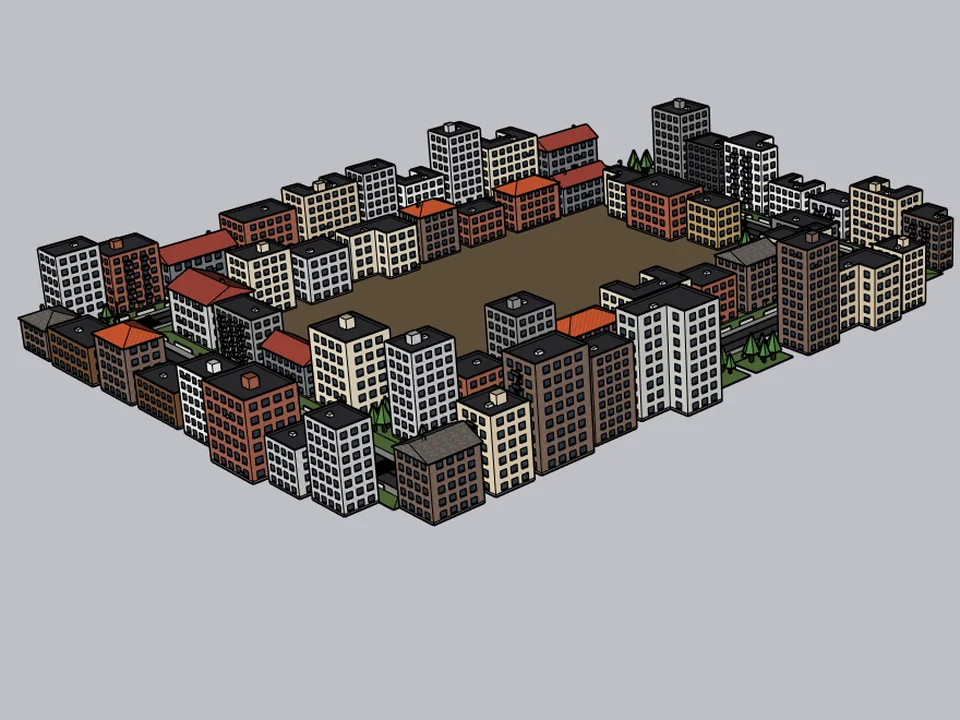
If you want to start with something free from us, three tools cost nothing. Render Fun is our free render engine: GPU-based path tracing inside SketchUp. Soft Edge rounds or chamfers edges in one click and stays editable, and it is still a beta. CityFill fills the empty plot around your design with context buildings from 154 presets.
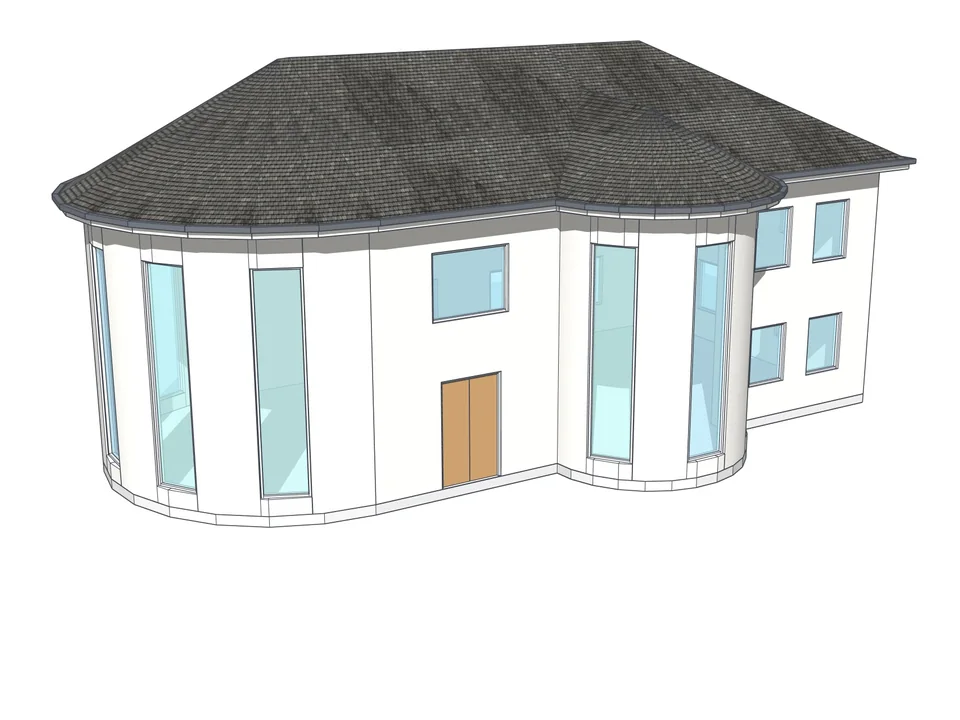
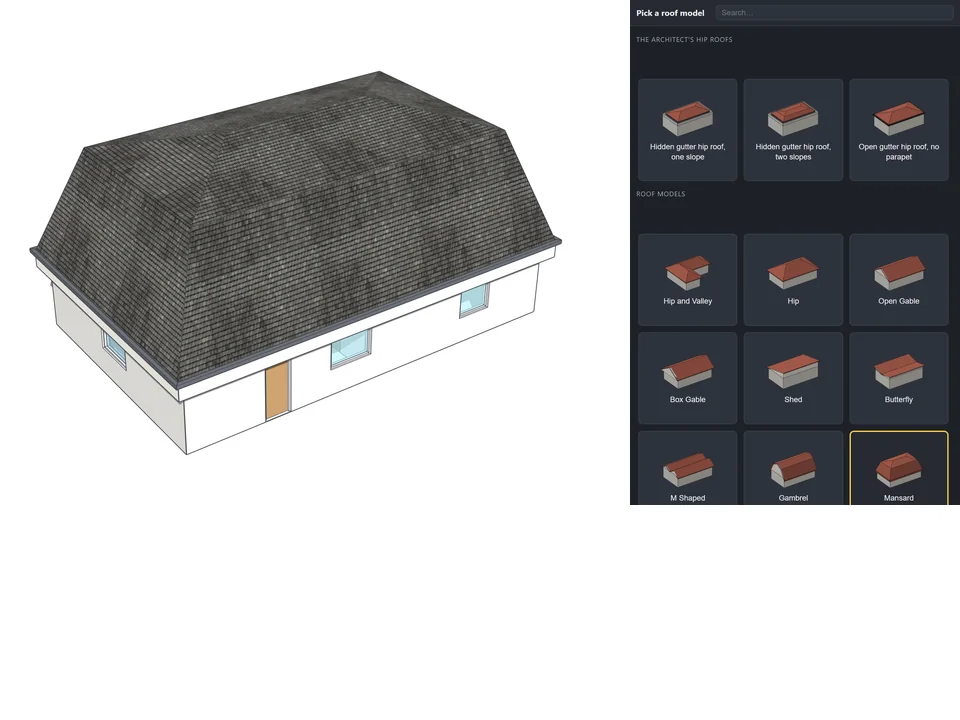
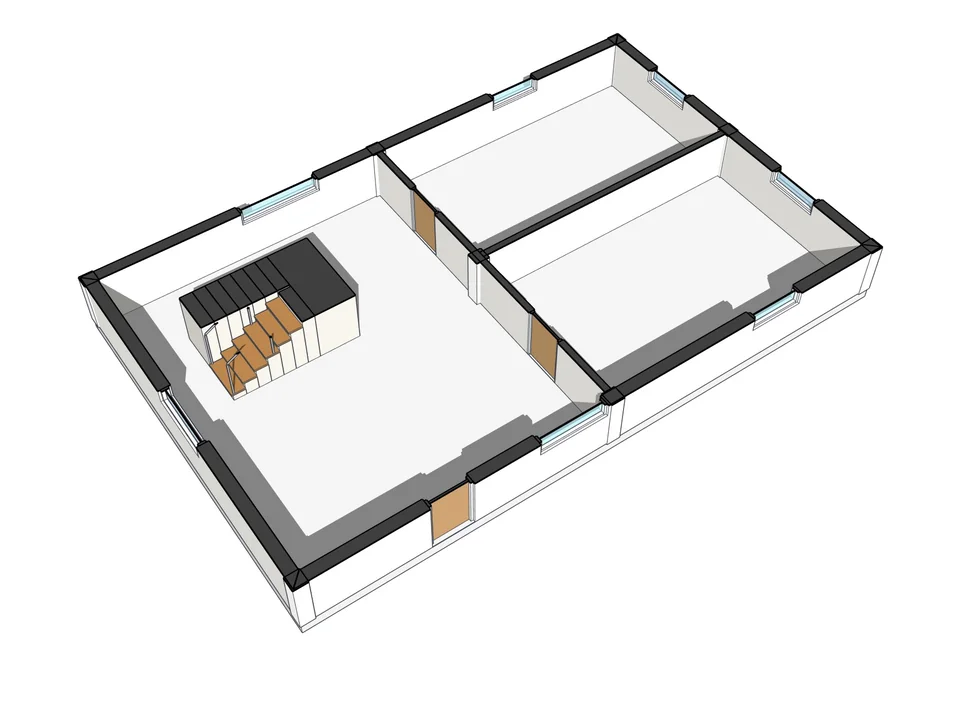
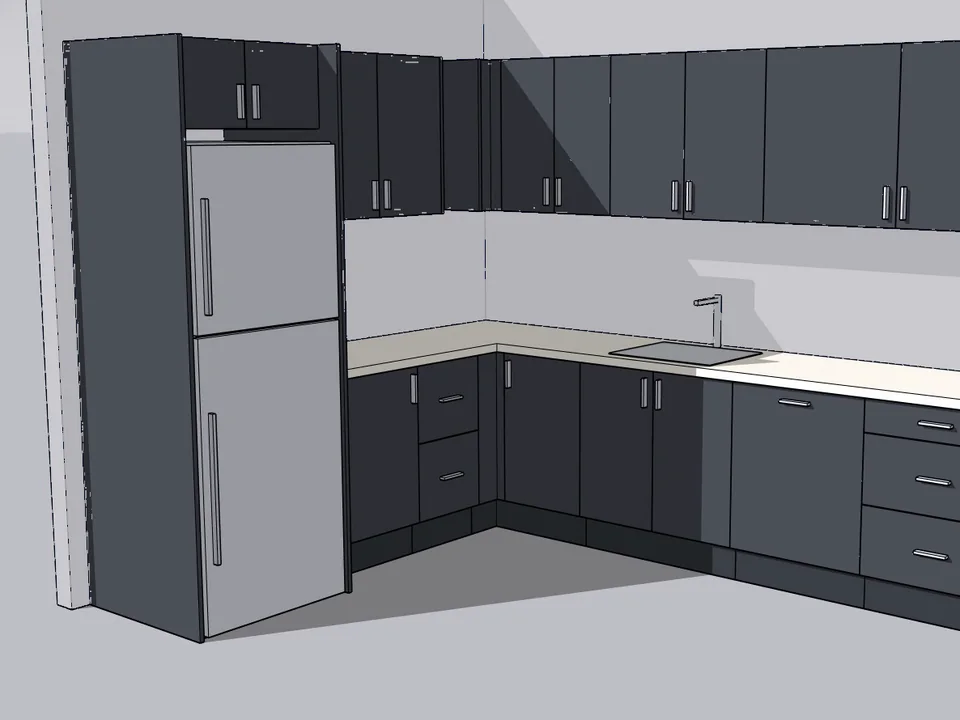
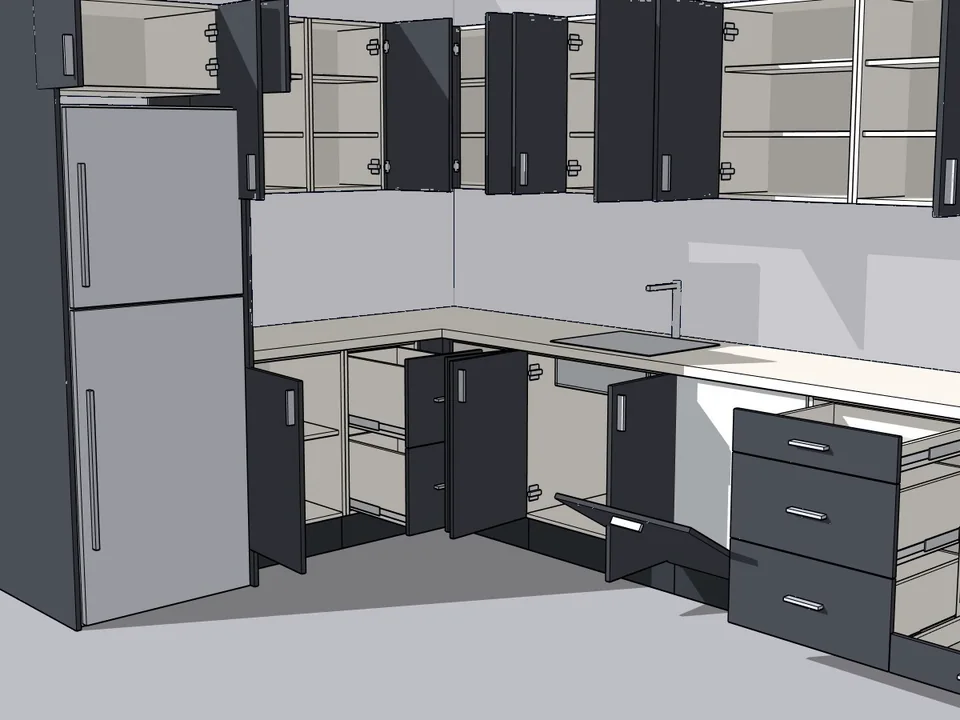
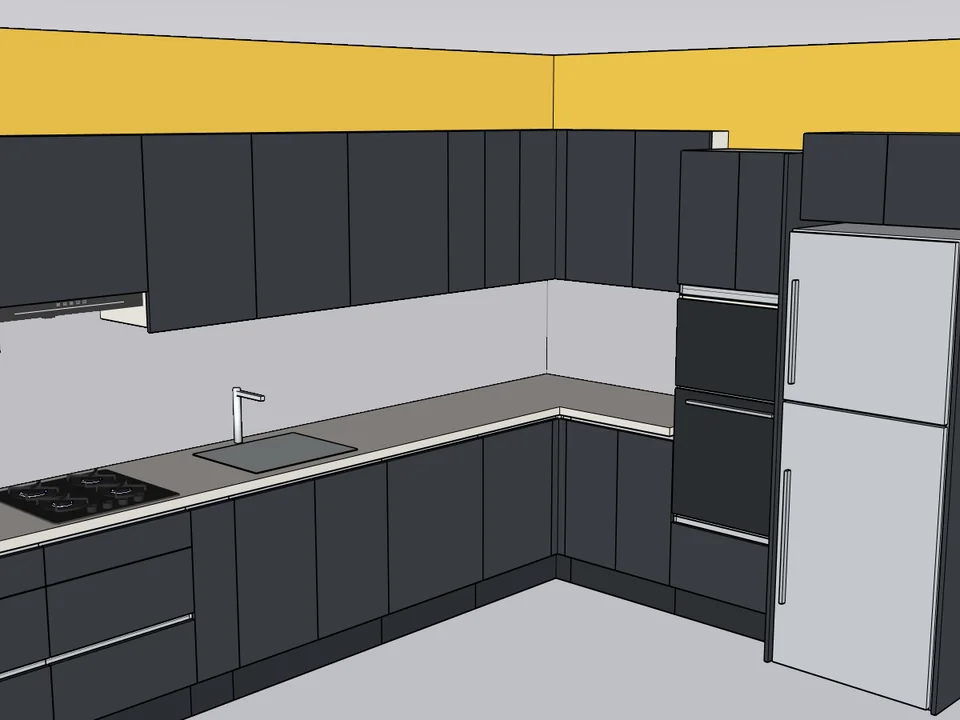
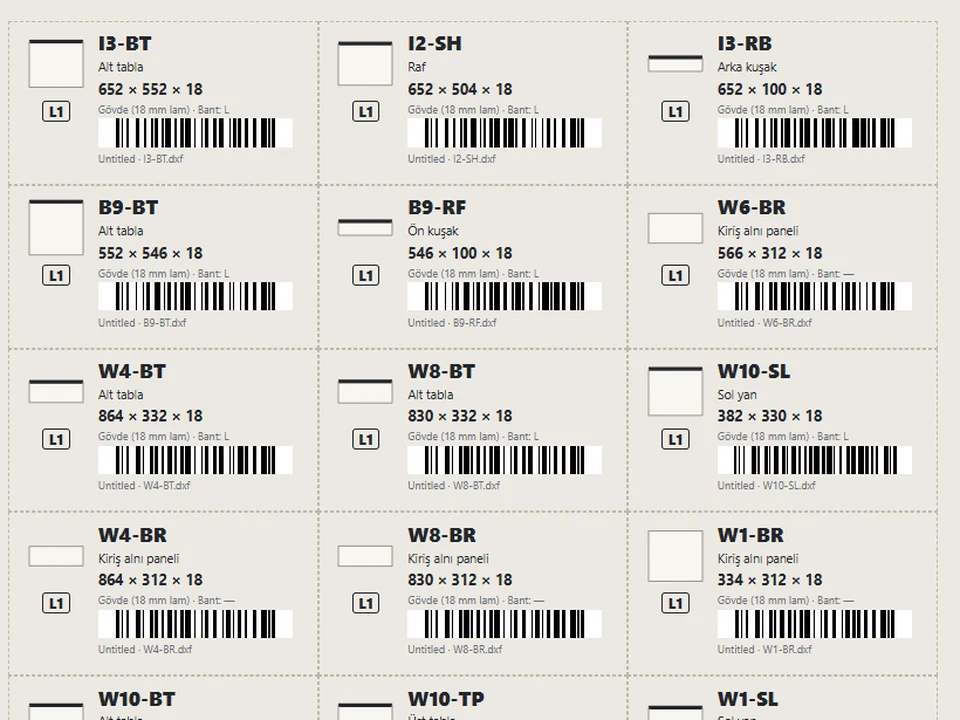
And when the job is bigger than a single tool: ArchiFlow Studio turns a drawn plan into a building where moving a wall rebuilds the roof, windows and doors around it, and KitchenFun Studio takes kitchen cabinets from a drag-and-drop layout to a cut list and CNC files. Current terms and the download for each are on its product page.
Questions about the SketchUp Extension Warehouse
Is the SketchUp Extension Warehouse free?
Browsing and searching it is free, and many extensions in it are free. Others are paid, either with a one-time Perpetual licence or a Fixed Term licence with a recurring fee, and most paid ones offer a trial first. The extension type filter shows you which is which.
Do I need a Trimble ID to download SketchUp extensions?
You can search and browse without one, but installing or managing extensions needs you to be signed in with a Trimble ID. Inside SketchUp you are normally signed in already.
Where do I find installed extensions in SketchUp?
Open Extensions > Extension Manager. The Home tab lists them with an on/off toggle; the Manage tab handles updates, uninstalling and the signature and developer details.
Why does SketchUp say "License Limit Exceeded"?
A paid extension from the Extension Warehouse can be installed on up to two SketchUp instances. SketchUp shows this message when it detects more; uninstall the extension from the devices you no longer use.
Is it safe to install a SketchUp plugin from another website?
It can be, if the site belongs to the developer or an established store, the tool names its supported SketchUp versions and you can reach its maker. Install the .rbz through the Extension Manager rather than by copying files, and use the Approve Unidentified Extensions loading policy so nothing unsigned loads without your say.
The advantage of knowing the Warehouse well is calm: every tool in your SketchUp has a known source, a version that matches yours and a switch you control. Start with one of the free ones above and see how a clean install feels.
Draw the road. The street grows with it.
FREE Urban DesignCityFillCityFill
No white void around your design: fill the city in a few clicks.
- 154 presets
- 3 placement modes
- SketchUp 2021-2026
SketchUp 2021–2026v2.0.0
Type a radius, click: every edge goes soft.
FREE ProductivitySoft EdgeSoft Edge
Skip hand filleting: round or chamfer in one click, always editable.
- Round + chamfer
- SketchUp 2021-2026
- Free
SketchUp 2021–2026v0.8.1
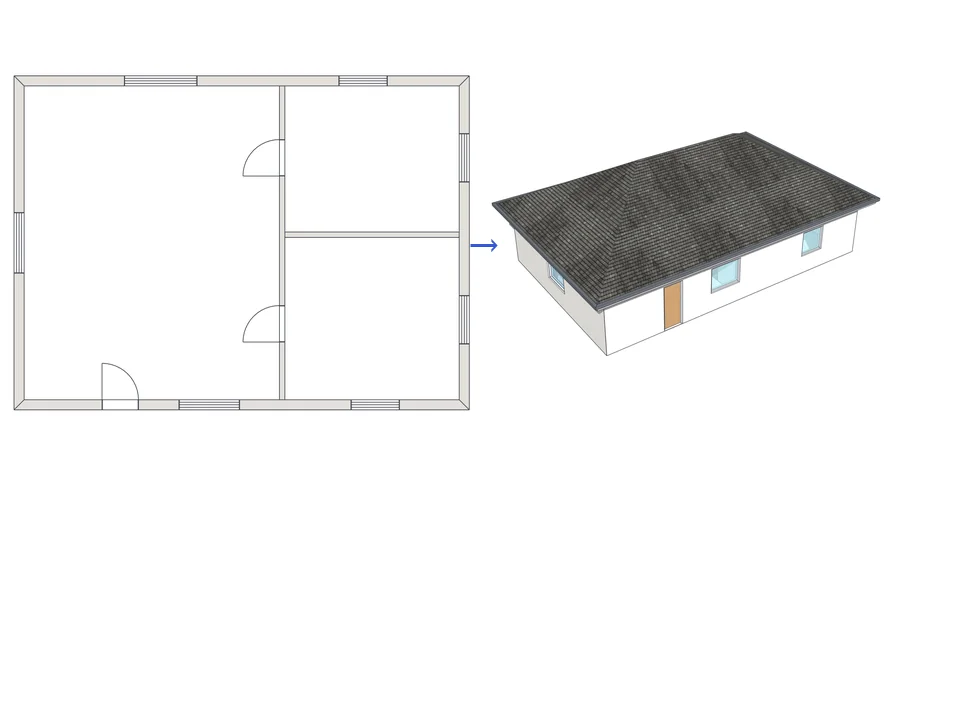
Draw the plan. One click, it's 3D.
Architecture$99ArchiFlow StudioArchiFlow Studio
Draw the plan once; move a wall and the building rebuilds itself.
- 5 studios built in
- 150 ms auto-rebuild
- SketchUp 2021-2026
SketchUp 2021–2026v1.72.0
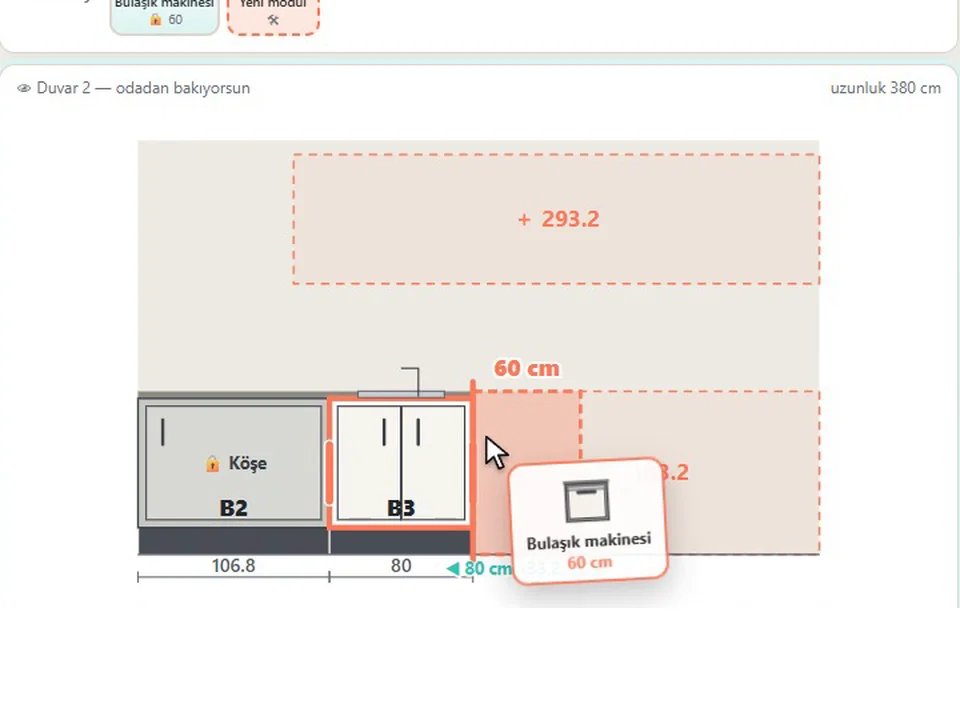
Grab a cabinet, drop it on the wall. Kitchen done.
Interior$599KitchenFun StudioKitchenFun Studio
No re-drawing, no re-typing: drag the cabinets onto the wall, get the kitchen, cut list and CNC files.
- Drag & drop Kitchen Wizard
- Cut list + CNC (DXF / MPR / TCN)
- SketchUp 2021–2026
SketchUp 2021–2026v1.28.1