You opened SketchUp to design, not to troubleshoot, so the install should be the shortest part of your day. Picture it: one file, one dialog, a restart, and the new toolbar waiting for you. Open SketchUp, go to Extensions > Extension Manager (on some releases it sits under Window), click Install Extension at the bottom left, pick the .rbz file you downloaded, approve the security prompt, and restart SketchUp. That is the whole procedure. On a healthy machine it takes under a minute.
The rest of this page is for the other case: you did exactly that and nothing appeared. No toolbar, no menu item, no error message. I keep six SketchUp versions on one workstation and the 2026 Plugins folder alone holds 101 entries, thirteen of which are leftover .rbz packages sitting there doing absolutely nothing. Every failure below is one I have caused myself.
How to install an .rbz file in SketchUp, step by step
- Download the .rbz and leave it alone. Do not unzip it, do not rename it.
- In SketchUp: Extensions > Extension Manager. If there is no Extensions menu, look under Window.
- Click Install Extension at the bottom left of the dialog and choose the file.
- Approve the warning SketchUp shows for an extension that is not digitally signed, assuming you know where the file came from.
- On Windows, if the file is refused outright, right-click it, open Properties and tick Unblock. Browsers mark downloaded archives as blocked.
- Restart SketchUp. Menus and toolbars are registered while SketchUp starts, so the restart is often the whole difference between "it does not work" and "there it is".
Where to put SketchUp plugins on Windows and Mac
Every SketchUp year keeps its own Plugins folder and the years share nothing. That single fact explains most of the panic that follows an upgrade.
- Windows: %AppData%\SketchUp\SketchUp 2026\SketchUp\Plugins — paste it into the Explorer address bar and it resolves to C:\Users\<you>\AppData\Roaming\SketchUp\SketchUp 2026\SketchUp\Plugins.
- macOS: ~/Library/Application Support/SketchUp 2026/SketchUp/Plugins. Library is hidden, so use Finder > Go > Go to Folder (Shift+Cmd+G) and paste the path.
- Change the year to match the version you are actually in. SketchUp 2025 and SketchUp 2026 cannot see each other's extensions.
If you would rather get the answer from SketchUp than from an article, open Extensions > Developer > Ruby Console (it was Window > Ruby Console up to SketchUp 2019) and type Sketchup.find_support_file("Plugins"). It prints the exact folder the running version loads from. That is the path to trust, whatever your IT department has done to your user profile.
What the folder should look like inside
Open it and you see pairs: a small loader .rb file at the top level and a folder beside it carrying the extension's name. On my 2026 install, archiflow_loader.rb sits next to an archiflow folder, cityfill.rb next to a cityfill folder. The loader is the only file SketchUp reads at startup. It registers a SketchupExtension object, which is what puts the entry in the Extension Manager list, then pulls the rest in from the folder.
Three ways a hand-copied install does nothing
Three shapes fail, all of them silently. The .rbz copied into Plugins: SketchUp does not unzip anything at startup, so the file just sits there, as my thirteen leftovers prove. An extra level of nesting, Plugins\cityfill_v2.0.0\cityfill.rb, buries the loader one directory too deep and it is never read. And the folder on its own, with no loader beside it, is just a pile of Ruby files nobody asked to run. Copying by hand can work, but it skips the trust step and leaves the previous version's files behind.
Two SketchUp versions on one machine means two installs
Install into 2024, open 2026, and the extension is not there. Nothing was lost. It is in 2024's folder, exactly where you put it. The clean fix is to run the same .rbz again from inside the version that is missing it. Keep your .rbz files in one folder of your own, named with their versions: you need them at every yearly upgrade and again the day you rebuild the machine.
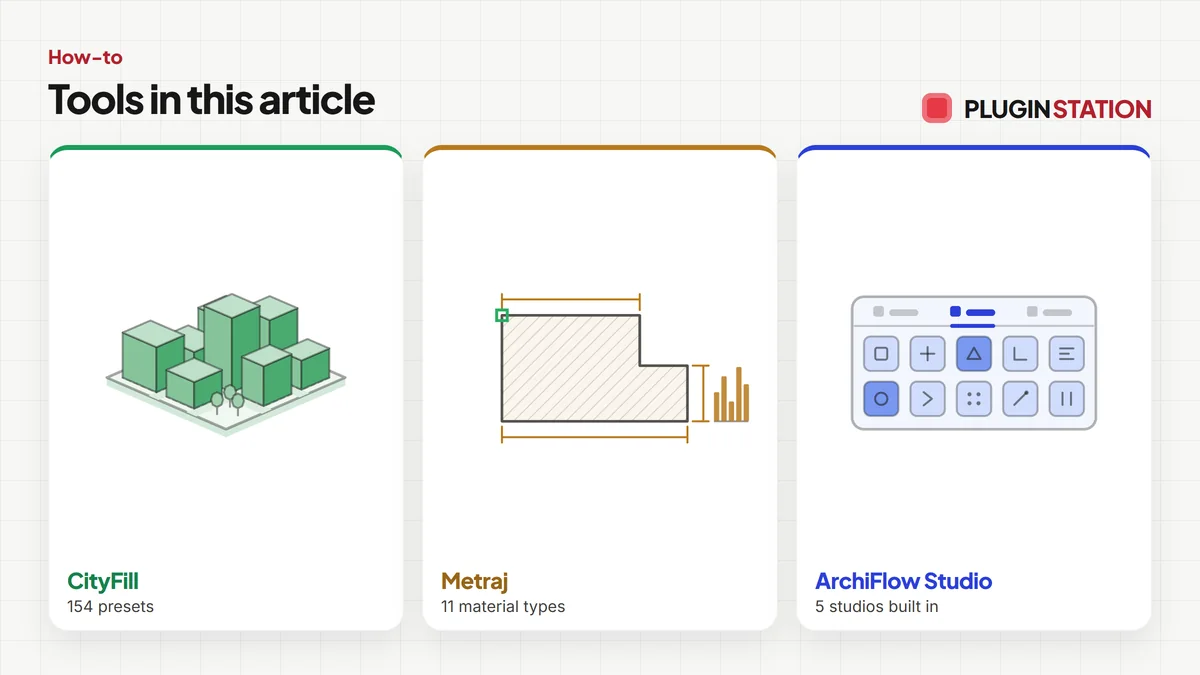
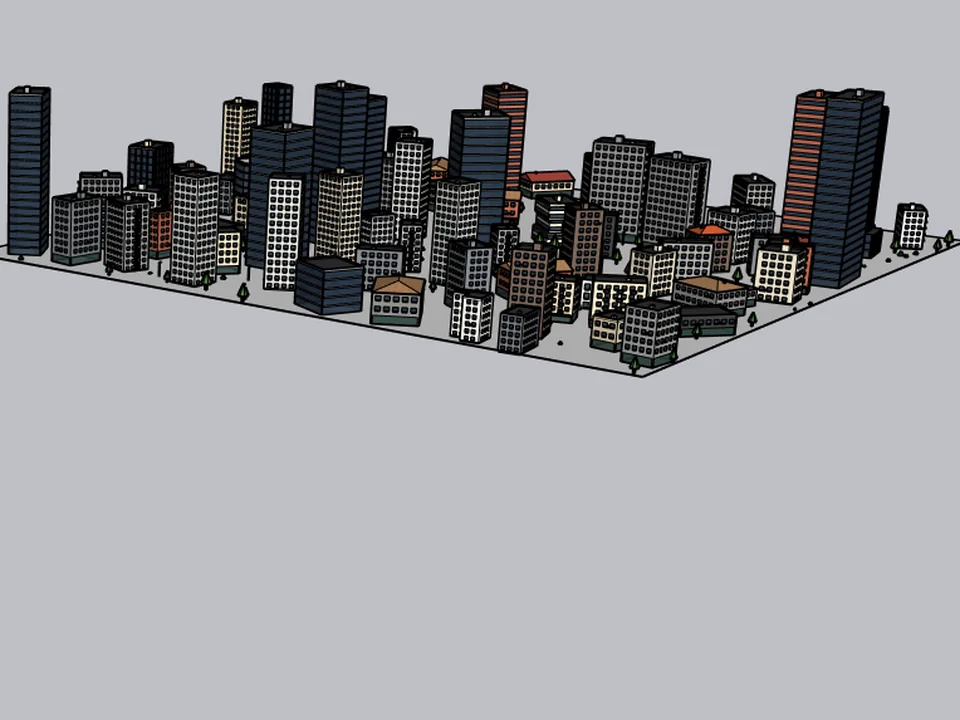
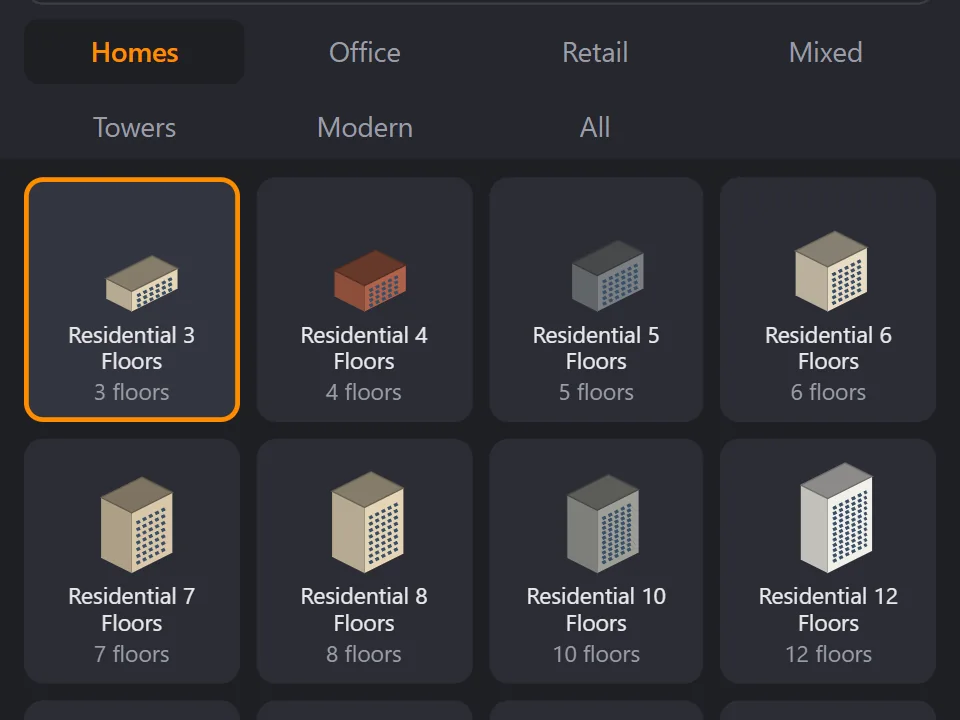
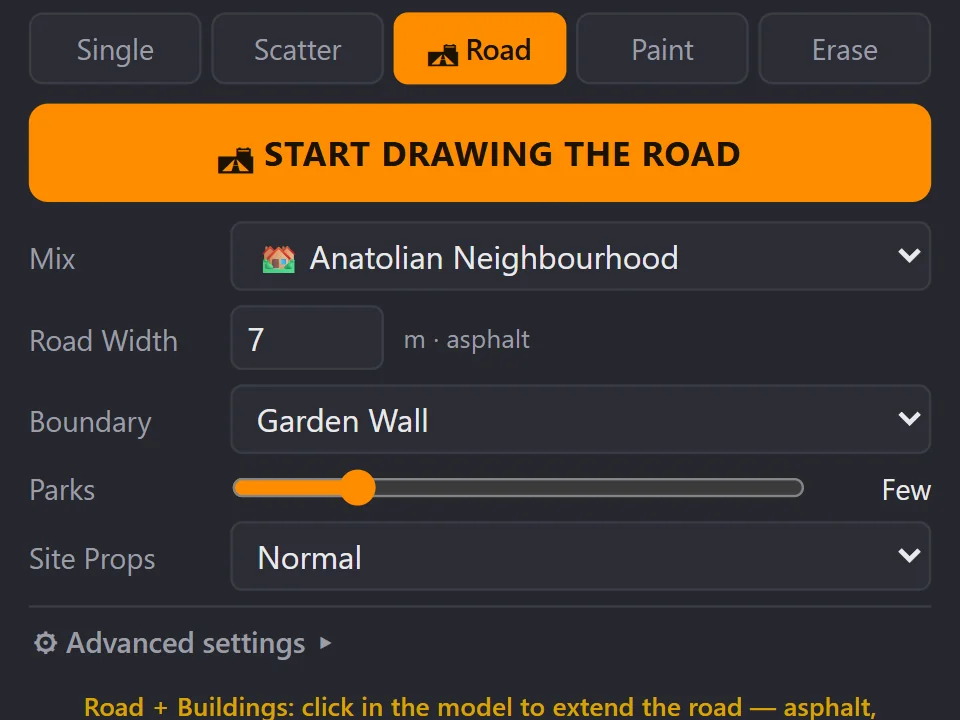
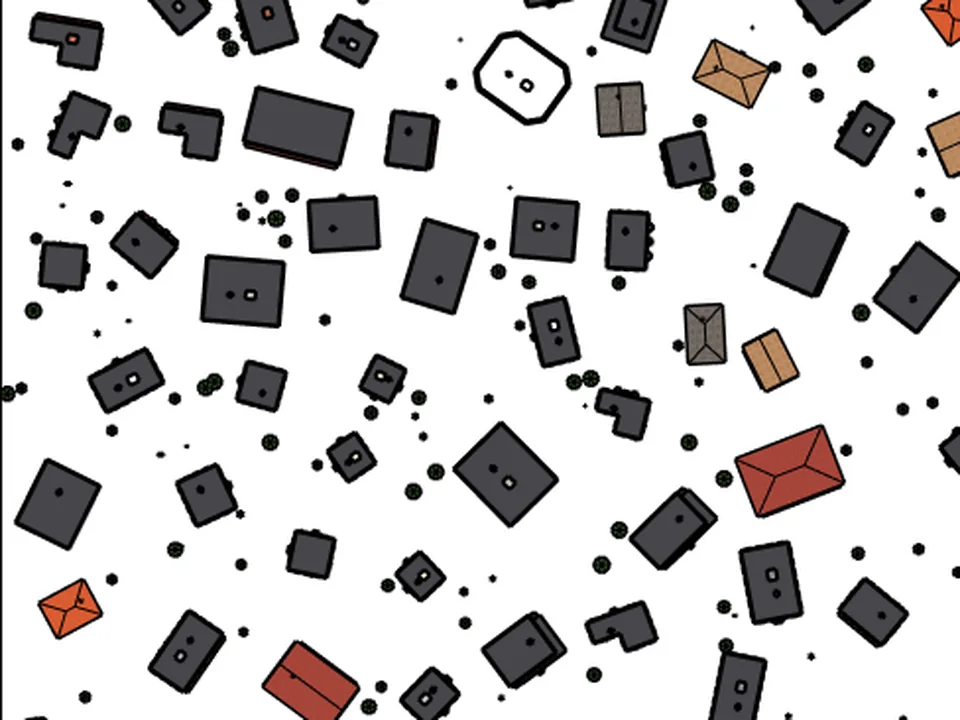
CityFill is what I use to prove a fresh install works, because it is free and it draws something visible within seconds. Version 2.0.0 is a plain .rbz with no node_modules and no external dependencies, listed for SketchUp 2021 through 2026, Windows primary and macOS stated compatible. On Windows the package includes install.ps1; run it with -All and it copies the extension into every SketchUp year folder it finds, so a machine carrying 2023 and 2026 side by side gets both in one pass. Then you scatter from 154 parametric building presets, and the whole field goes away again with a single Ctrl+Z.

Draw the road. The street grows with it.
FREE Urban DesignCityFillCityFill
No white void around your design: fill the city in a few clicks.
- 154 presets
- 3 placement modes
- SketchUp 2021-2026
SketchUp 2021–2026v2.0.0
What the SketchUp Extension Manager does after the install
The Extension Manager is not only an installer. Its Manage tab lists everything installed for that version, with a switch that disables an extension without deleting it and an Uninstall button that removes both the loader and the folder properly. When something misbehaves, switching off half the list and restarting is the fastest way to find the conflict.
The setting that catches people is the loading policy, in the same dialog. Three levels: Unrestricted, Approve Unidentified Extensions one at a time, or Identified Extensions Only. On the strictest level an unsigned .rbz installs, appears in the list and never loads; SketchUp marks it in the list and tells you the policy is what stopped it, but the notice is easy to miss. Our packages ship as plain .rbz files, so if your policy is set to identified extensions only, drop it a level and restart before you decide the file is broken.
Read the Ruby Console before you email support
Extensions > Developer > Ruby Console, or Window > Ruby Console up to SketchUp 2019. Open it, leave it open, and restart SketchUp: startup errors are printed as the extensions load, and with the console closed you never see them. Read the first red line, not the last. Everything after it is usually a consequence of the first.
- SyntaxError, or a complaint about an unexpected keyword argument: the extension's Ruby does not match this SketchUp's Ruby. The file never loaded, so nothing in it will work.
- LoadError, cannot load such file: the folder is missing, nested one level too deep, or renamed.
- NameError, uninitialized constant: an API class this SketchUp release does not have, or a half-copied install.
- Permission or Errno errors: your account cannot write to the Plugins folder. Install from Extension Manager rather than by hand and it usually disappears.
One line worth keeping in a note: Sketchup.extensions.each { |e| puts "#{e.name} #{e.version} #{e.loaded?}" }. It prints every registered extension with a true or false for whether it actually loaded. A false there ends the argument about whether the install worked.
The extension loaded but the toolbar is missing
Toolbars are remembered per user and per version, and they do not turn themselves on. On Windows: View > Toolbars, find the extension's name, tick it. On macOS: View > Tool Palettes. If it is ticked and still invisible, it is usually parked off-screen from an older monitor layout, so untick it, restart, tick it again. Also check the Extensions menu itself, because plenty of tools put their commands there and never draw a toolbar at all.
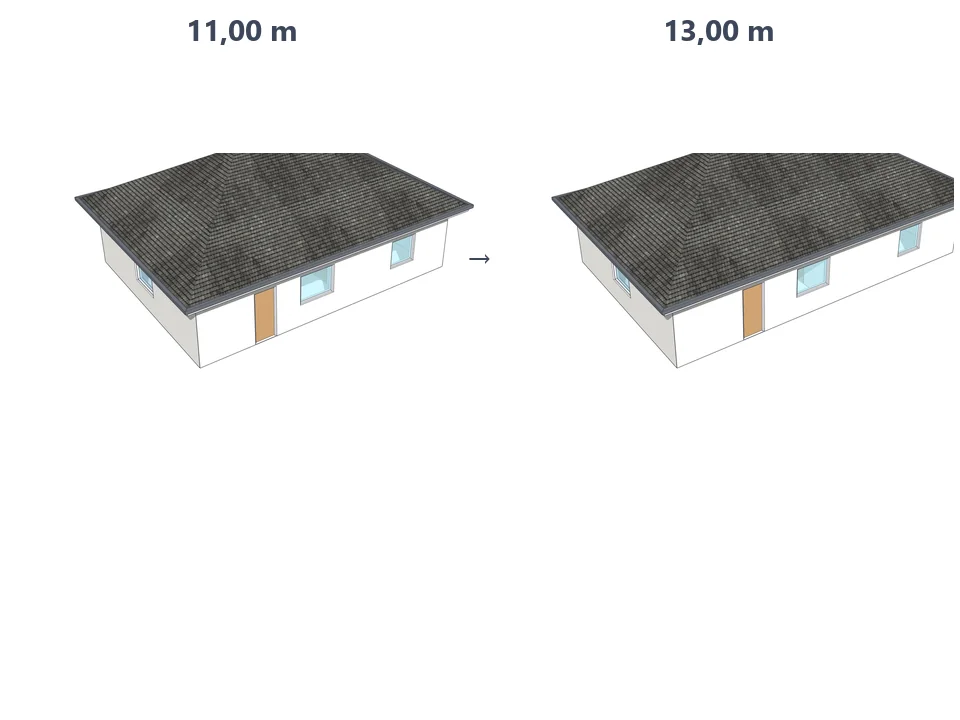
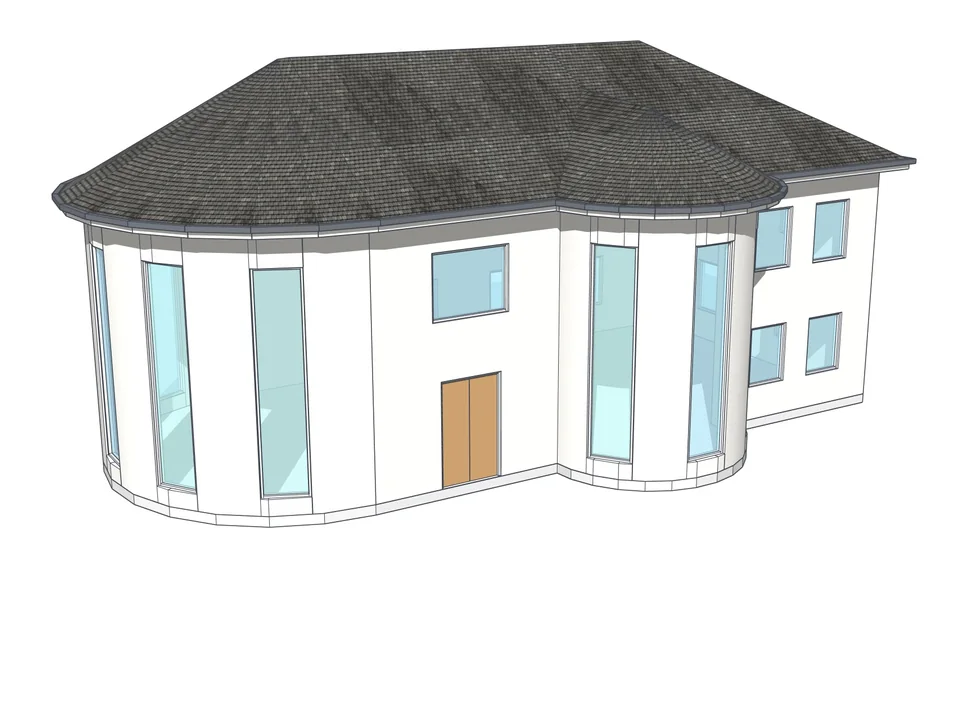
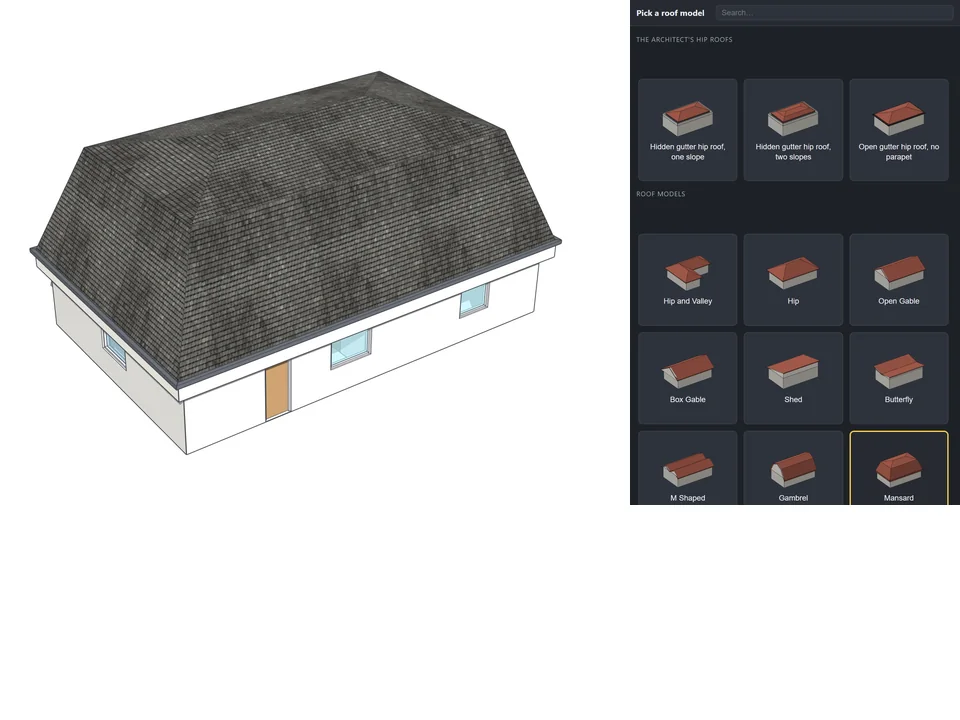
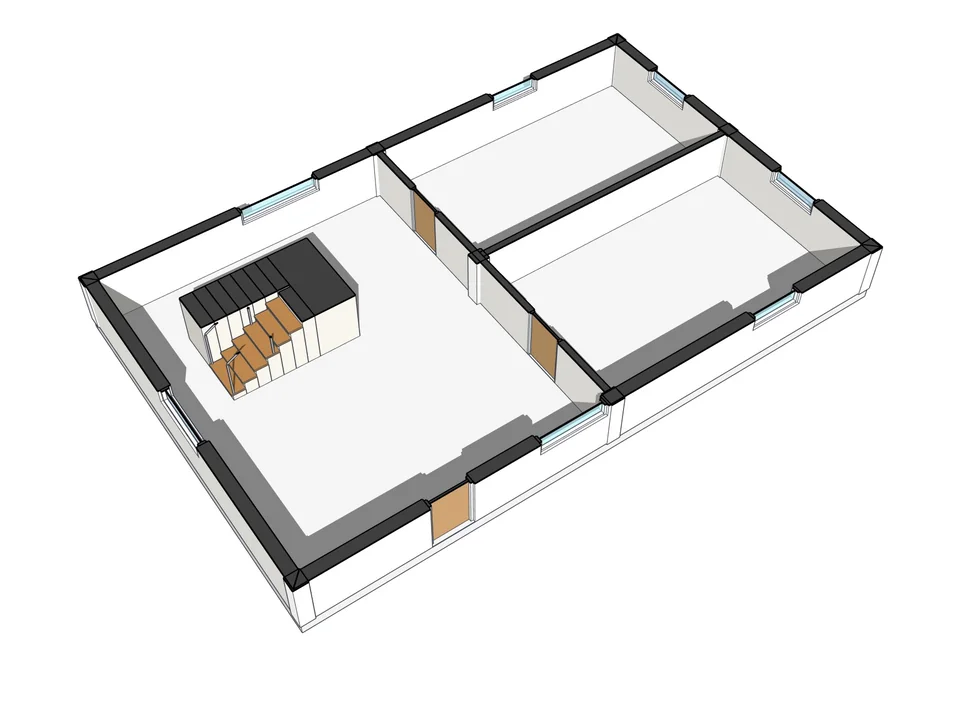
This is where a well-behaved extension earns its place. ArchiFlow 1.61.0 ships one labelled toolbar instead of a row of unmarked icons, with its manual inside the extension. When something does fail it says so in four places: a message box, its own Error Console panel, an archiflow_log.txt file, and a single-file diagnostic report covering environment, settings, model summary, checks and errors. Its geometry cores run headless, so 1627 assertions across 31 test files pass with SketchUp closed, and a compatibility test scans the source for Ruby 3-only syntax and non-ES5 JavaScript so 2021 to 2023 keeps loading. The caveat from its own record, stated plainly: daily development runs on 2024 to 2026, and 2021 to 2023 has not been hand-tested yet.

Draw the plan. One click, it's 3D.
Architecture$99ArchiFlow StudioArchiFlow Studio
Draw the plan once; move a wall and the building rebuilds itself.
- 5 studios built in
- 150 ms auto-rebuild
- SketchUp 2021-2026
SketchUp 2021–2026v1.72.0
Old SketchUp 8 plugin install guides are still out there
Search this topic and you will still land on instructions from the Google SketchUp 8 era: unzip the download, copy loose .rb files into a Plugins folder inside SketchUp's own program directory, restart. That was correct at the time. The Plugins folder moved into each user's profile with SketchUp 2014, and the Extension Manager window as we know it, with install, enable, uninstall and the loading policy, arrived with SketchUp 2017. Following the old guide on a current install means either writing into Program Files, which needs admin rights and gets wiped by updates, or dropping files somewhere SketchUp never reads. If the page mentions Google, it is well over a decade old. Use the .rbz.
The tool here with nothing to install
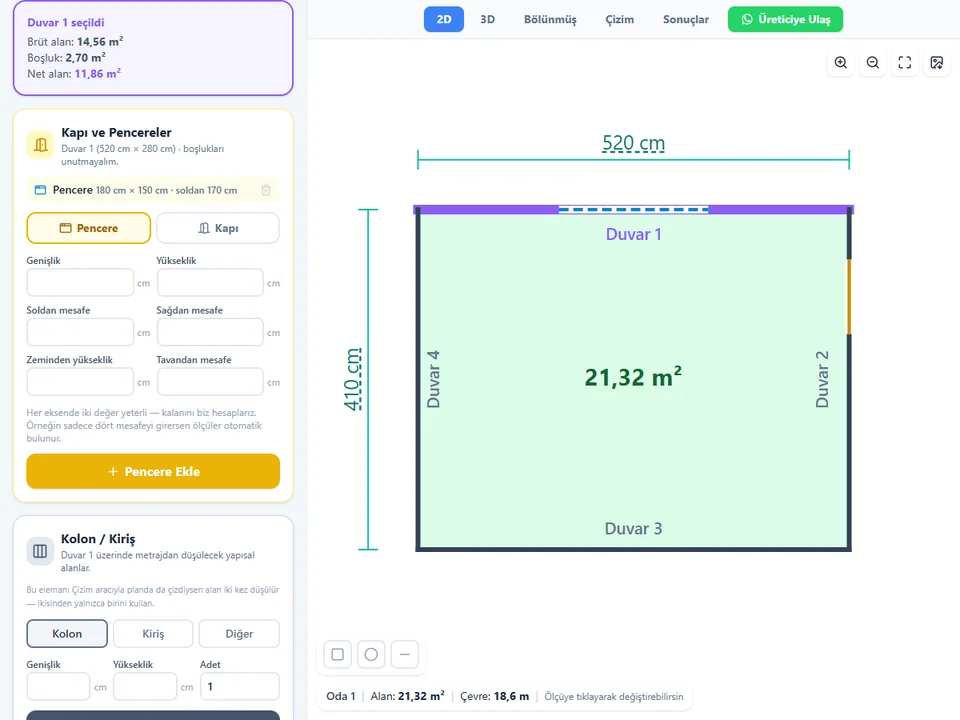
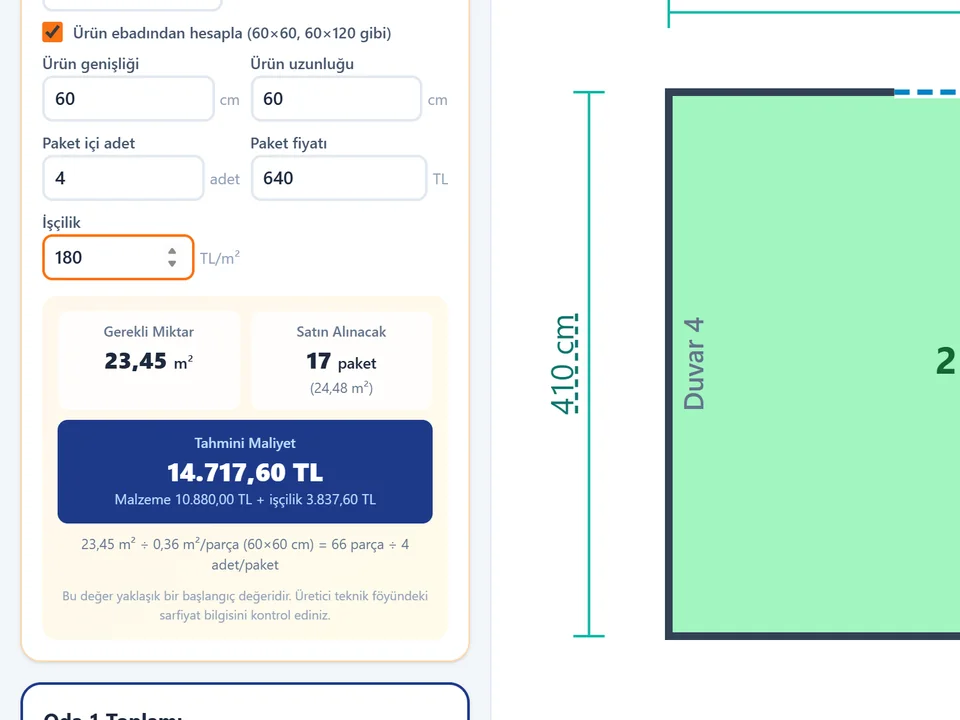
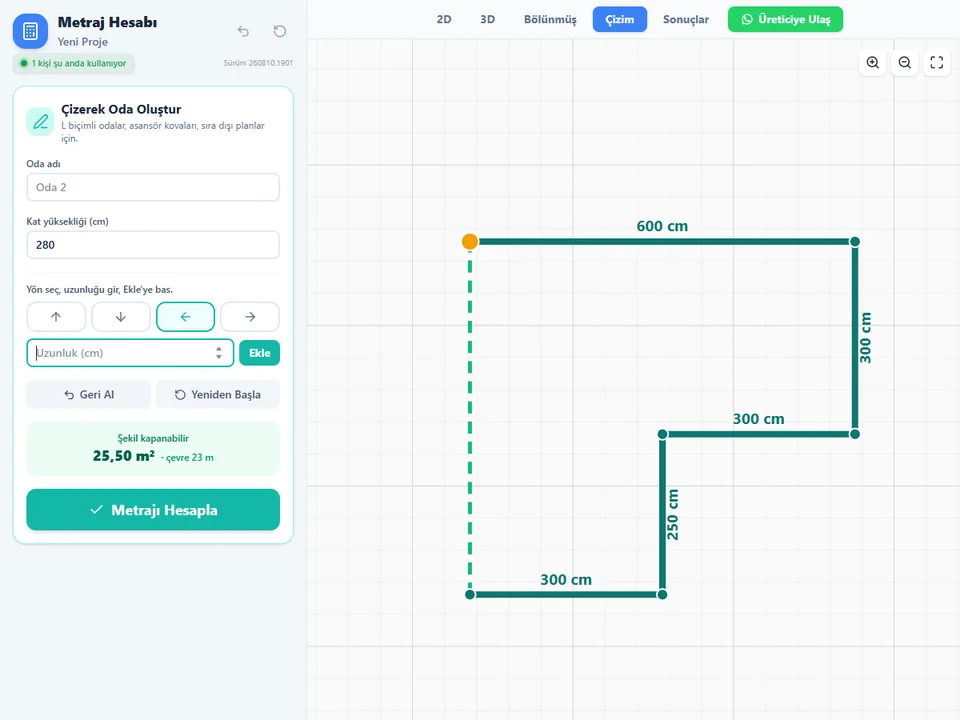
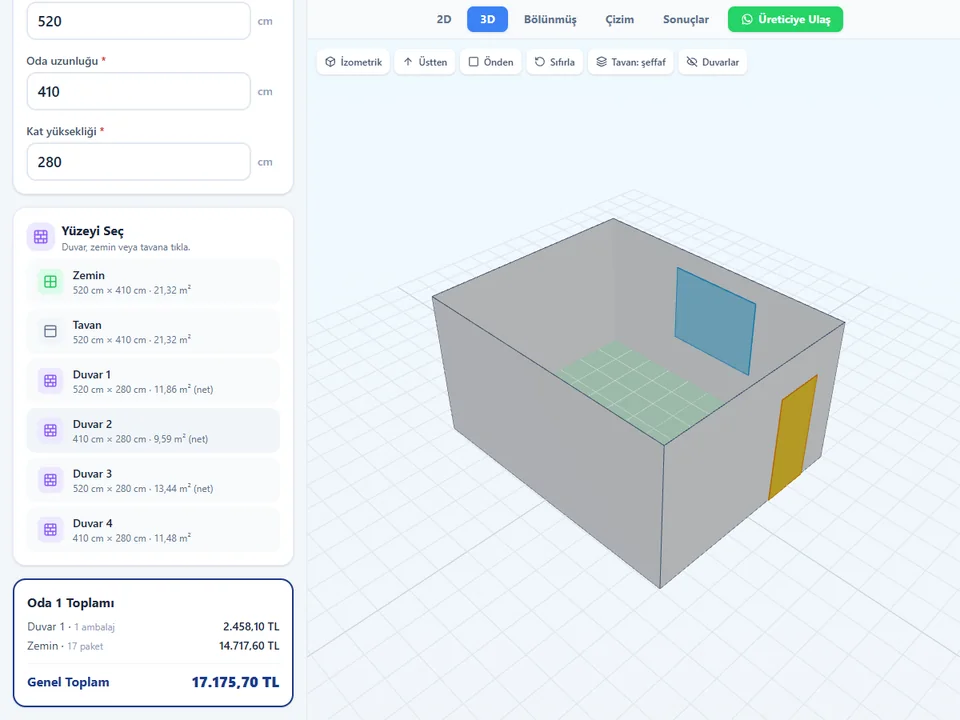
Sometimes the install is not the problem, the machine is: a locked-down office workstation, a site tablet, a colleague who does not own SketchUp. Metraj Quantity Takeoff runs in a browser with no .rbz, no admin rights and no account. You type rooms as width by length by floor-to-ceiling height, place door and window openings, deduct columns and beams, and the net areas drive eleven material engines, from interior and exterior paint and satin plaster through ceramic, granite and marble to laminate, PVC and carpet, out to a printable PDF report, a Turkish-Excel-compatible CSV and a JSON project file. It is free, 119 automated tests are green, and it is still in beta with a Turkish-only interface, which is worth knowing before you hand it to a client.

Room sizes in, materials and cost out.
FREE ProductivityMetraj Quantity TakeoffMetraj Quantity Takeoff
No hand maths behind the quote: room sizes in, materials and costs out.
- 11 material types
- 119 tests green
- PDF · CSV · JSON · PNG
Runs in your browser
Installing the famous ones: Extension Warehouse, LibFredo6 and render links
Most searches for adding a plugin to SketchUp are really about one named extension. From the Extension Warehouse the road is shorter still: Extensions > Extension Warehouse inside SketchUp, sign in with your Trimble ID, find the extension and click Install. It lands in the right Plugins folder for the SketchUp year you are running. Anything downloaded from a developer’s own site arrives as an .rbz and goes through Install Extension as above.
- Fredo6’s tools (JointPushPull, RoundCorner, Curviloft, Toposhaper) need his library LibFredo6 installed first. Without it they install and then do nothing.
- Chris Fullmer’s Shape Bender, Whaat’s Zorro2 and most mirror tools are single .rbz installs: install, restart, find the toolbar under View > Toolbars.
- Render engines are different. V-Ray and Enscape come with their own installer, not an .rbz; Lumion, D5 Render and Twinmotion install a small link plugin next to the main program.
- If the Extension Manager will not open, restart SketchUp and try again. An .rbz is a zip: rename a copy to .zip, extract it, and copy the loader .rb and its folder, as a pair, into the Plugins folder above.
What each of those famous extensions actually does, and where SketchUp already does the same natively, is in popular SketchUp extensions explained.
The short version, in seven lines
- Install the .rbz from Extension Manager. Do not unzip it, do not copy it by hand.
- Restart SketchUp before you decide anything is wrong.
- No toolbar? View > Toolbars on Windows, View > Tool Palettes on macOS, and check the Extensions menu.
- Listed but dead? Check the loading policy first, then Extensions > Developer > Ruby Console.
- Vanished after an upgrade? It is in last year's folder. Reinstall the .rbz into the new year.
- Keep every .rbz in one folder, named with its version number.
- Before you pay, confirm the product page names your exact SketchUp year.
If you are installing one thing today and you model buildings, make it ArchiFlow. It is a single .rbz that carries five tools with it: skirting and cornice, 55 windows, 63 doors, 19 curtain systems and eight stair types, compiled in rather than required as separate installs. That is one install and one restart instead of six of each, and one place to look when something does not load. If you would rather test your install path with nothing at stake, start with CityFill: free, SketchUp 2021 to 2026, and thirty seconds after the restart you either have a street on screen or a diagnostic message saying why not.
The advantage of getting the install right once: every tool after it is a one-minute job, and the evening goes to the model instead of a missing toolbar. Prove your setup today with CityFill, which is free, and when you know which job you want to hand over, the plugin finder takes you to the right tool.
Draw the plan. One click, it's 3D.
Architecture$99ArchiFlow StudioArchiFlow Studio
Draw the plan once; move a wall and the building rebuilds itself.
- 5 studios built in
- 150 ms auto-rebuild
- SketchUp 2021-2026
SketchUp 2021–2026v1.72.0
Draw the road. The street grows with it.
FREE Urban DesignCityFillCityFill
No white void around your design: fill the city in a few clicks.
- 154 presets
- 3 placement modes
- SketchUp 2021-2026
SketchUp 2021–2026v2.0.0