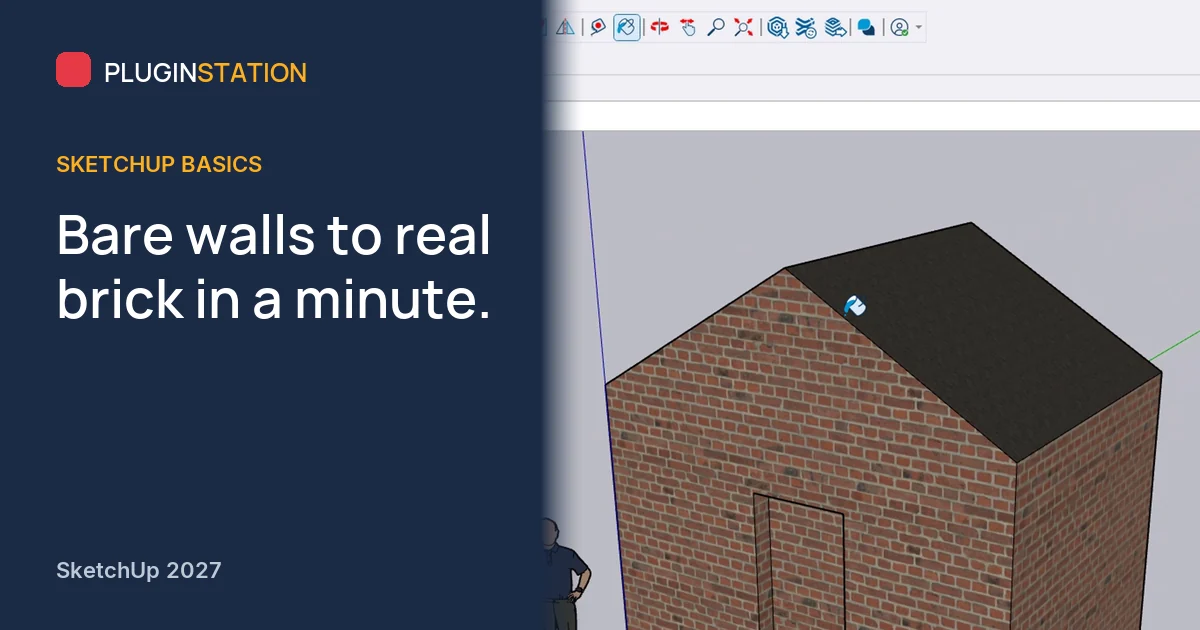
The geometry can be perfect and the client will still look at a grey box and feel nothing. Put real brick on the walls and the same model turns into a house they can imagine living in. That change takes about a minute, and most of it is knowing which key to hold.
Where are the materials in SketchUp 2027?
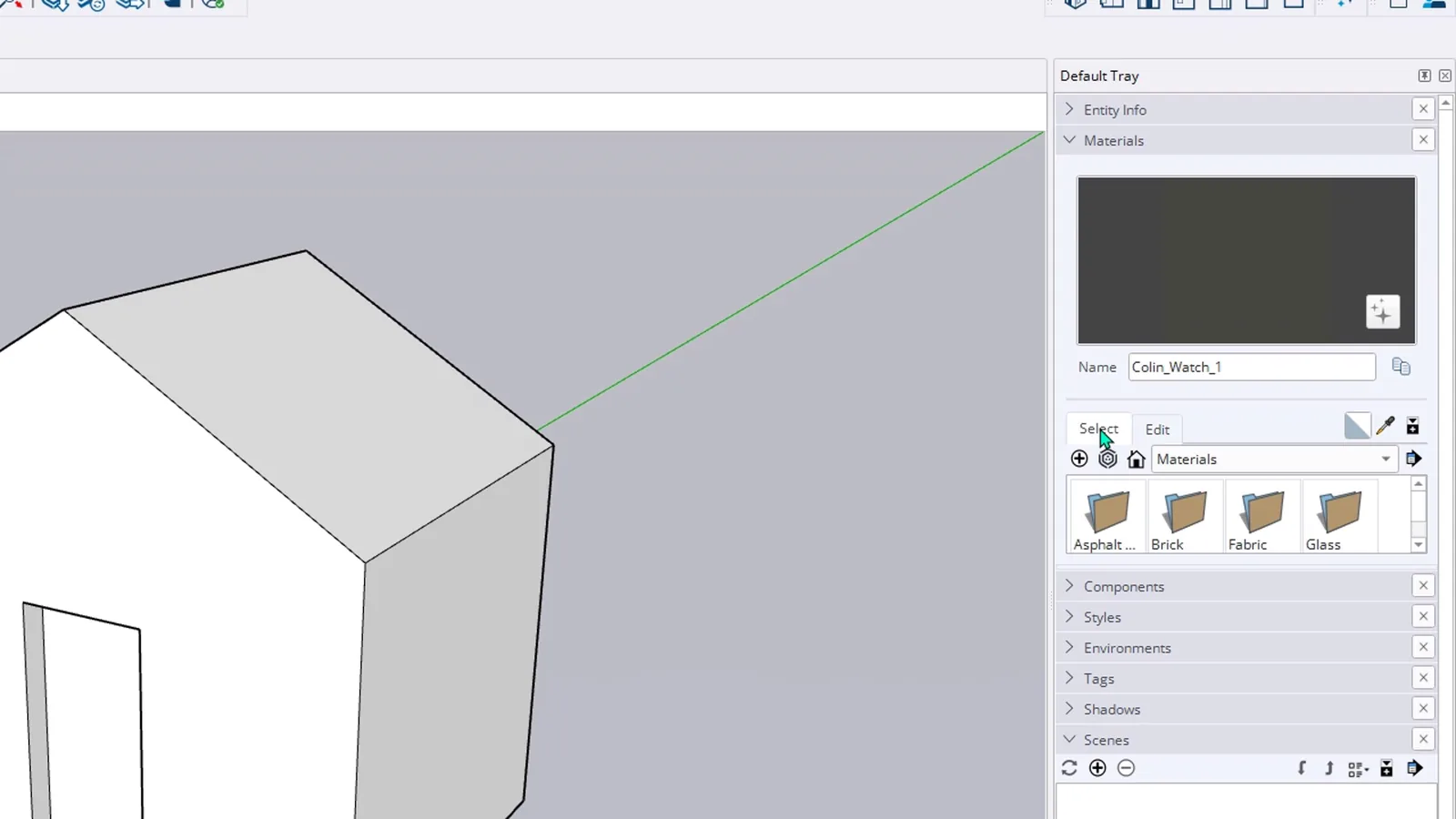
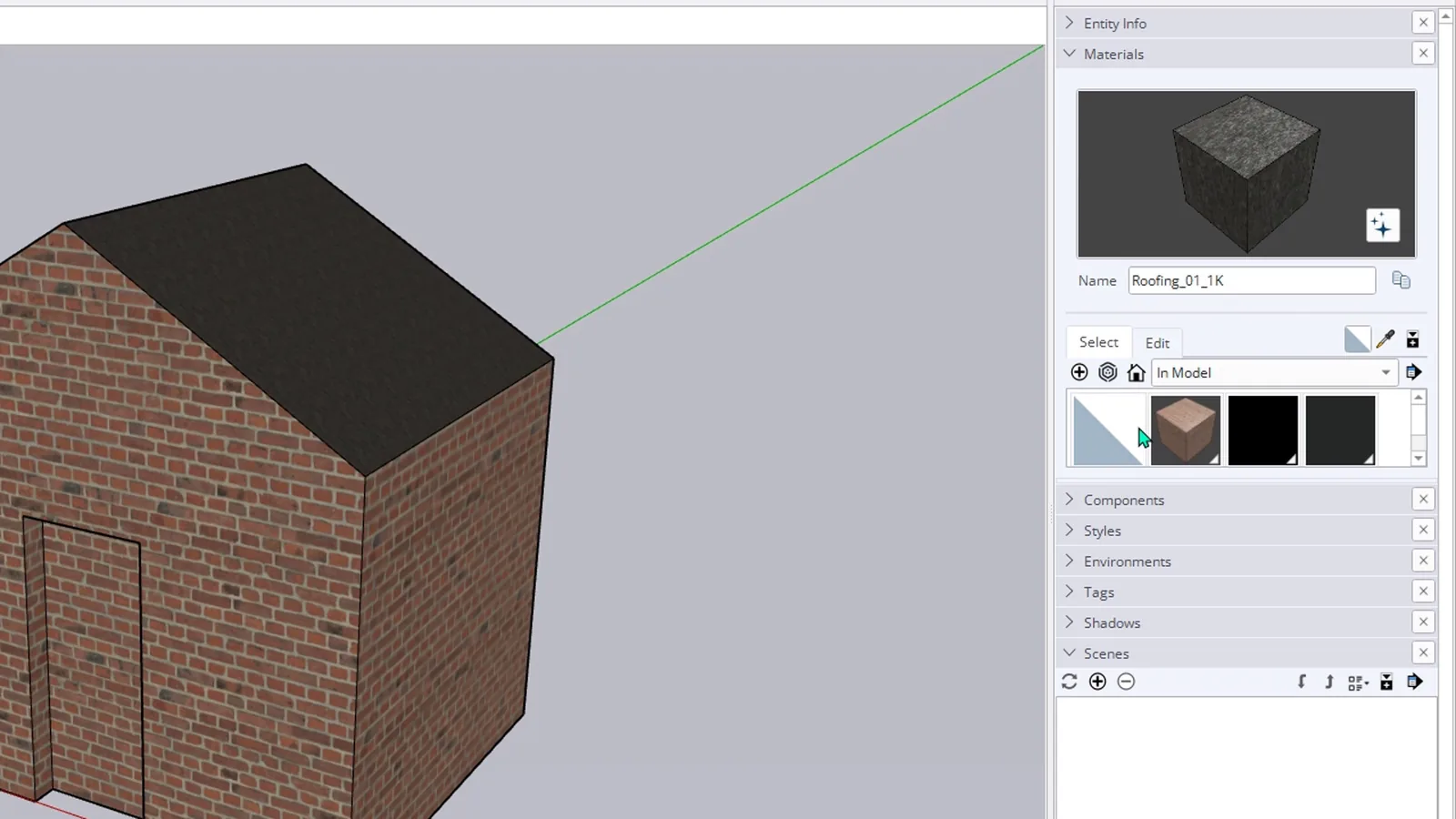
The Materials panel was redesigned in 2027. Open Materials in the Default Tray. At the top you get a large preview and the name of the selected material, below it the Select and Edit tabs, a category list and folders such as asphalt, brick, fabric and glass.
How do you apply a texture to a face?
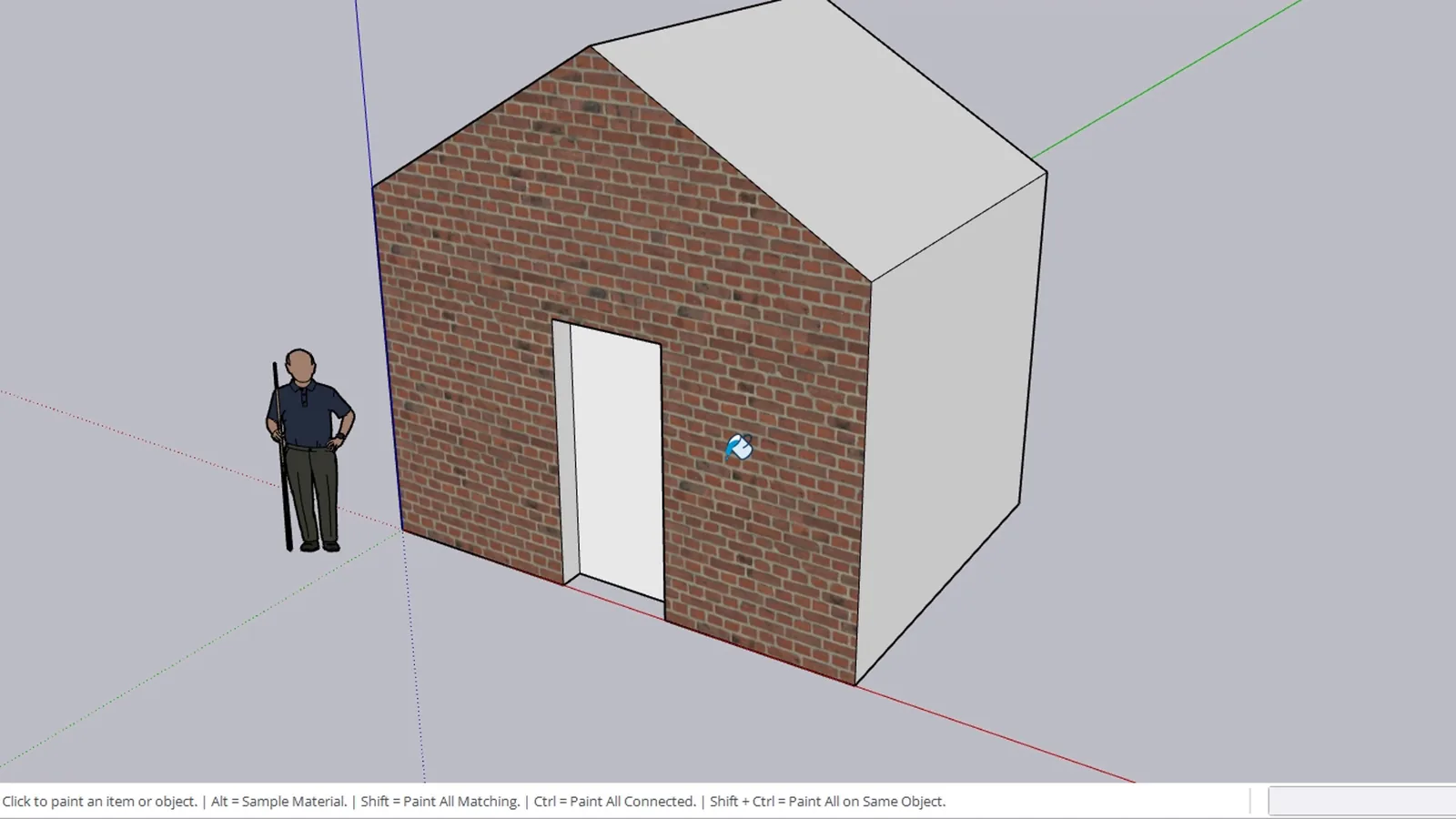
Open the Brick folder and click the first material. SketchUp switches to the Paint Bucket by itself. Click the front wall and only that face is covered.
How do you paint a whole model at once?
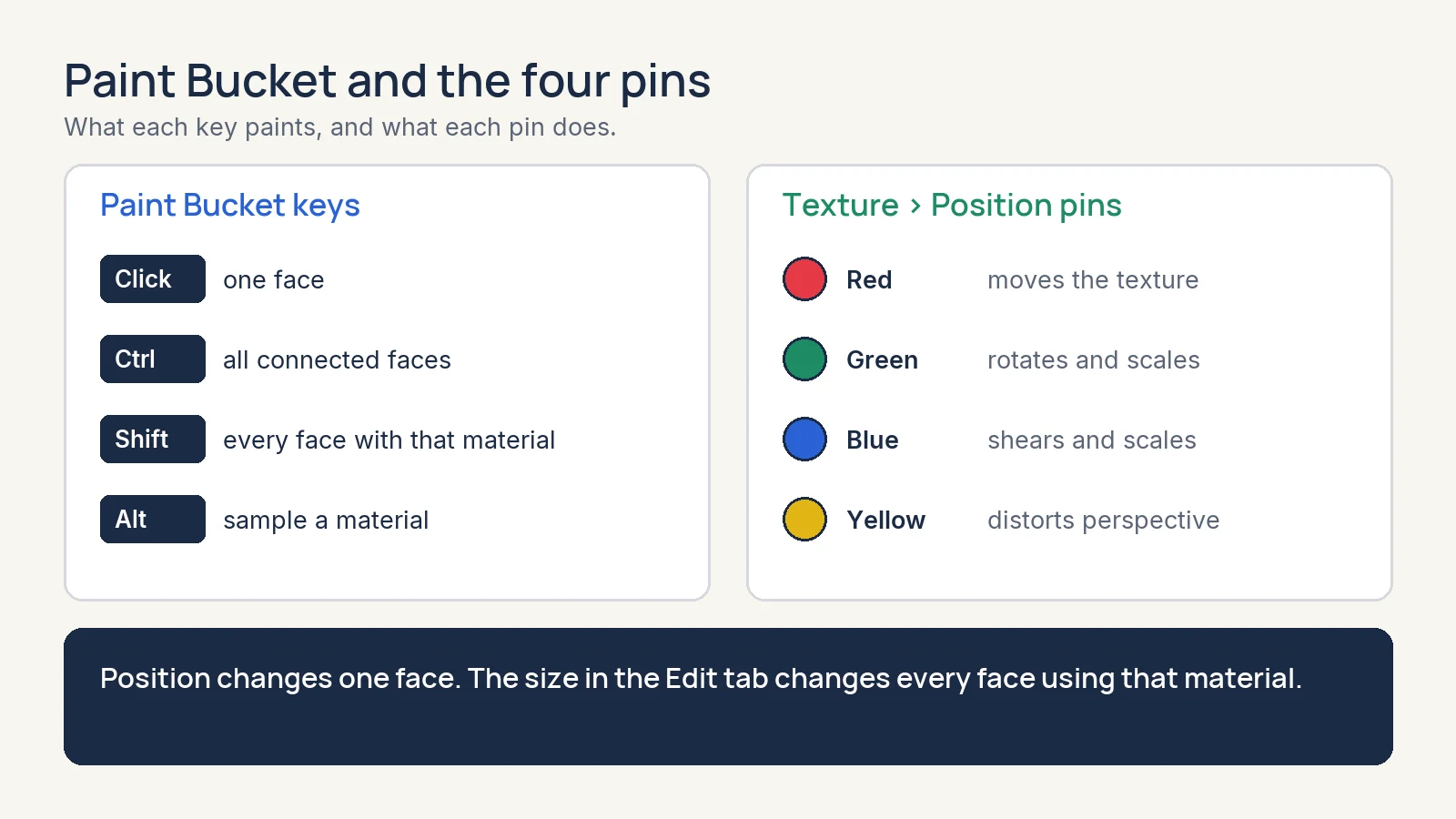
The status bar lists the keys. Hold Ctrl and click: every face connected to that face is painted, roof included.
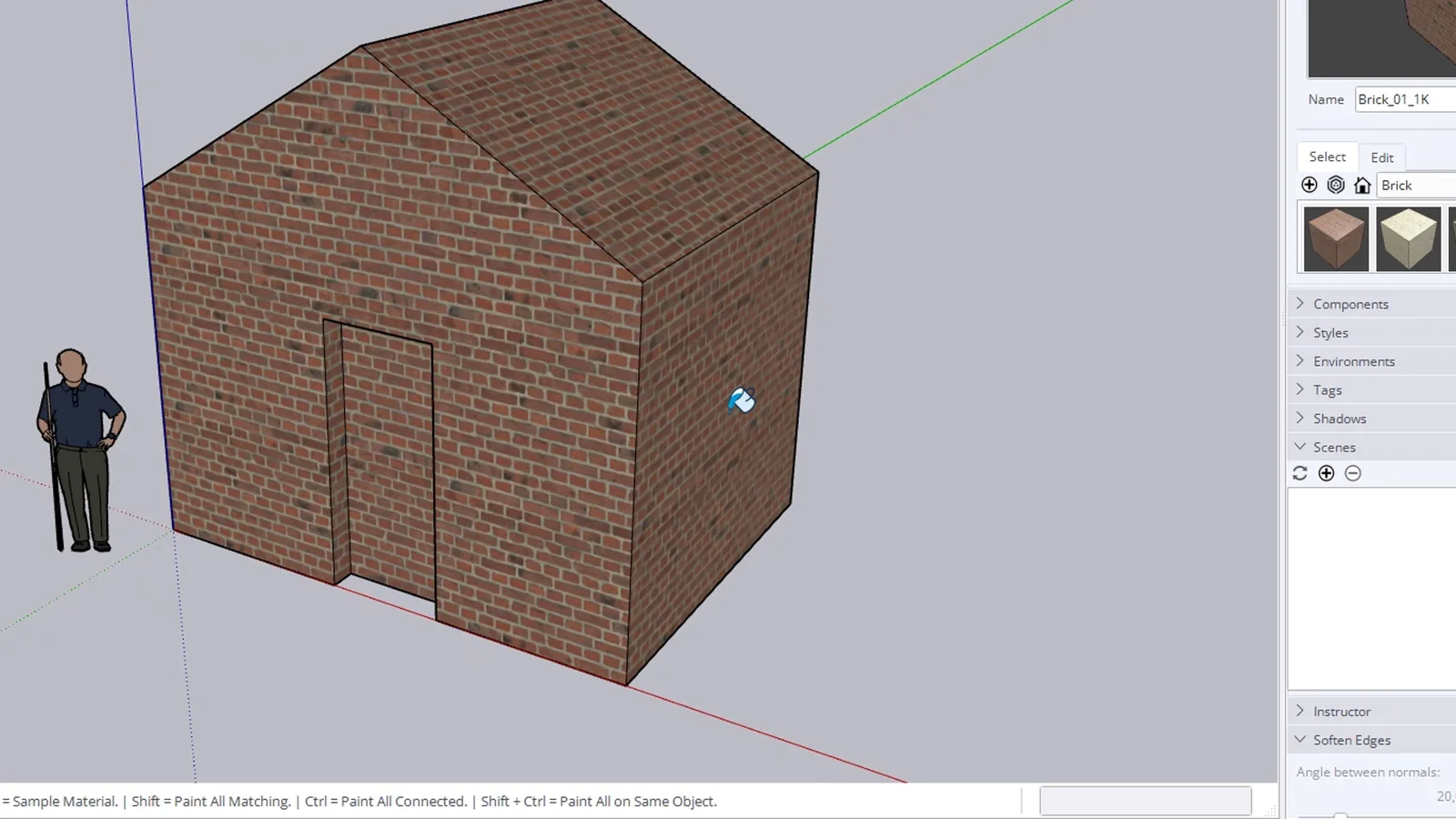
Now give the roof its own material. Open the category list, go to Roofing and click the sloped face. For a change across the model, hold Shift: every face with the same material changes at once. It is the fastest way to try a different finish, and Ctrl+Z brings the old one back.
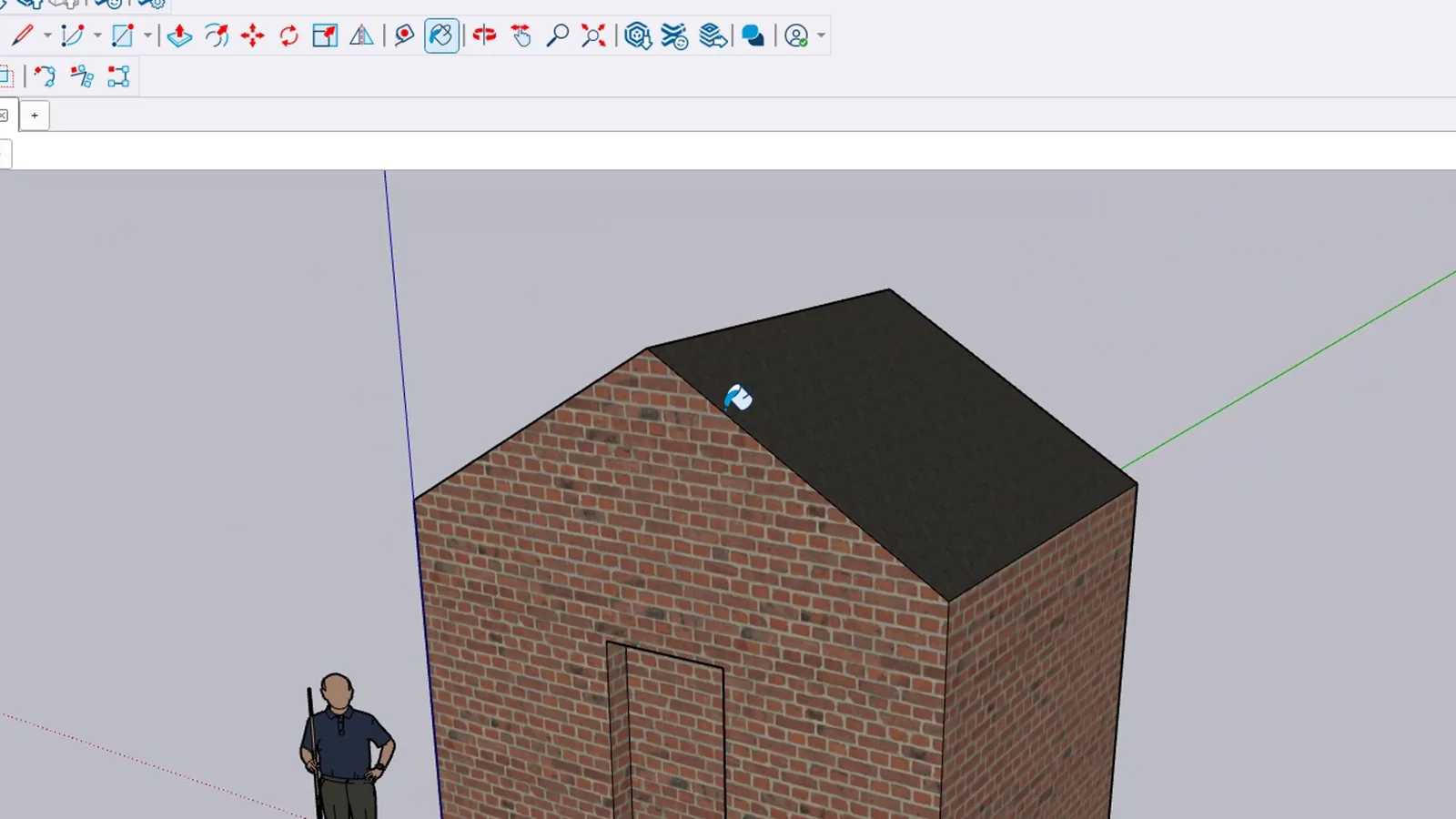
In Model at the top of the category list shows only the materials this model uses, which saves you from digging through folders.
How do you move and rotate a texture?
A texture is a small picture that SketchUp repeats across the face. Right-click the face and choose Texture > Position. A see-through preview spreads over the plane with four coloured pins on it. Red moves the texture, green rotates and scales, blue shears and scales, yellow distorts the perspective. Press Enter to finish; the new position applies to this face only.
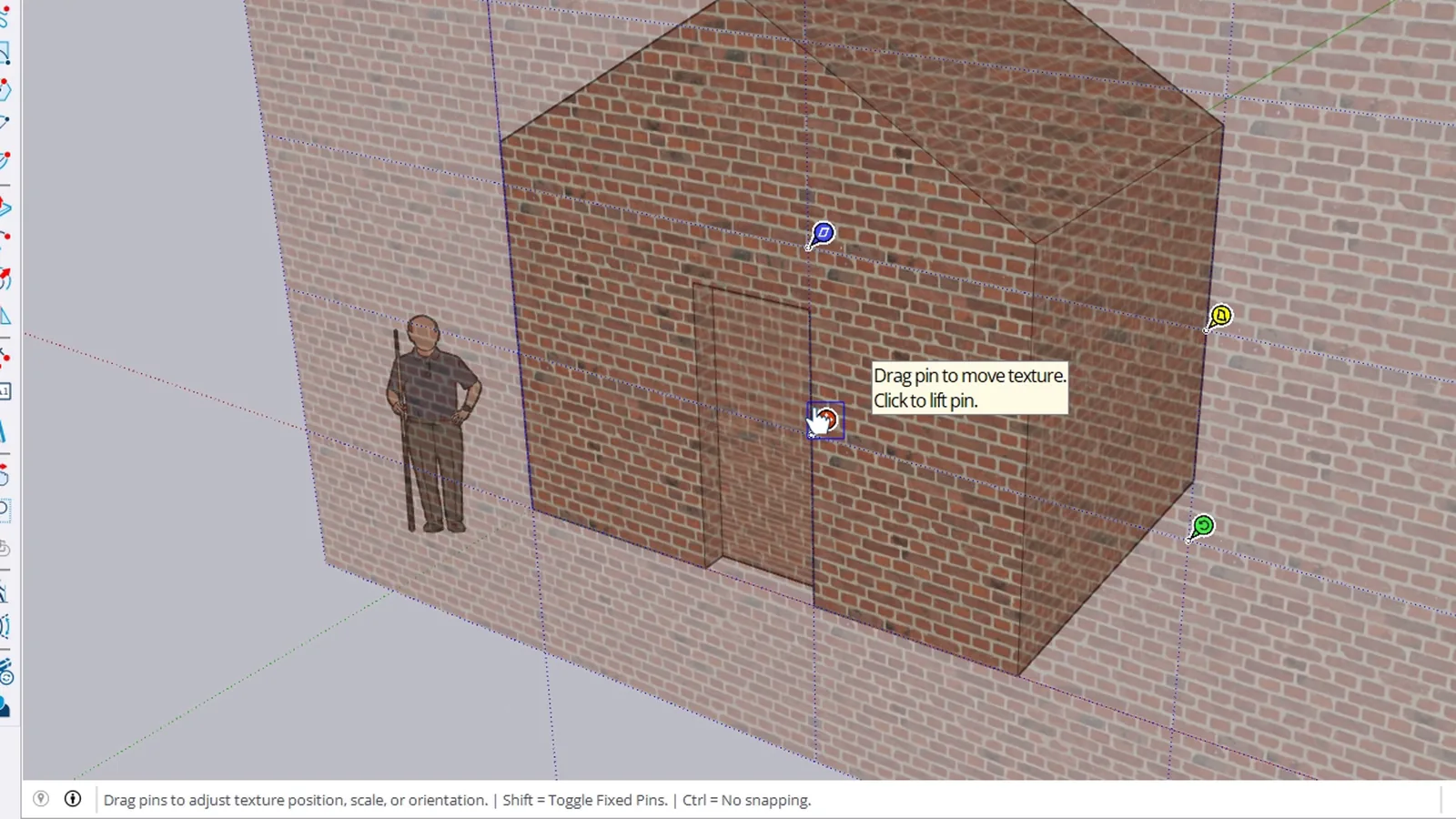
Went too far? The same menu has Reset Position, which puts the texture back in line with the other walls.
How do you change the size of a texture in SketchUp?
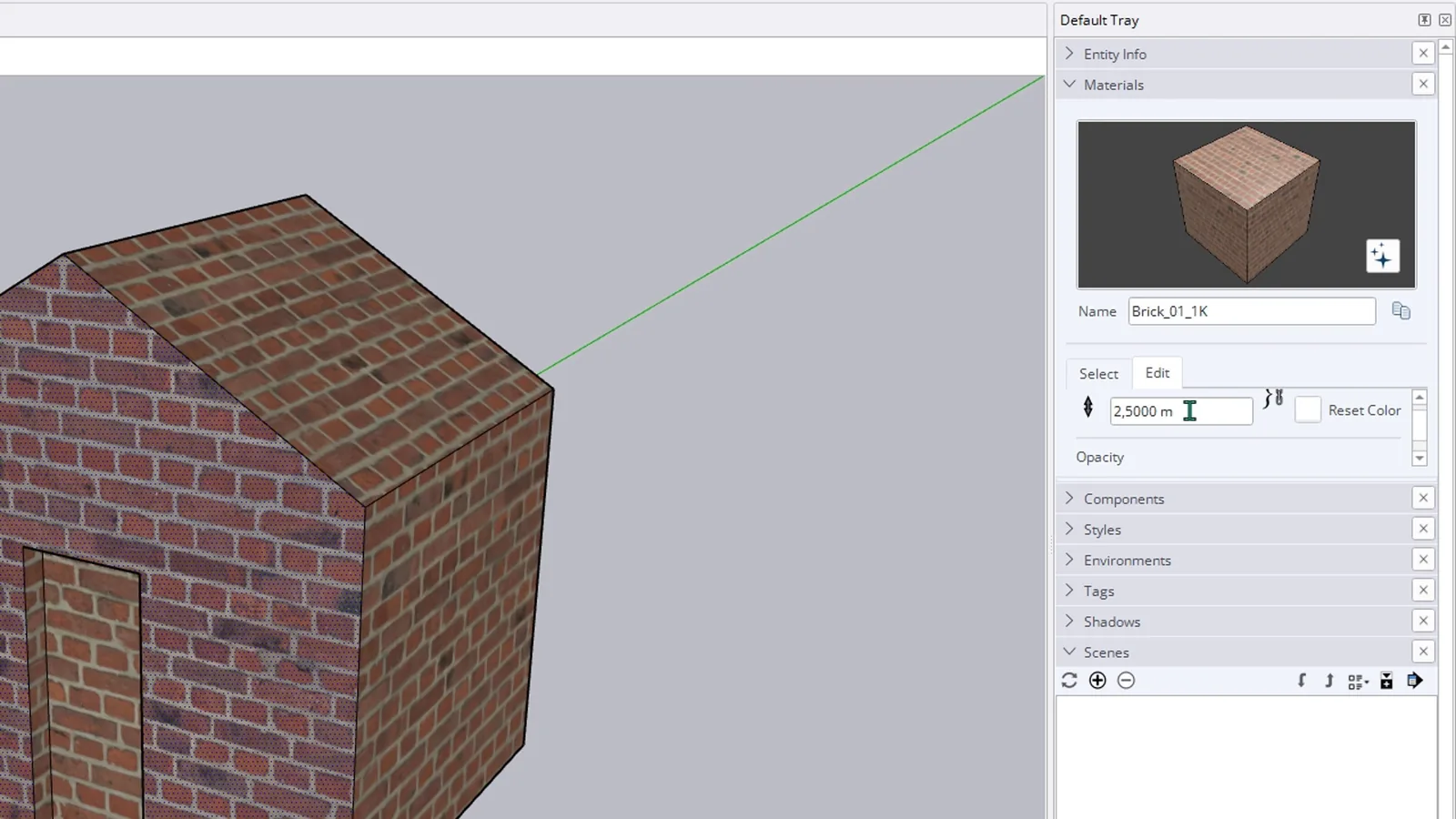
Size belongs to the material, so it affects every face that uses it. Go to the Edit tab of the Materials panel and scroll down: the real-world size of the texture is written there. In this lesson it reads 1.25 metres. Change it to 2.5, press Enter, and every brick in the house becomes twice as big. If your bricks look like tiles or boulders, this is the box to fix.
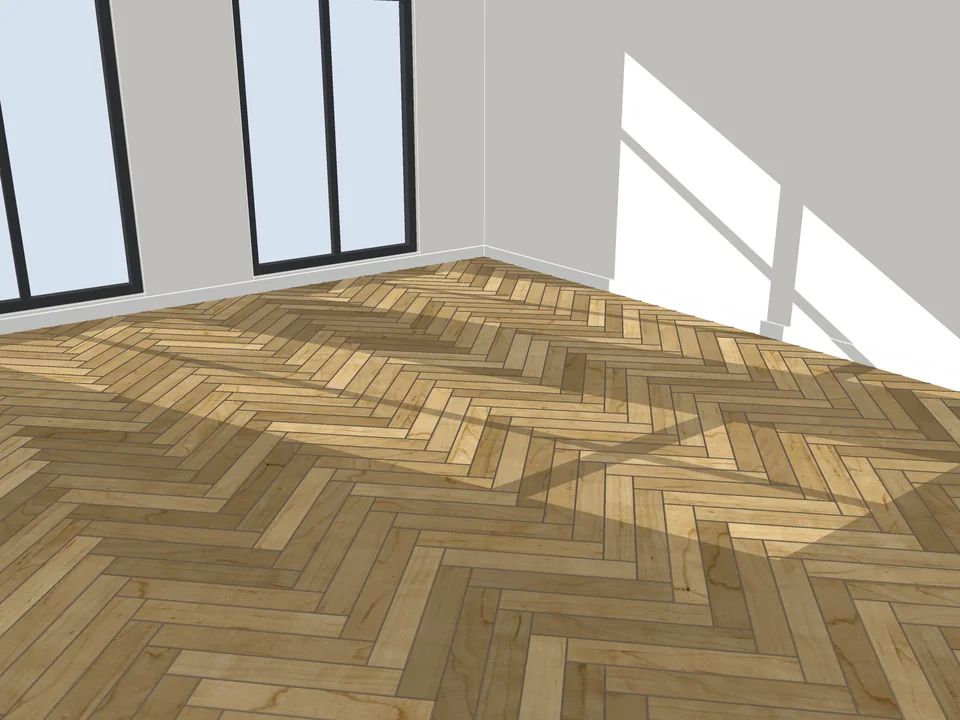
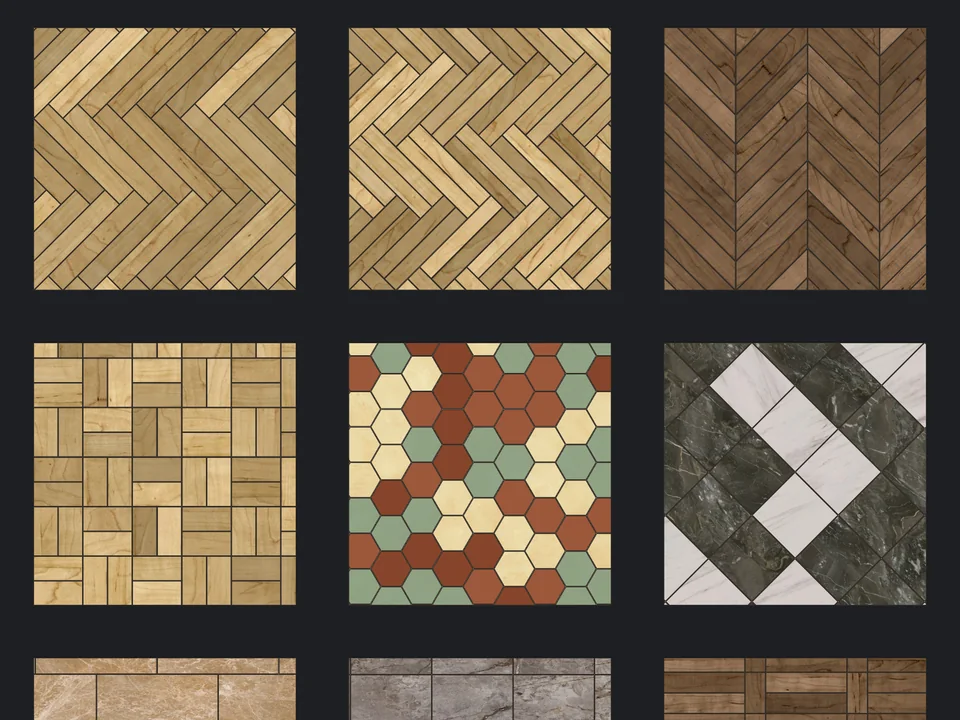
Pick a face, pick a pattern. Floor laid.
Flooring$39FloorStudioFloorStudio
Skip the tile-by-tile copying: every board cut, counted, out as CSV.
- 13 patterns
- SketchUp 2021-2026
- CSV take-off
SketchUp 2021–2026v3.4.1
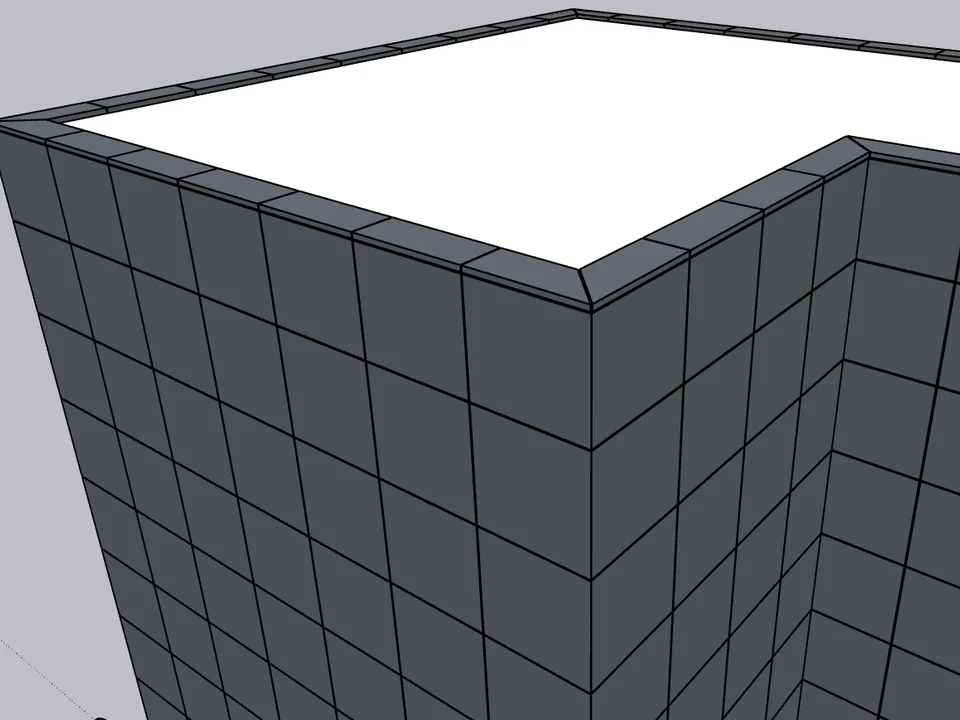
Select the walls. The facade clads itself.
Facade$299Kompozit StudioKompozit Studio
No sizing panel by panel: select the walls, get the ACM facade, take-off, CNC and drawings.
- Folded ACM cassettes + CNC DXF
- PDF / DXF shop-drawing set
- SketchUp 2021–2026
SketchUp 2021–2026v1.22.1
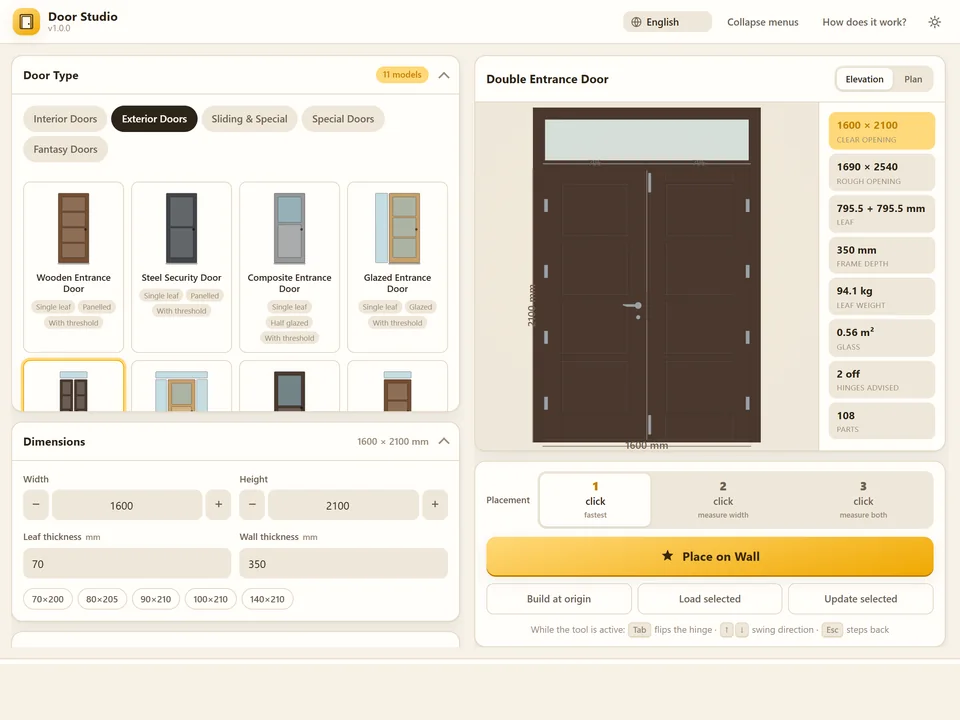
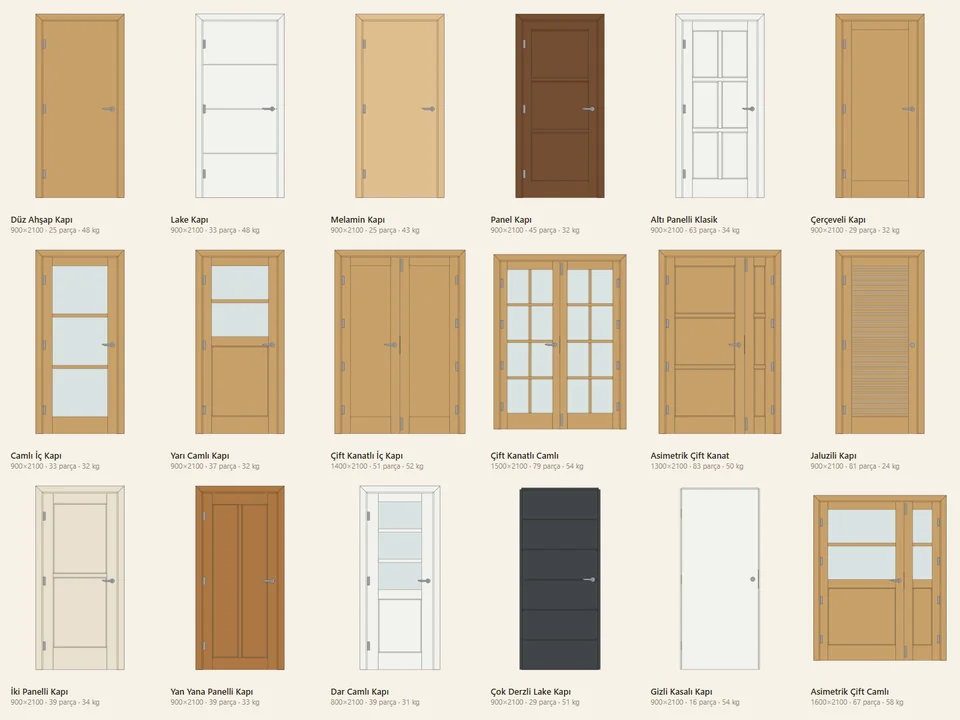
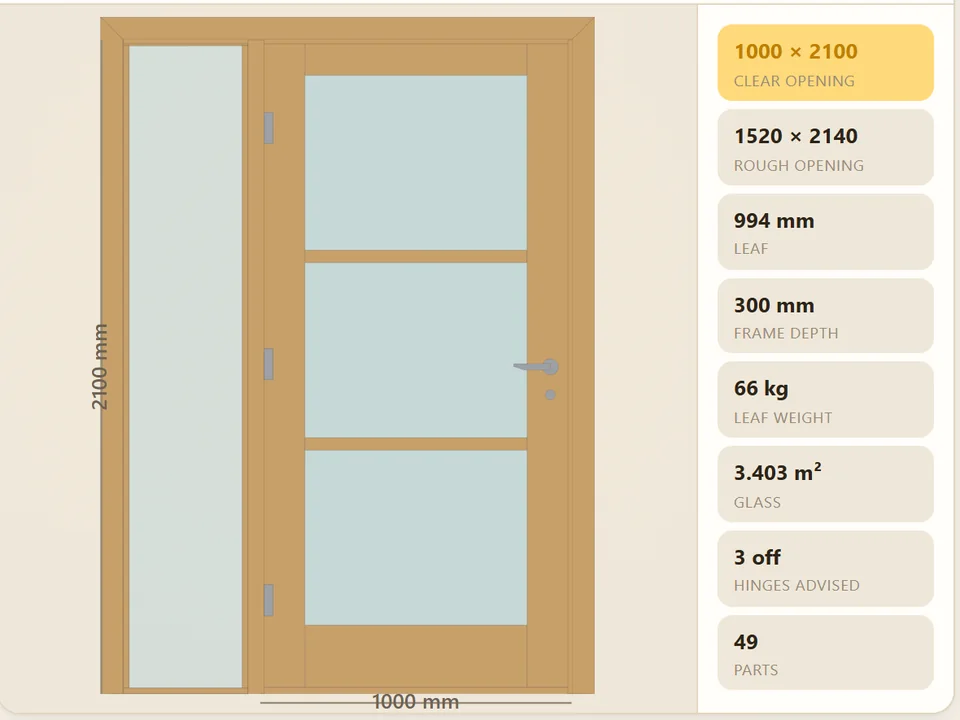
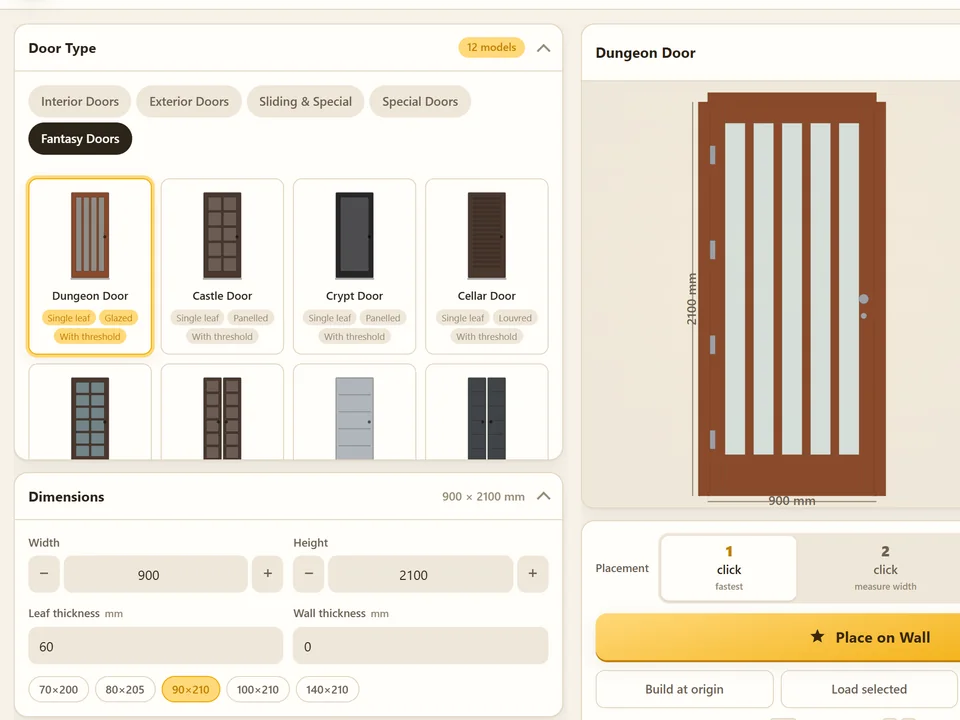
Pick a door, click the wall. It fits itself.
Windows & Doors$30Door StudioDoor Studio
No walls cut by hand: pick a door, click the wall, it fits itself.
- 63 models, 5 categories
- 1/2/3-click wall placement
- 572 tests green
SketchUp 2021–2026v1.6.0