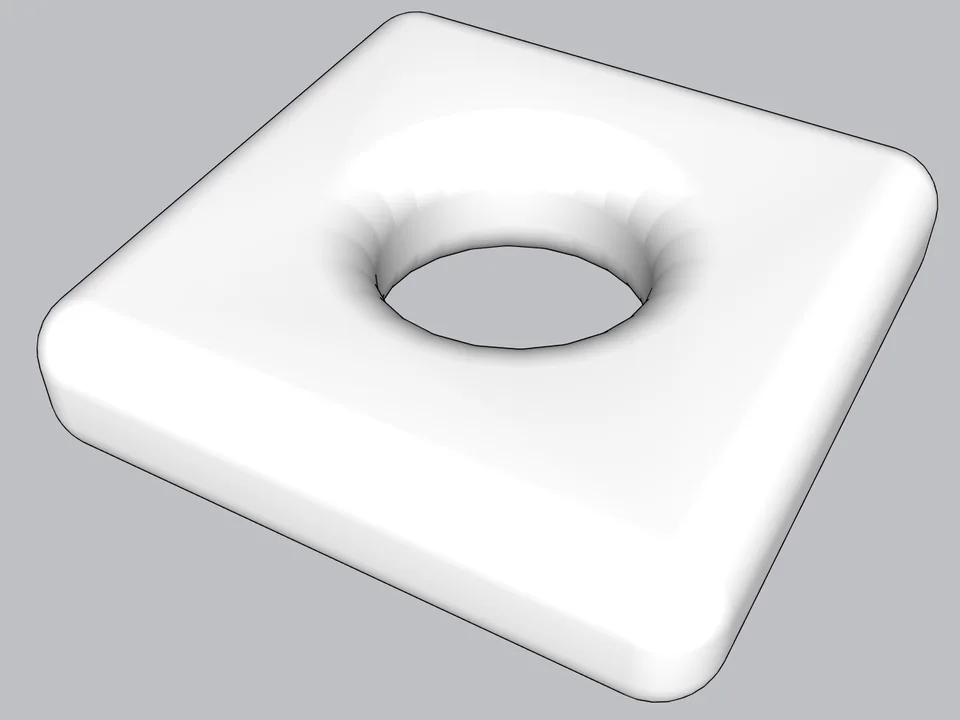
Cutting a round hole through a box by hand means intersecting faces, deleting what is left over and hoping nothing tore. Solid Tools turn that into two clicks, and they make your work look like it came from someone who really knows the program. There is one condition, and it trips up almost everybody the first time.
What is a solid group in SketchUp?
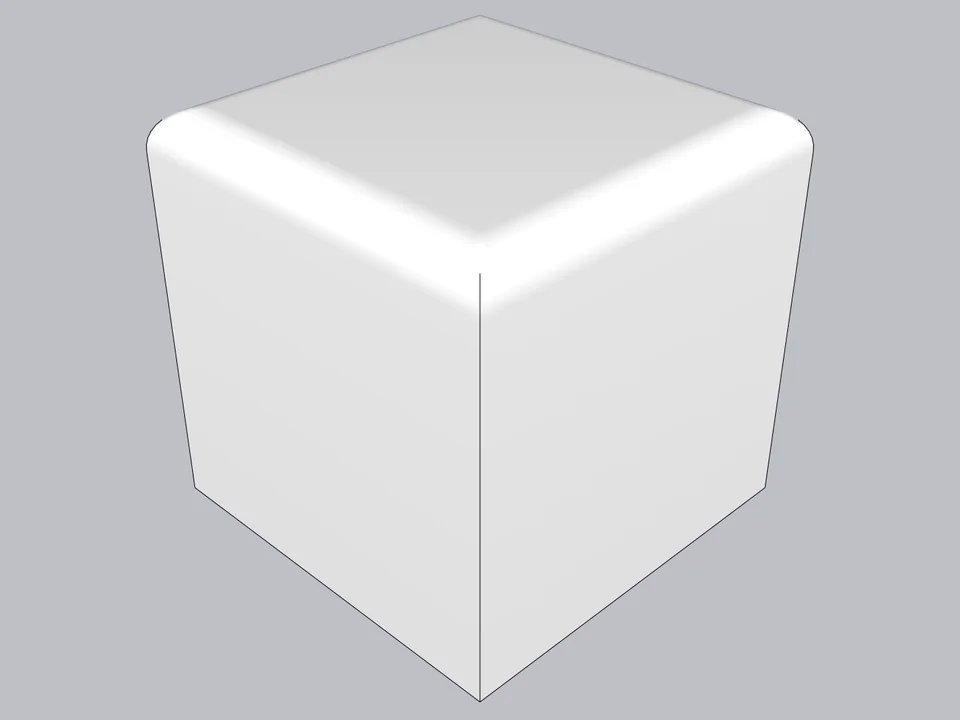
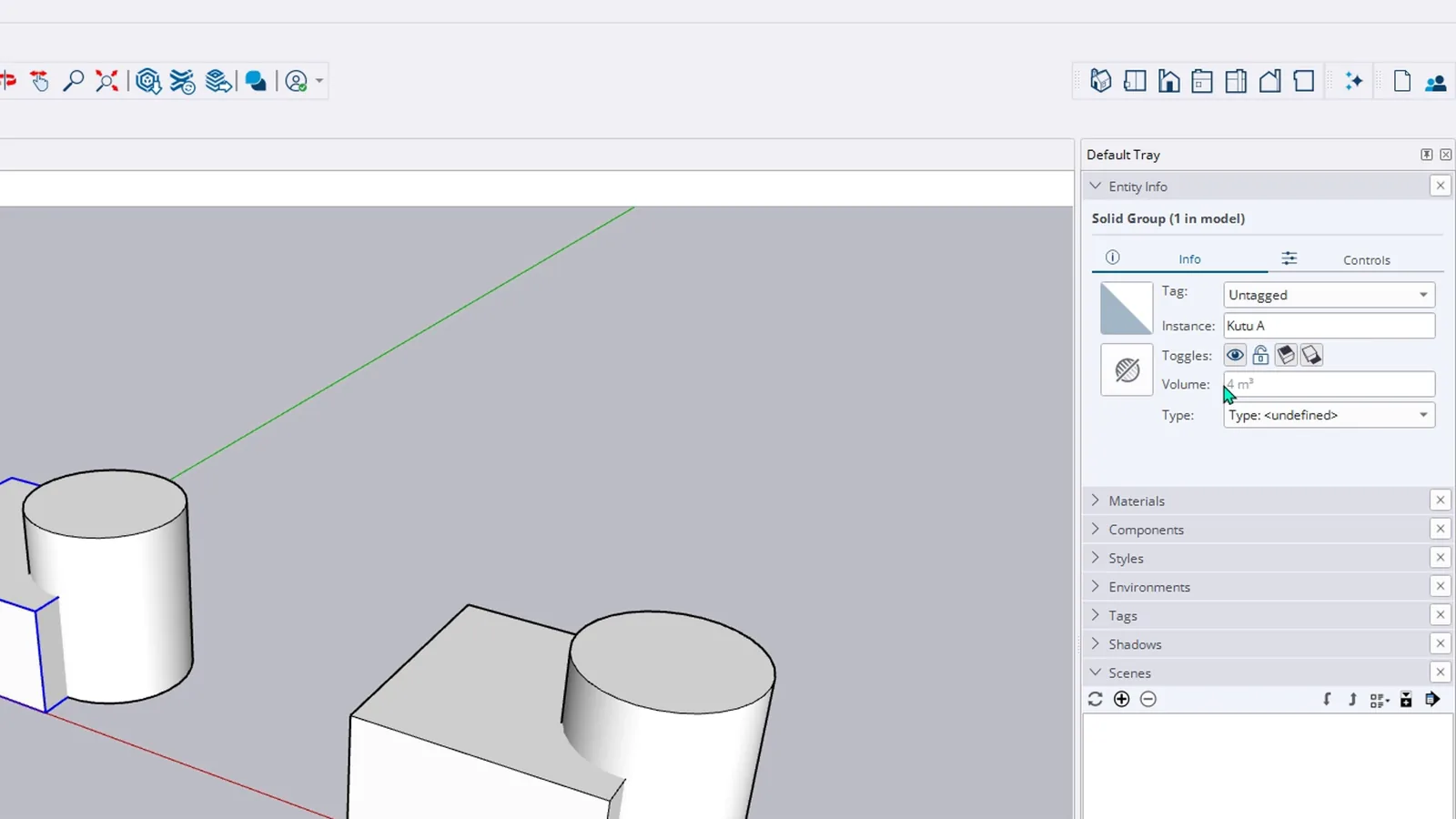
Select a group and open Entity Info. If the heading reads Solid Group, you will also see its volume; this box shows four cubic metres. To be solid, a group must be closed on every side, with no holes and no extra faces. Solid Tools work only with solid groups and components.
How do Union, Subtract and Intersect work?
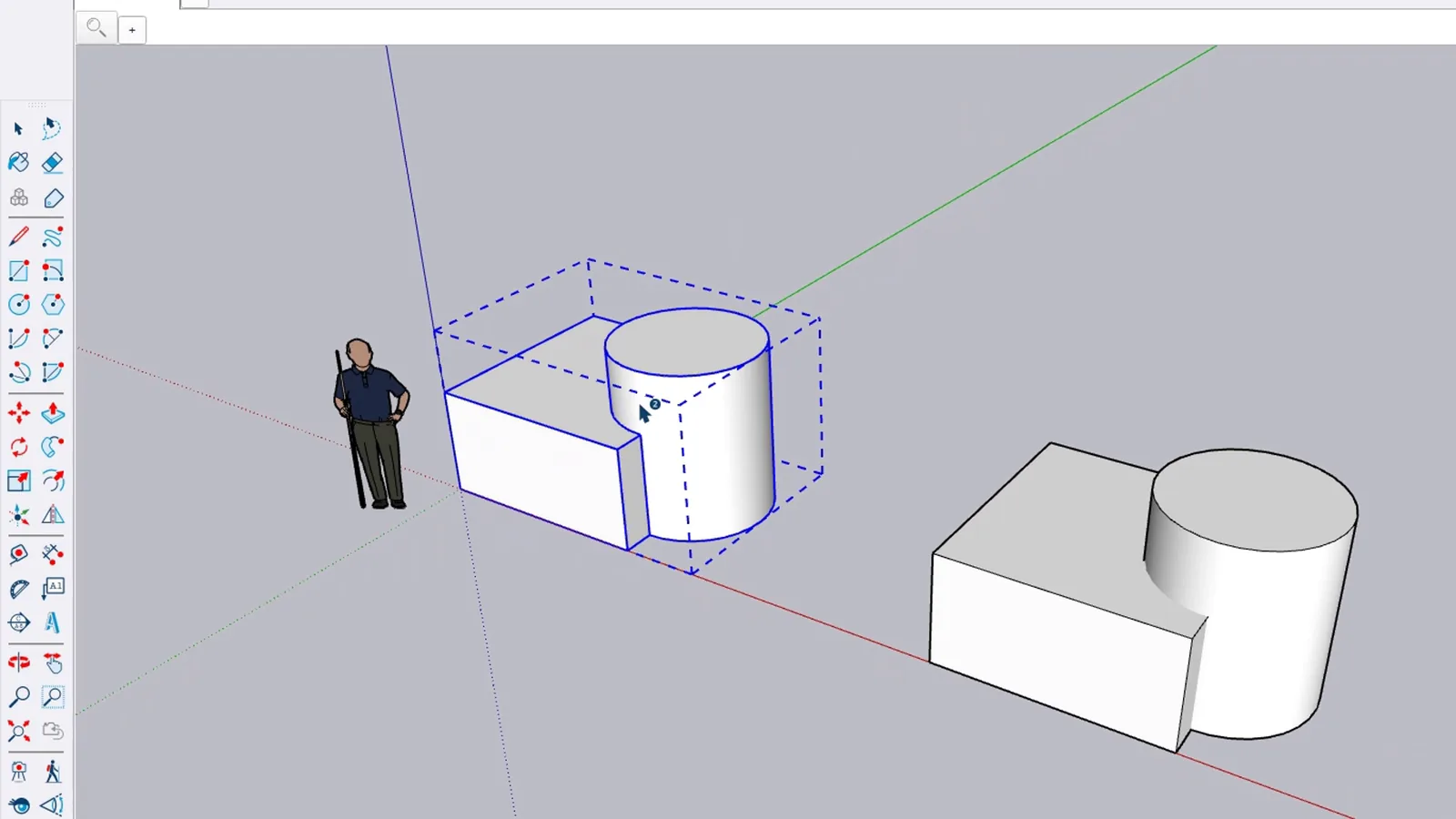
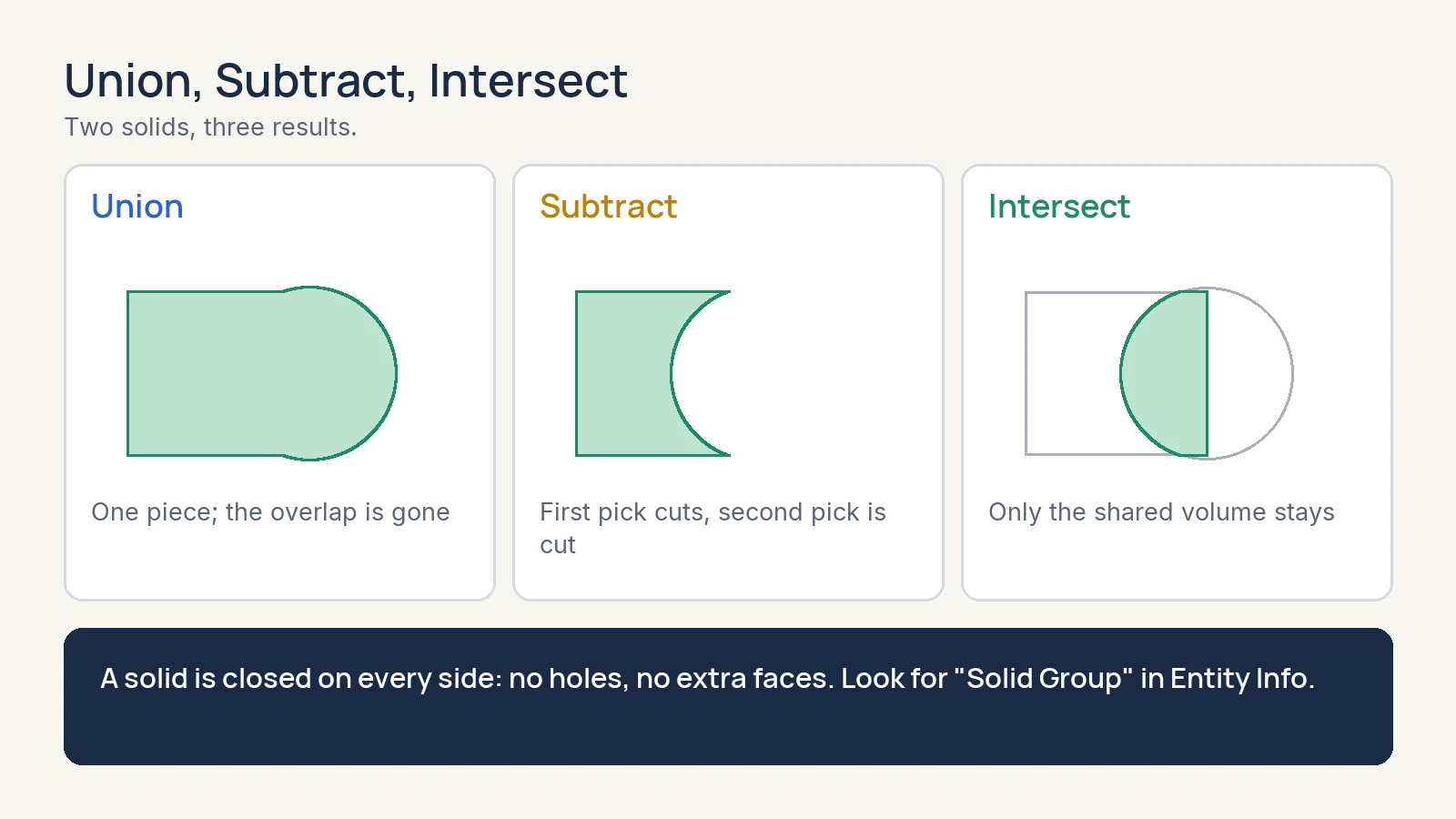
In SketchUp 2027 the solid tools became procedural, and they sit on the Procedural Tools toolbar in the second row. Click Union. The status bar asks for the first solid, so click the box; then it asks for the second, so click the cylinder. The two become one piece and the overlap disappears.
Can you change the operation afterwards?
That is what procedural means here: the operation is not final. Open the Controls tab of Entity Info and you will find an Operation row. Switch it to Subtract and the first pick cuts into the second. Switch it to Intersect and only the shared volume remains.
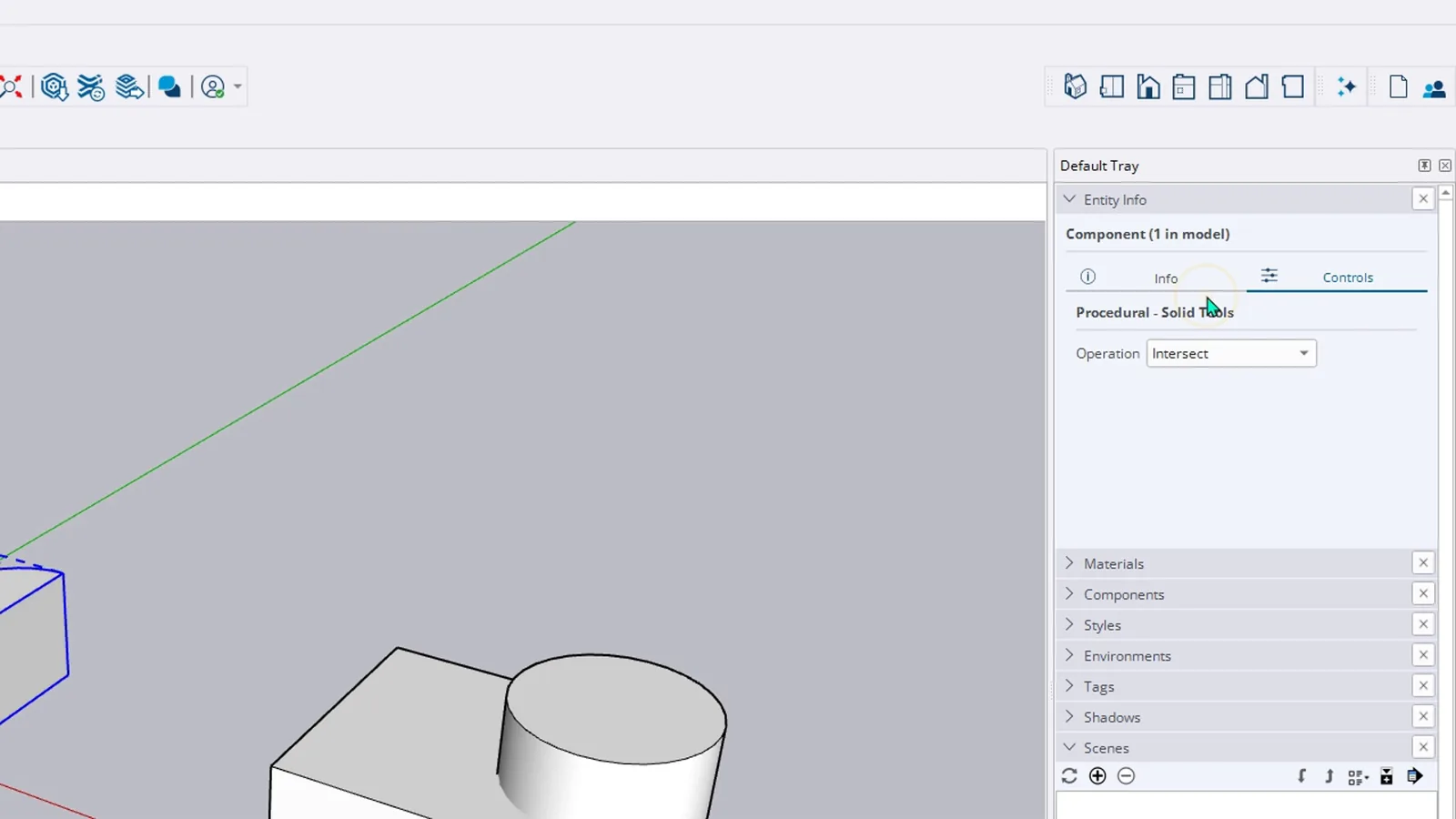
Why does the order matter with Subtract?
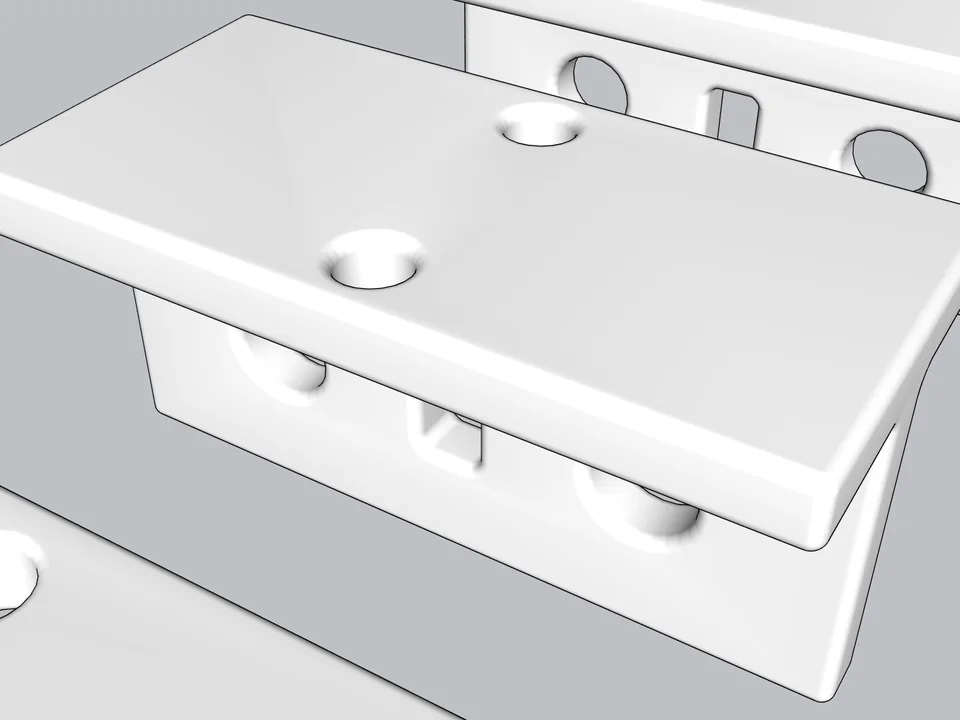
Because the status bar asks for the cutter first. Click Subtract, click the cylinder, then the box: the cylinder is carved out of the box and leaves a half-round pocket in its corner. Remember it as the cutter first, then what gets cut.
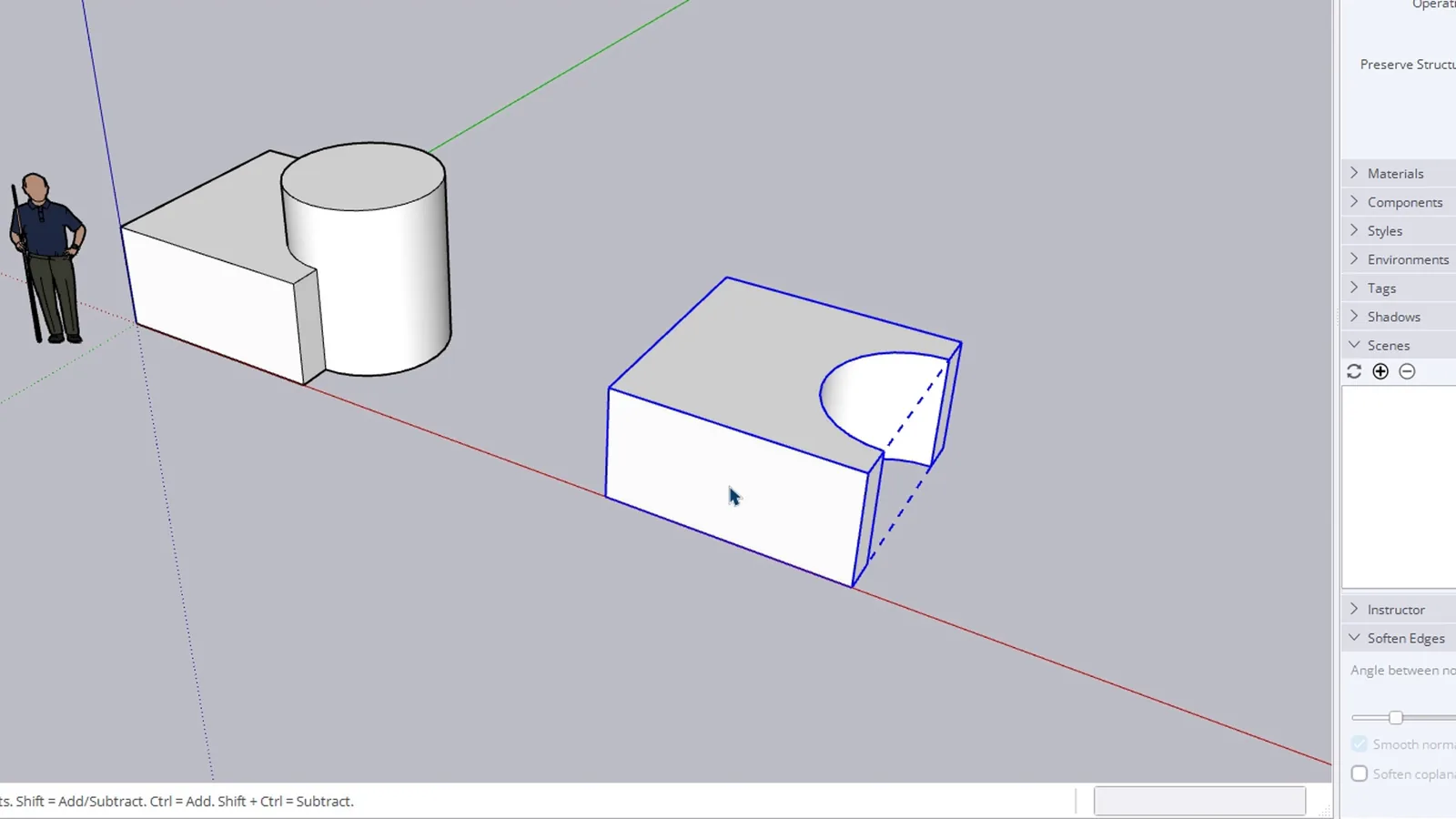
How do you get the original objects back?
Right-click a procedural result. Explode to Inputs gives you the box and the cylinder back as separate groups. Make Non-Procedural does the opposite: it turns the result into an ordinary solid and clears its history, so use it when you are sure. The same menu has Outer Shell, which keeps only the outer skin of overlapping solids and removes the faces inside.
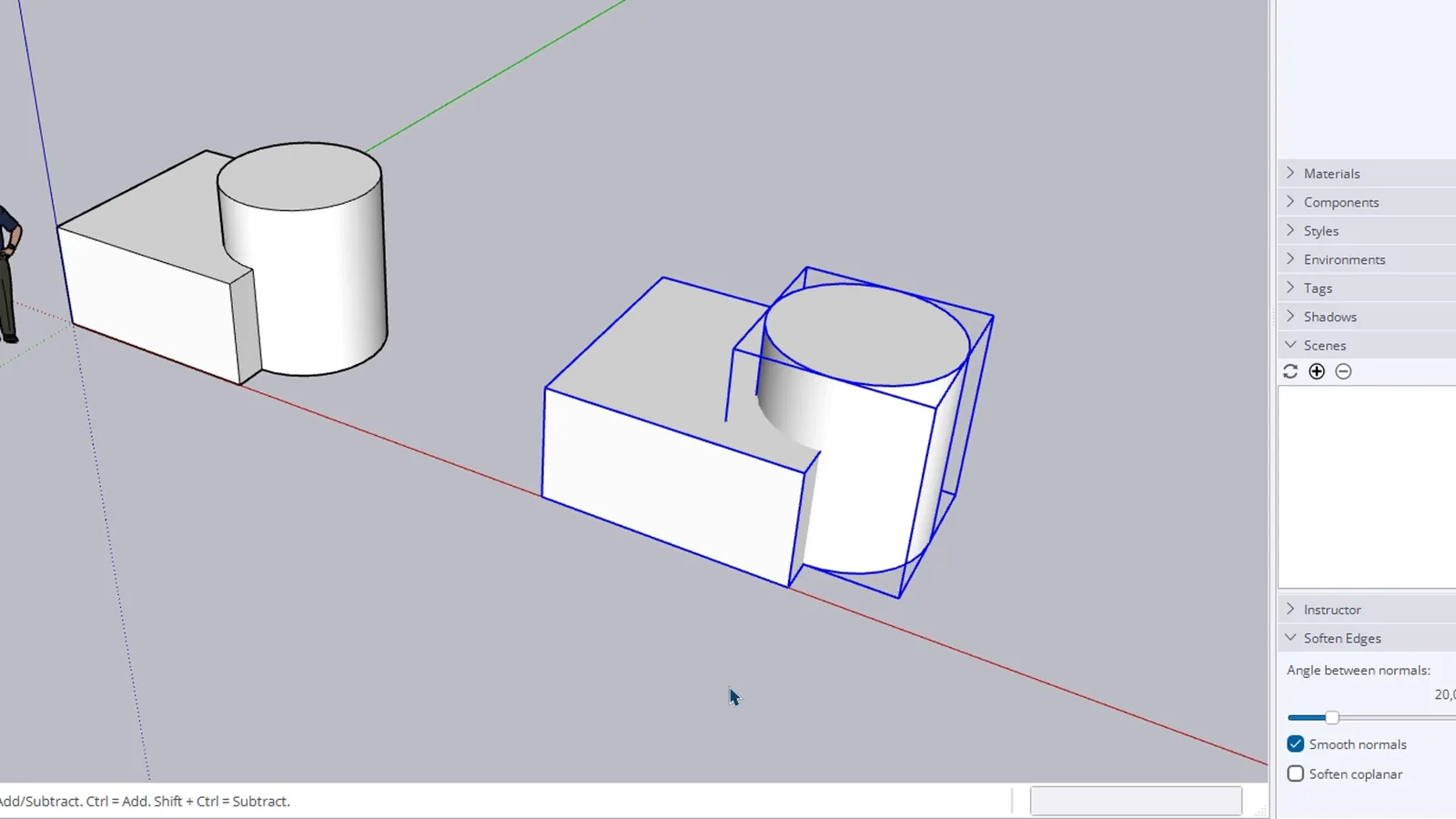
Why will the Solid Tools not let me select my object?
Because it is not solid. Check Entity Info for the words Solid Group, then clean up open edges or extra faces inside the group. Once you know this, the error stops being a mystery.
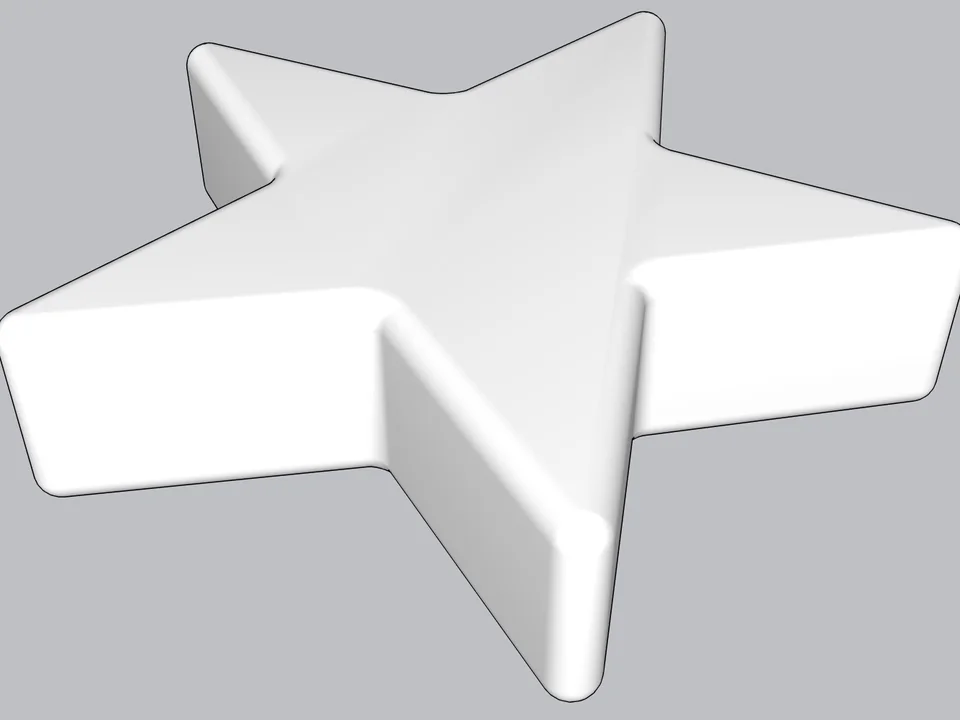
Type a radius, click: every edge goes soft.
FREE ProductivitySoft EdgeSoft Edge
Skip hand filleting: round or chamfer in one click, always editable.
- Round + chamfer
- SketchUp 2021-2026
- Free
SketchUp 2021–2026v0.8.1
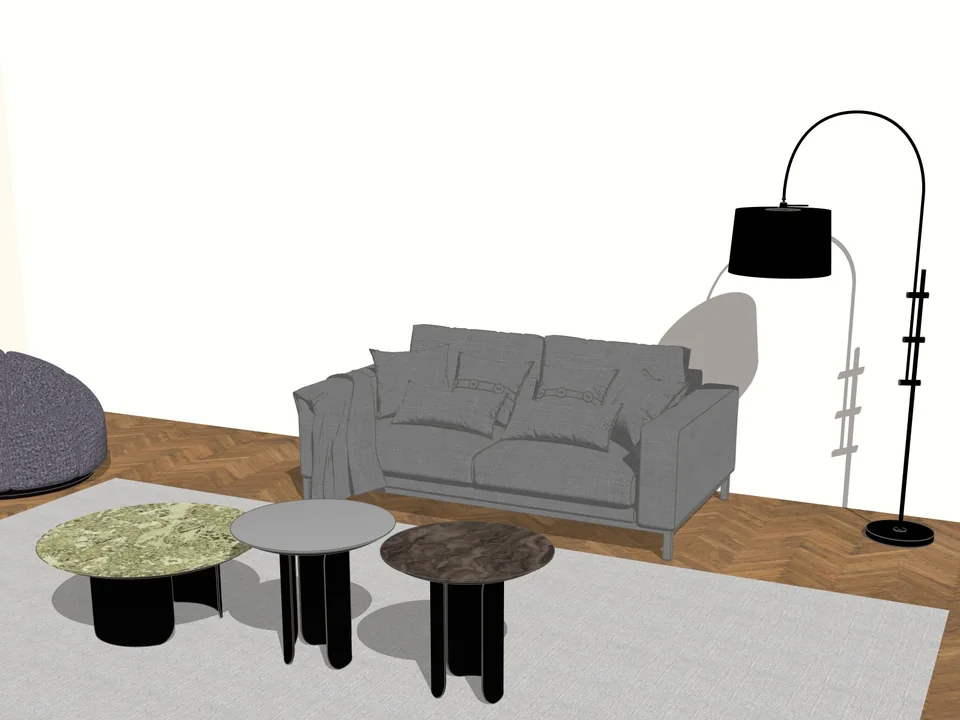
Any mesh in, clean SketchUp geometry out.
Productivity$40*Universal ConverterUniversal Converter
No hours of clean-up: any mesh in, clean SketchUp geometry out.
- 16-stage pipeline
- 7 file types in
- ~3x faster on 819k tris
SketchUp 2024–2027v1.17.0
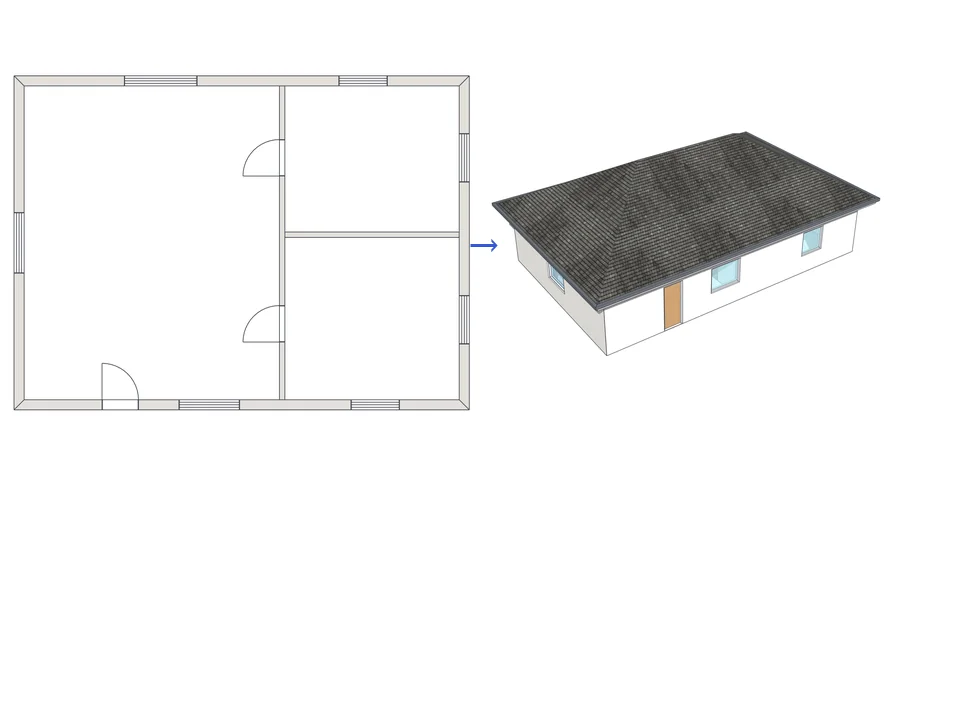
Draw the plan. One click, it's 3D.
Architecture$99ArchiFlow StudioArchiFlow Studio
Draw the plan once; move a wall and the building rebuilds itself.
- 5 studios built in
- 150 ms auto-rebuild
- SketchUp 2021-2026
SketchUp 2021–2026v1.72.0