You chose SketchUp because it stays out of your way, and your time belongs to the design, not to the same click repeated all afternoon. Picture a room floor that takes around 45 minutes by hand laid in about 45 seconds. SketchUp gives you a rectangle tool, push/pull, and almost nothing standing between you and a building. That is exactly why people love it — and why, about a month in, everyone asks the same question. Half the tutorials mention SketchUp plugins, some of them cost money, and none of it looks essential. So what is an extension, is it safe, and does adding one to your SketchUp workflow actually change anything?
Here is the honest version, including the parts a store is not supposed to say out loud: extensions do slow your startup, most people install too many, and for a good number of models you need exactly zero.
What a SketchUp extension actually is
An extension is a small program that runs inside SketchUp. The program ships with a Ruby interpreter — a full programming language sitting quietly under the modelling window — and an extension is Ruby code that uses it. That code can add a menu item, a toolbar button or a dialog with input fields, and it can create and edit geometry exactly the way your mouse does, only faster and without missing an endpoint at two in the morning.
It reaches you as one file ending in .rbz. Download a SketchUp plugin and what arrives is almost always a single .rbz — technically just a zip archive with a different extension, holding the Ruby files and the images. Do not unzip it. SketchUp wants it sealed.
Installing it takes about twenty seconds:
- Save the .rbz somewhere you can find again. Downloads is fine.
- In SketchUp, open Extensions > Extension Manager.
- Click Install Extension at the bottom left.
- Choose the .rbz file and confirm the security prompt SketchUp shows for an extension that is not digitally signed.
- Restart SketchUp if it asks — some extensions only wake up on a fresh start.
- Look for the new toolbar, or the new entry under the Extensions menu.
That is the whole ritual. No second application to open, no change to your SketchUp licence. The files land in a Plugins folder that belongs to that one version of SketchUp, which is why something you installed for 2023 does not magically appear in SketchUp 2026. The same window uninstalls it — and turns it off without deleting it.
Extension Warehouse, and everywhere else
Two routes lead to the same folder. The first is the Extension Warehouse, Trimble's own store, reachable from inside SketchUp. You sign in, click install, and the download and the .rbz step happen for you. It is the easiest place to start, and updates are handled there too.
The second is getting the file directly from whoever wrote it. You receive a .rbz and install it by hand, as above. This is completely normal. Warehouse listings sit in a review queue, some tools are too niche or too regional to be worth that trip, and many developers ship updates weekly rather than quarterly. Free SketchUp plugins and paid ones travel both routes and install identically.
What SketchUp genuinely will not do for you
Push/pull is arguably the best-tempered modelling tool ever put into a 3D application. Draw a face, pull it, done. For architectural modelling it is superb at making one shape — a wall, a slab, a mass, a landing. Nobody needs an extension for that, and anyone who says otherwise is selling.
The limit is quieter than a missing feature. When you pull that face up to 2.80 m, the model records a solid. It does not record "this is a floor height". SketchUp keeps no memory of the decision behind the shape. So the moment a decision has to repeat itself, or survive being changed, the work falls back to you and your mouse.
That leaves three kinds of labour manual by default:
- Anything repeated. Four hundred floor tiles, sixty balusters, thirty treads and risers, a facade of identical panels — all real copies, each one trimmed at the edges by hand.
- Anything that must survive a revision. Move one wall twenty centimetres and the door opening, the skirting, the floor pattern, the ceiling and the dimension string are all yours to repair, one by one, correctly.
- Anything that has to be counted. A model can look perfect and still be unpriceable, because the square metres live in your head instead of in a list.
None of this is a flaw. SketchUp is deliberately a direct modeller, and direct modelling is why it takes an afternoon to learn instead of a semester. An extension simply gives one specific job the memory the core program was never built to keep.
Are SketchUp extensions safe?
Straight answer: extensions are not sandboxed. Ruby code inside SketchUp runs with the same access SketchUp has — it can read and write files and it can reach the internet. That is not sinister; it is how a take-off gets exported to CSV and how a licence gets checked. It does mean an extension deserves the same caution as any other program you install on your machine.
- Install from a source you can identify: a Warehouse listing, or a developer with a real name, a real site and a support address.
- Be wary of a .rbz forwarded in a chat group, and of cracked copies of paid tools. That is where the actual risk lives — not in paid extensions as a category.
- Keep the Extension Manager list short. Ten extensions you use beat forty you once tried.
- Disable rather than delete when you are unsure. The toggle is right there and it is reversible.
- Check the supported SketchUp versions before installing, not after.
For perspective: the realistic bad outcome is almost never malware — it is a poorly written extension that throws Ruby errors, argues with another extension, or leaves stray geometry behind. Annoying, fixable, usually cured by switching it off.
Does it slow SketchUp down?
Yes. It would be dishonest to say otherwise. Every enabled extension loads when SketchUp starts, whether or not you touch it that day: files get read, menus get built, toolbars get registered. One extension is invisible. Forty is a splash screen you have time to make coffee during.
Some extensions also install observers that listen to every change in the model. A well-written one costs nothing you would notice; a careless one taxes every click. Either way the cure is the same: open Extension Manager once a season and switch off what you have not used. Nothing is lost, and it comes back with one click.
When you do not need one
This is the part most extension articles skip. A great deal of good modelling needs nothing installed at all.
- A one-off shape you will build once and never touch again. Push/pull is faster than reading a dialog.
- A small model: a single piece of furniture, a concept mass, a quick sketch for tomorrow's meeting.
- Your first months. Learn the native tools first, or you will not understand what the extension is doing on your behalf.
- A job you honestly do once a year. The install, the learning curve and the startup cost do not pay back.
The test is two questions. Will I do this again? Will it have to change? Two noes and you should close the browser and pull a face.
What changes when the answer is yes
When both answers are yes, the difference is not a tidy ten per cent. It is the difference between an afternoon and a coffee break. Three examples from this catalogue, with the times each tool states for one typical job:
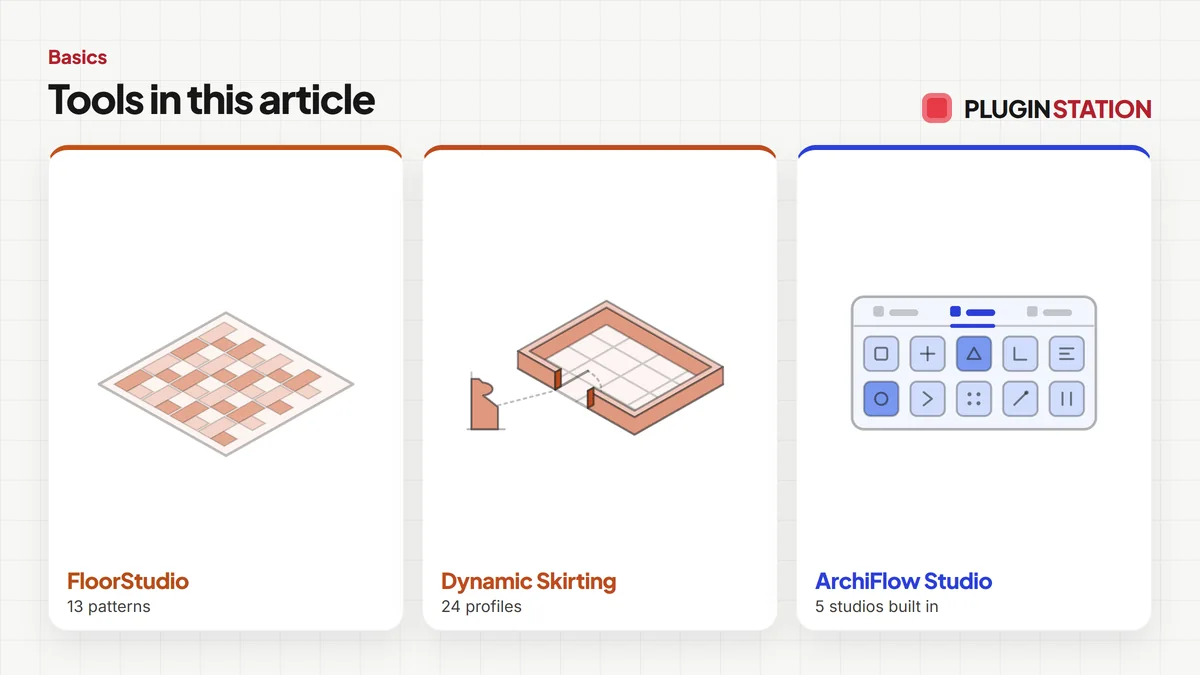
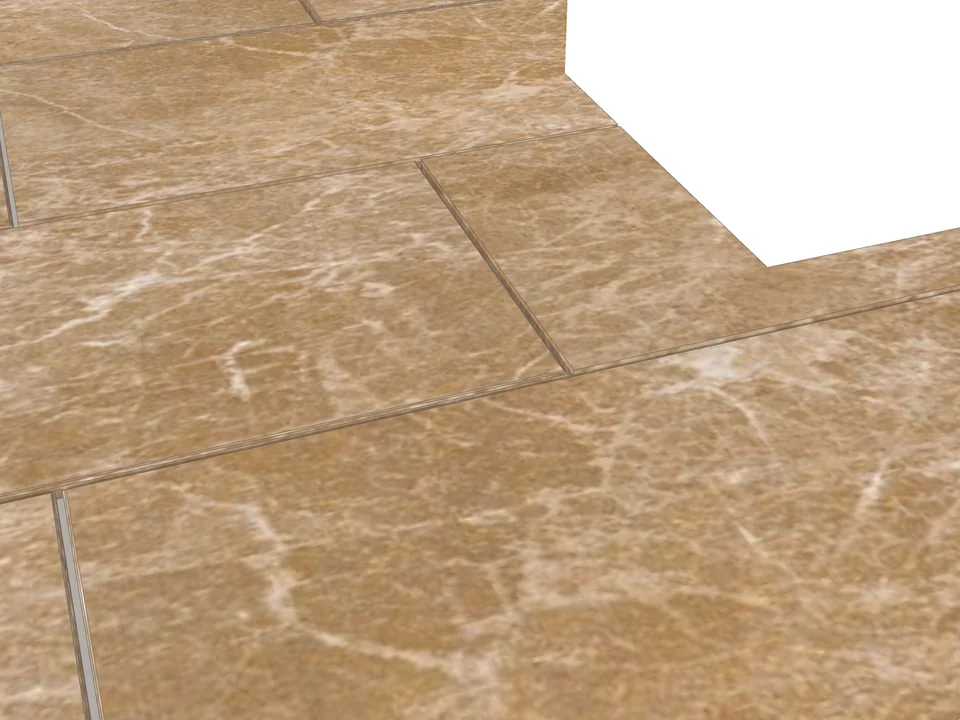
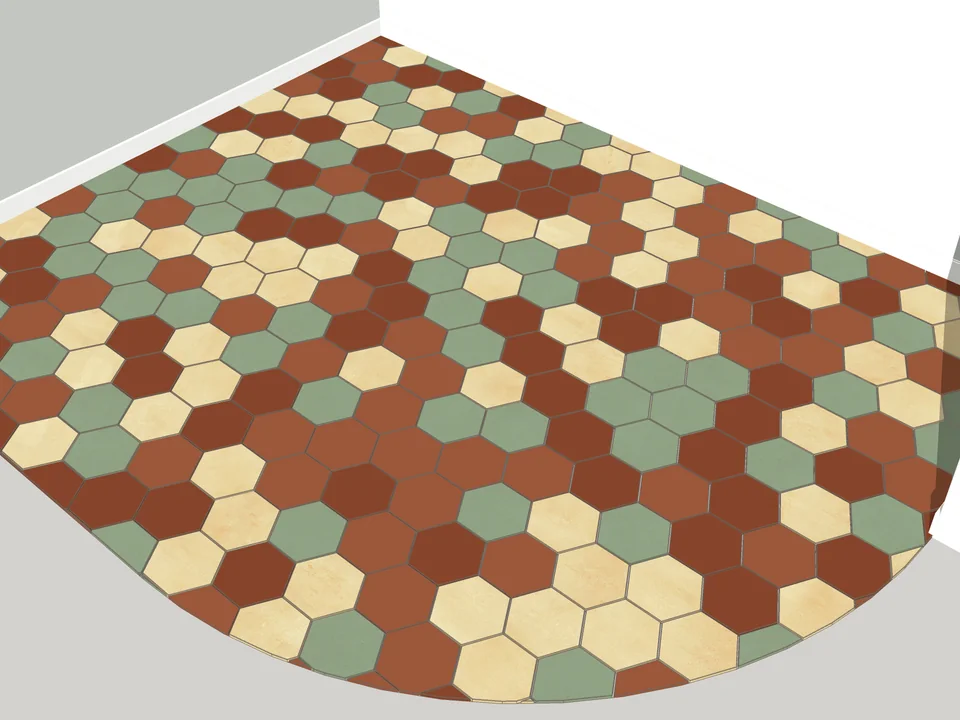
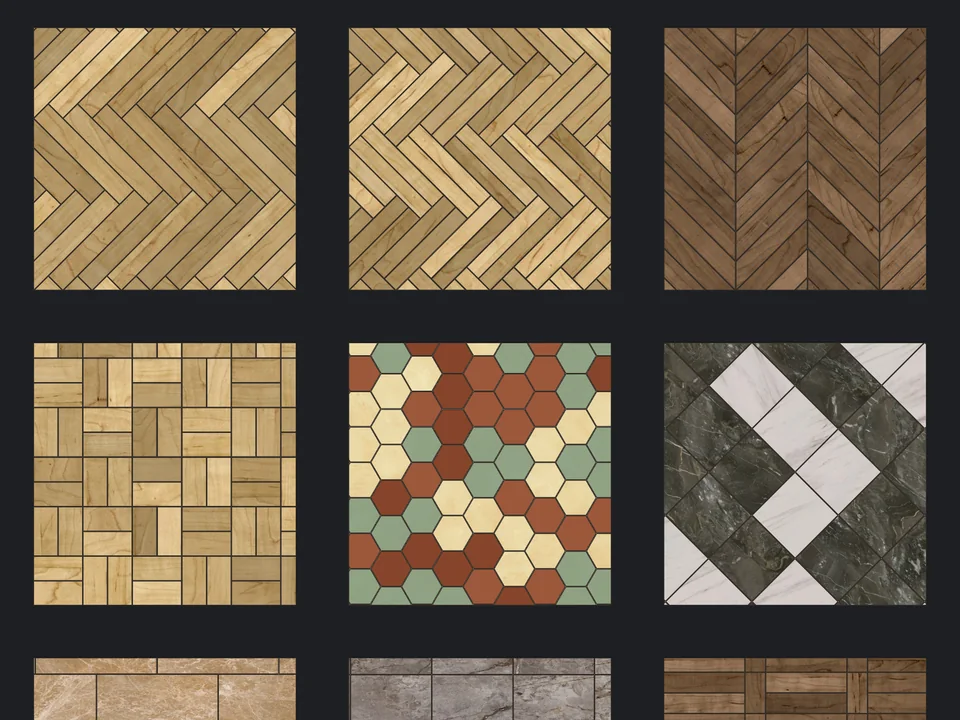
- A room floor, drawn and copied and trimmed to the walls by hand: around 45 minutes. FloorStudio lays it in about 45 seconds, with 13 patterns and a CSV take-off at the end.
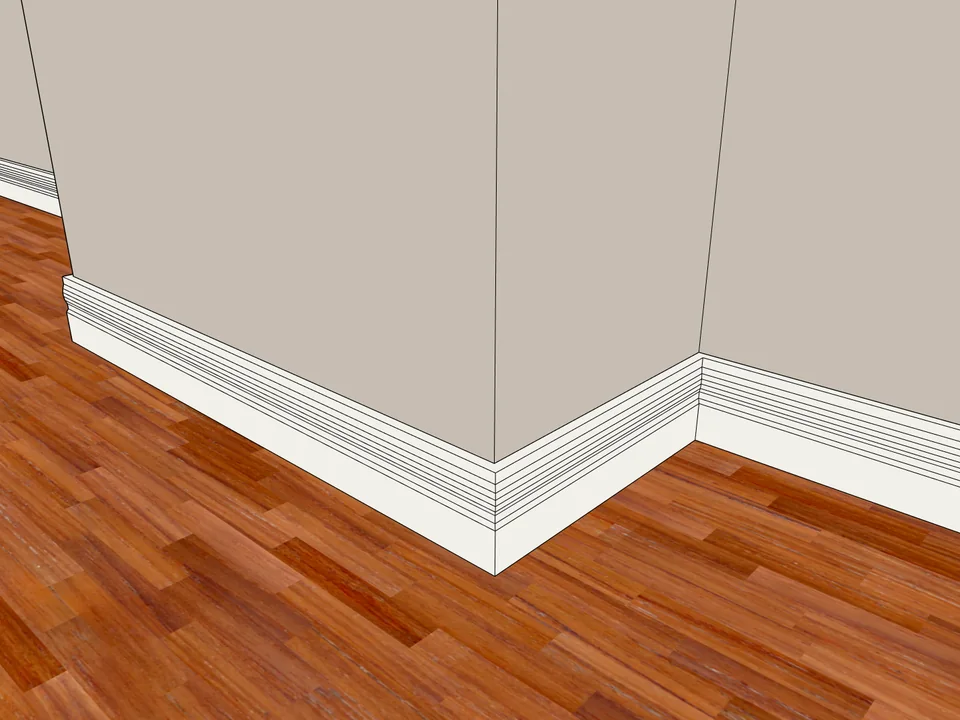
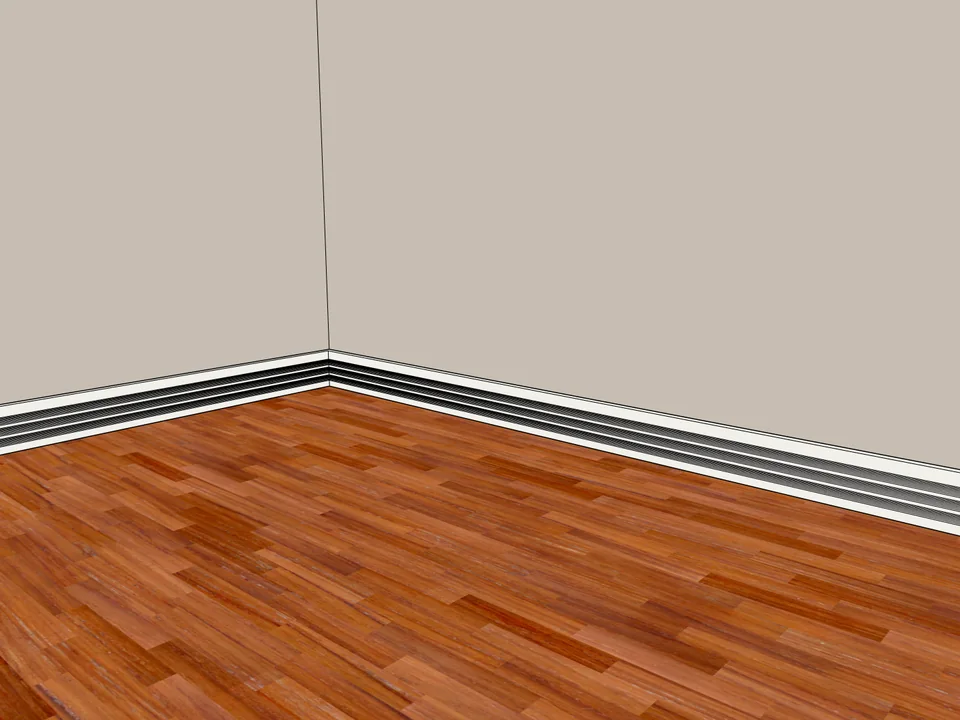
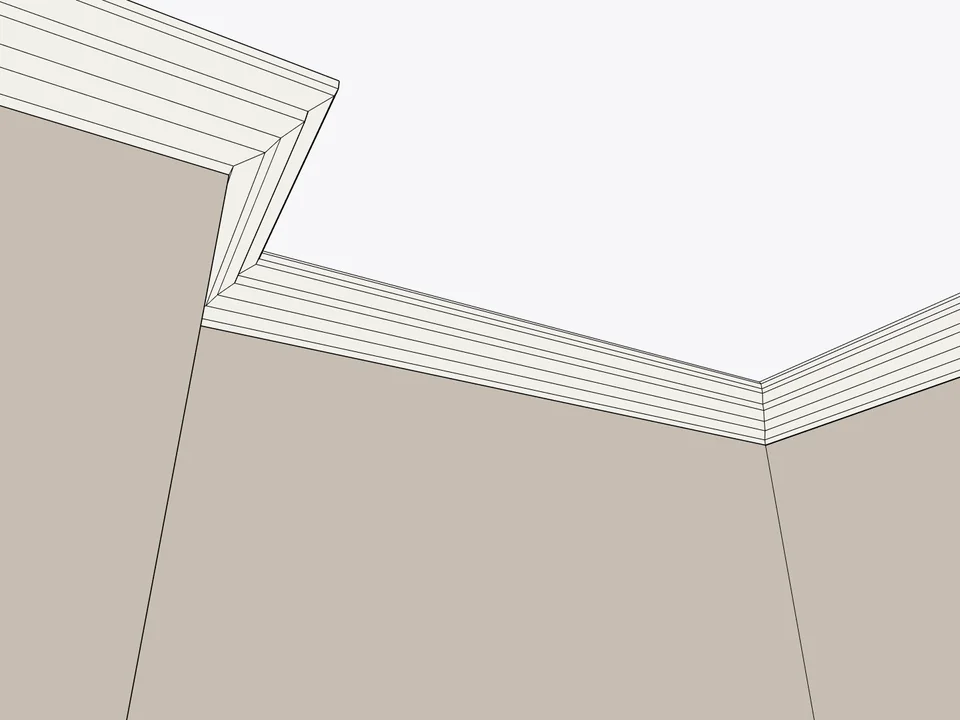
- Skirting for one room, mitred corner by corner with Follow Me: around 14 minutes of quiet suffering. Dynamic Skirting closes the same loop in roughly 25 seconds, from a library of 24 profiles.
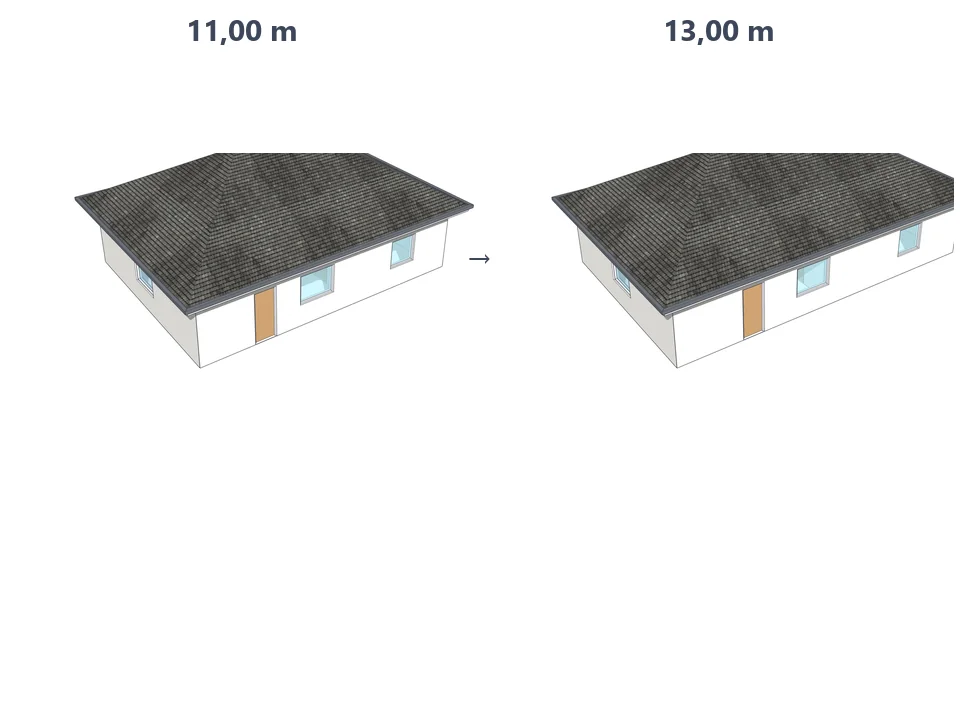
- The revision case. Move one wall in a finished plan and repair by hand everything it touched: about 30 minutes. ArchiFlow rebuilds the affected walls, openings, floors and dimensions in around 2 seconds, inside a single undo step.
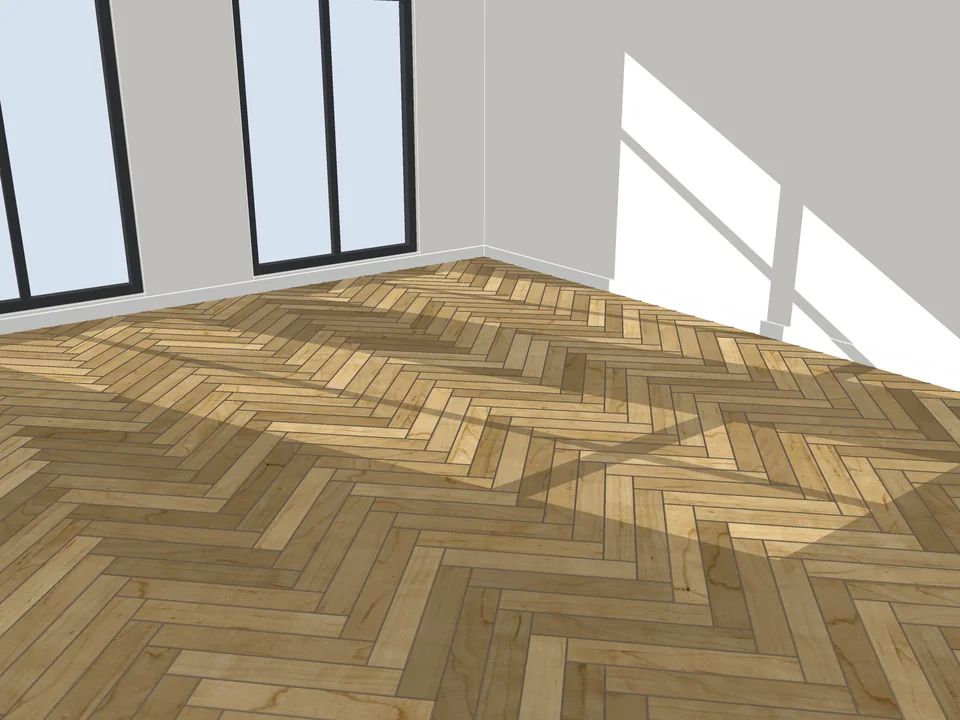
Pick a face, pick a pattern. Floor laid.
Flooring$39FloorStudioFloorStudio
Skip the tile-by-tile copying: every board cut, counted, out as CSV.
- 13 patterns
- SketchUp 2021-2026
- CSV take-off
SketchUp 2021–2026v3.3.0
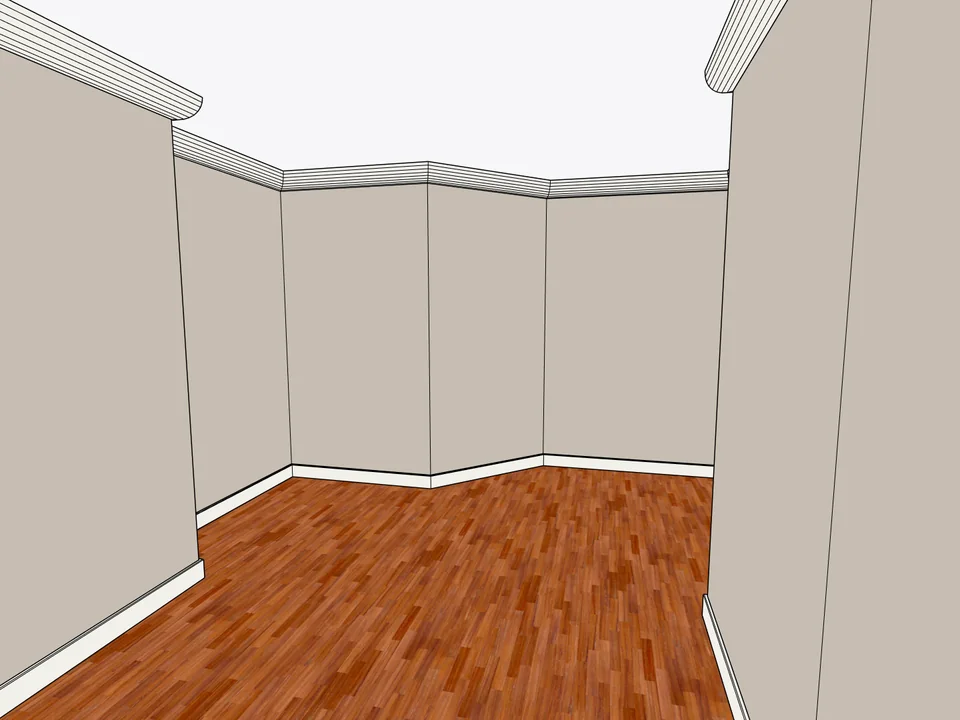
Click the floor. The whole room is skirted.
Interior$25Dynamic SkirtingDynamic Skirting
No hand-cut mitres: skirting and cornice, one click per room.
- 24 profiles
- SketchUp 2024-2026
- TR / EN / ES
SketchUp 2024–2026v1.3.2
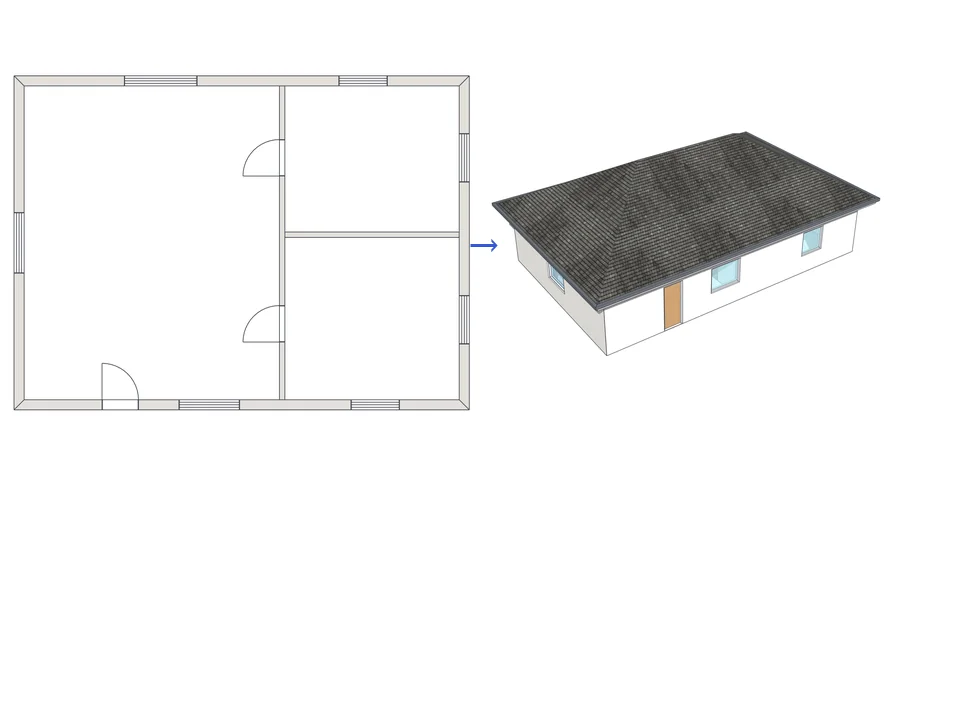
Draw the plan. One click, it's 3D.
Architecture$99ArchiFlow StudioArchiFlow Studio
Draw the plan once; move a wall and the building rebuilds itself.
- 5 studios built in
- 150 ms auto-rebuild
- SketchUp 2021-2026
SketchUp 2021–2026v1.72.0
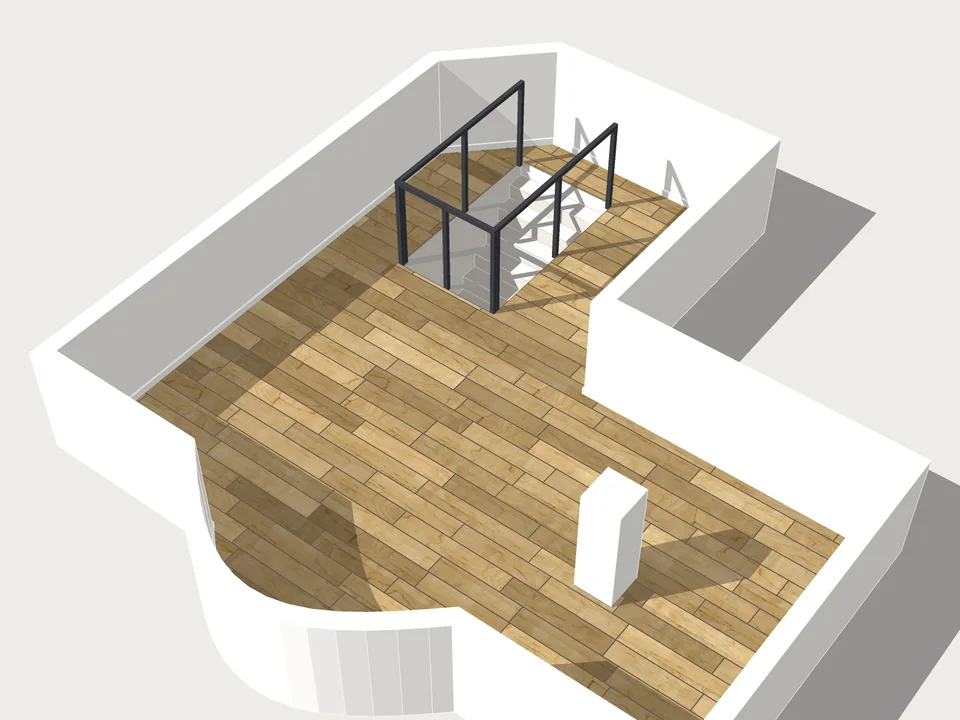

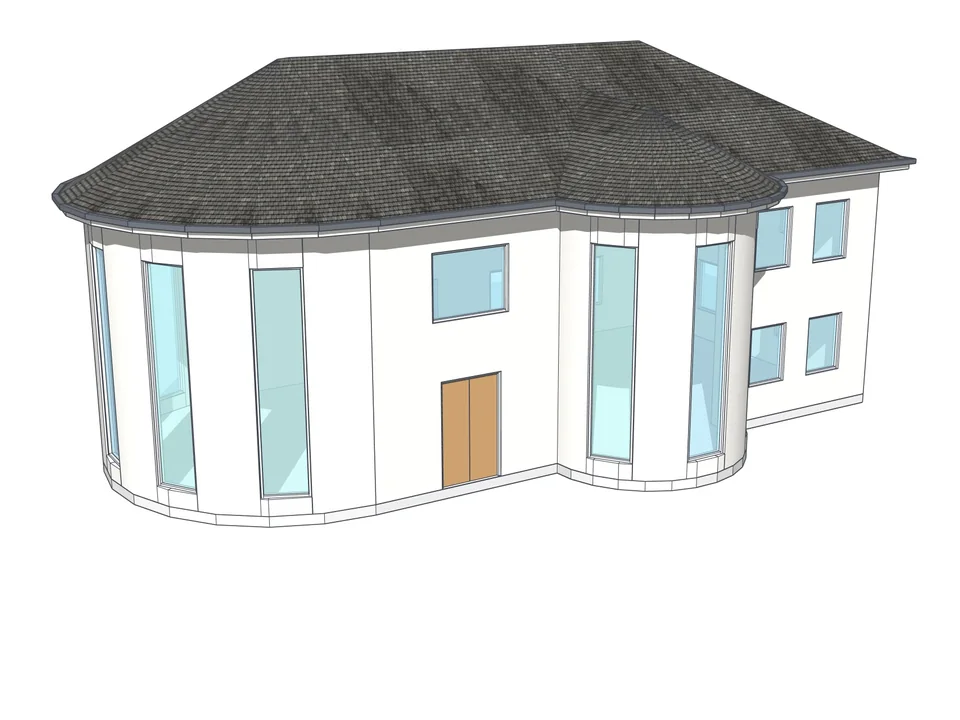
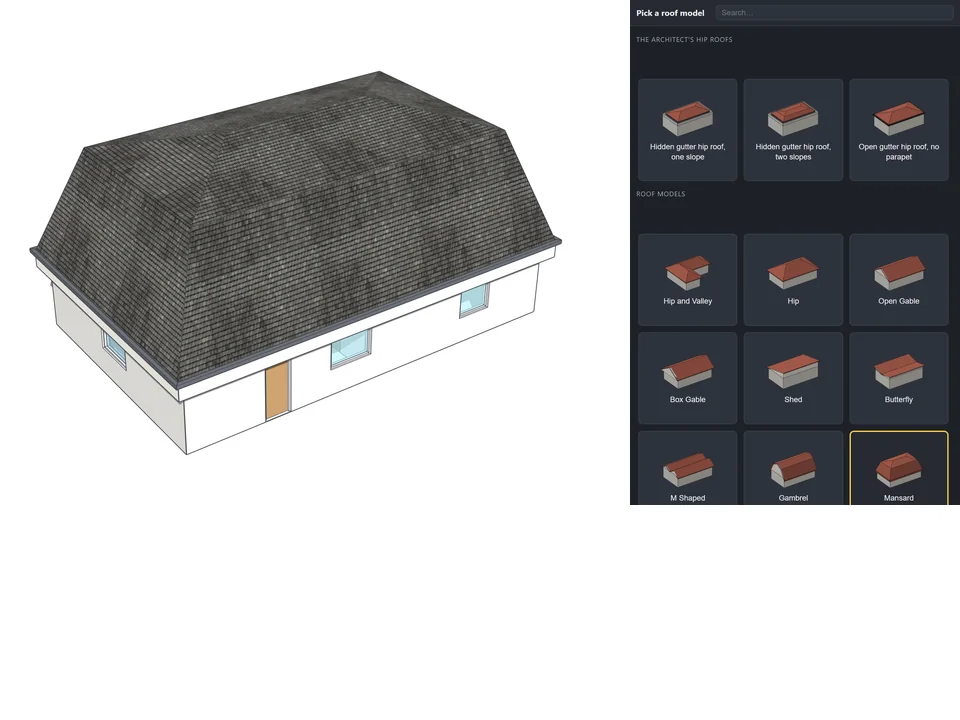
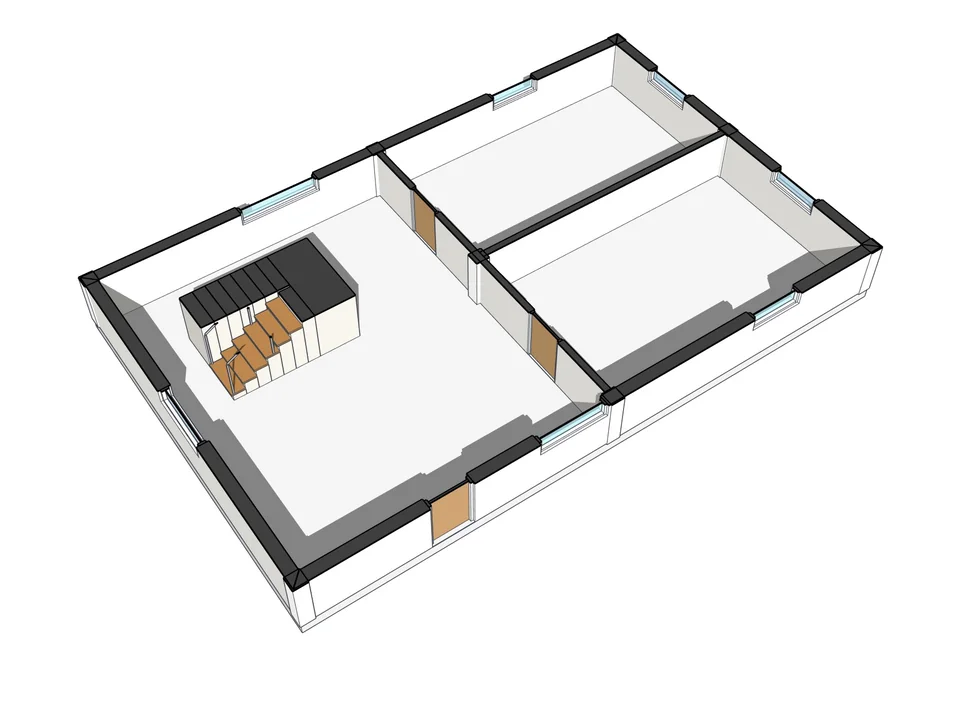
Notice what none of these does. They do not design anything, they will not make the drawing better, and they cannot rescue a weak plan. They delete a category of clicking that never deserved your afternoon — and in the revision case, they remove the reason you were quietly avoiding a change the project needed.
So, should you install one?
Install one. Not five. There is no universal list of the best SketchUp plugins, because the right one is chosen by the job that made you swear last week, not by a ranking. Pick that job, find a tool that names its maker, install the .rbz and use it on a real project for a week. If it did not earn its place, disable it — one click, and now you know something you did not know before.
The advantage is plain: one well-chosen extension removes the clicking that never deserved your afternoon and leaves the design to you. If you are not sure which job to start with, the plugin finder asks a few short questions about what you draw and points you to one tool.