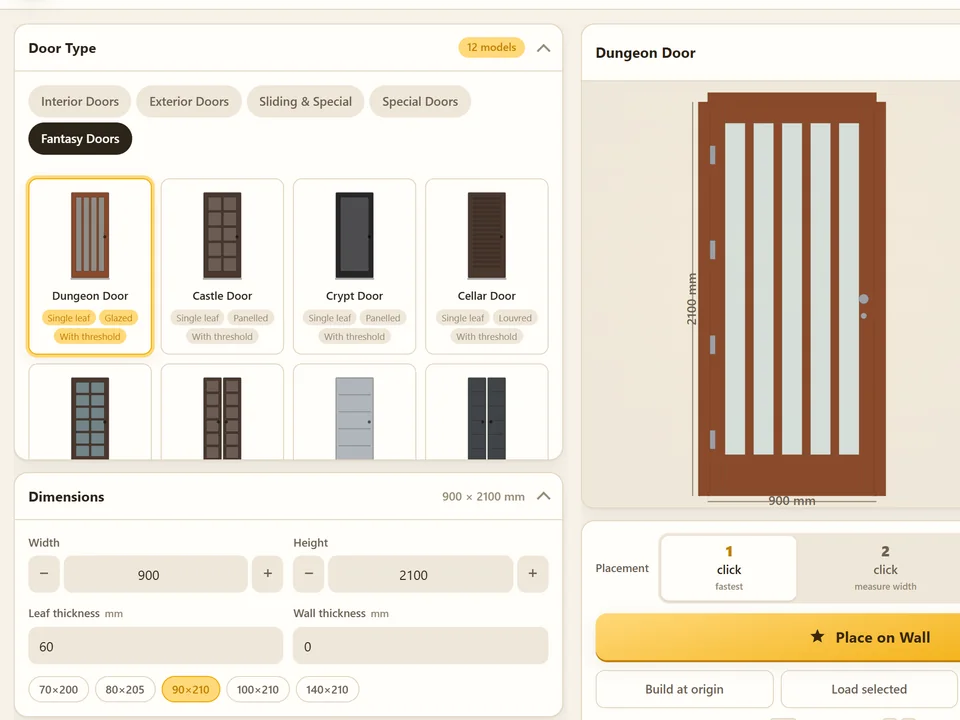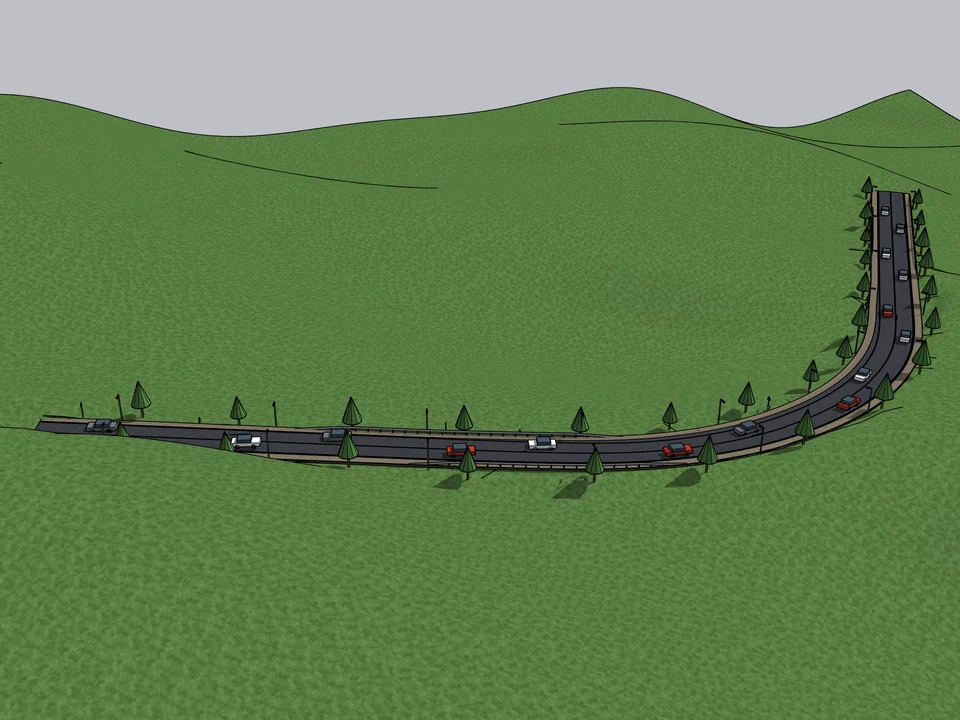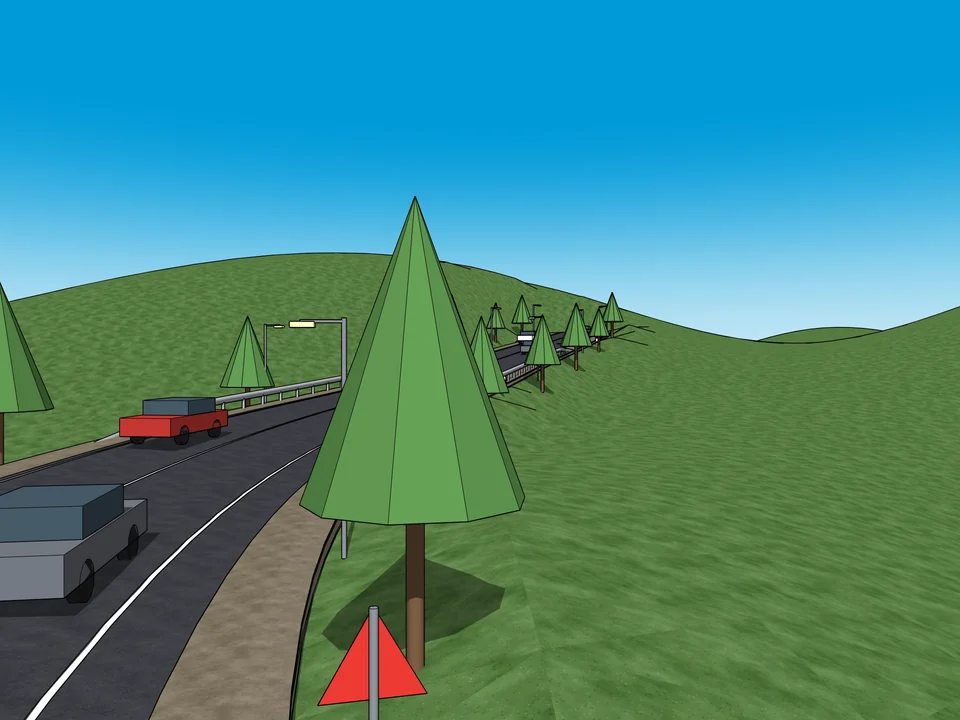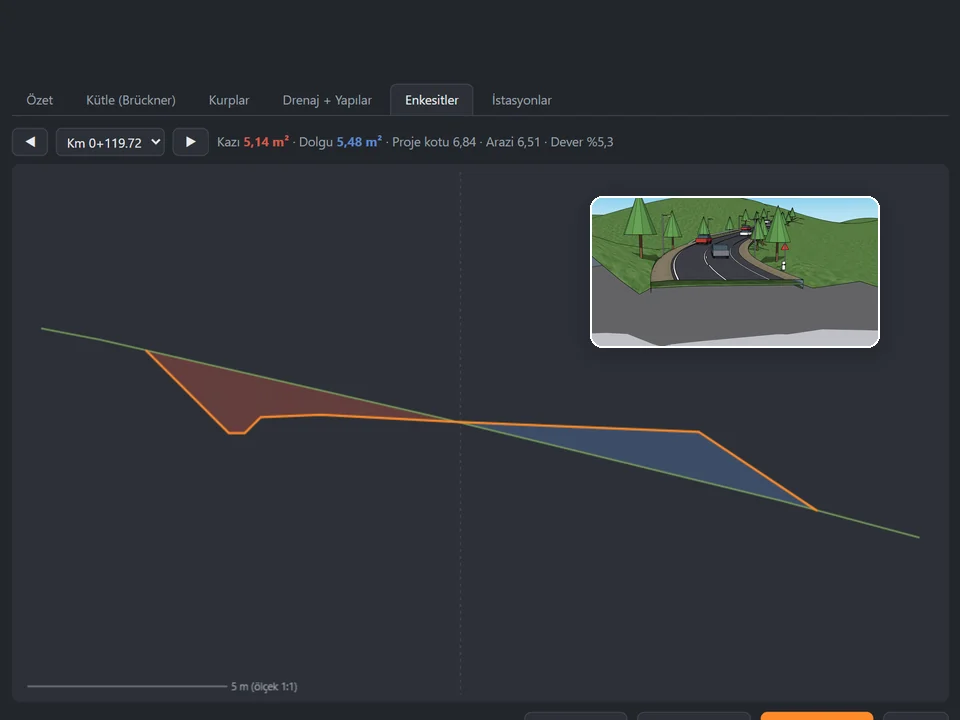
You became an architect to design, not to spend 10 hours redrawing what a client moved. This article names the 5 hidden SketchUp plugins, ArchiFlow, FloorStudio, Door Studio, RoadFlow and Metraj, that turn those 10 hours of repeat modelling into 15 minutes of settings, and it starts where the hours really go. Six in the evening, and the client has moved one wall by 40 centimetres. The wall itself takes ten seconds. Then you remember the floor, because the boards ran to the old edge. Then the skirting, mitred to the old corner. Then the door that used to be centred, and the window schedule you exported this morning. That evening is the honest answer to whether SketchUp plugins make a workflow more efficient — the good ones do not make you click faster, they delete the evening.
That distinction is worth ten pages of feature lists, so this article stays on it. Where the minutes actually go, with real by-hand and with-plugin figures from our own catalogue. Why fewer clicks is not the same thing as less rework. Where plugins are useless. And how to adopt them without turning your toolbar into a museum.
Where the time actually goes in a SketchUp workflow
SketchUp is genuinely good at making a shape once. Push, pull, done. The cost never lives in the first shape. It lives in the number of times you have to make that shape again, slightly differently, because something upstream moved. Almost every expensive hour in architectural modelling is a repeat of an hour you already spent correctly.
- Laying a herringbone floor board by board, then re-cutting the perimeter when the room changes
- Copying a door, then re-trimming the opening and re-mitring the jamb for a wall of a different thickness
- Renumbering a window schedule after one facade grid shifts
- Measuring faces off the model by hand so the takeoff can be typed into a spreadsheet
- Rebuilding a road corridor because the alignment moved three metres
Our catalogue lists the manual figure next to the plugin figure for every tool, because that gap is the only claim worth making. Read them as a map of where the repetition tax falls, not as a scoreboard:
- One room of flooring, cut and counted: 45 min by hand, 45 s with FloorStudio
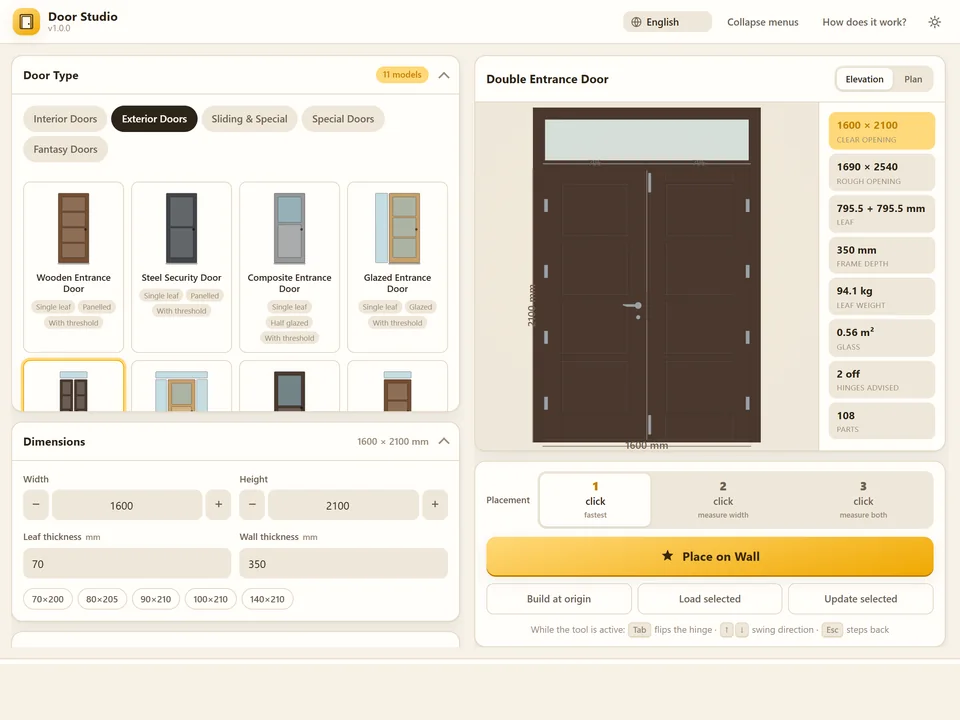
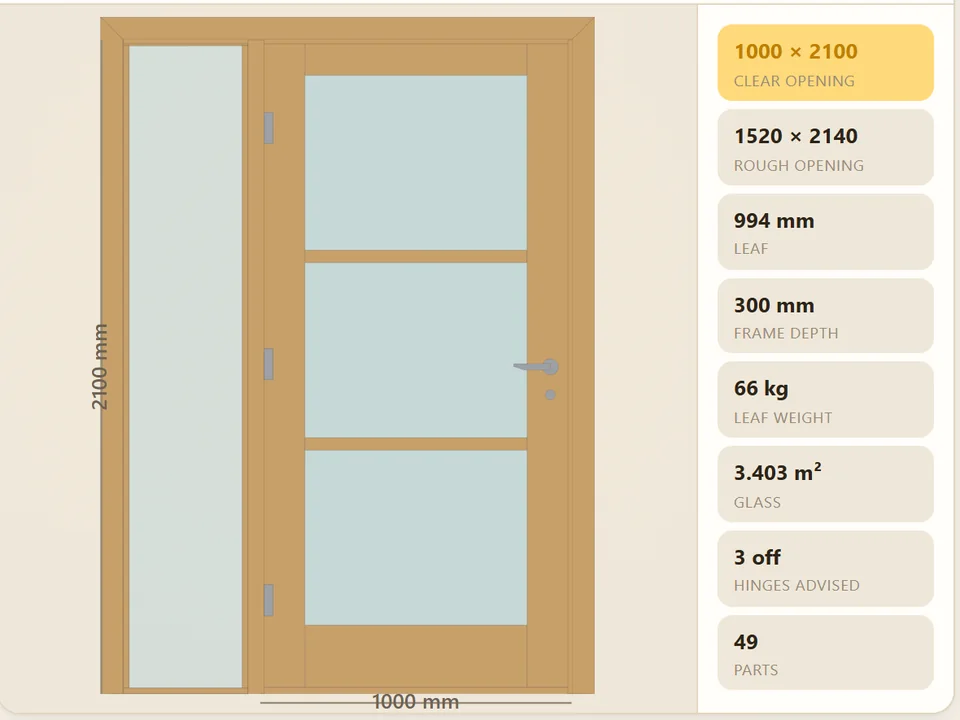
- One door fitted to a wall: 25 min by hand, 20 s with Door Studio
- One window modelled and priced: 40 min by hand, 25 s with WindowFun Studio
- Skirting for one room, every corner mitred: 14 min by hand, 25 s with Dynamic Skirting
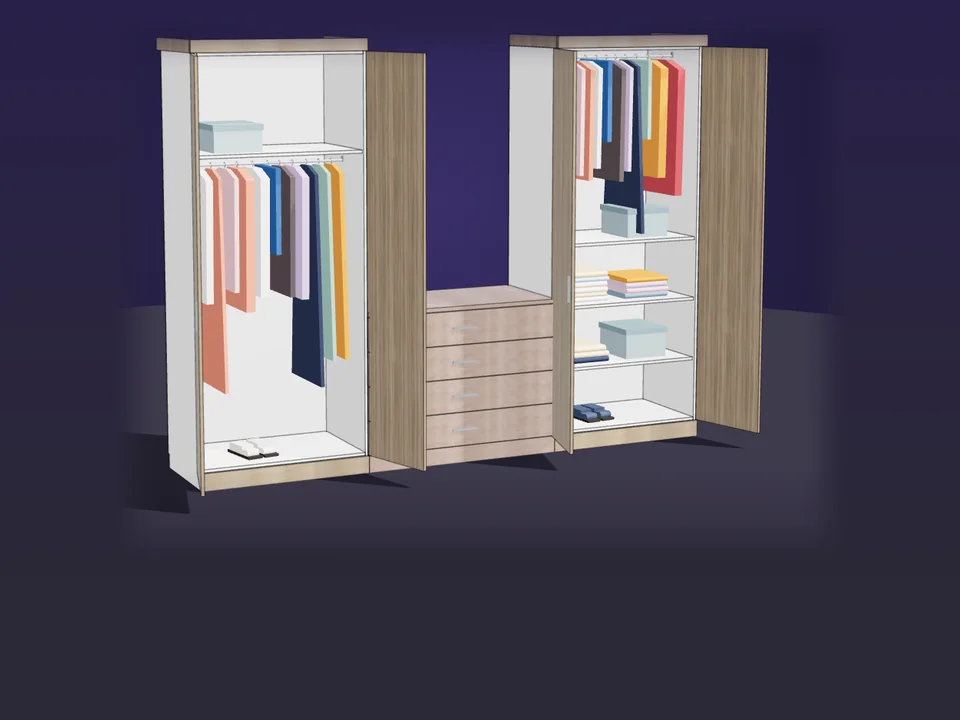
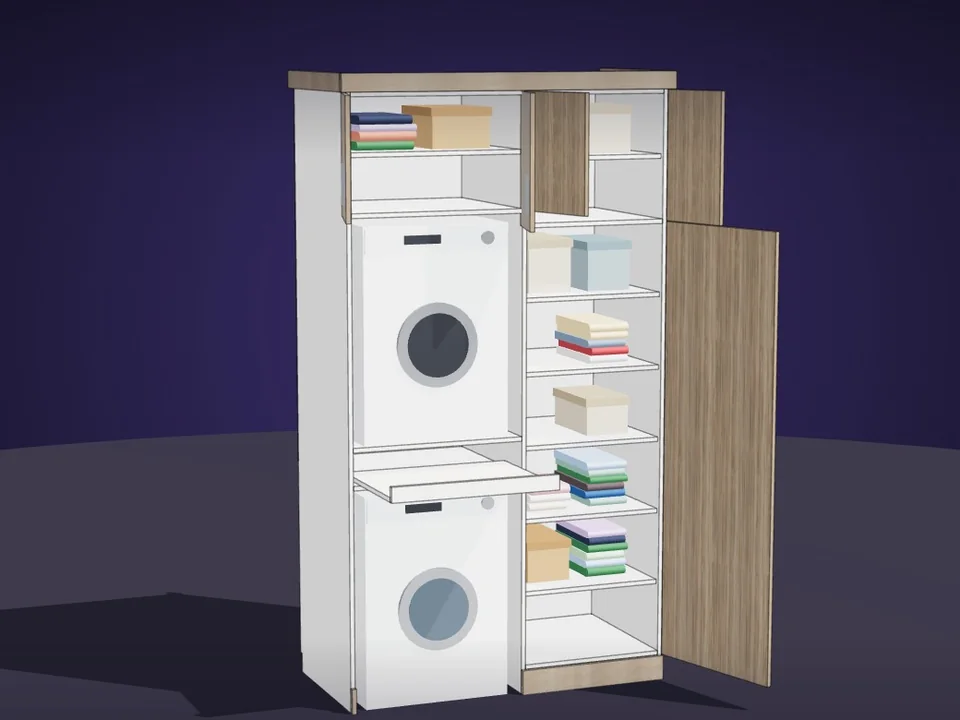
- A wardrobe with its cut list: 120 min by hand, 90 s with CabinetWizard
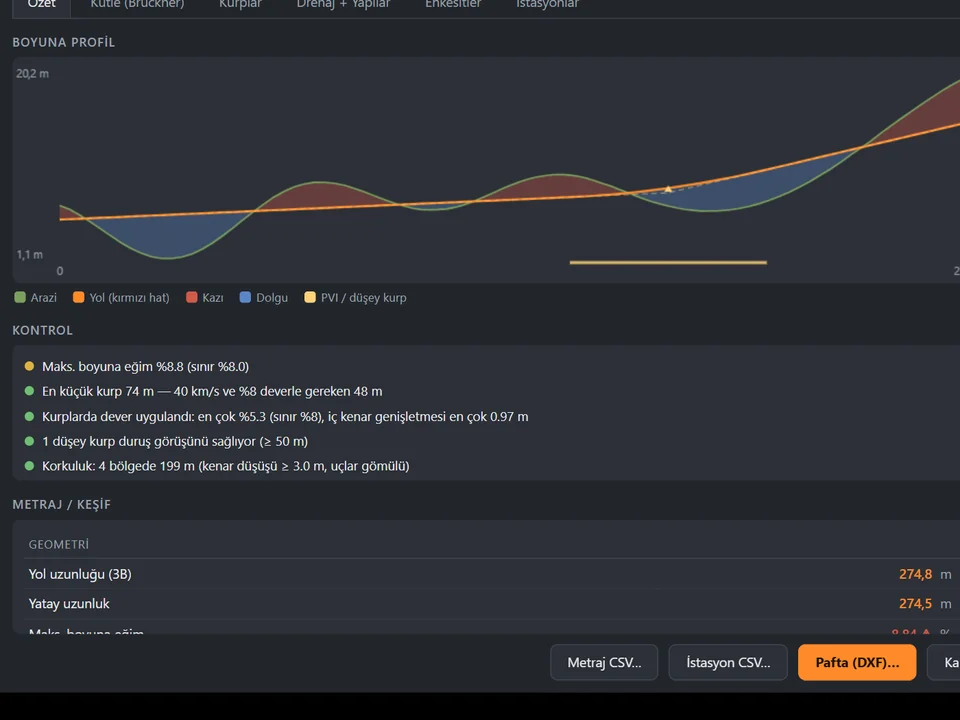
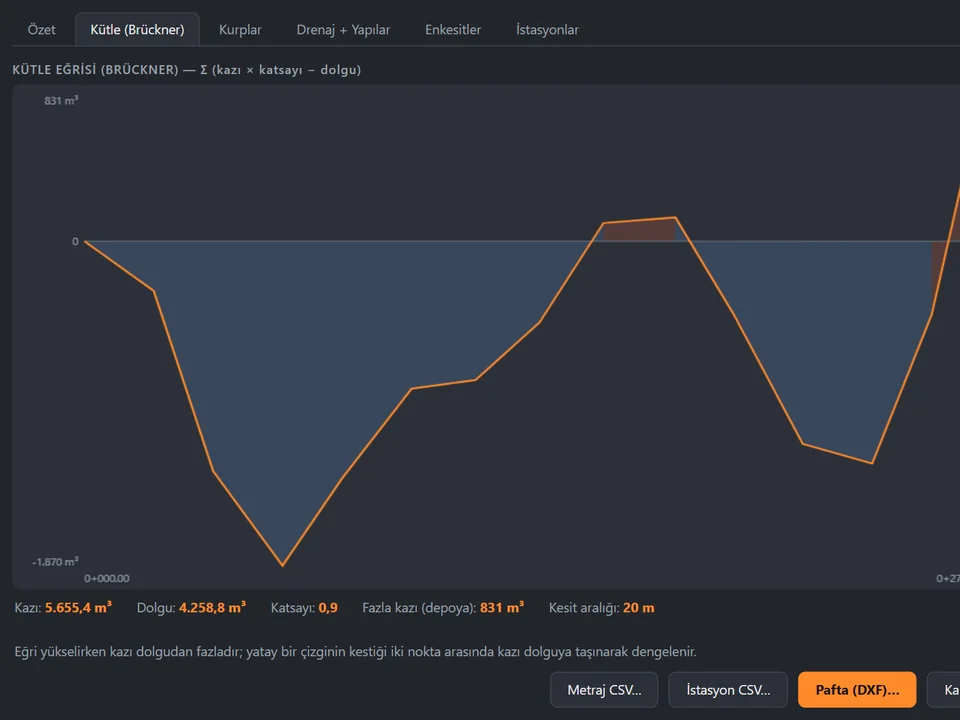
- A road corridor on terrain: 240 min by hand, 90 s with RoadFlow
- Terrain plus a planted site: 210 min by hand, 45 s with Landscape Studio
- Moving one wall and repairing everything it touched: 30 min by hand, 2 s with ArchiFlow Studio
Look at what those pairs have in common. Minutes on the left, seconds on the right — and none of the seconds came from a faster mouse. In each case the job stopped being modelling and became a setting: a pattern picked from a list, a route you click, a slope you type. The first number is bookkeeping. The second is a decision, made once.
Faster is fine. Removing the decision is better.
A faster tool asks you the same questions every time, just with fewer clicks between them. You still decide the board offset, the joint direction, the reveal at the jamb. Do that eighty times and you will get one of them wrong, and you will find it in a rendering three days later.
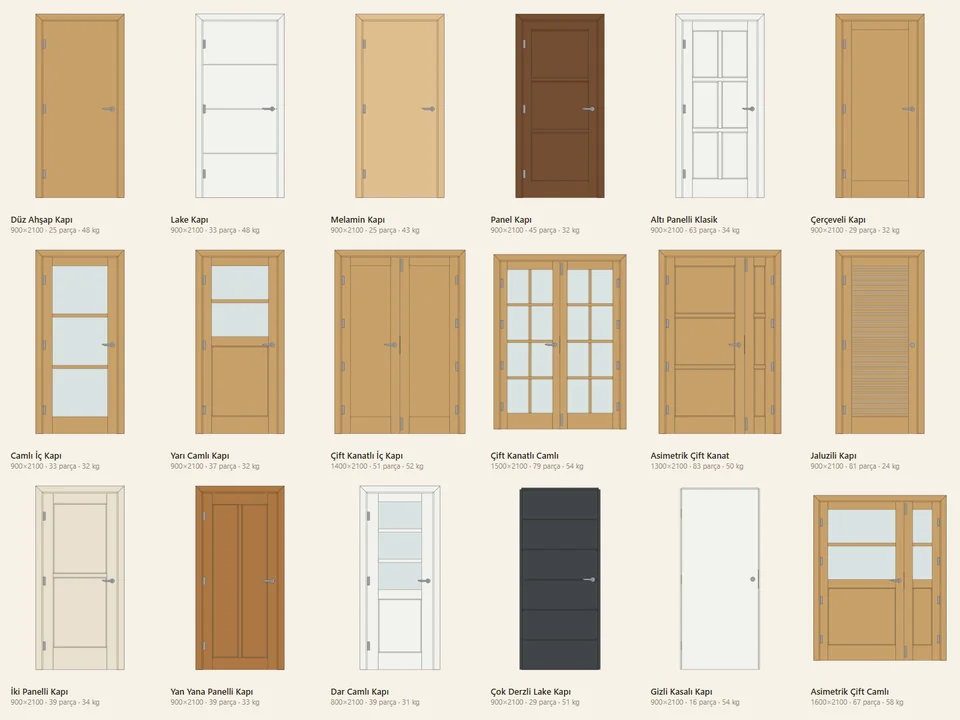
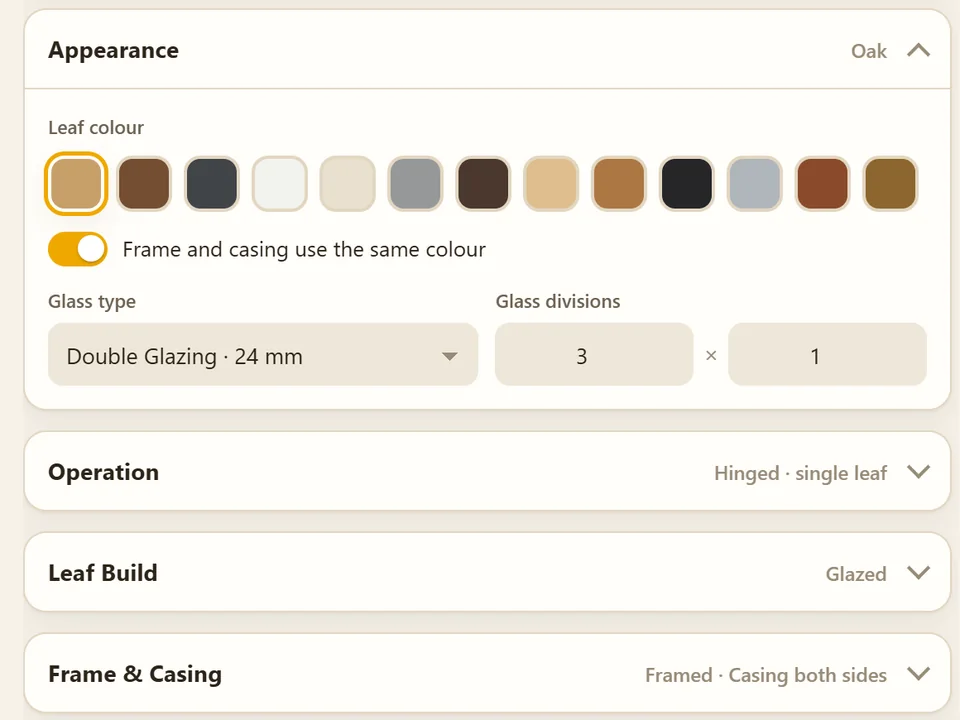
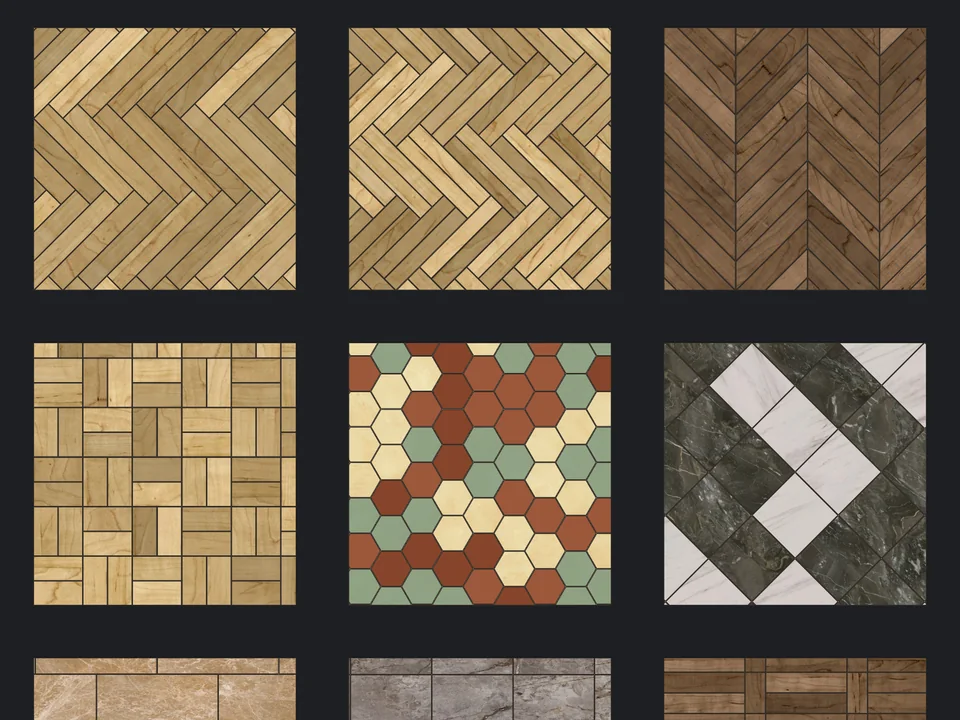
A tool that removes a decision answers the question once, correctly, for every instance. FloorStudio ships 13 patterns: pick one and the board-by-board geometry is no longer yours to get right. Door Studio carries 51 models across 4 categories and reads the wall direction, thickness and floor level by ray test, so "how does this leaf meet this thickness" stops being a per-door judgement. WindowFun Studio holds 51 models in 6 categories, so a window type is a choice from a list rather than a small modelling project. Even filling a site works this way — CityFill is a free SketchUp plugin with 154 parametric presets and three placement modes, which is why a block of context drops from 150 minutes to 25 seconds.
What efficiency is not: fewer clicks
Click counts are the easiest thing to advertise and the least useful thing to measure. A tool can halve your clicks and still leave you worse off, because it moved the work later instead of removing it. The unit that matters is rework: how much of what you already finished has to be touched again when something changes.
- Three clicks that produce ungrouped, unnamed geometry are slower than ten clicks that produce a component you can still edit next month
- A tool that draws beautifully but exports nothing pushes the takeoff onto someone else's desk, where it becomes a second source of truth
- Anything that has to be exploded before it behaves will be rebuilt by hand eventually — count that rebuild in the price
- If the output cannot survive a dimension change, you did not save time, you borrowed it
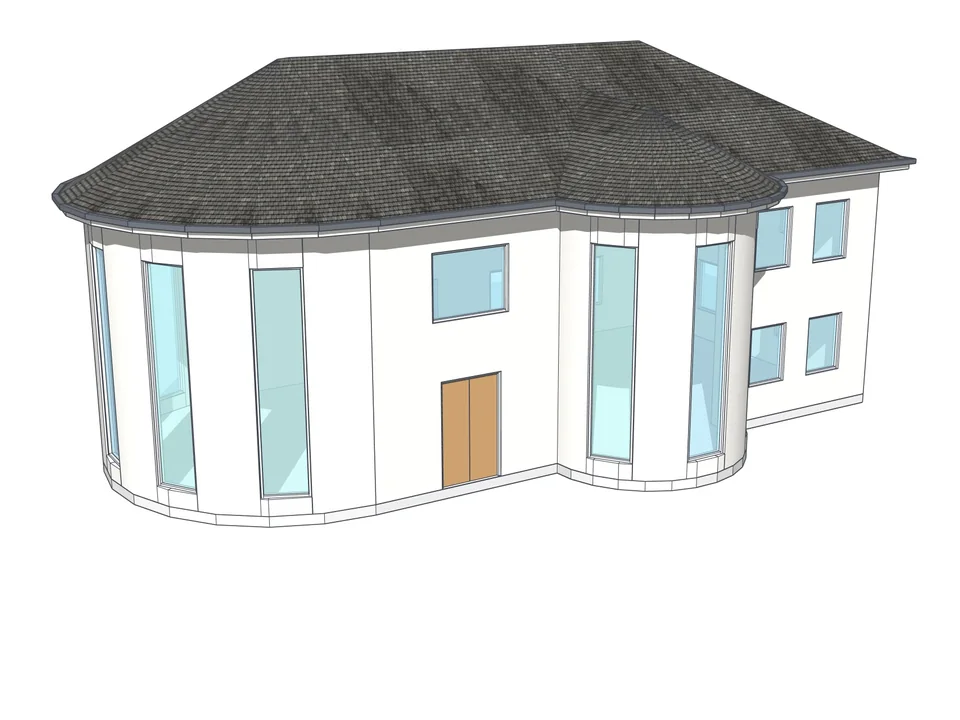
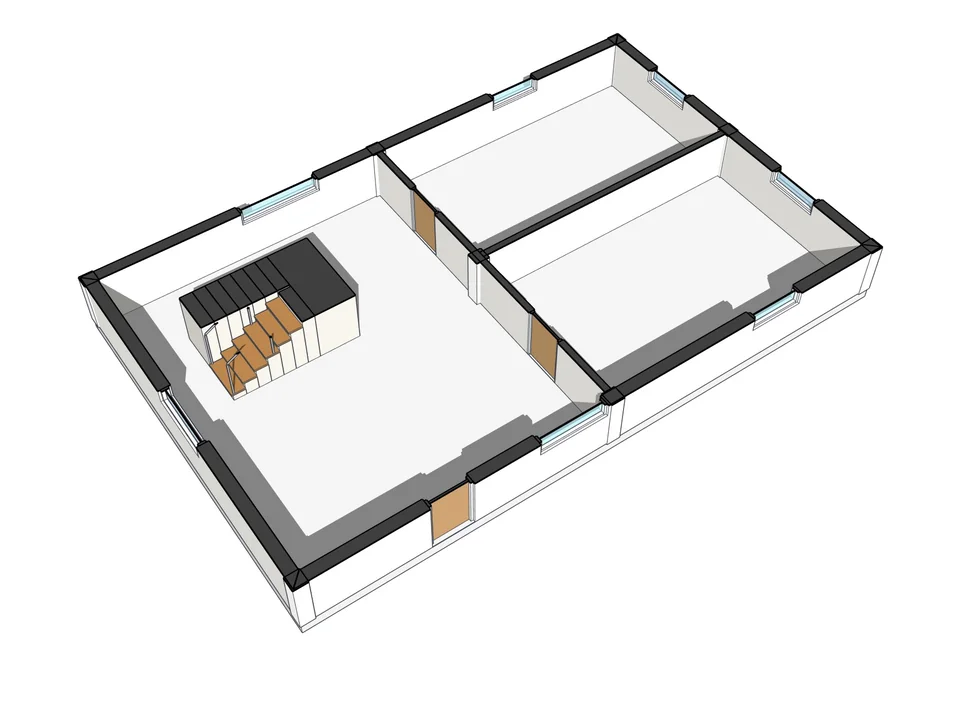
The honest test is the second version, not the first. ArchiFlow Studio is built entirely around that: openings belong to the wall rather than to the model, so when a wall moves, lengthens or changes thickness, the opening is re-cut on its own. An observer collects the changed entity ids, waits 150 ms, then rebuilds corners, neighbouring walls, dimensions, room detection, floors, roof and skirting inside a single operation you can undo with one Ctrl+Z. That is why the same wall move reads as 30 minutes by hand and 2 seconds here — not fewer clicks, no clicks.
Parametric means you are allowed to be wrong
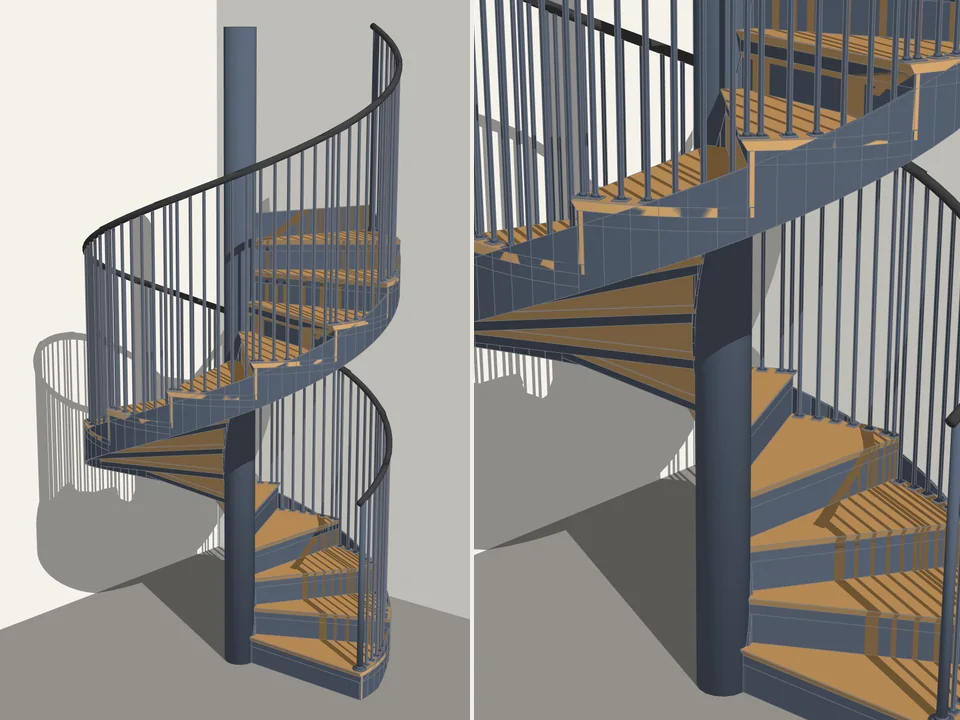
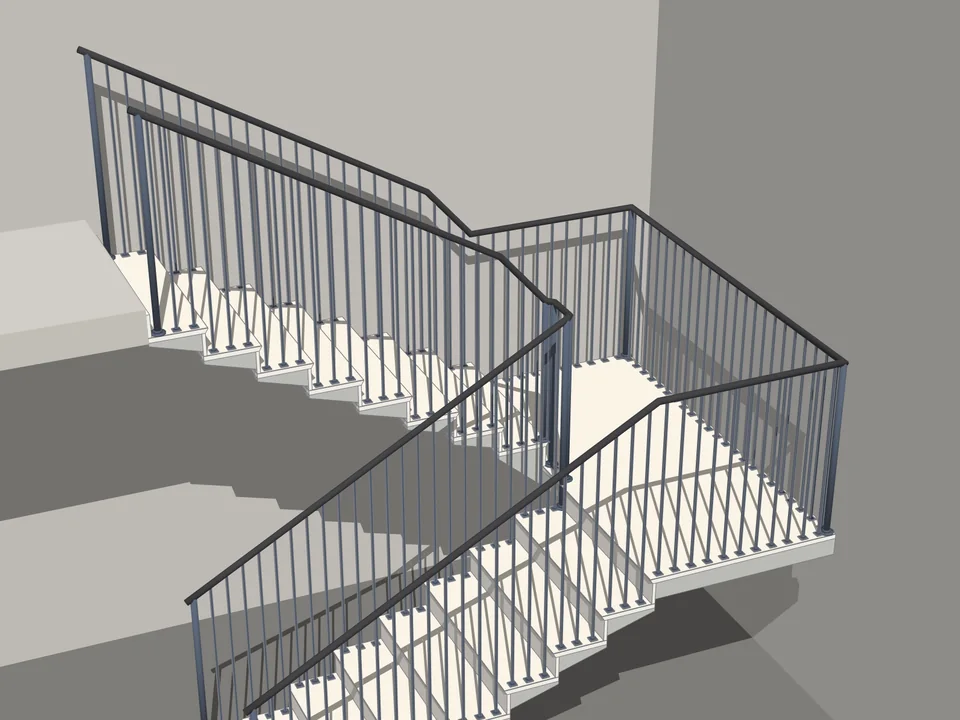
The point of a parametric object is not the first build. It is the fourth. In plain SketchUp a stair is a pile of solids: correct the day you made it, frozen from then on. Change the floor-to-floor height and you are not editing a stair, you are modelling a new one and deleting the old one. That freeze is why people quietly stop testing options.
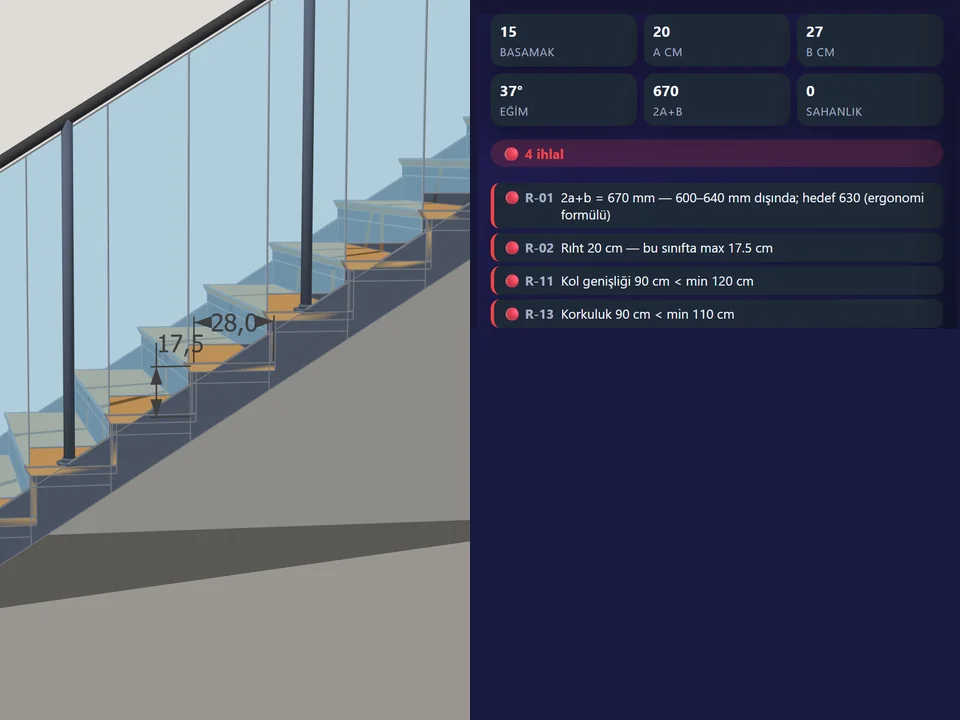
The rules themselves were never the hard part. StairFun Studio solves n = ceil(H / max riser), a = H / n and b = 630 − 2a, drops in a mid-landing after 16 risers by itself, and keeps 44 code rules live as red and amber badges while you type. Ramp Studio holds slope in three notations at once — 8%, 1:12.5, 4.57° — warns above 8% and refuses above 25%. CabinetWizard's "Update selected" rebuilds a wardrobe already placed in the model, in place, keeping its position, rotation and scale, without moving the camera. None of that is about speed. It is about not being punished for changing your mind.
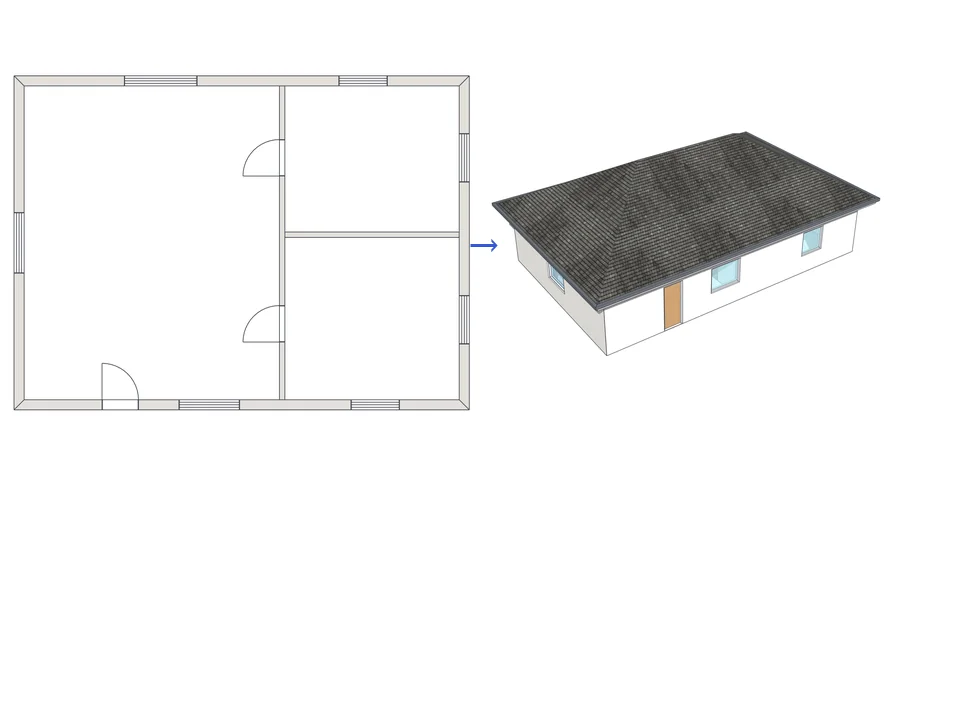
Draw the plan. One click, it's 3D.
Architecture$99ArchiFlow StudioArchiFlow Studio
Draw the plan once; move a wall and the building rebuilds itself.
- 5 studios built in
- 150 ms auto-rebuild
- SketchUp 2021-2026
SketchUp 2021–2026v1.72.0
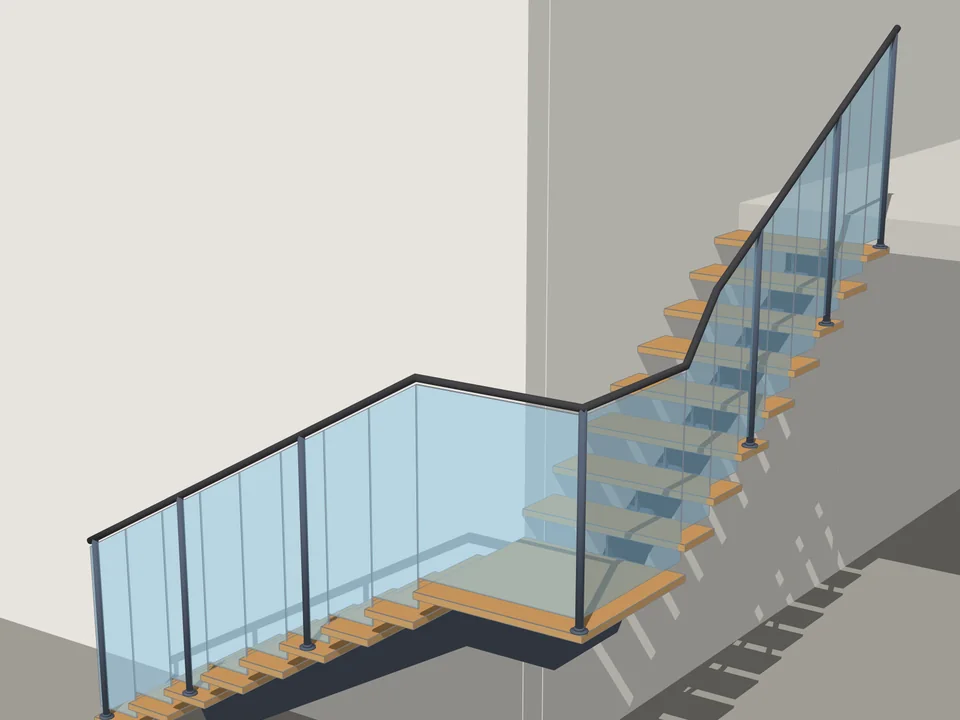
Type the floor height. The stair is done.
Architecture$35*StairFun StudioStairFun Studio
No stair maths: code-compliant stairs in two clicks, editable forever.
- 8 forms + ramp
- 44 live code rules
- 30 risers under 1 s
SketchUp 2021–2026v1.0.12
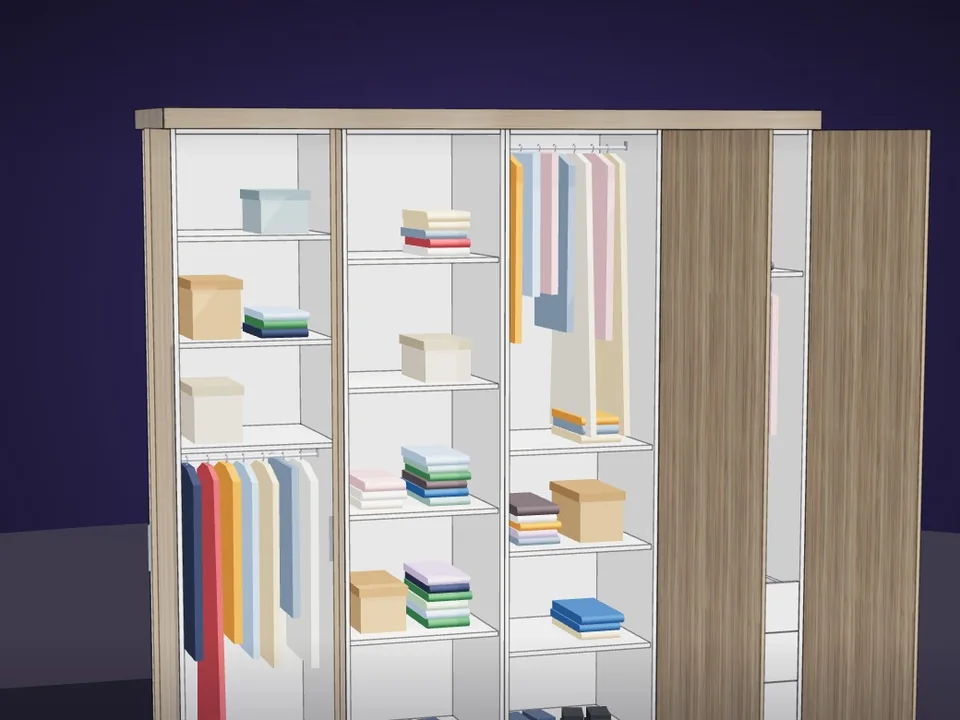
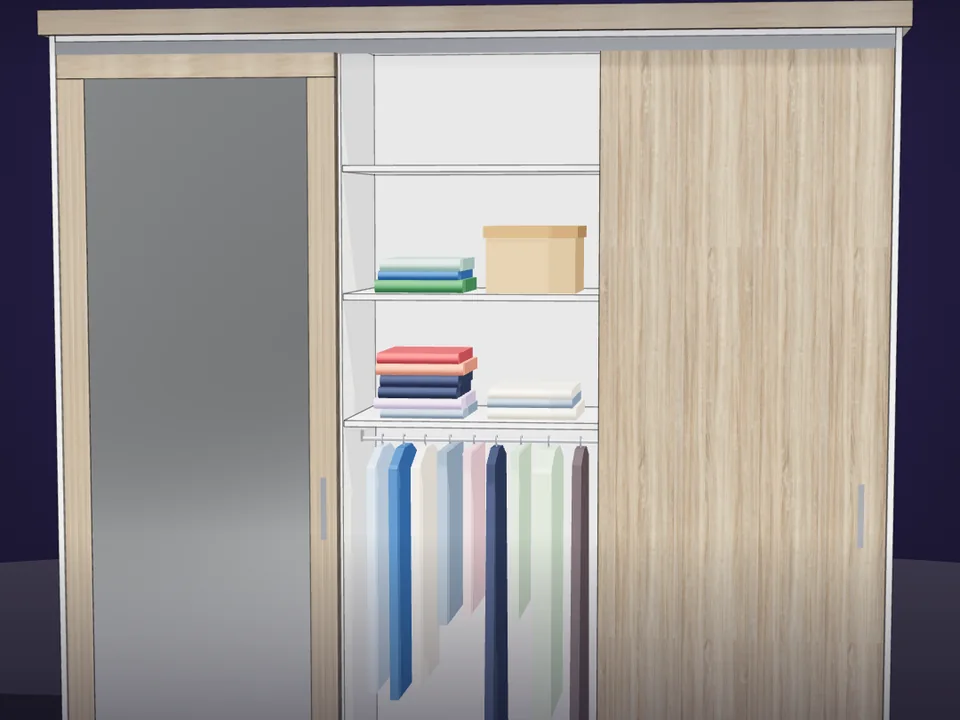
Type the size. The whole wardrobe builds itself.
Interior$65CabinetWizardCabinetWizard
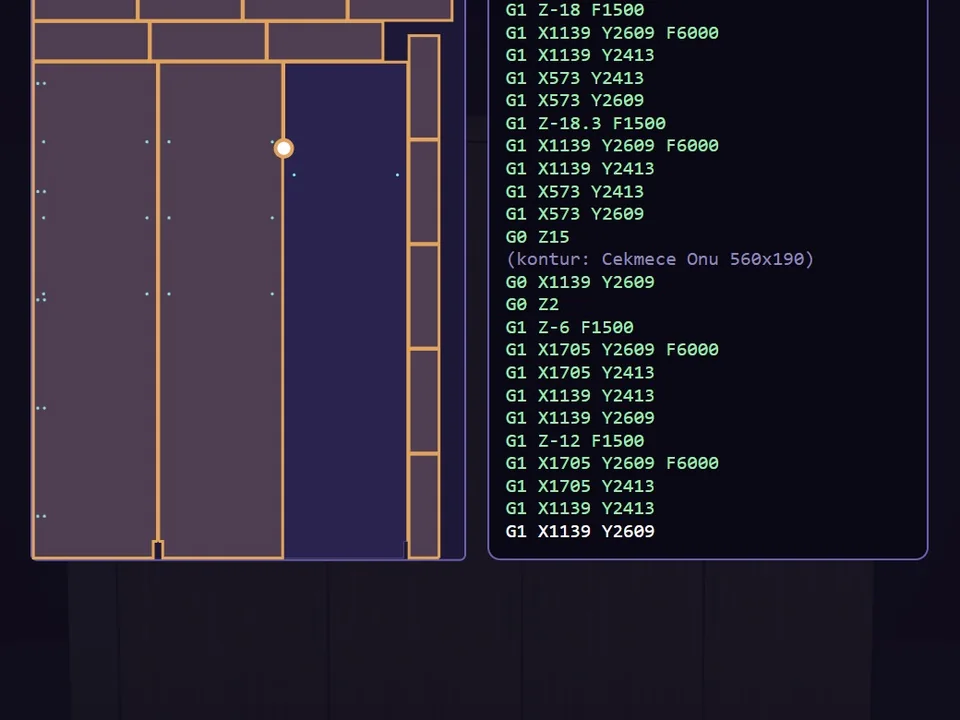
No panel-by-panel drawing: type the size, get quote and CNC files.
- 131 solids from 20 components
- 12 finishes, 7 door styles
- 164 tests, SketchUp 2017+
SketchUp 2017–2026v1.19.0
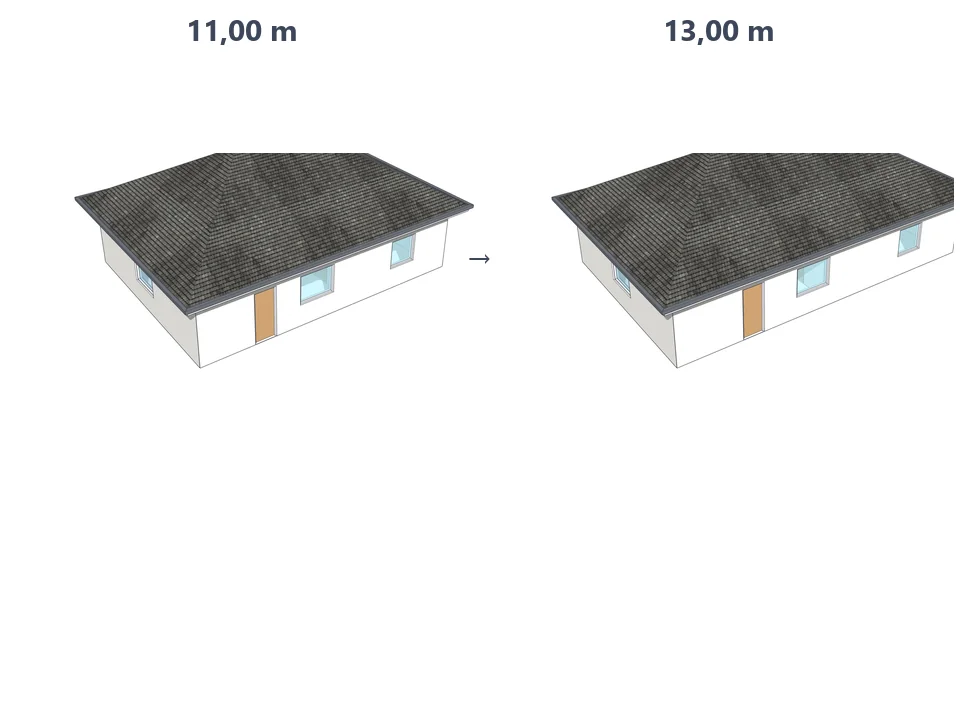
Quantities should fall out of the model, not be measured back into a spreadsheet
This is the part most offices have backwards. The model already contains every number anyone needs. Then someone opens it, measures faces with a tape-measure mentality, types the results into a spreadsheet, and creates a second source of truth that starts drifting the moment the next revision lands.
- A takeoff typed by hand is out of date as soon as the geometry changes
- Two people measuring the same model will disagree at the third decimal, then argue about it
- Waste factors get added twice, or not at all
- Nobody can trace a quantity back to the object it came from
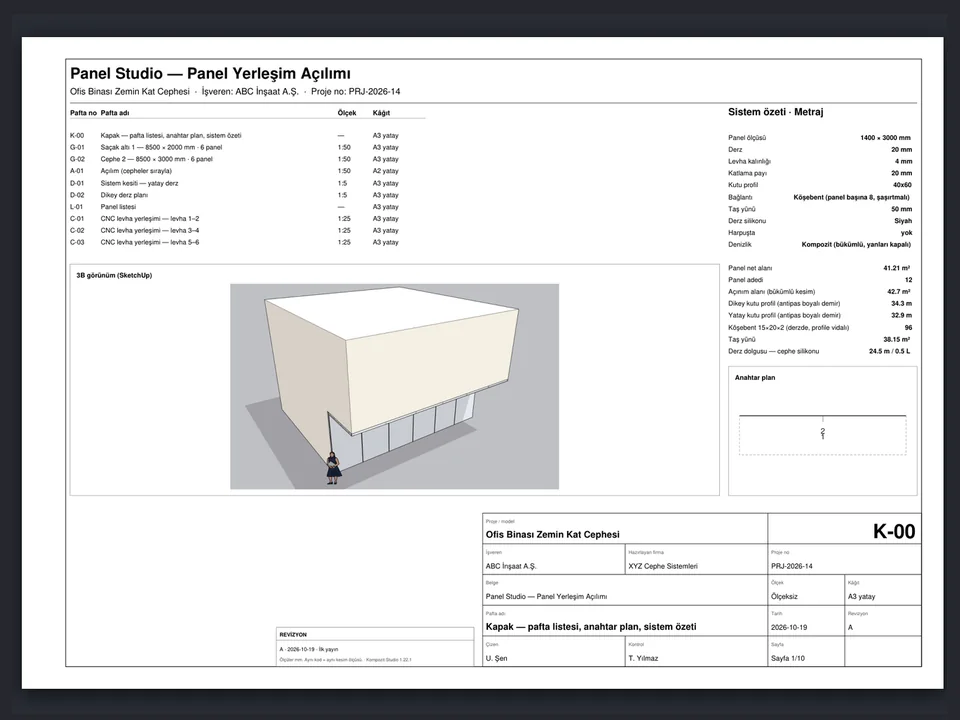
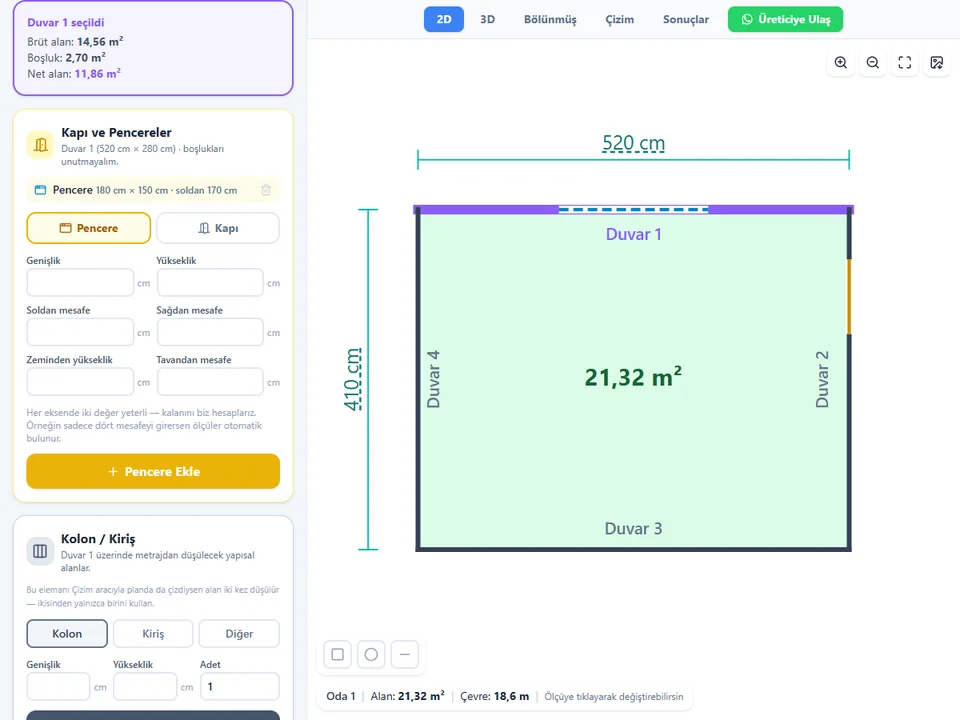
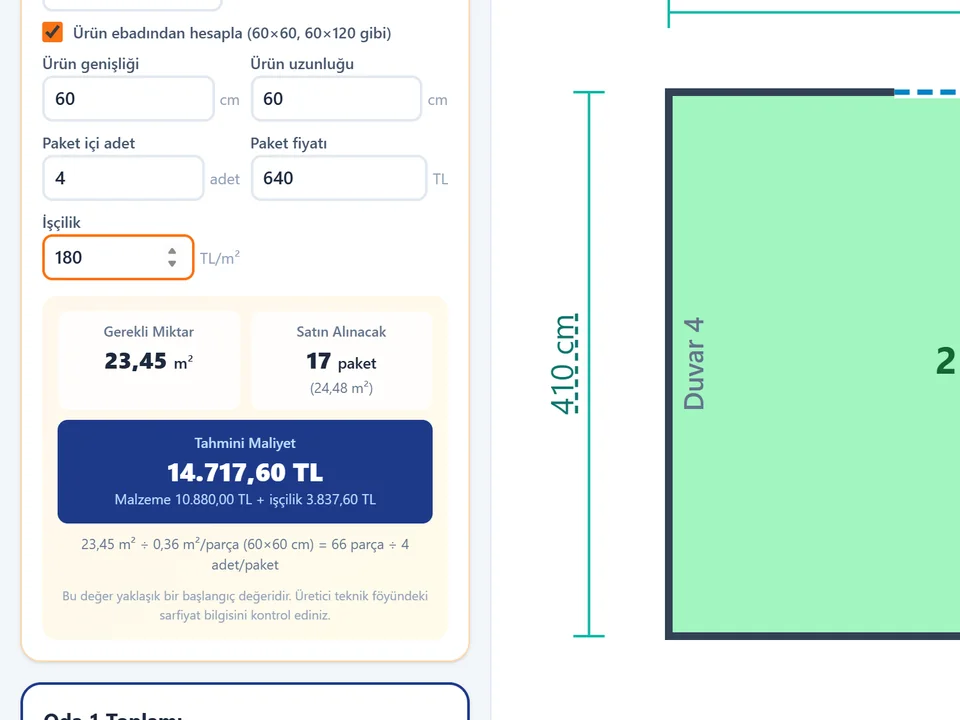
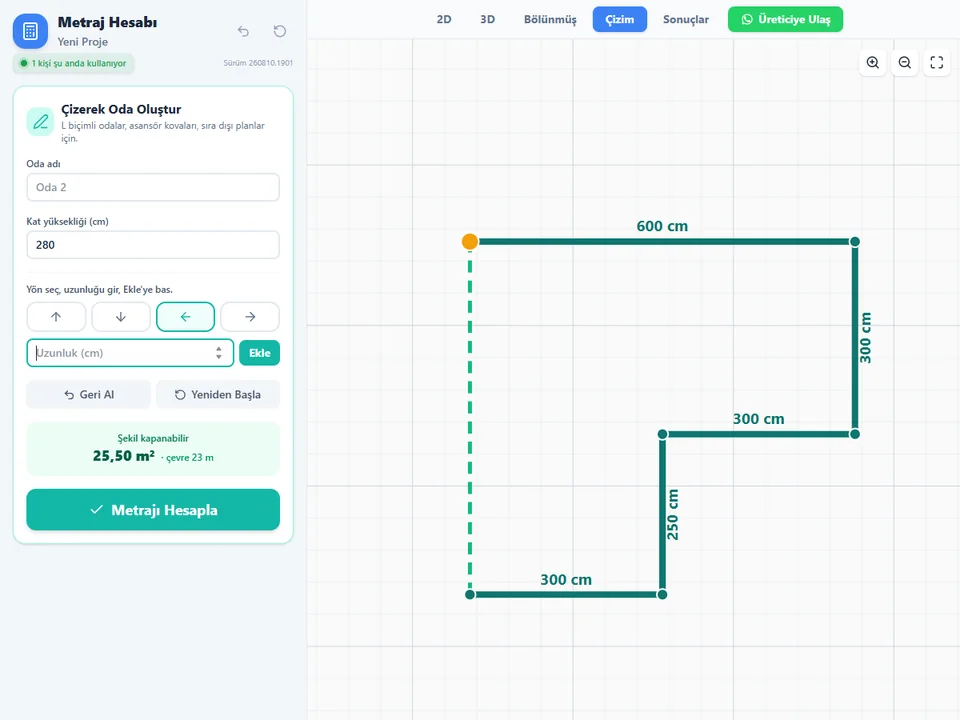
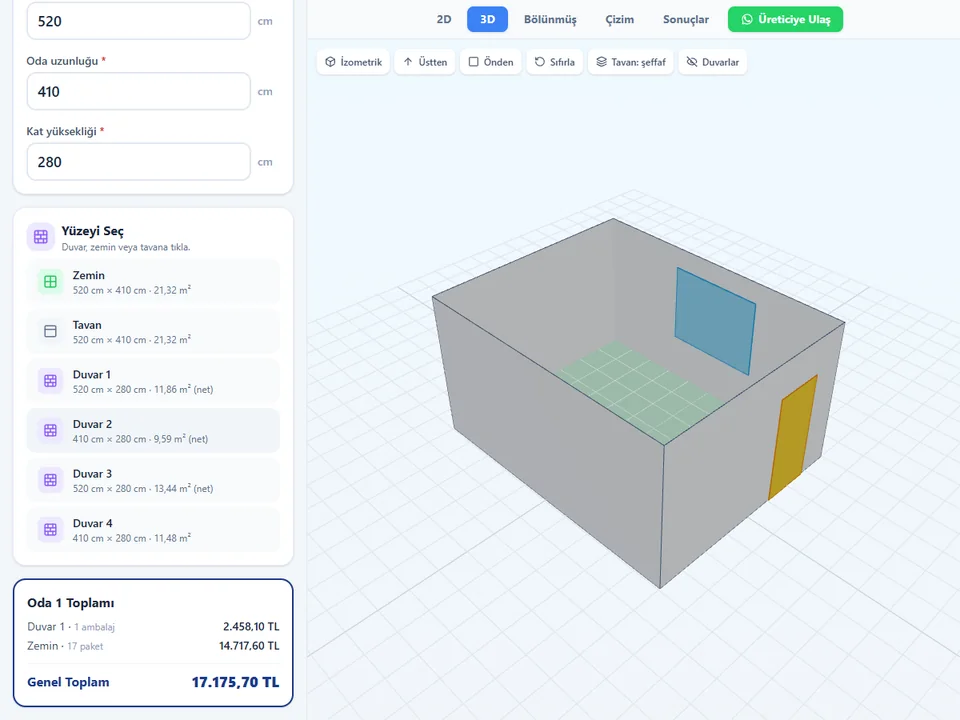
When the object knows what it is, the number is a by-product rather than a task. FloorStudio exports a CSV takeoff from the same boards it cut. WindowFun Studio produces CSV, DXF and a PDF quote from the window you configured. Kompozit Studio reports both square metres and piece counts for an ACM facade, cut with the guillotine layout a workshop actually uses. Garden Wall Studio returns a quantity report with a 5% waste factor already in its defaults. And Metraj runs in a browser with 11 material types and PDF, CSV, JSON and PNG export, which matters when the person doing the costing is not the person with the SketchUp licence.
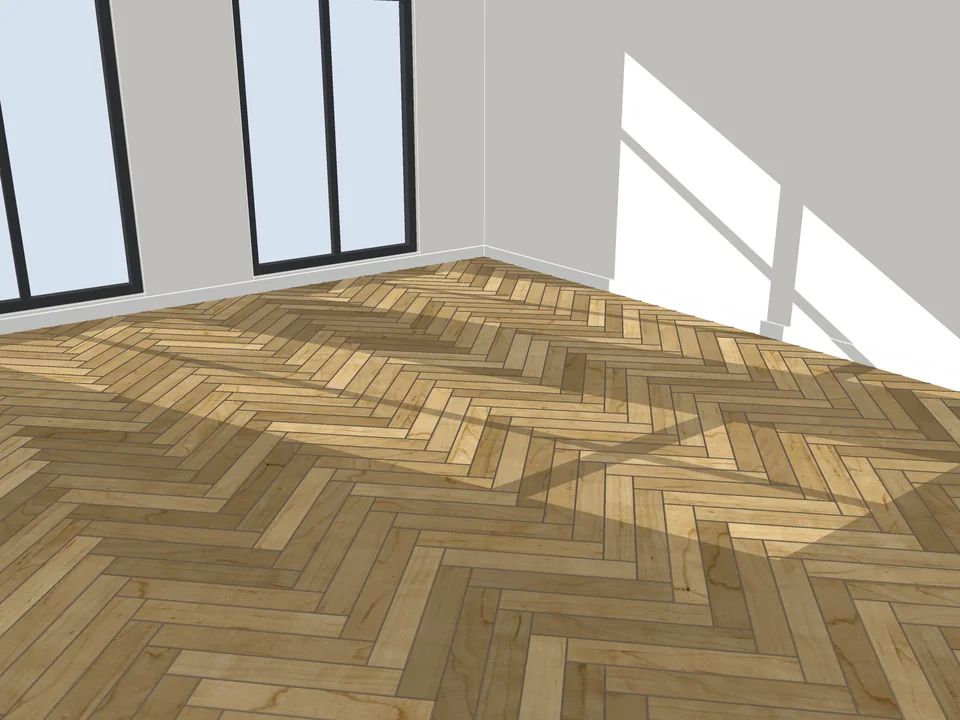
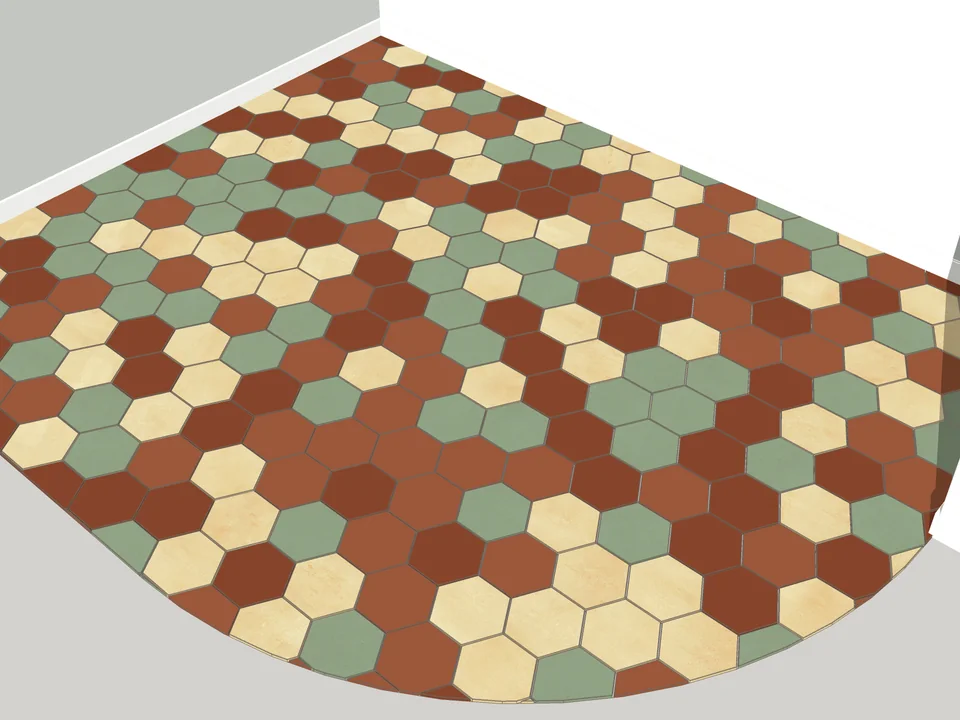
Pick a face, pick a pattern. Floor laid.
Flooring$39FloorStudioFloorStudio
Skip the tile-by-tile copying: every board cut, counted, out as CSV.
- 13 patterns
- SketchUp 2021-2026
- CSV take-off
SketchUp 2021–2026v3.3.0
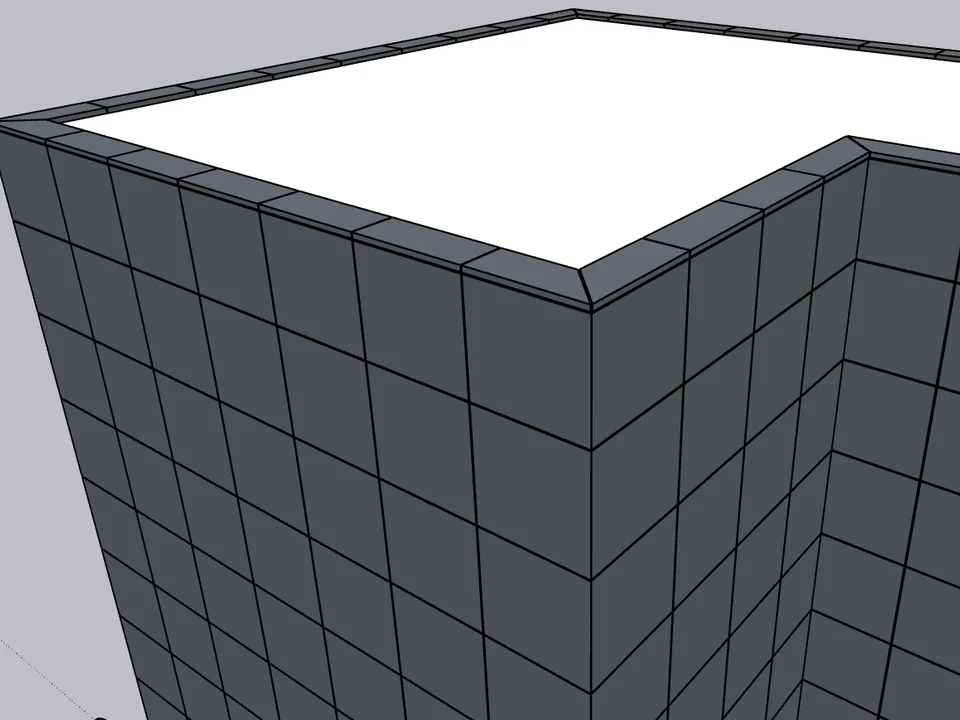
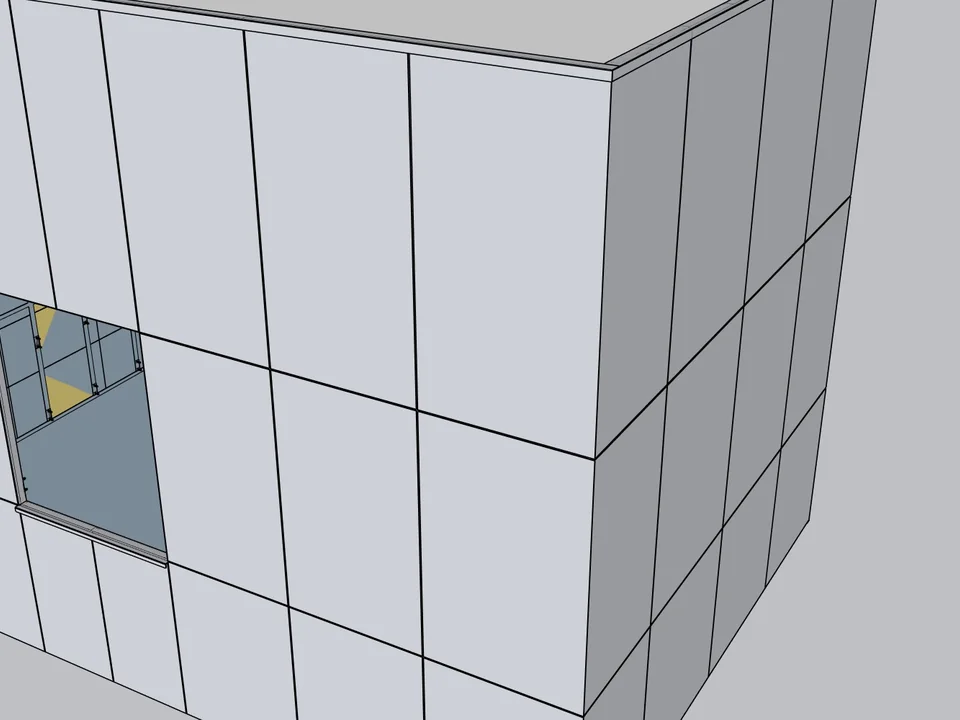
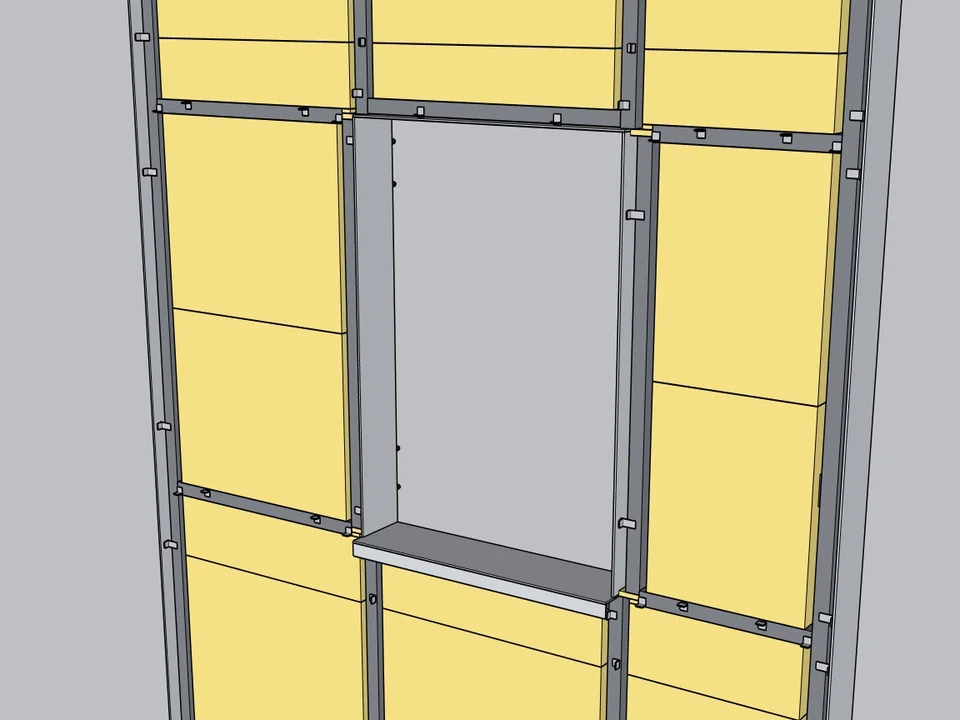
Select the walls. The facade clads itself.
Facade$299Kompozit StudioKompozit Studio
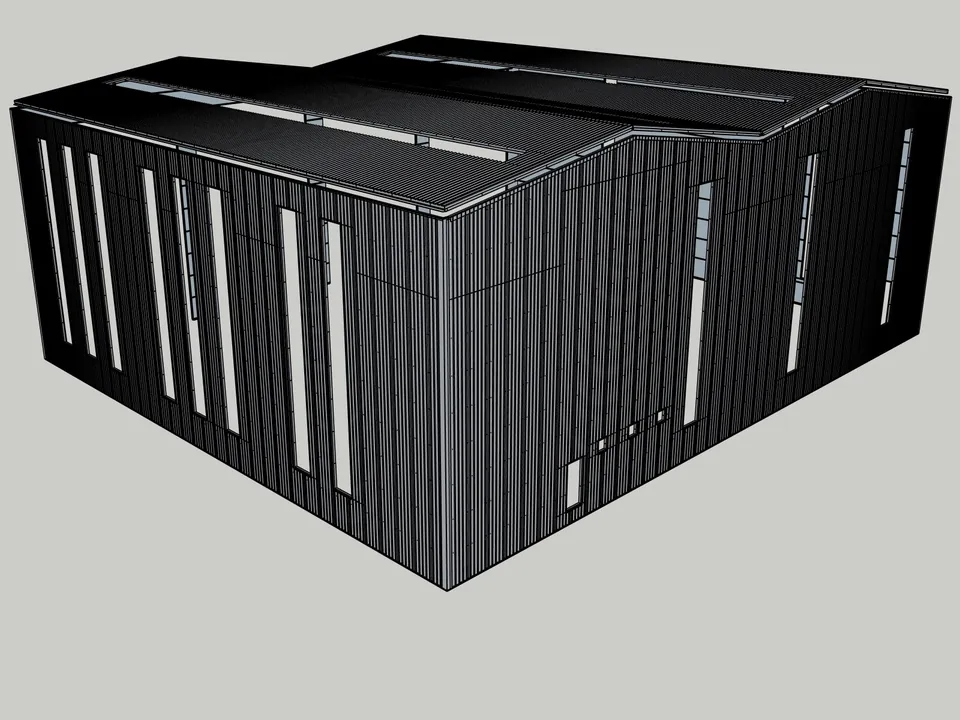
No sizing panel by panel: select the walls, get the ACM facade, take-off, CNC and drawings.
- Folded ACM cassettes + CNC DXF
- PDF / DXF shop-drawing set
- SketchUp 2021–2026
SketchUp 2021–2026v1.22.1
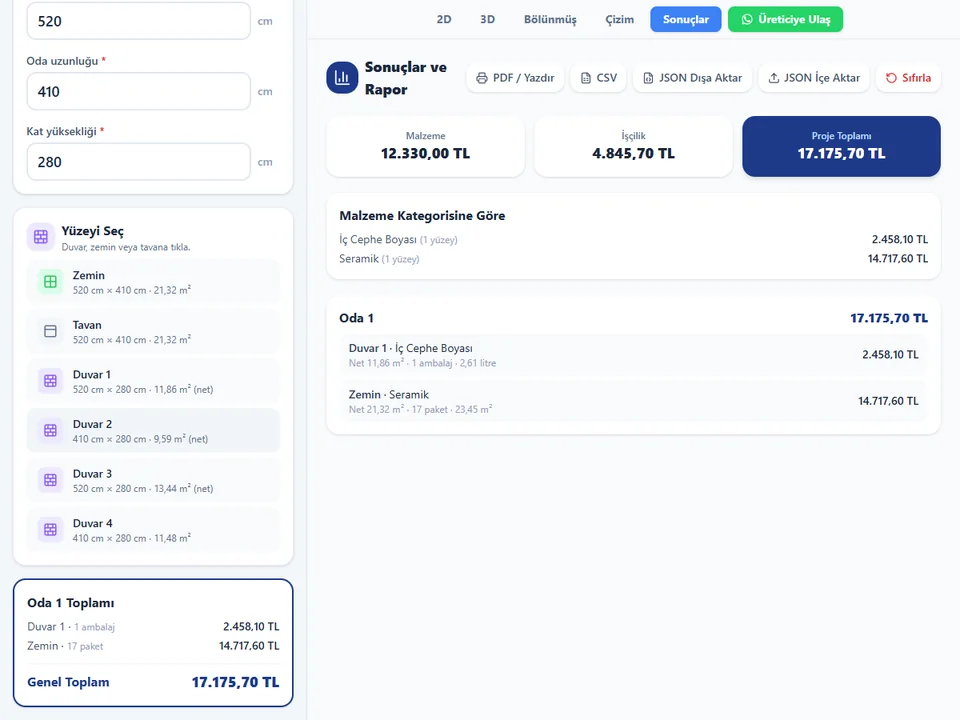
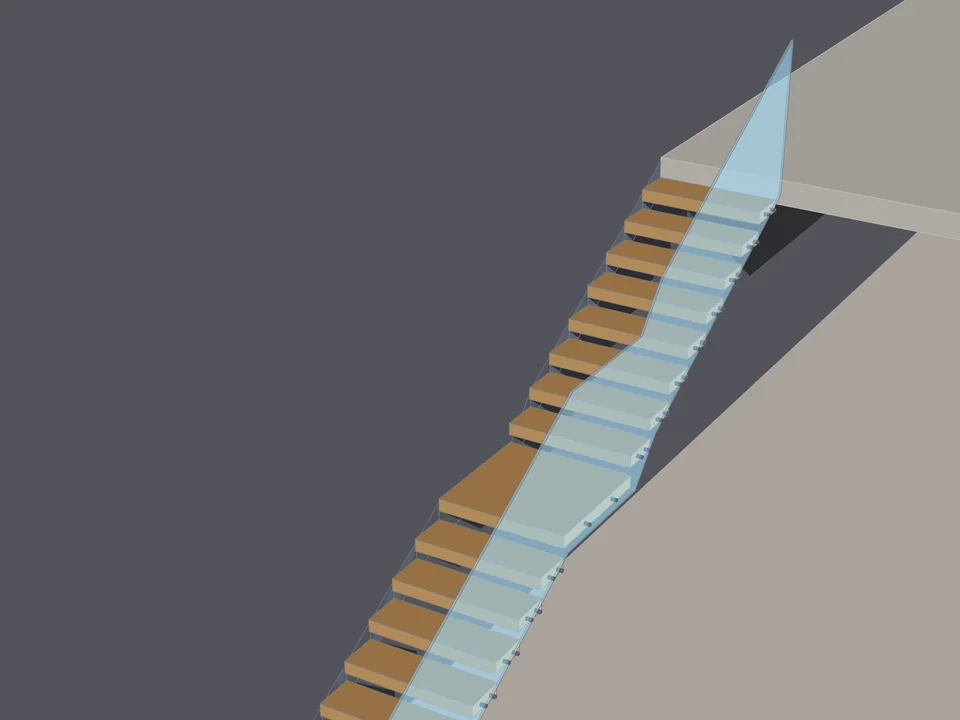
Room sizes in, materials and cost out.
FREE ProductivityMetrajMetraj
No hand maths behind the quote: room sizes in, materials and costs out.
- 11 material types
- 119 tests green
- PDF · CSV · JSON · PNG
Runs in your browser
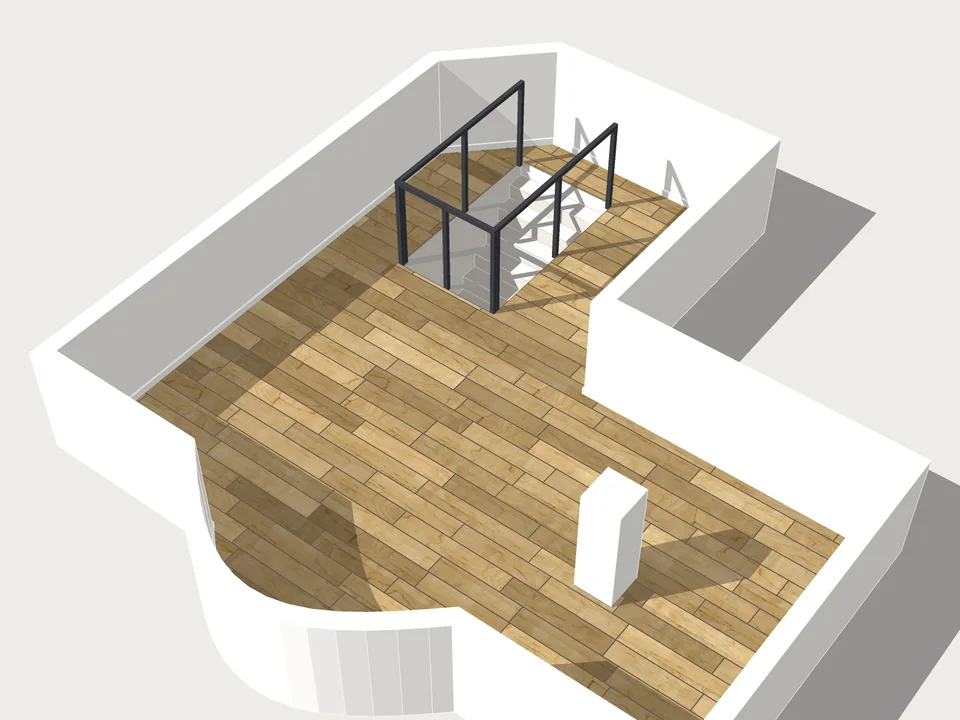
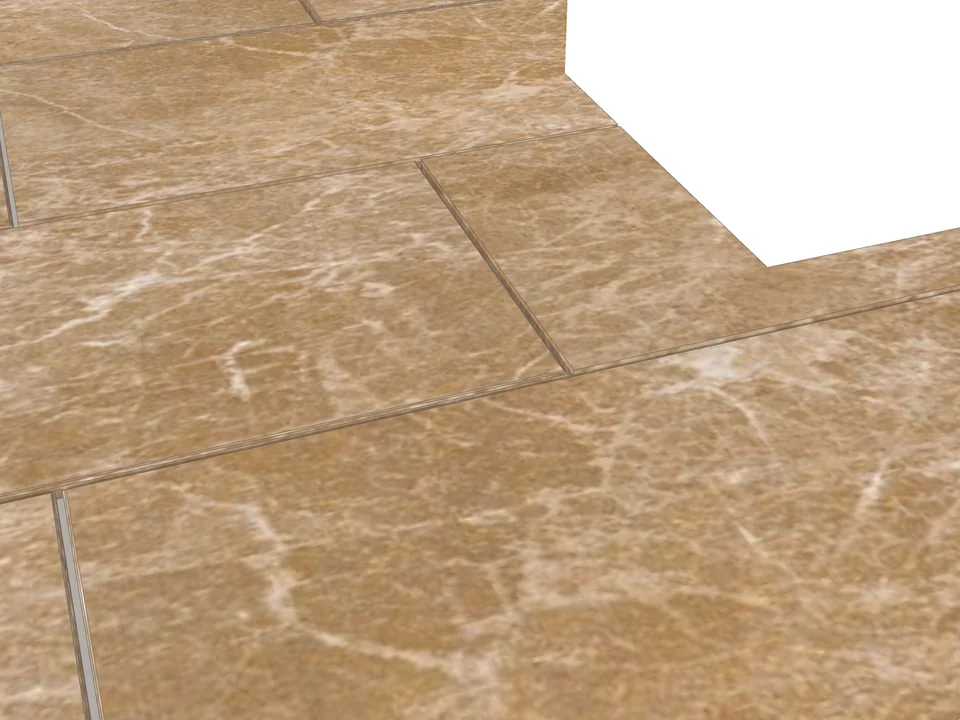
Before you download: .rbz, Extension Warehouse and version ranges
Mechanically this part is dull, which is good news. A plugin reaches you as a single .rbz file, and installing it means opening the Extension Manager, pressing Install Extension, pointing it at that file and restarting SketchUp. Extension Warehouse does the same job without the file dialog. Nothing here should require a folder path, an admin prompt or a forum thread.
The part that does bite is the version range. SketchUp extensions run on the Ruby API and that API is not identical across releases, so a range is a real constraint rather than marketing. In this catalogue alone, FloorStudio, Door Studio, RoadFlow and ArchiFlow list SketchUp 2021 through SketchUp 2026, WindowFun Studio and Dynamic Skirting list 2024 through 2026, and Universal Converter goes 2024 to 2027. If your office is standardised on 2022, that is the difference between a purchase and a disappointment. Check the range before the feature list, not after.
Where SketchUp extensions genuinely do not help
Worth saying out loud, because a store that pretends otherwise is not worth reading. Plugins are bad at anything that is one-off, sculptural, or still undecided.
- The one strange stair in the atrium that is the whole idea of the project — model it yourself
- Early massing, where the point is to stay vague on purpose
- Anything you will build exactly once and never revise
- Cleaning up an inherited model — that is a discipline problem, not a tooling problem
- A task you do twice a year: the attention it costs to relearn the panel outweighs the minutes it gives back
Sequencing SketchUp plugins: one bottleneck, not five
The failure mode is installing eight extensions in one afternoon, learning none of them, and quietly going back to Push/Pull. There is no list of the best SketchUp plugins that is true for everyone; the best one for you is whichever one kills the task you repeated most last month. So sequence it:
- Name the single task that made you sigh most often last month. Floors, doors, takeoff, context — one of them, not a shortlist.
- Check the compatibility range against the SketchUp version you actually open, not the one you keep meaning to upgrade to.
- Install one tool and use it on a live project, not a test file. Test files never get revised.
- Wait for one real revision cycle. That is where the saving either shows up or does not.
- Only then add a second. If the first one did not change how an evening goes, add nothing — fix the workflow around it instead.
- Free tools are a fair way to test the habit before the budget: CityFill is a free SketchUp plugin, Metraj is a free browser tool, and both answer the same question.
The test at the end is not whether the model appears faster. It is whether the six o'clock wall move still costs you an evening. If it costs you a slider and a re-export, the tool did its job — and you bought the only thing worth buying with software, which is the freedom to change your mind late.
The advantage is the evening itself: when floors, doors, roads and the takeoff rebuild from settings, a late change costs a slider instead of a night, and the hours go back to design. Pick the job you repeated most last month and start there; if it is walls that keep moving, begin on the ArchiFlow Studio page.