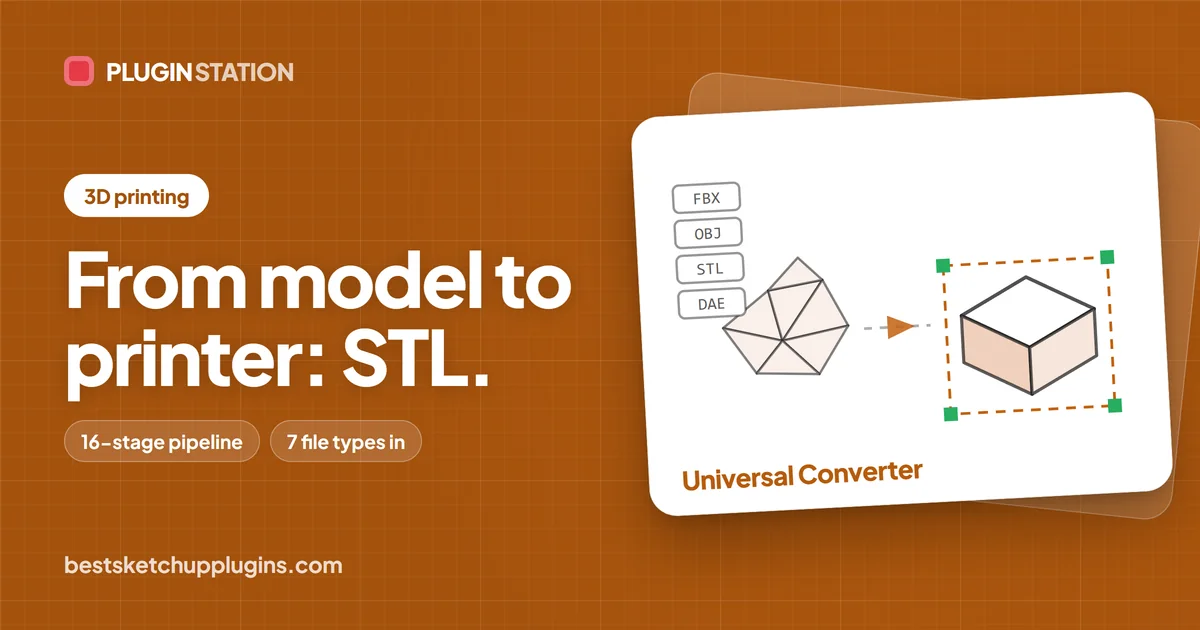
You want the object on the print bed to be the one you designed, not a shell with a missing wall. Picture lifting the finished print off the bed in one solid piece instead of finding the failure the next morning. STL describes a shape as nothing but triangles: no materials, no components, no units stored in the file. That simplicity is why every slicer reads it, and why a model has to be prepared properly before it goes out as STL.
Install the SketchUp STL extension
STL support comes from SketchUp STL, a free extension published by the SketchUp team. Install it from Extensions > Extension Warehouse (search "SketchUp STL") and restart SketchUp. It adds STL to the import and export options; the official help page "Importing and Exporting STL Files for 3D Printing" walks through the dialogs. If it installs and nothing appears, how to install SketchUp plugins covers the usual causes.
Export a model that actually prints
- Make it a solid. Group the part; SketchUp's Entity Info says "Solid Group" when every edge is shared by exactly two faces. A printer needs a closed, watertight volume.
- Fix reversed faces. The white front faces must point outwards; right-click > Reverse Faces where the blue-grey back shows.
- Check the units in the export dialog. STL stores numbers without units, so a 50 mm part exported in metres arrives 1000 times too small.
- Give thin parts real thickness. A wall of zero thickness cannot be printed, and a very thin one may not survive the slicer.
- Export the part, not the scene: select the group you want to print before exporting.
Import an STL, and clean it up
File > Import and choose the .stl file. What arrives is a mesh: every curved surface is hundreds of small triangles, and edges show everywhere. Soften the edges (the Soften Edges panel in the Default Tray) to make it readable, and set the import units to match the file's author, or the model arrives at the wrong size.
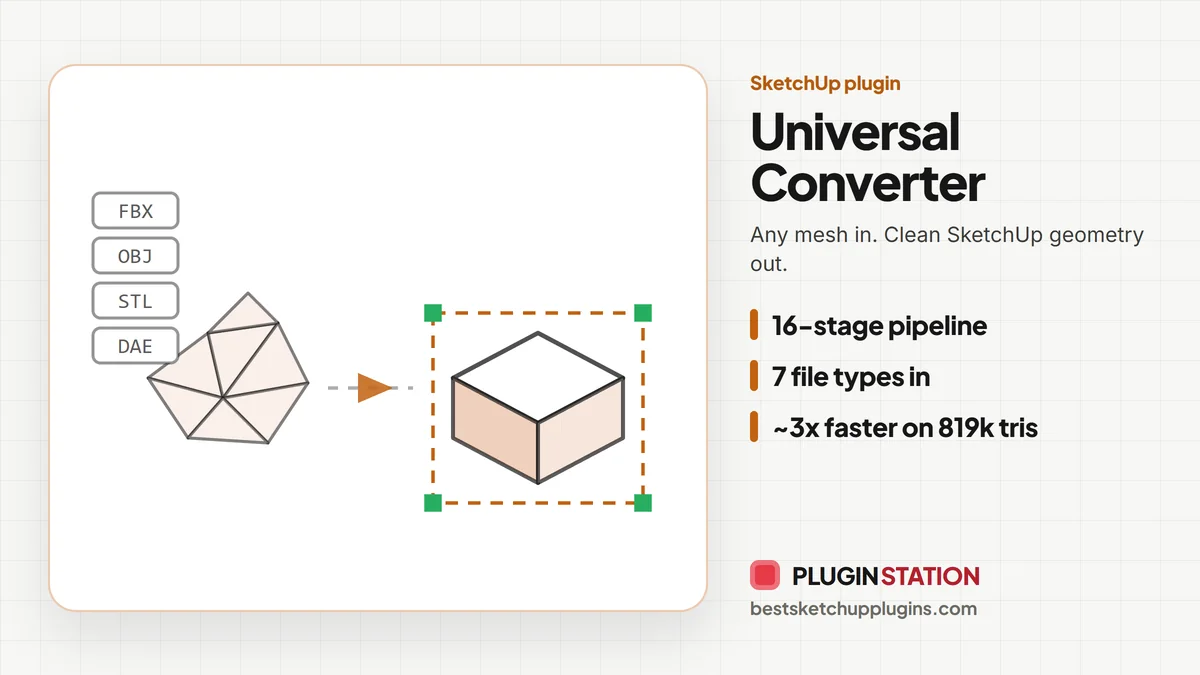
STL is rarely the only mesh format you receive. Clients send FBX, OBJ, DAE, 3DS and glTF too, often with duplicate faces, flipped normals and forty materials. Universal Converter brings FBX, OBJ, 3DS, DAE, STL and glTF/GLB into SketchUp through the same 16-stage pipeline: vertex weld, duplicate and degenerate face cleanup, simplification, normal recompute, smoothing, material consolidation and component building, with a 3D preview and a batch queue for whole folders. SketchUp 2024 and later.

Any mesh in, clean SketchUp geometry out.
Productivity$40*Universal ConverterUniversal Converter
No hours of clean-up: any mesh in, clean SketchUp geometry out.
- 16-stage pipeline
- 7 file types in
- ~3x faster on 819k tris
SketchUp 2024–2027v1.17.0
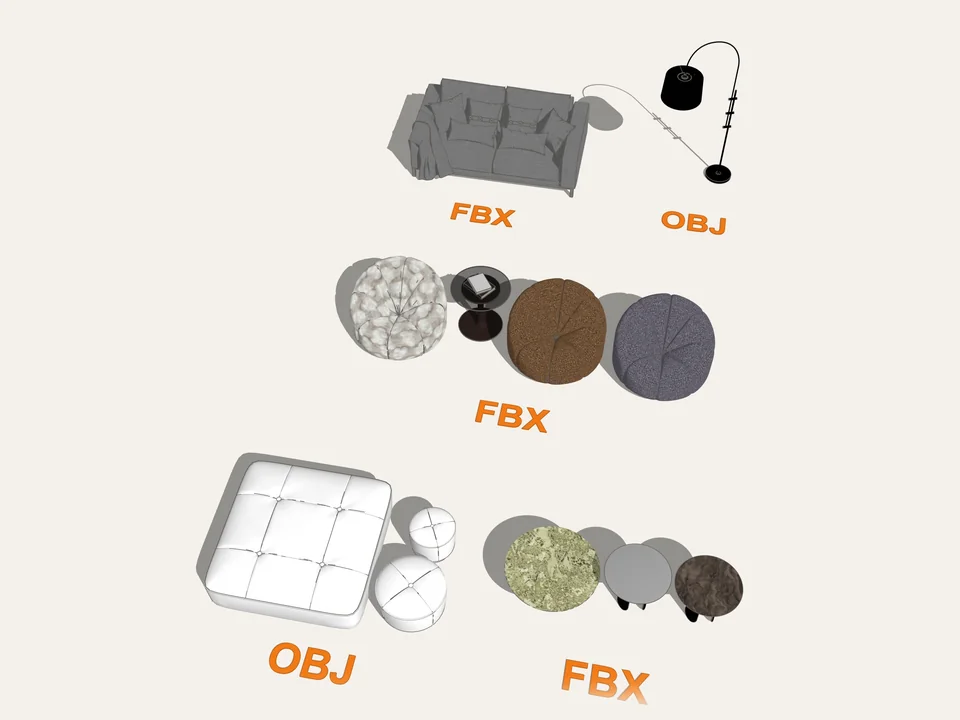
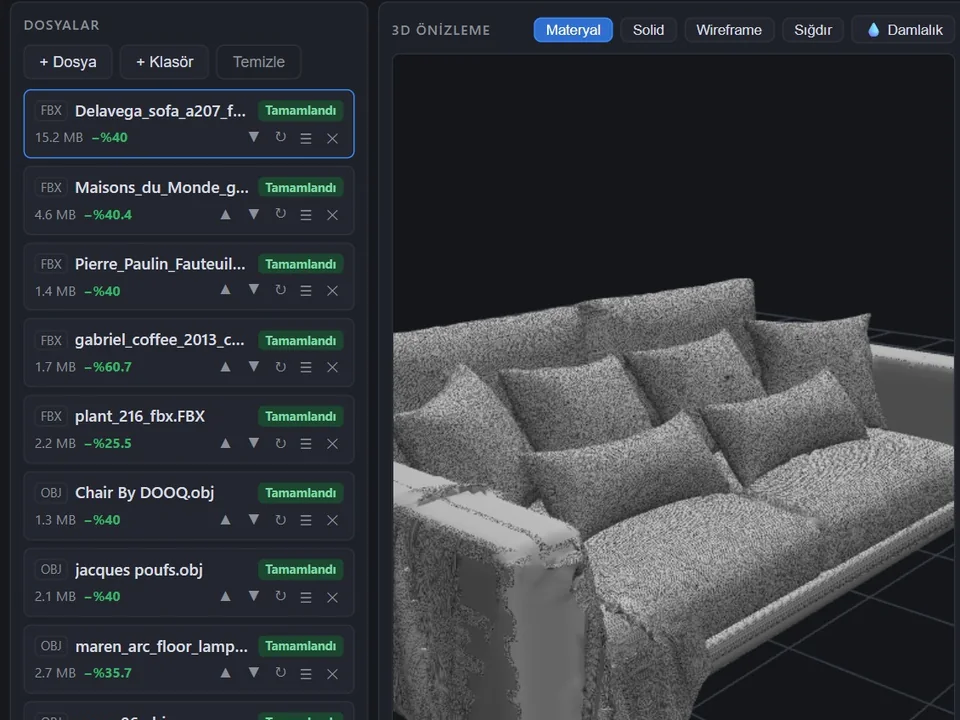
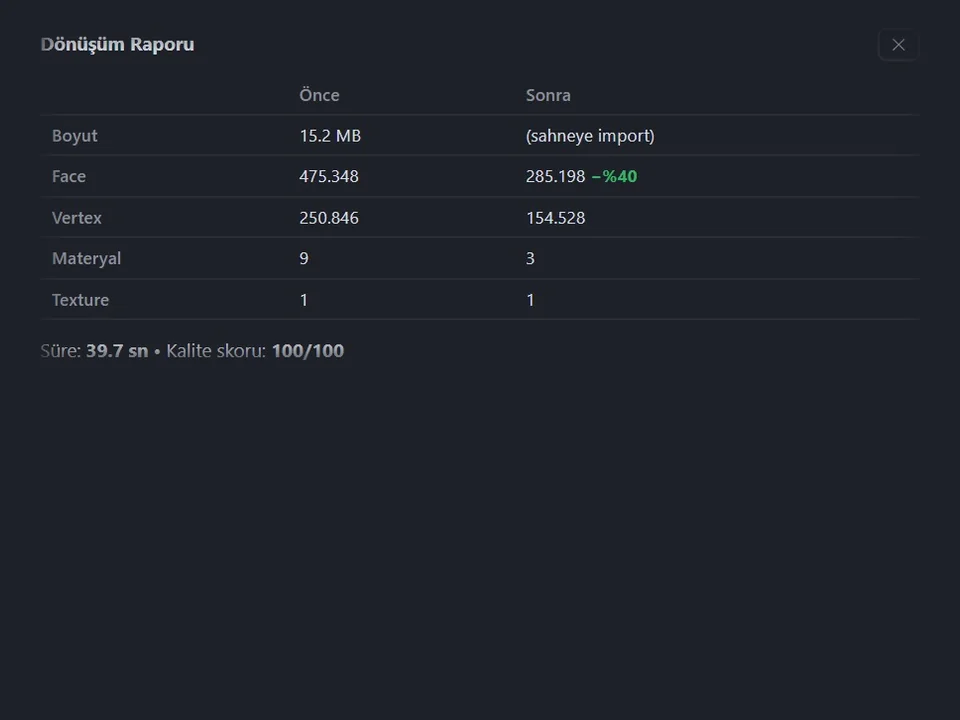
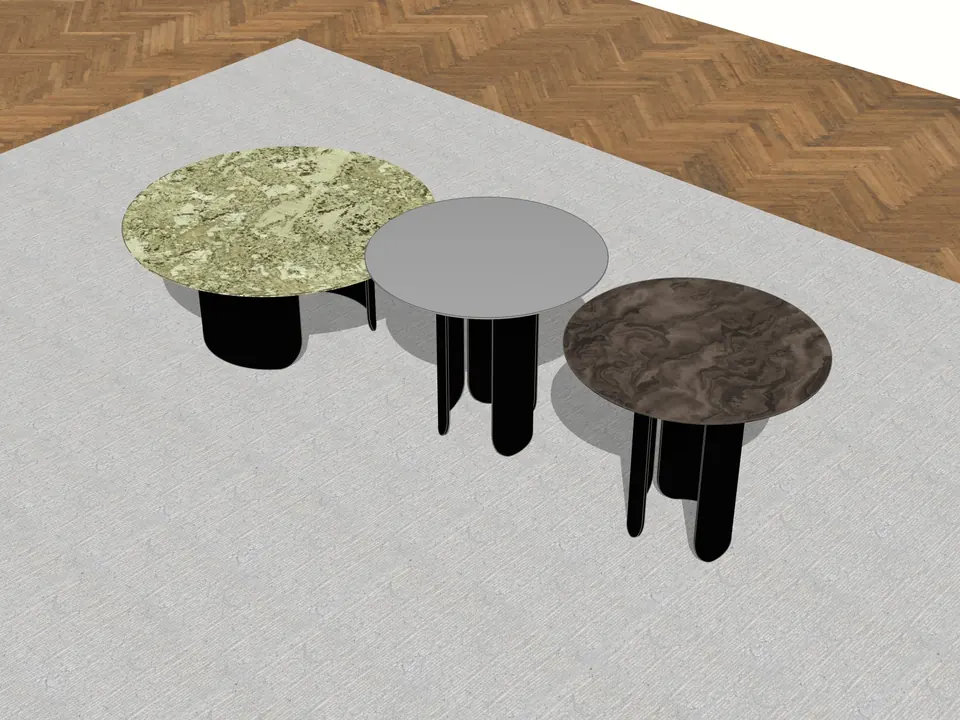
The advantage is a file that prints the first time, and a mesh you can still work with when one comes back. When clients send FBX, OBJ, 3DS, DAE or glTF as well, Universal Converter cleans them on the way in; open its page to see the preview it shows before anything lands in your model.